


“Web application development has come a long way in a fairly short period of time.” A quote like that surely won’t send anyone into shock anytime soon because it’s accepted as fact.
From basic, static HTML pages to totally data-driven and data-centric Web applications, the demands on a Web developer are much more complex and demanding than they were just a few years ago. The advent of social networking sites like MySpace, which is written in ASP.NET 2.0, interactive mapping sites, and sites streaming full motion video has required the Web developer to adapt and change with the times. One of the best tools to use to build these types of Web applications is Microsoft’s ASP.NET 2.0. In this article I am going to delve into some of the more interesting features of ASP.NET 2.0 and show you how you can begin using ASP.NET 2.0 on your next Web project.
ASP.NET 2.0 offers features that every ASP.NET developer will find useful, including:
- Multiple project types
- A wide variety of Web controls
- Project folders to help organize files
- Enhanced code-behind model
- Master pages and themes
- Site navigation features
- Enhanced data access features
- Membership and personalization
- Portal architecture including Web parts
- Site administration tools
In this article I’ll take a detailed look at a number of these features including Visual Studio 2005 enhancements, the code-behind model, the Web controls, the master pages feature, the themes and skins feature, and the site navigation features.
Creating a Web Site
With the release of Visual Studio 2005 SP1, Microsoft offers Web site developers a choice between two different project types: the Web Site and the Web Application. The Web Site project really is not a project at all since Visual Studio 2005 solution and project files are not created. In the Web Site model all pages and code are stored in a directory, much like the traditional ASP model. When it comes to deployment, the easiest approach is to copy all of your files to your Web server and everything compiles on demand. You could also use the aspnet_compiler.exe utility to precompile your site into a binary file and deploy to your Web site.
The Web Application project is an implementation of the type of Web project available in Visual Studio 2003 and consists of a solution (.sln) and project files (.vbproj). It is the result of Microsoft listening to the ASP.NET 2.0 developer community and responding to the needs of the community. It provides the benefit of generating a single assembly in the local /bin folder ready for deployment. This model also makes it easier to incrementally deploy changes made to your site. If you are converting a Web application from Visual Studio 2003, this is the project model you are going to want to adopt. I use this model with most of the Web applications I develop.
To create a Web site with the Web Application project model, launch Visual Studio 2005 and from the File menu option choose New Project… and the New Project dialog box will appear (Figure 1). Choose ASP.NET Web Application, the name of the project, the location, and the name of the solution if you select to have one created or specify if you want the new project added to the current solution. Click OK and Visual Studio will create the solution (.sln), the project (.vbproj since I selected Visual Basic), a default.aspx page, and a Web.config file.

To create a Web site with the Web Site project model, launch Visual Studio 2005 and from the File menu option choose New Web Site and the New Web Site dialog box will appear (Figure 2). Choose ASP.NET Web Site, the location of the Web site, the language used, and lastly, the name of the Web site.
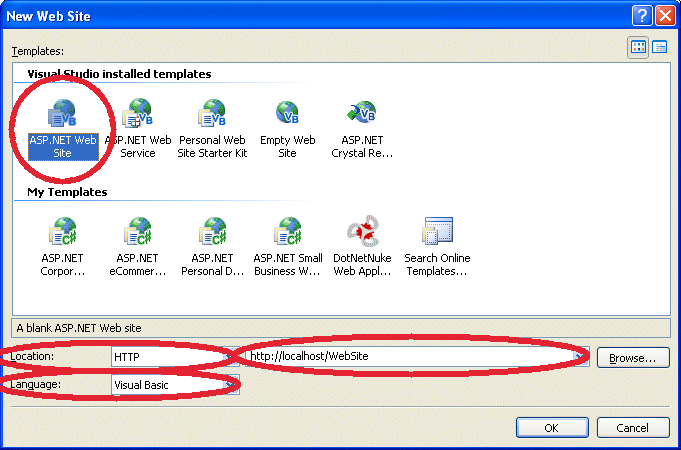
I don’t need to explain the name of the Web site and the language you want to use but I’ll discuss other options. The location dropdown offers three options: File System, HTTP, and FTP. Creating a File System Web site is the simplest approach because your Web site can reside in any directory on your hard drive or shared network drive. The advantage of a File System Web site is that you can run it using Visual Studio 2005’s built in development Web server. You don’t need IIS though you can use IIS to run a File System Web site by creating a virtual directory for the directory you are storing the Web site in.
The second option, choosing HTTP as the location, will direct Visual Studio 2005 to automatically create a Web site in an IIS virtual directory. This saves you the step of creating the virtual directory in IIS but obviously you need to have access to an IIS server.
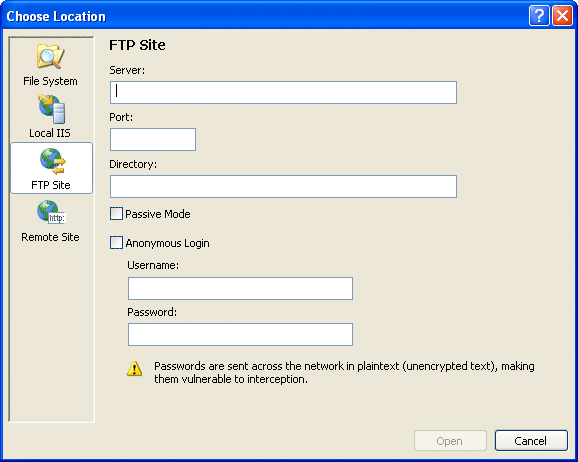
Choosing FTP as the location allows you to actually store and even code your application on a remote Web server somewhere. If you’ve selected this option, click the Browse button to display the Choose Location dialog box and then select a directory, an IIS virtual directory, and then enter the FTP parameters required to log on to an FTP location (Figure 3).
Once you have decided on the name, location, and language for your new Web site, click OK to create the site. Visual Studio will create a Default.aspx page, Web.config file, and an App_Data folder. One primary difference between the Web Site project model and the Web Application project model is that in the Web Site model settings are stored in a Web.config file as opposed to project file.
Controls, Partial Classes, and Smart Tags
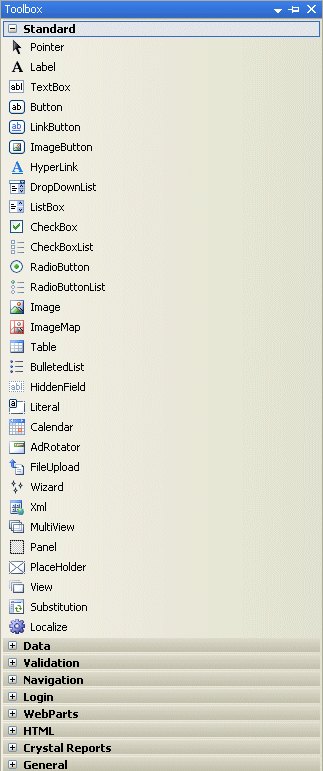
To add controls to a page you can drag and drop them from the Toolbox (Design mode) or you can manually edit the HTML (Source mode). The Design and Source tabs along the bottom of the page designer are used to jump back and forth between the two modes. The ASP.NET 2.0 Toolbox has new controls since ASP.NET 1.0/1.1 and existing controls have been better categorized (Figure 4).
To add items to the Web site, right-click on the Web site name and select Add New Item from the shortcut menu. You can see in the Add New Item dialog box (Figure 5) the type of things that you can add to your Web site. Note the “Place code in separate file” check box on the Add New Item dialog box. It represents the code-behind model implemented in ASP.NET 2.0.
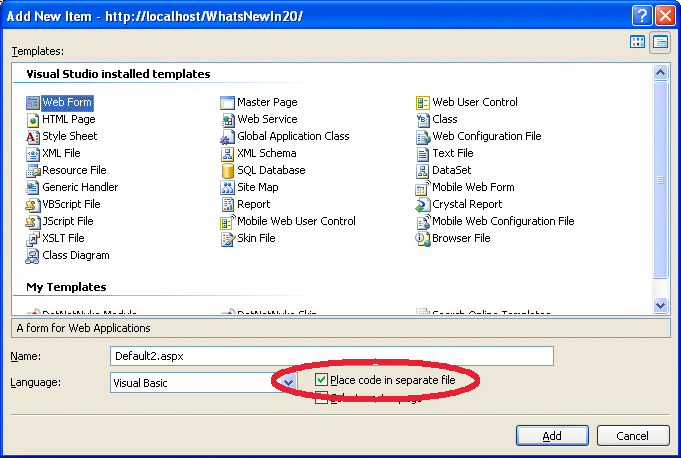
The code-behind model uses a feature in the .NET Framework 2.0 called partial classes. Partial classes are classes defined in two or more source files and combined at compilation time to create a single class. Prior to ASP.NET 2.0, control declarations were stored in the Form Designer-generated section of code-behind files. ASP.NET 2.0 stores the control declarations in a separate file from the file where you create your own code-behind classes. To make sure that the control declarations do not get out of sync, the declarations for the Web controls are not generated by Visual Studio 2005 at design time but are created by the ASP.NET runtime during compilation.
Throughout this article I’ll make references to smart tags, which you can think of as a list of the most commonly used properties or tasks for a control. You access the smart tags for a control by clicking the glyph (small black triangle) in the upper right-hand corner of the control.
System-Defined Folders
Table 1 illustrates some special system-defined folders.
You store all of your non-page classes such as utility classes, business objects, or any other classes you may have created in the App_Code folder. To add an App_Code folder to your project, right-click on the project name and select Add ASP.NET Folder and then select App_Code. ASP.NET monitors the folder and whenever you change a class in the App_Code folder, ASP.NET will dynamically recompile it and automatically make it available to the entire site. You can even place classes coded in different languages in subdirectories under the App_Code directory. Each subdirectory needs to be registered with a particular language in Web.config.
The App_Data folder makes database integration easy. The App_Data folder holds file-based data stores including SQL Server Express 2005 database files (.mdf files), Access database files (.mdb files), Excel worksheets, XML files, and so on. The primary advantage of using App_Data is that files placed there are not downloadable if a request is made for the file over the wire.
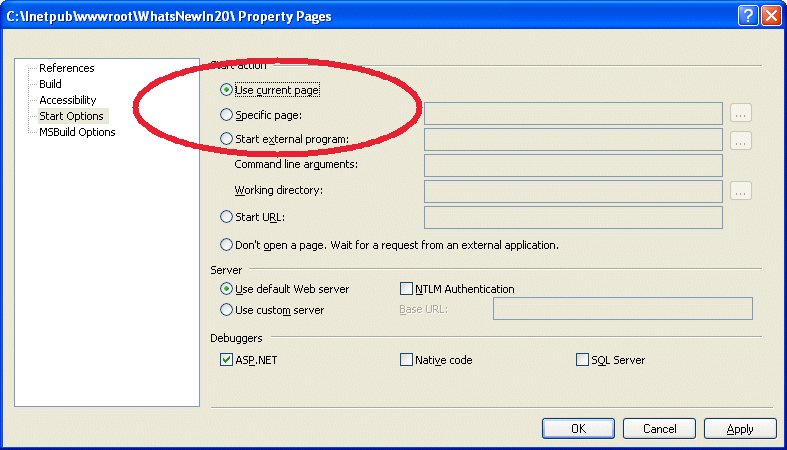
ASP.NET’s compilation model offers a number of benefits including the ability to run the current form each time you run the site. A project’s Start Options, available on the project’s Property Pages dialog box, specifies, among other options, the ability to launch the current page or a specific page each time the site is launched (Figure 6). See the article by Rick Strahl referred to in the sidebar, Compilation and Deployment.
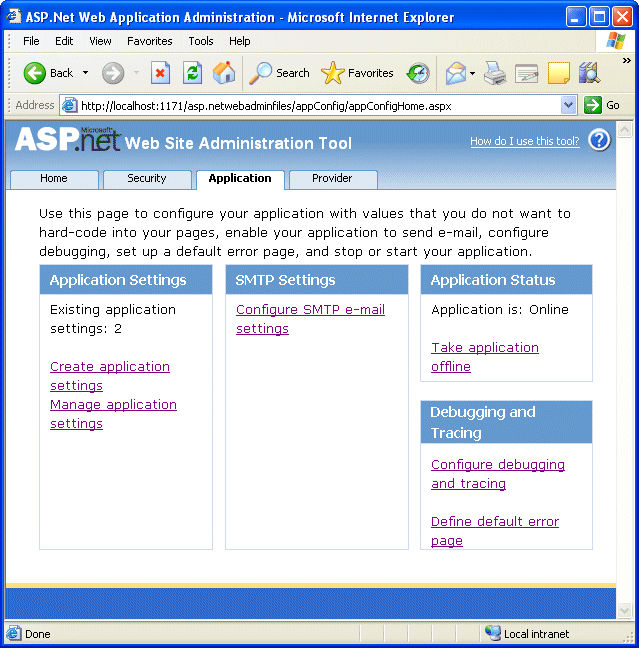
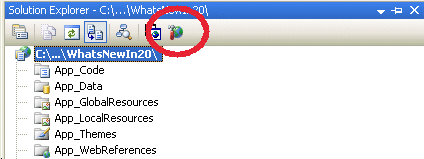
The ASP.NET Web Site Administration Tool page (Figure 7) makes it fairly easy to administer your Web site. You can launch it by selecting the ASP.NET Administration icon on the top of the Solution Explorer (Figure 8). You can manage all aspects of your site with this tool including security, application settings, and providers. The security features include being able to add and delete users, assign folder permissions, add and delete user roles, and assign users to specific roles. The application settings include being able to add and remove application variables, configure e-mail settings, take the site offline, configure the debugging and tracing options, and specify which page to use as the default error.
ASP.NET 2.0 Web Controls
I’d like to now spend a little time discussing some of the important Web controls in ASP.NET 2.0, including the BulletedList, HiddenField, Multiview, Wizard, and ImageMap controls.
BulletedList Control
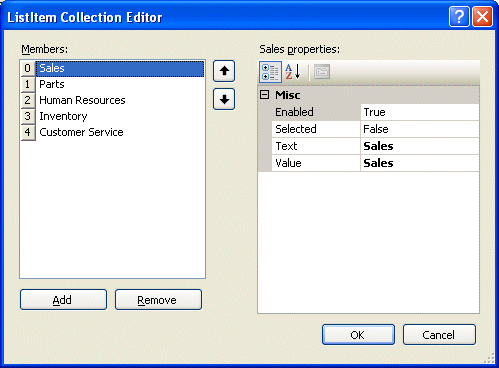
The BulletedList control provides a quick and easy way to develop both bulleted and numbered lists. You can manually enter a list (Figure 9) or you can use data binding to populate the items in the list. The BulletStyle property offers a number of options for bulleted and numbered lists.
HiddenField Control
Storing data in hidden fields on a page is nothing new and is in fact a very common technique to save state data across posts back to the server. ASP.NET 2.0’s HiddenField control provides the ability to create a hidden field on a page and use it to store data to be sent back to the server on a post back.
FileUpload Control
Many Web sites provide the ability for users to upload files. For example, an employment recruiting firm may allow people to upload their resume or a printing company might allow customers to upload their print jobs. Microsoft’s ASP.NET team designed the FileUpload control to make this an easy feature to add to your site. The FileUpload control is comprised of a textbox to allow the user to type the file information and a Browse button that allows the user to go search for the file. To get the file uploaded you must add a separate button that results in a postback and executes the code to upload the file (Listing 1). In this code, the FilePath variable is going to contain where the file will be uploaded to. If there is a value in the textbox portion of the FileUpload control, indicated by the HasFile property, then the file name is combined with the file upload path. Next, the SaveAs method for the control is executed thereby actually uploading the file.
MultiView and Wizard Controls
The MultiView and Wizard controls both allow you to create multiple sections of controls on the same page. The Wizard control has features built in to facilitate its operation such as built-in Next and Prev buttons. With the Multiview control the responsibility to add and code the navigation falls to you.
MultiView
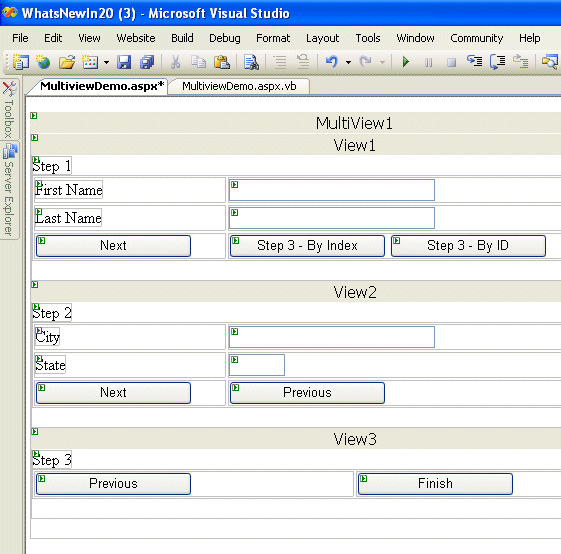
As the name implies, a MultiView control is a container control hosting a number of View controls. Each View control is an independent section which in turn hosts its own controls (Figure 10). Use MulitView controls to replace multiple forms related to a specific function, such as you’d find in an online shopping cart. Instead of having multiple forms for each action in a shopping cart, you could use a single MultiView control and simply control which views a page displays at specific times. The ActiveViewIndex property holds the index of the currently active view. Assigning ActiveViewIndex to 0 displays the first view in the control. Programmatically assigning a value to the ActiveViewIndex property, or calling the SetActiveView method and passing a view object reference, is one technique for displaying a specific View control.
Me.MultiView1.ActiveViewIndex = 1
Me.MultiView1.SetActiveView(Me.MultiView1.
                                         Views(1))
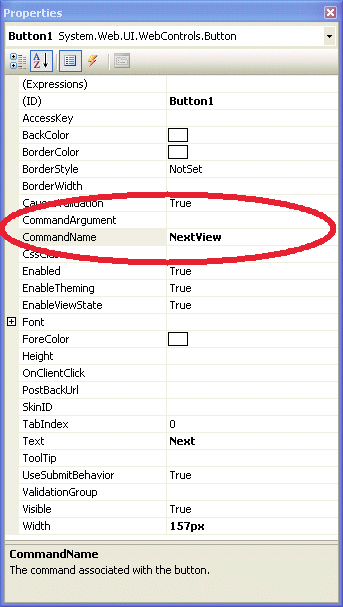
You can also specify which view to display using a technique that doesn’t require writing any code at all. For example, you can add a CommandButton and set its CommandName property to NextView or PrevView thereby causing the MultiView control to automatically switch views when a user clicks the button (Figure 11). If you prefer jumping to a specific view instead of moving forward or backward one view at a time, you can set the CommandButton’s CommandName property to SwitchViewByIndex and its CommandAgrument property to the index of the view to switch to. To switch to a view by its ID instead of index position you can set the CommandButton’s CommandName property to SwitchViewByID and its CommandArguement property to the ID of the view.
The ViewState for a page with a MultiView control automatically stores the data for all of the controls for each view. Since all the controls are on the same page, accessing properties and methods for a control in a view is no different than accessing properties and methods for a control not contained in a view.
Wizard
The Wizard control works much like the MultiView control in that they both contain sections to place controls in. While the sections in a MultiView control are views, the sections in a Wizard control are called steps. These steps are stored in the WizardSteps collection. The primary difference between the two controls is that the Wizard control can display links to all of the steps in a sidebar on the left-hand side of the control (Figure 12). The DisplaySideBar property controls the display of the sidebar.
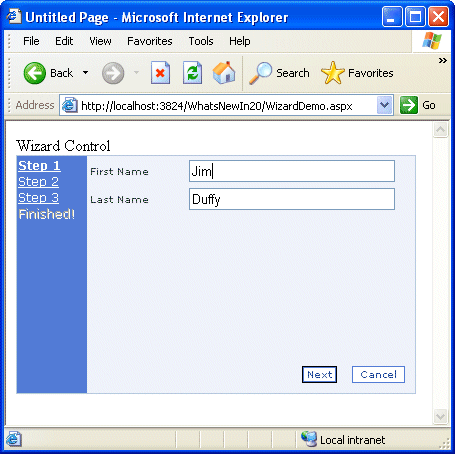
You can add or remove steps from a wizard control by selecting the Add/Remove WizardSteps option from the smart tag Wizard Tasks menu.
Each step is configured to be of a certain type. The StepType attribute determines how the step behaves and which buttons appear on the step (Table 2).
Based on the value of a step’s StepType property, the built-in Next, Previous, Finish, and Cancel buttons control all the page-by-page navigation tasks automatically. Setting the DisplayCancelButton property to True causes the Cancel button to be displayed. Clicking the Cancel button causes the CancelButtonClick event to fire. You can set the value in the ActiveStepIndex property to manually select the active step. You can code event handlers for a number of Wizard events such as ActiveStepChanged, NextButtonClick, PreviousButtonClick, and SidebarButtonClick.
ImageMap Control
HTML has supported imagemaps for what seems like hundreds of years and ASP.NET 2.0 supports them in the form of the ImageMap control. Just in case you’re unaware of what an imagemap is and how it works, imagemaps contain clickable regions called hotspots. A developer can configure each hotspot to respond when clicked on by a user. ASP.NET 2.0’s ImageMap control supports three different types of hotspot objects: CircleHotSpot, RectangleHotSpot, and PolygonHotSpot. Unfortunately Visual Studio 2005 does not provide an editor to easily define hot spot x,y coordinates, so you need to use an external graphics program.
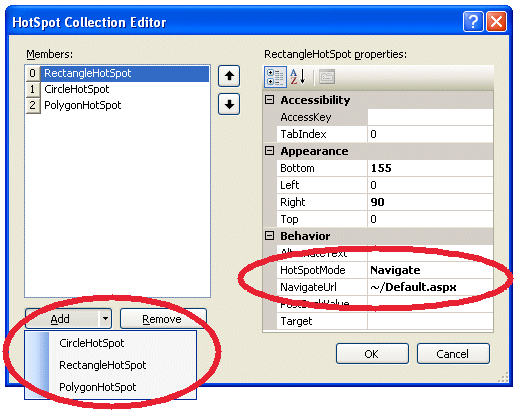
You use the ImageURL property to determine the image to display in the control. You add hotspots by clicking ellipsis button for the HotSpots collection and launching the HotSpot Collection Editor (Figure 13). Select the type of hotspot from the Add button dropdown and click Add. You use a single set of x and y coordinates to define Rectangle and Circle hotspots while you must use a string of x and y coordinates to define polygon hotspots. The HotSpotMode property specifies the behavior for the hotspot. The Postback setting causes a postback to occur and the Navigate setting causes a redirect to the page specified in the NavigateURL property.
Master Pages
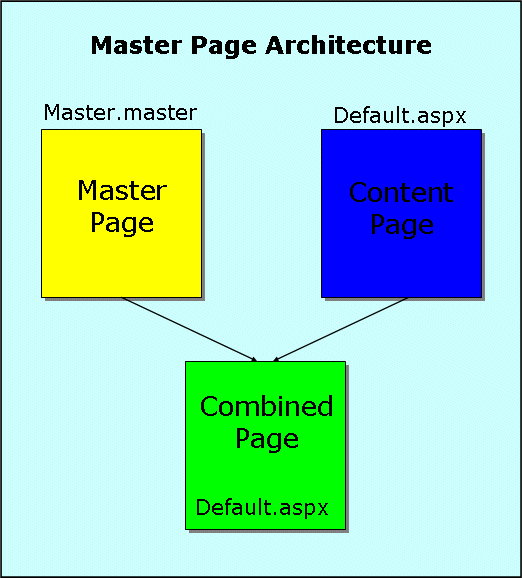
Master pages provide the ability to define page templates for other pages to be based on. In effect-visual Web page inheritance. Pages based on a master page, referred to as a content page, do not technically inherit the master page settings. ASP.NET combines the master page and the content page to form the resulting page (Figure 14). The power lies in the fact that visual and program code changes made to the master page are immediately reflected in the content pages based on the revised master. Web site projects can contain more than one master page and you can embed a master page within another master page.
A complete master page contains HTML, optional ASP.NET Web controls, optional user controls, and one or more required ContentPlaceHolder controls. A ContentPlaceHolder control is a special ASP.NET Web container control (<asp:contentplaceholder>) responsible for containing the controls placed on a content Web page. You will find the ContentPlaceHolder control in the Standard section of the Toolbox and you can place one or more ContentPlaceHolder controls on a master page. All content on a content form is restricted to one of the ContentPlaceHolder controls defined on the content page’s master page. The master page content on a content page is grayed out and is not revisable from within the content page. The only live areas available in the designer are the ContentPlaceHolder controls defined in the master page.
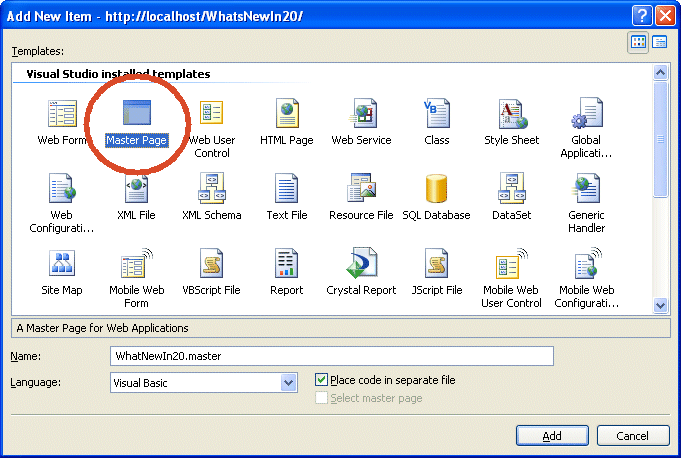
To create a master page you simply create a new page of type master page (Figure 15). Looking at the HTML source for the master page reveals the @Master directive. The @Master directive defines the master page and the ASP.NET page parser uses its attributes to create/compile the page.
<%@ Master Language="VB"
CodeFile="CoDeASPNET20.master.vb"
Inherits="CoDeASPNET20" %>
The attributes for the @Master should look familiar. You typically see these same attributes on the @Page directive.
Just because creating the master page is easy that doesn’t mean getting to the final layout is. This is where the talented graphics people come in handy. Unfortunately for this article you’re stuck with my graphics skills. In Figure 16 and Listing 2 you can see that I added a table for layout, set some background colors, added my company’s logo, and some text to complete my master page. You should note the key item in the HTML code-the bolded <asp:contentplaceholder>.
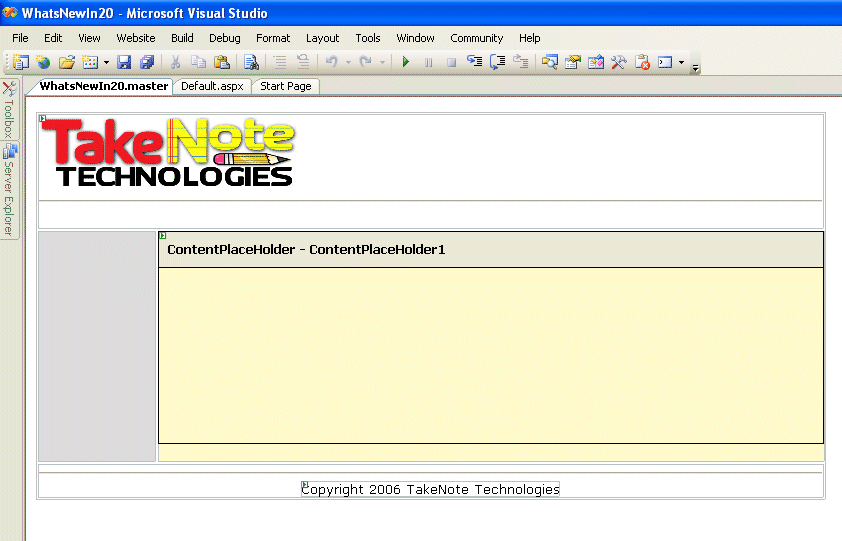
I only have one ContentPlaceHolder on my master page at the moment. I could have added more but one will do for now. With the master page created it’s time to move on to creating the content Web Forms based on my master page.
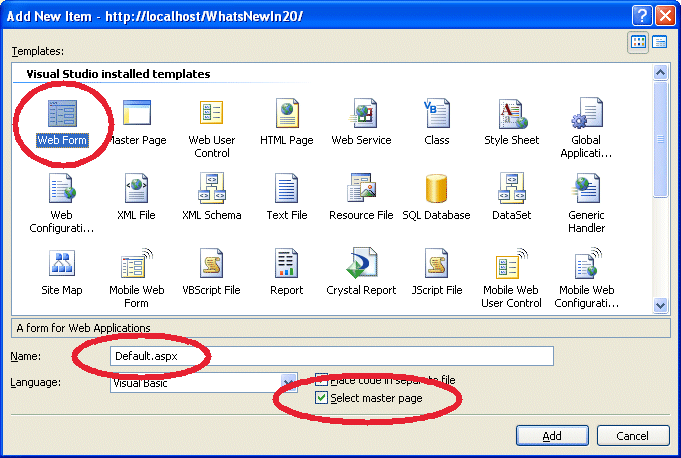
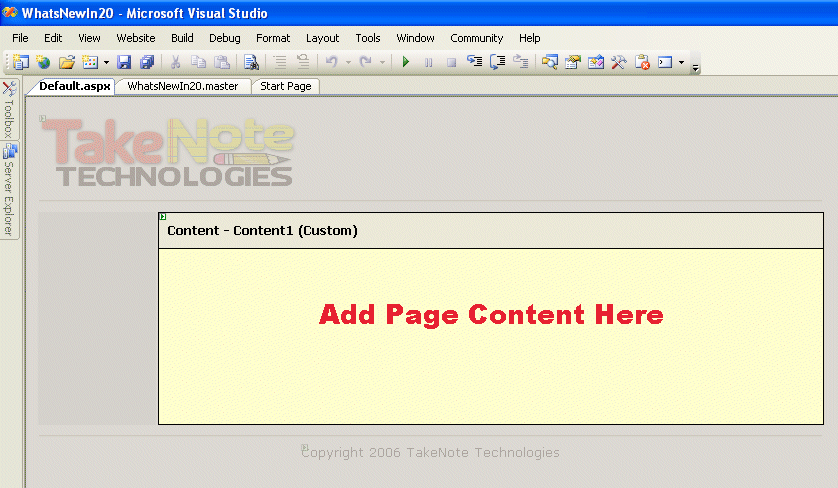
To create a content page based on a master page you can simply click a checkbox and select the master page to use. I deleted the Default.aspx created when I created the project since I want to use Default.aspx as the name of my first content page. Go ahead and add a new Web Form by right-clicking on the project name to display the shortcut menu and select Add New Item. Select Web Form from the list of installed templates, enter the name of the form, Default.aspx in this case, and check the Select master page checkbox (Figure 17). Click Add to display the Select a Master Page dialog box, which lets you select the master page to use with the new content page. The new content page will display and the content inherited from the master page will appear grayed-out and disabled (Figure 18). Click on the Source tab on the bottom of the design surface to reveal the HTML source for the page.
<%@ Page Language="VB"
MasterPageFile="~/CoDeASPNET20.master"
AutoEventWireup="false" CodeFile="Default.aspx.vb"
Inherits="_Default" title="Untitled Page" %>
<asp:Content ID="Content1"
ContentPlaceHolderID="ContentPlaceHolder1"
Runat="Server">
</asp:Content>
The MasterPageFile attribute on the @Page directive signifies which master page the current page works with. As you can see, there isn’t much there. Key elements are the MasterPageFile argument in the @Page reference and the <asp:Content> control. The <asp:Content> controls define where to display content for the page and are directly tied to the specific ContentPlaceHolder control on the master page through the ContentPlaceHolderID property.
You can add content to a <asp:Content> control by dragging and dropping controls into the control or manually via HTML coding. Launch the project to see how the master page will look when it renders.
Now that the fundamentals regarding how things look are out of the way, let me tackle a few coding issues you may run into. For example, master pages support the same events that a regular page supports, which means you can add code to the event handler for the Load event on the master page. Yes, you can add code to the same event handler in the master as well as the content page. Which code runs? The answer is both.
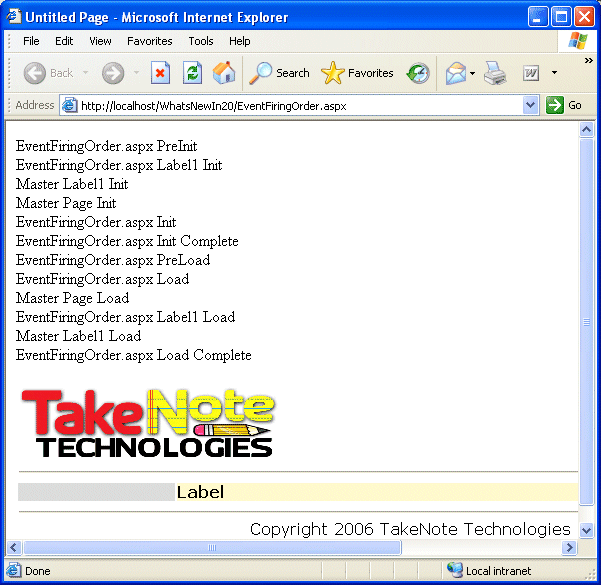
Event firing order becomes critically important when you add event handling code to master pages and the content forms based on them. The following events occur when ASP.NET renders a page. I’ve listed these events in the order in which they occur.
- Content Page Pre Initializes
- Master Page Child Controls Initialize
- Content Page Child Controls Initialize
- Master Page Initializes
- Content Page Initializes
- Content Page Initialize Complete
- Content Page Pre Loads
- Content Page Loads
- Master Page Loads
- Master Page Child Controls Load
- Content Page Child Controls Load
- Content Page Load Complete
In my example for this article I created the EventFiringOrder.aspx form containing a single label to help demonstrate when events occur. I added code to the appropriate event handlers in both the CoDeASPNET20 master page (Listing 3) and the EventFiringOrder.aspx content page (Listing 4). When you launch the form you can see the order in which the events occurred (Figure 19).
Another issue related to working with master pages is: How do you programmatically access controls located on the master page from within a content page? The Master object provides a reference to the master page and is used to access master page attributes. Suppose you want to manipulate the value displayed in a textbox located on the master from within the content page. One approach would be to use the FindControls method on the Master object to locate a reference to the textbox.
Protected Sub Page_LoadComplete(ByVal sender As
Object, _
    ByVal e As System.EventArgs) _
    Handles Me.LoadComplete

  Response.Write("EventFiringOrder.aspx Load
Complete<br>")

  Me.Label1.Text = _
    CType(Master.FindControl("Textbox1"),
TextBox).Text
End Sub
While this approach works, it is late bound, meaning that you don’t get IntelliSense assistance and it is not strongly typed. Alternatively you can create a property on the master page referencing the textbox and access that property from within the content page.
Partial Class WhatsNewIn20
    Inherits System.Web.UI.MasterPage

    Public Property DateTextBox() As TextBox
        Get
            Return TextBox1
        End Get
        Set(ByVal value As TextBox)
            TextBox1 = value
        End Set
    End Property
In order to reference properties on the master page from the content page, you need to add the @MasterType directive to the content page.
<%@ Page Language="VB"
        MasterPageFile="~/WhatsNewIn20.master"
        AutoEventWireup="false"
        CodeFile="EventFiringOrder.aspx.vb"
        Inherits="EventFiringOrder"
title ="Untitled Page" %>

<%@ MasterType VirtualPath="~/WhatsNewIn20.master"
%>
To access the public properties on the master page from the content page you just use the Master object and reference the property like you would with any other property exposed by the Master object.
Protected Sub Page_LoadComplete(ByVal sender As
Object, _
    ByVal e As System.EventArgs) _
    Handles Me.LoadComplete

  Response.Write("EventFiringOrder.aspx Load
Complete<br>")

  Me.Label1.Text = Master.DateTextBox.Text
End Sub
So how do you specify the master page to use at run time? You can change the MasterPageFile attribute of the @Page directive at design time to specify which master page to use. That is great at design time but what if based on some criteria only available at run time you want to specify which master page to use? Knowing the content page events and their firing order comes into play here. The content page’s PreInit is the first event to fire and at this point there will not have been any master page activity yet. Setting the content page’s MasterPageFile property in the PreInit gets the job done.
Me.MasterPageFile = "MasterPage3.master"
Themes and Skins
You just saw that master pages provide the ability to control the layout and common content for the pages in your Web site. Themes provide the ability to control the appearance of the controls in your site through the use of visual style template files.
While the capabilities of master pages and themes do overlap somewhat, combined they can help you achieve the following objectives:
- Build Web applications with a consistent layout and control appearance across the site.
- Provide the ability to quickly change the site layout and appearance by modifying template files.
- Provide the ability to have the user choose their desired look from a number of appearance options.
By default, ASP.NET stores each theme’s .skin files in a folder located under the App_Themes folder. As a developer you can apply themes at the application, page, or control level. At the application level you specify themes in the Web.config. At the page level you specify themes in the Theme attribute of the @Page directive. At the control level you specify themes with the SkinID property.
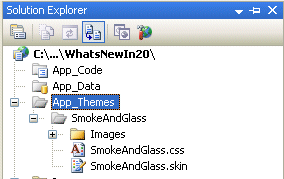
Creating a theme from scratch that looks professional enough to use on a production site is not easy. Instead of creating a theme I will use one that ships with Visual Studio 2005 named SmokeAndGlass. I located the SmokeAndGlass folder on my machine at C:\Program Files\Microsoft Visual Studio 8\SDK\v2.0\QuickStart\aspnet\samples\security\logincontrols_vb\App_Themes and copied it to the App_Themes folder for my project (Figure 20). Next I will create a page containing a few labels, textboxes, a Calendar control, and a couple of buttons. Without assigning any theme support to the page it looks fairly bland when I run it. While the page functions just fine, it could use some help with its visual appearance. To apply the SmokeAndGlass theme to my entire site I could add this snippet to the Web.config file.
<configuration>
   <system.web>
      <pages theme="SmokeAndGlass">
   </system.web>
</configuration>
I am only interested in applying the theme to my page at this point so I’ll add the Theme attribute to the @Page directive. I’ll set the Page’s Theme property on the Properties window.
<%@ Page Language="VB" AutoEventWireup="false"
    CodeFile="ThemeDemo.aspx.vb"
    Inherits="ThemeDemo"
    Theme="SmokeAndGlass"%>
Next I will run the page to see how it looks (Figure 21). By adding and setting the Theme attribute for the page I get a noticeable change in the appearance of the controls on the page.

If I was interested in only applying the theme to an individual control I would set the SkinID property for the control to one of the values available in the dropdown.
You may be wondering what exactly is stored in a .skin file. A .skin file contains control definitions and style settings for the control. Listing 5 shows a partial piece of the SmokeAndGlass.skin file reformatted for print. It contains the default style settings for the Label, Textbox, Button, and LinkButton controls. You can add additional settings for an individual control by copying and pasting the initial definition, making the desired changes, and assigning a SkinID to the control. You can omit the SkinID property for a control definition to indicate that it is the default definition. If you do not set the SkinID property for controls added to a Web Form then the default definition for that control type will be assigned to the control. This is why a simple theme change can change the look and feel of the all the controls you have placed on Web Forms.
I’ve discussed how you can apply theme settings in the Web.config file for site-wide application, at the page level through the use of the Theme attribute on the @Page directive, and by assigning the SkinID property of a control. You can also apply themes programmatically. To set the theme for a page at run time, use the following code in the page’s PreInit event handler.
Protected Sub Page_PreInit( _
    ByVal sender As Object, _
    ByVal e As System.EventArgs) _
    Handles Me.PreInit

    Page.Theme = "SmokeAndGlass"
End Sub
If you just want to programmatically set the theme for an individual control you also do that in the page’s PreInit. I have added another button definition to the SmokeAndGlass skin below; notice the SkinID has been assigned the value SAGButton.
<asp:Button runat="server" SkinID="SAGButton"
    BorderColor="#585880" Font-Bold="false"
    BorderWidth="6pt" ForeColor="#585880"
    BackColor="#F8F7F4" />
Setting the SkinID for a specific button looks like this:
Protected Sub Page_PreInit( _
    ByVal sender As Object, _
    ByVal e As System.EventArgs) _
    Handles Me.PreInit

    Page.Theme = "SmokeAndGlass"
    Me.Button1.SkinID = "SAGButton"
End Sub
Running the form results in the default SmokeAndGlass control theme being applied to all the controls except Button1 above. It has the SAGButton definition assigned to it.
Site Navigation
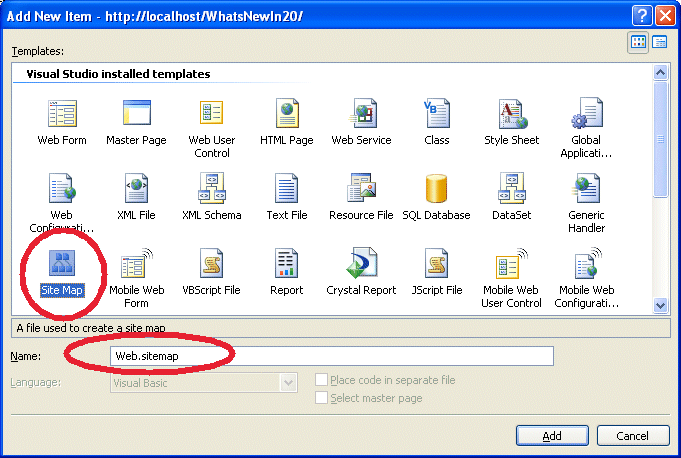
ASP.NET 2.0’s site navigation features make it easy to add functionality that helps your users navigate your site. To implement these navigation features you’ll use an XML sitemap file containing the structure of your site. The structure of your site contains all of the pages in the site and how they relate to each other. To add a new site map to your site, select Add New Item from the project shortcut menu. Select Site Map in the Add New Item dialog box and accept the default name of Web.sitemap (Figure 22).
The Web.sitemap XML file contains two types of XML elements: a single siteMap and multiple siteMapNodes. The siteMap element contains multiple siteMapNode elements. Table 3 describes the structure of a siteMapNode’s attributes.
ASP.NET 2.0 provides three navigation controls that can take advantage of the sitemap (Listing 6). You will find these controls in the Navigation section of the Toolbox.
SiteMapDataSource Control
The SiteMapDataSource control, located on the Data tab in the Toolbox, connects the navigation controls to the sitemap.
SiteMapPath Control
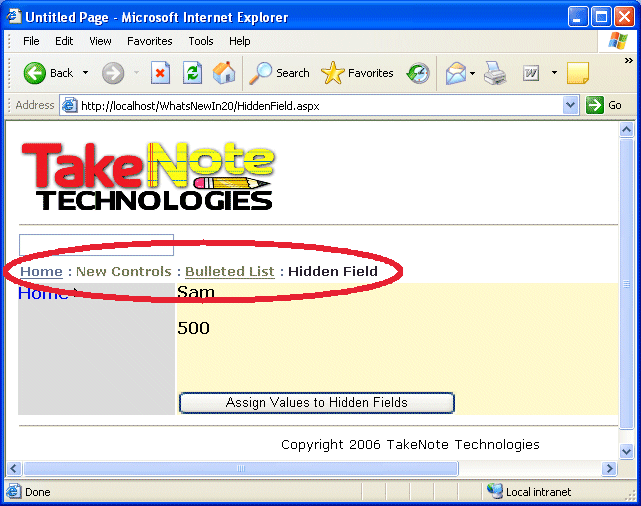
The SiteMapPath control provides a bread crumb trail to keep the user informed where they are in the site hierarchy (Figure 23). Selecting the Auto Format… option from the SiteMapPath Tasks menu (displayed by clicking on the control’s smart tag glyph) provides a way to configure the display of the control.
Menu Control
You can configure the Menu control to display a menu horizontally or vertically. You can configure Menu items with submenu items below them. Menu items that are always displayed are called static items. The submenus that appear when the mouse hovers over a static menu item are referred to as dynamic menus and the corresponding items on those menus are referred to as dynamic menu items. Each of the different types of menu items has its own set of visual styles associated with them so you can get just the right look and feel for your menus.
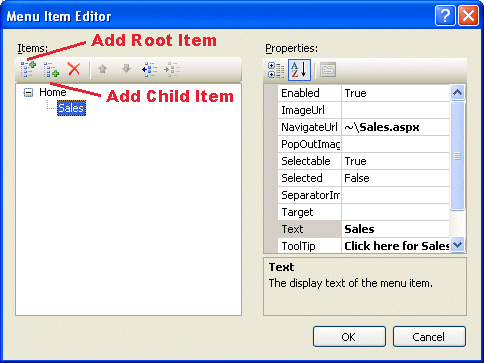
You can manually create and maintain menus or you can bind them to a SiteMapDataSource control. Clicking the smart tag glyph for the Menu control displays the Menu Tasks options. Like the SiteMapPath control, the Auto Format… option presents a list of pre-defined visual styles available for the control. The Choose Data Source option defines whether you want to maintain the menu manually or if you want to bind it to a SiteMapDataSource. Leave the data source as None and click the Edit Menu Items… to manually configure the menu. Using the Menu Item Editor (Figure 24) you add root items and the child items below them. The Text property for a menu item specifies the text to appear in the menu. The NavigateURL property specifies where to redirect the user when they click a menu item. Menus bound to a SiteMapDataSource display menu items referencing the nodes defined in the sitemap pointed to by the SiteMapDataSource control.
The MenuItemClick event is raised when the user clicks a menu item and provides an opportunity for you to code an event handler. In the code below, e.Item refers to the item clicked on.
Protected Sub Menu1_MenuItemClick( _
    ByVal sender As Object, _
    ByVal e As
        System.Web.UI.WebControls.
        MenuEventArgs) _
    Handles Menu1.MenuItemClick

    Dim Message As String = e.Item.Text
End Sub
The TreeView control provides a hierarchical display of information. While this example uses it as a navigational control, you can use the TreeView control to display information from a wide variety of data sources including XML files, strings, or from data retrieved from a database. Within the Treeview control each individual item is called a node. A TreeView control has three types of nodes.
- Root. Top-level node that has no parent node. Root nodes have one or more child nodes.
- Parent. A mid-level node that has a parent node and one or more child nodes.
- Leaf. A bottom-level node that has no child nodes.
You can expand a node by clicking the + and collapse a node by clicking the -.
TreeView Control
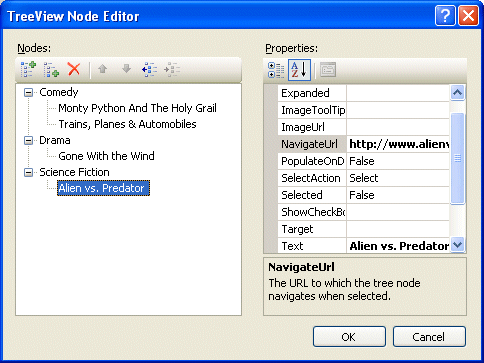
You populate the TreeView control similarly to how you populate a Menu control in that you can manually create and maintain nodes or you can bind a TreeView to a SiteMapDataSource control. Clicking the smart tag glyph displays the TreeView Tasks dialog box. The Auto Format… option provides a wide variety of predefined formatting options. Use the Choose Data Source option to define whether you want to maintain the TreeView manually or if you want to bind it to a SiteMapDataSource. Leave the data source as None and click the Edit Nodes… to manually configure the TreeView(Figure 25).
Summary
That should be enough to keep you busy for a while. When you are ready to continue learning more about ASP.NET 2.0, I suggest you explore the data access and data binding capabilities, the caching feature to increase the performance of your site, and working with the portal architecture and associated Web parts.
