


Windows® Internet Explorer® 8 has a lot of cool new features that make Web page browsing more accessible.
I’m going to cover Caret Browsing, Zoom Version 2, High DPI, Accessibility Rich Internet Applications (ARIA) support and User Interface Automation (UI Automation) support. Caret Browsing is particularly helpful for low-mobility users. Zoom 2 and High DPI support targets low-vision users, and the new ARIA and UI Automation support targets screen-reader users. Low-mobility users prefer to use the keyboard or devices that interact with a virtual keyboard. Some low-vision users require specialized assistive software to interact with computers while others can do well with features and tools shipped with the operating system.
When you make something accessible you are not only impacting the accessibility community but the entire user base. My favorite example is the wheelchair access ramps. After the American Disability Act was passed, public gathering places, like airports, added wheelchair ramps. Airports soon noticed that mothers with baby strollers and passengers with rolling suitcases were using the ramps too, since it was easier than picking up the strollers and suitcases over the ledge. Improve the accessibility of your software and everybody wins. When you provide robust keyboard navigation to benefit users who can’t use the mouse, you are also enabling users who want to perform tasks faster, since there are now fewer tasks they need to use the mouse for.
Caret Browsing
Caret Browsing is a new Accessibility feature that allows users to navigate a Web page using a moveable cursor on the screen with the keyboard. Users can select and copy text as well as tables and images using only the keyboard.
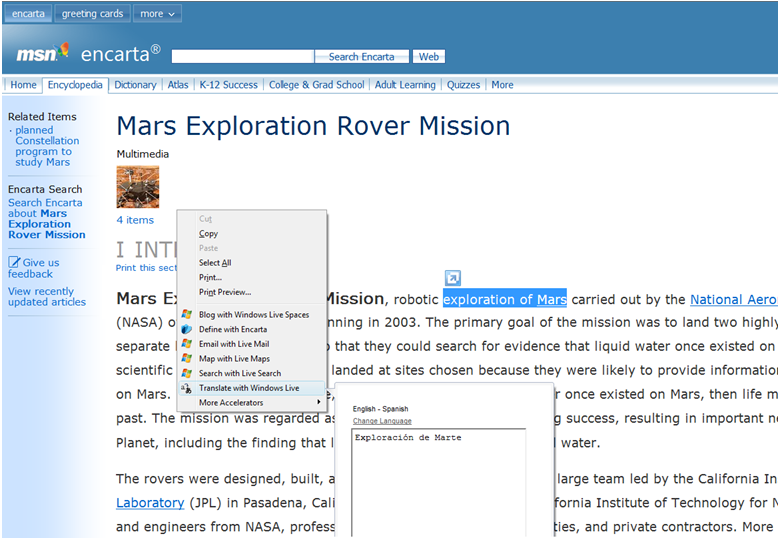
…users can select a word or phrase, bring up the Accelerators through the context menu key, select Translate with Windows Live, and see the selection’s meaning in Spanish, without ever taking their hands off the keyboard.
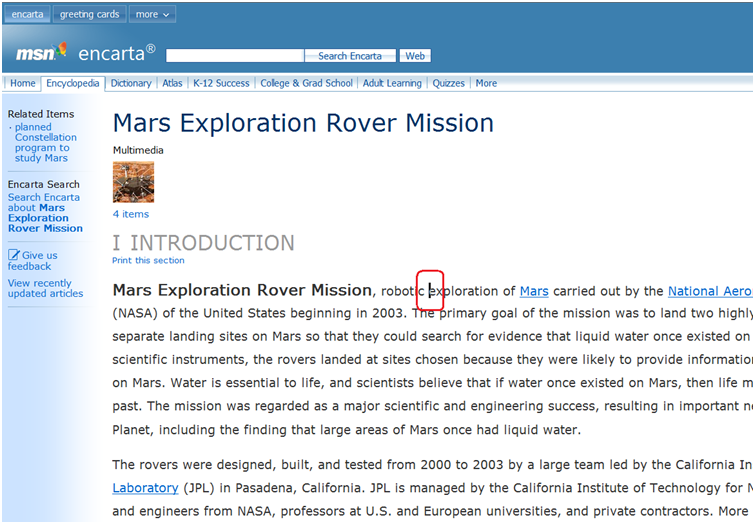
Moving the cursor within the text of a Web page is similar to moving the cursor within the text of a Microsoft Word document, as shown in Figure 1. Pressing F7 toggles Caret Browsing on or off. You can enable Caret Browsing for one tab or for all tabs and windows. You can hold the SHIFT key down and press the arrow keys to select text.
As I mentioned before, many users prefer the keyboard to the mouse because they find it faster for certain tasks. Users can select a word or phrase, as you see in Figure 2, bring up the Accelerators through the context-menu key, select Translate with Windows Live, and see the selection’s meaning in Spanish, without ever taking their hands off the keyboard.
Zoom 2
Page zoom lets you enlarge or reduce the view of a Web page to improve readability. The feature is particularly useful on very large and very small displays, allowing for scaling of content while maintaining the intended page layout. The second iteration of the zoom feature set (the first shipped in Internet Explorer 7) focuses on providing a higher-quality, more predictable, and persistent zooming experience. Primary features in this release include the elimination of horizontal scroll bars for the majority of mainstream scenarios and the introduction of persistent zoom states. I personally find this feature useful when using my TV to browse the Web. I sit far away from the TV; using a wireless keyboard, I use the Zoom to make the pages more readable. The extensive keyboard shortcut’s list allows me to use the mouse as little as possible.
Zoom 2 works by adjusting the internal state of the dots-per-inch (DPI) calculations within Internet Explorer 8. To understand this better, consider how different display settings affect a page's layout.
Screen Resolution: Changing from a 1200 × 1600-pixel screen resolution to an 800 × 600-pixel resolution means changing the spacing between pixels. In other words, pixels are effectively bigger. A screen element of 100 × 100 pixels is now twice as big on the 800 × 600-pixel screen as it was on the 1200 × 1600-pixel screen.
System DPI: Changing from 96 DPI to 192 DPI, but keeping all other factors the same, implies more pixels in an inch. The spacing between pixels has not changed. However, more pixels are required to form a logical inch.
Zoom Factor: Changing the zoom factor from 1 to 2 means that everything should be twice as big. Figure 3 shows how to calculate the Zoom Factor.
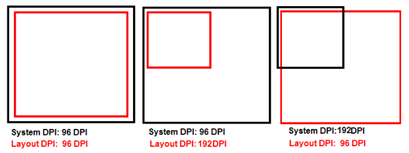
HTML Layout Measurements: This value is always 96 DPI, as explained in the CSS 2.1 specification (http://www.w3.org/TR/CSS21/syndata.html#percentage-units). The Internet Explorer page zoom feature cannot change any of the above settings except for the zoom factor. However, it can lay out or render a page at a DPI setting that is different from the configured system DPI, thus achieving zoom results.
The sample code in Listing 1 divides the screen into quadrants of color, using absolute positioning, to show the difference between the Internet Explorer 8 adaptive page zoom and the Internet Explorer 7 optical page zoom
You can see the importance of carefully selecting the anchor for positioned elements and using relative dimensions instead of absolute or device-dependent dimensions (such as pixels).
The boxes in Figure 4 are absolutely positioned, and they are anchored to the corners of the viewport. Each is sized using relative dimensions (%). The box in the middle is anchored to the center of the body. In Figure 5, you can see how Internet Explorer 7 displays a 175% zoom while Figure 6 shows how Internet Explorer 8 handles a 175% zoom.
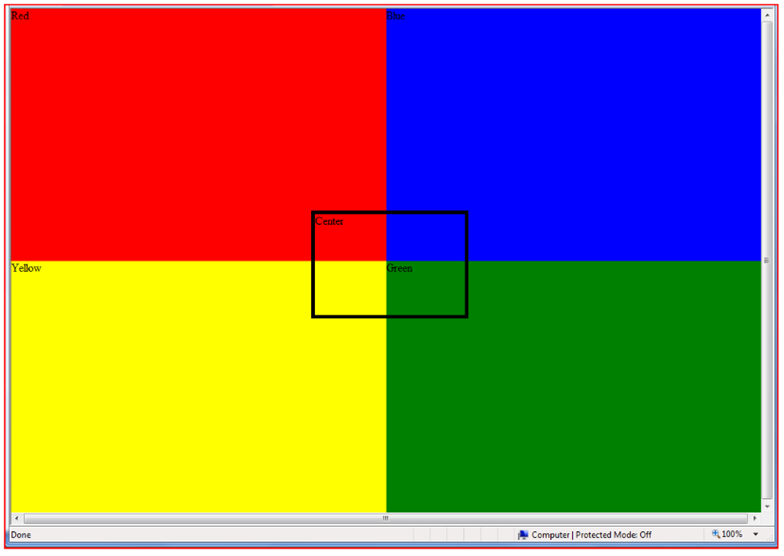
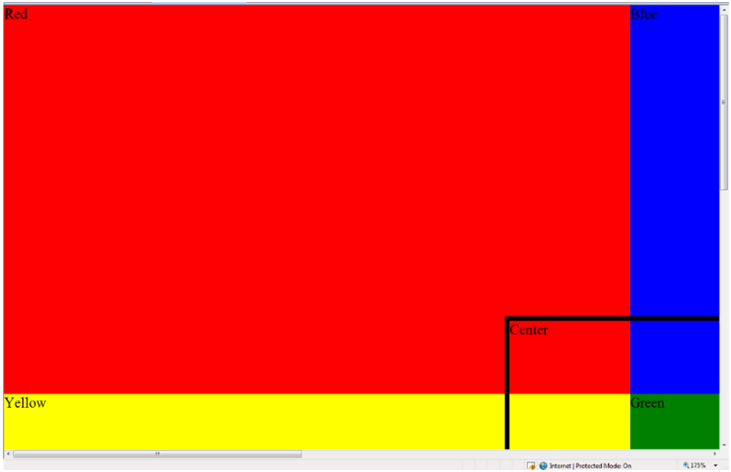
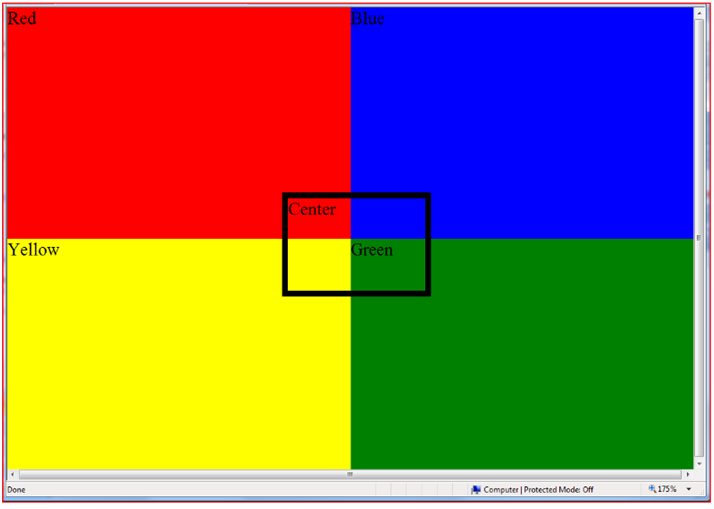
You can see the importance of carefully selecting the anchor for positioned screen elements and using relative dimensions instead of absolute or device-dependent dimensions (such as pixels). If you had positioned the center DIV using pixels, the DIV would have moved from the center when zoomed.
High DPI
You can use the Windows DPI Scaling (https://windowshelp.microsoft.com/Windows/en-US/help/454f5078-2b51-4cda-b4c0-6391e870c41d1033.mspx) feature to scale up Windows fonts and user interface (UI) elements (such as buttons, icons, input fields, and so on) by a given percentage. This is different from the scaling that occurs when you lower the display resolution because in the DPI Scaling case, Windows is providing fonts and UI elements that are drawn with more pixels, resulting in a larger, higher fidelity, and sharper Windows experience.
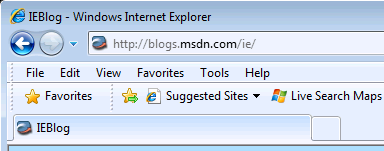
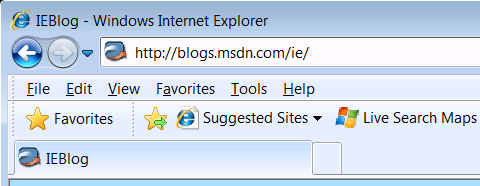
Like Windows Vista, the Internet Explorer 8 user interface is entirely DPI Scaling-aware, and you will notice that all UI elements and fonts are scaled accordingly. Additionally, larger and higher fidelity icons are used. Notice the difference in the Internet Explorer chrome when Windows DPI Scaling is set to 96 DPI (Figure 7) and 120 DPI (Figure 8).
ARIA syntax is a great mechanism to unlock your dynamic, rich Web applications for everyone.
By default, Internet Explorer 8 will zoom the content of the Web to match your Windows DPI Scaling settings. (Please note that this is a change from Internet Explorer 7, which did not zoom to match Windows DPI Scaling settings.) For example, if you set your DPI Scaling to 120 DPI, Internet Explorer 8 will zoom the content of Web pages by 125%.
For more information, especially for developers who want to take advantage of High DPI in their Web pages and WebOCs, please see: Making the Web Bigger (http://go.microsoft.com/fwlink/?LinkID=125391&clcid=0x409)
ARIA and UI Automation Support
In the latest release of Internet Explorer 8, Microsoft has made a big investment in Accessible Rich Internet Applications (ARIA). The W3C defines ARIA as a syntax for making dynamic Web content and custom UI accessible. Windows Internet Explorer 8 recognizes the ARIA role, state, and property information from controls and exposes it to assistive technologies. Assistive technologies can then use Microsoft Active Accessibility® and/or UI Automation Accessibility APIs, which are supported for the first time in Internet Explorer, to retrieve the information. Instead of building separate simplified Web pages for accessibility, you can use ARIA to mark up your rich Web applications with roles, states, and properties. For example, to match the behavior you create through script, you can define a DIV element as a button, check box, or another ARIA role.
ARIA syntax is a great mechanism to unlock your dynamic, rich Web applications for everyone. Today Web pages with dynamic content and custom UI controls (such as TreeView controls) have to reuse existing HTML controls. For example, you can make custom TreeView controls accessible by defining each item as an HTML list element. This approach can add complexity to the code, make it more difficult to implement, and prevent all users from getting the same rich behavior.
Code Sample: Create an Interactive TreeView Control Using ARIA
The code sample in Listing 2 uses ARIA to create an interactive TreeView control using HTML and JavaScript. Users of Internet Explorer 8 using an assistive technology (such as a screen reader) can interact with this control and experience the same rich behaviors users without vision impairments do. If you don’t have access to a screen reader you can use the Inspect32 testing tool available at http://www.microsoft.com/downloads/. You can experience the benefits of ARIA first hand by hovering with the mouse or tabbing with the keyboard through the TreeView. The role displayed in Inspect 32 is “treeview item” instead of “outline item”. Similarly a screen reader will speak out “treeview item” instead of “outline item”.
Conclusion
With Internet Explorer 8 and its support for ARIA and UI Automation, developers have a number of useful tools for developing accessible, rich Web pages. With Caret Browsing, the new Zoom functionality, and High DPI support, Internet Explorer 8 helps make content more accessible to your users.
Users of Internet Explorer 8 using an assistive technology (such as a screen reader) can interact with a custom the TreeView control and experience the same rich behaviors users without vision impairments do.
Listing 1: Sample Web page to understand better the new Zoom.
<html>
    <head>
        <title> Zoom 2 Sample </title>

    </head>

    <style>

        div {
                width: 50%; height: 50%; position: absolute;
        }

        #center  {
                width: 20%; height: 20%; left: 40%;
                top: 40%; border: 5px black solid;
        }

    </style>

    <body style="border:0; padding:0;">

    <div id="red" style="left:0; top:0; width:50%;
        height:50%; background-color:red;"> Red </div>

    <div id="blue" style="left:50%; top:0; width:50%;
        height:50%; background-color:blue;"> Blue </div>

    <div id="yellow" style="left:0; top:50%; width:50%;
        height:50%; background-color:yellow;"> Yellow </div>

    <div id="green" style="left:50%; top:50%; width:50%;
        height:50%; background-color:green;"> Green </div>

    </body>

</html>
Listing 2: Creating an interactive TreeView control.
<!DOCTYPE HTML PUBLIC "-//W3C//DTD XHTML 1.0 Transitional//EN" "<a href="http://www.w3.org/TR/xhtml1/DTD/xhtml1-transitional.dtd";>http://www.w3.org/TR/xhtml1/DTD/xhtml1-transitional.dtd<;/a>">
<html>
<!-- saved from url=(0014)about:internet <-runs script on your local machine without gold bar prompt-->
<head>
<title>TreeView ARIA Example</title>
<style type="text/css">
li
{
list-style-type: none;
}
</style>
<script type="text/javascript">
// Function to expand and collapse tree items by referencing the ariaExpanded attribute.
function Toggle(root, itemId)
{
var el = document.getElementById(itemId)
var treeitem = document.getElementById(root)
if (el)
{
if (treeitem.ariaExpanded == "true")
{
treeitem.ariaExpanded = "false";
el.style.display = "none";
treeitem.childNodes[0].innerText="+ ";
}
else
{
treeitem.ariaExpanded = "true";
el.style.display = "block";
treeitem.childNodes[0].innerText="- ";
}
}
}
</script>
</head>
<body style="margin: 0px">
<!-- Create an unordered list, which will represent the top level tree element in ARIA -->
<ul id="Tree" role="tree">
<!--
Create a list item that will represent the parent tree item and set its ARIA state to
collapsed by setting 'aria-expanded="false"'
-->
<li role="treeitem" id="A1" aria-expanded="false" title="Transportation">
<a href="javascript:Toggle('A1','sub1')">+</a>
<a href="<a href="http://en.wikipedia.org/wiki/Transportation";>http://en.wikipedia.org/wiki/Transportation<;/a>">Transportation</a>
<!-- Create a group of list items -->
<ul style="display:none" id="sub1" role="group">
<a href="<a href="http://en.wikipedia.org/wiki/Car";>http://en.wikipedia.org/wiki/Car<;/a>" role="treeitem" title="Car"><li> Car </li> </a>
<a href="<a href="http://en.wikipedia.org/wiki/Boat";>http://en.wikipedia.org/wiki/Boat<;/a>" role="treeitem" title="Boat"><li> Boat </li> </a>
<a href="<a href="http://en.wikipedia.org/wiki/Bike";>http://en.wikipedia.org/wiki/Bike<;/a>" role="treeitem" title="Bike"><li> Bike </li> </a>
</ul>
</li>
</ul>
</body>
</html>
