



Windows Communication Foundation (WCF) Services can be hosted with Internet Information Services (IIS); with the new Windows Activation Service (WAS) installed with IIS 7.0; or with any managed application process including console, Windows Forms, Windows Presentation Foundation (WPF), or managed Windows service applications.
Selecting the right hosting environment for your services is a choice driven largely by deployment requirements related to transport protocol and operating platform.
WCF is part of the .NET Framework 3.0 stack and thus is supported on the following operating platforms: Windows XP/SP2, Windows Vista, Windows Server 2003, and Windows “Longhorn” Server. Regardless of platform, you can access WCF services over many protocols including HTTP, TCP, IPC and MSMQ. Unfortunately, not all hosting environments are available to each platform, nor does every host support the entire suite of protocols-limiting your options at times.
“Self-hosting is the simplest way to host your services-and the approach that yields the least number of hosting features.”
Beyond operating platform and choice of protocol, other features available to the hosting environment also influence deployment decisions and choice of host. In this article, I’ll describe the desired features of a hosting environment; provide you with an overview of WCF hosting options and their availability; and explain how to implement scenarios applicable to each environment.
Features of a Great Host
Hosting environments make it possible to expose your services to client applications. They facilitate request processing to service operations, but they can also play a critical role in the availability and scalability of your services. A great hosting environment should provide these important features:
- Executable Process/Application Domain: You can use any managed process to host WCF services, which implies the existence of an application domain (“app domain”).
- Configuration: A mechanism for external configuration should be available to support deployment and manageability. For managed hosts this is supplied by the application configuration file (app.config or web.config).
- Activation: Ultimately the service model instantiates the appropriate service type to handle incoming requests, but the host process must initialize the channel stack that receives incoming messages. You can do this activation at host startup but it is preferably done through message-based activation.
- Idle-Time Management: To conserve server resources during idle time, hosts can release unused resources. Hosts that support this feature usually provide a configurable timeout. Idle-time management relies on the activation capabilities of the host to instantiate resources as needed.
- Health Monitoring: To ensure availability a host process must always be running to service requests. Some hosting environments can proactively monitor their processes to ensure a new host process is started when existing processes are unable to service requests.
- Process Recycling: To avoid problems associated with memory leaks or faulty code, some hosting environments support configurable process recycling to “freshen up” running host processes.
- Management Tools: Sophisticated hosting environments also provide tools for configuring hosting features for greater control and manageability. This toolset sometimes contains tools for monitoring the health and status of running host processes.
There are three types of hosting environments for WCF services: IIS, WAS, and self-hosting. The term “self-hosting” refers to any application that provides its own code to initialize the hosting environment. This includes console, Windows Forms, WPF, and managed Windows services. Table 1 provides a summary of these three hosting environments and the features they support.
At a minimum, all WCF hosts provide an executable process and application domain in which services are loaded. They also provide support for external configuration. The remaining hosting features discussed here are built into IIS and WAS, but not provided by self-hosting environments. Despite this fact, self-hosting does have its value under the right circumstances.
In the sections to follow, I’ll discuss how the service model exposes WCF services, and then I’ll describe scenarios for self-hosting, IIS, and WAS.
ServiceHost
Regardless of the hosting environment, all WCF services must be associated with a ServiceHost instance to be accessible at run time. ServiceHost is part of the System.ServiceModel namespace, and is the centerpiece of the hosting story. A ServiceHost instance is initialized with information about the service type, one or more service endpoints, optional base addresses, and behaviors that govern how the service model processes requests to the service.
Initializing the ServiceHost
Listing 1 illustrates a simple example of a console host application initializing the ServiceHost programmatically. In fact, this listing is the entire listing for the host application. The application constructs a ServiceHost instance on startup, supplying the service type: HelloIndigo.HelloIndigoService. A single endpoint is created exposing its HelloIndigo.IHelloIndigoService contract over NetTcpBinding. In this example, the endpoint is initialized with a complete URI, removing the need for any base addresses.
After calling the Open() method the ServiceHost begins listening for messages. While the Console.ReadLine() statement blocks the console application to keep the process alive, the application processes incoming requests on their own thread taken from the thread pool. After closing the console, the using statement disposes of the ServiceHost instance calling its Close() method. At this point new requests are rejected while currently processing requests complete gracefully.
In this example, the console host only exposes one service. To expose multiple services, you can open multiple ServiceHost instances within the same host process.
Declarative Configuration
You can also initialize the ServiceHost declaratively via application configuration. In the <system.serviceModel> section you can specify one or more services in the <services> section. Here is an example of declarative service configuration:
<service name="HelloIndigo.HelloIndigoService">
  <endpoint address=
"net.tcp://localhost:9000/HelloIndigoService"
binding ="netTcpBinding"
contract ="HelloIndigo.IHelloIndigoService" />
</service>
As with programmatic initialization, you must specify the service type and one or more endpoints. This example illustrates how to configure a single endpoint similar to the code in Listing 1, with the addition of a metadata exchange endpoint.
“Processing requests on the UI thread is not practical for services that require decent throughput on the server. In fact, it is unlikely that a service that processes significant requests will even have a UI associated with it.”
When you construct the ServiceHost instance it looks for a <service> section matching its service type, and initializes itself from those settings. Initializing the ServiceHost declaratively removes hard-coded base addresses and endpoints from the code, as shown here:
using (ServiceHost host = new ServiceHost(
typeof(HelloIndigo.HelloIndigoService)))
{
  host.Open();

  // other code
}
Base Addresses
If you specify a fully qualified URI for each service endpoint, you do not need a base address to initialize the ServiceHost. At run time, if you provide base addresses to the ServiceHost constructor you can optionally provide a relative URI to the endpoint address as shown here:
using (ServiceHost host = new ServiceHost(
typeof(HelloIndigo.HelloIndigoService), new
Uri("net.tcp://localhost:9000")))
{
  host.AddServiceEndpoint(
typeof(HelloIndigo.IHelloIndigoService),
new NetTcpBinding(),
"HelloIndigo");
  host.Open();

  // other code
}
Declaratively, the application provides base addresses in the <host> section for the service configuration:
<service name="HelloIndigo.HelloIndigoService">
  <host>
    <baseAddresses>
      <add baseAddress="http://localhost:8000"/>
      <add baseAddress="net.tcp://localhost:9000"
/>
    </baseAddresses>
  </host>
  <endpoint binding="netTcpBinding"
contract ="HelloIndigo.IHelloIndigoService" />
  <endpoint address="mex"
binding ="mexHttpBinding"
contract ="IMetadataExchange"/>
</service>
The ServiceHost builds endpoint addresses by appending the relative address of each endpoint to the base address matching the endpoint’s binding protocol. For example, the NetTcpBinding endpoint shown here uses the net.tcp base address while the MexHttpBinding metadata exchange (“mex”) endpoint uses the http base address. If you omit the address from the <endpoint> configuration, the ServiceHost assumes the base address to be the endpoint address.
Service Description
The ServiceHost instance is responsible for generating a service description for its service. This service description incorporates information about the service type, all service endpoints, and any behaviors that are attached to the service-exposing it through its Description property, a ServiceDescription instance.
ServiceDescription is part of the System.ServiceModel.Description namespace. It is a run-time abstraction that ultimately generates the Web Service Description Language (WSDL) document for the service, and supports interactive metadata exchange (WS-MetadataExchange) with clients. By default, the ServiceHost uses reflection to generate the description-inspecting the service, its contracts, and relevant service behaviors. Figure 1 illustrates how clients can use SvcUtil (svcutil.exe) or WS-MetadataExchange protocol to initialize a channel at the client and consume a service.
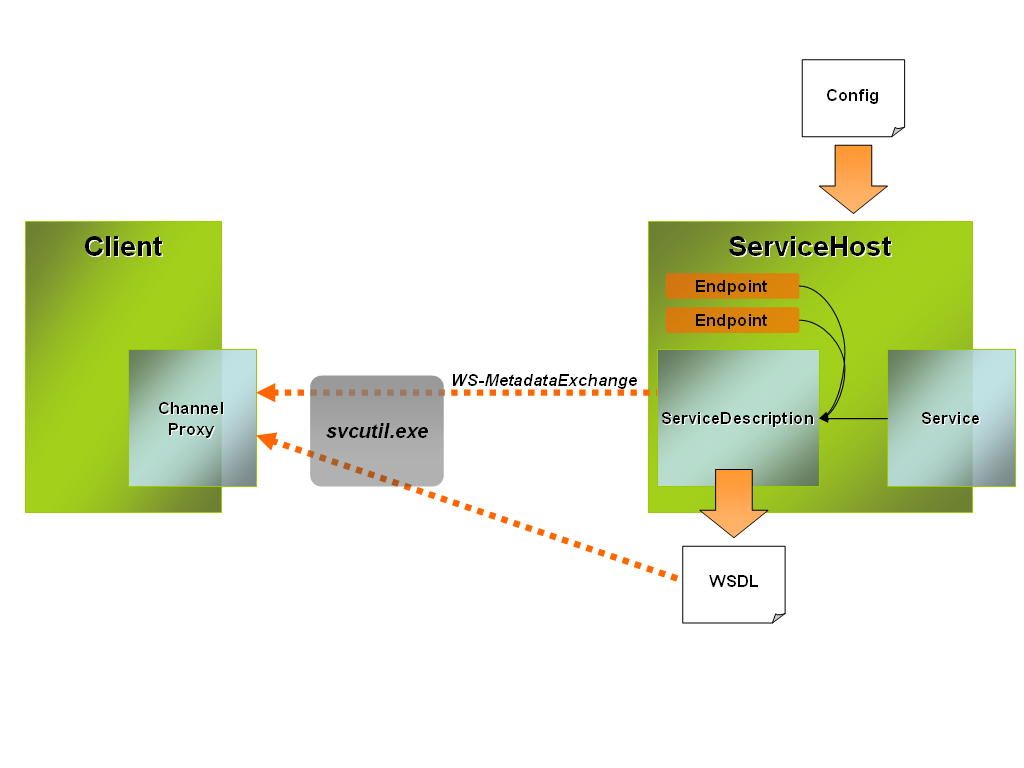
Under most circumstances you will not interact directly with the ServiceDescription. However, for advanced scenarios you can control how the ServiceHost generates this ServiceDescription by subclassing ServiceHost and overriding the CreateDescription() method.
ServiceHost Events
The ServiceHost notifies you of state changes in the channel stack through CommunicationObject events. ServiceHost inherits ServiceHostBase, which inherits CommunicationObject. CommunicationObject is a common base type for many objects participating in the communication channel-providing a common state machine. The events it exposes include Opening, Opened, Closing, Closed, and Faulted.
Closing and Faulted are particularly useful for writing event logs or notifying administrators when the communication channel for your service is closing or has encountered a problem. Just add these event handlers to the ServiceHost instance before you open the communication channel, as shown here:
using (ServiceHost host = new ServiceHost(
typeof(HelloIndigo.HelloIndigoService)))
{
  host.Closed += new EventHandler(host_Closed);
  host.Closing +=new EventHandler(host_Closing);
  host.Faulted +=new EventHandler(host_Faulted);
  host.Open();

  // other code
}
The ServiceHost also has a State property based on the CommunicationState enumeration. You can use this property to detect the following states: Created, Opening, Opened, Closing, Closed, or Faulted.
Self-Hosting
Self-hosting is the simplest way to host your services-and the approach that yields the least number of hosting features. As the label implies, self-hosting requires you to write the code necessary to initialize the ServiceHost and manage its lifetime. At a minimum you provide a managed process, instantiate a ServiceHost for each service, and then initialize and open them to provide a communication channel for each endpoint to receive incoming messages.
“Windows services are the most useful of the self-hosting environments for WCF services. In fact, for services deployed in a production server system, Windows services are the only practical self-hosting choice…”
Typically you’ll keep ServiceHost instances alive for the lifetime of the application in which they are hosted. Once you open the ServiceHost, the service model allocates a worker thread to process each incoming request to its respective service endpoints. Your job is to keep the application alive as long as you want to service those requests. Any managed application process will suffice including console, Windows Forms, WPF, or managed Windows services as I discussed earlier.
In this section, I’ll walk you through the relevance of these self-hosting environments including scenarios where they are most applicable.
Console Applications
Console applications are a popular hosting environment for developing and testing services. As I discussed earlier, you need only create and open the ServiceHost instance and keep the console process alive to receive and process requests. Listing 1 illustrates this.
A console application is ultimately impractical for deploying production services for a few reasons:
- It requires a user be logged in to the machine to start the process
- The console can be easily closed taking the communication channel along with it
Still, you can expect to see plenty of console hosts in sample code you download for WCF, and you will likely use them to execute rudimentary tests on your services.
Windows Applications
Both Windows Forms and WPF applications can host WCF services associated with an application interface. These scenarios might warrant this arrangement:
- Chat applications that participate in a peer mesh will expose services to receive broadcast messages.
- Client applications may host services in-process to consume local services without crossing a process boundary. For example, a smart client application may use local services when operating offline and remote services while online (Figure 2).
- Services deployed to client or server machines may have an associated user interface if the service presents an activity log or provides some administrative controls for service activation and deactivation.
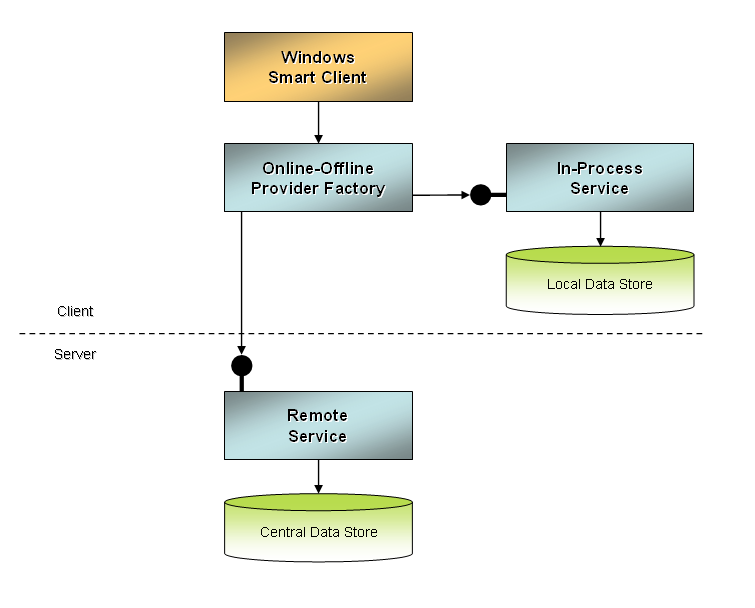
Unlike console hosting, you can program a Windows application to avoid accidental shutdown with dialog box interaction. However, these applications do require a user to be logged in to start the application-and this limits their usefulness in server deployments. Managed Windows services solve this problem, and may sometimes incorporate a user interface, so it is still important to understand the concurrency implications of hosting services when UI threads are involved.
A simple way to host services in a Windows application is to process requests on the UI thread. This means that the application processes requests through the Windows message loop, one at a time. In fact, this is the default behavior if you construct the ServiceHost instance while running on the UI thread. For example, the following code illustrates constructing the ServiceHost in the Form constructor for a Windows Forms application:
public partial class Form1 : Form
{
  public Form1()
  {
    InitializeComponent();
    localhost.HelloIndigoServiceClient proxy = new
localhost.HelloIndigoServiceClient();
  }

  // other code
}
You can verify that the service is running on the UI thread by checking the Application.MessageLoop property:
Debug.Assert(Application.MessageLoop);
While running on the message loop, service operations can freely interact with the user interface, setting control and Form properties and so forth. The downside is that the message loop acts as a throttle for message processing-even if the service were to allow multiple concurrent requests.
From the same Windows Form application if you were to construct the ServiceHost instance before starting the UI thread, it will run on its own thread. That means worker threads allocated from the thread pool process messages instead of the message loop. Thus, services can truly process multiple concurrent requests.
One way to achieve this is to construct the ServiceHost during the Main() entry point for the Windows application, before invoking Application.Run() as shown in Listing 2. You can see in the listing that the application also handles the Application.Exit event to properly dispose of the ServiceHost instance. The lifetime of the ServiceHost in this example is the duration of the application, not tied to a particular Form instance. Closing the ServiceHost disposes the ServiceHost instance along with the thread in which it was executed. In that case the application must recreate and open the ServiceHost in order to receive subsequent requests.
Processing requests on the UI thread is not practical for services that require decent throughput on the server. In fact, it is unlikely that a service that processes significant requests will even have a UI associated with it. However, assuming you did want to attempt throughput and UI, you can configure your services to run on a separate thread by setting the UseSynchronizationContext property to false for the ServiceBehaviorAttribute.
[ServiceBehavior(UseSynchronizationContext=false)]
public class HelloIndigoService :
IHelloIndigoService
{
  // service implementation
}
The default value for this property is true, which means that services will join the UI thread if the ServiceHost is constructed on that thread. By setting this attribute to false your service will always process requests on worker threads from the thread pool-regardless of where the application constructs the ServiceHost.
Accepting requests on multiple threads introduces the potential for concurrency issues when service operations or downstream code must interact with UI or shared resources. Since the UI will always be running on another thread, you can’t directly interact with control or Form properties. Each control (including the Form) has an InvokeRequired property that is set to true when the current thread is not the same as the UI thread that owns the control. When true, you can use the same control’s Invoke() method to invoke any members exposed by the control.
Listing 3 shows a service implementation that posts messages to a Windows Form when you call its SendMessage() operation. In this case, the service is coupled to the user interface, so the static constructor of the service type creates the Form and shares it between all running instances of the service. If you close or dispose of the Form each service instance recreates the Form on demand. Although not shown in this reduced listing (the code sample has a complete implementation) the service type also provides a public ShowForm() method so that the host application can control the Form’s visibility.
When you call SendMessage(), it is running on a separate thread from the Form. The Form exposes a public method, AddMessage(), which encapsulates the check for InvokeRequired before adding the string to the ListBox control:
public void AddMessage(string message)
{
  if (this.InvokeRequired)
  {
    MethodInvoker del = delegate
      {
        this.listBox1.Items.Add(message);
      };
    this.Invoke(del);
  }
  else
    this.listBox1.Items.Add(message);
}
In a multithreaded environment, you must write code like this for all communication with control and Form properties and methods. You can simplify this by encapsulating the functionality in the Form or in custom thread-safe controls.
Aside from Form and control properties, you must also protect other shared resources when you allow multiple threads into the service. For example, Listing 3 illustrates the use of the lock() statement to protect access to the shared m_form reference. This statement applies a global lock to the Form instance such that only one thread at a time can be interacting with any of its properties or methods. There are other advanced synchronization techniques to increase throughput, such as Mutex, Semaphore, and other WaitHandle types from the System.Threading.WaitHandle namespace.
Aside from throughput considerations that drive your decision to host services on the UI thread, or provide multithreading support and manage concurrency, you should consider the following guidelines for Windows application hosting:
- Decouple service and host implementation where possible, so that the service code is not tied to a single host implementation.
- Where possible, the host should only provide UI related to hosting-that is, UI to control the ServiceHost instance-not UI specific to the service functionality. Avoid having services talk directly to host process UI.
- If the service is associated with UI, encapsulate the creation and display of this UI in the service assembly, not the host. This reduces coupling between service and host. If applicable, services can provide a mechanism for hosts to interact with service UI.
Managed Windows Services
Windows services are the most useful of the self-hosting environments for WCF services. In fact, for services deployed in a production server system, the Windows service is the only practical self-hosting choice for several reasons:
- Windows services can start when the system starts, without requiring a user to log in to the machine.
- The Service Control Manager (SCM) provides an interface to manage service startup, restarts, and other run behaviors-a custom user interface isn’t required.
- Services can restart after a failure, increasing overall availability.
To create a new Windows service application you can use the Windows Service application template. This generates a Windows service class that inherits ServiceBase and overrides its OnStart() and OnStop() methods. During OnStart() you should initialize and open your ServiceHost instances. During OnStop() you should close all ServiceHost instances and stop processing messages. Listing 4 illustrates this implementation.
“One of the most important features IIS provides your WCF services is message-based activation.”
To install the Windows service you should also provide an installer class. Use the installer class to initialize Service Control Manager (SCM) settings for the Windows service on installation. Listing 5 shows an example of an installer class that provides a name and description for the Windows service, installs it to run under the identity NETWORKSERVICE, and then sets it to start automatically when the machine starts. To deploy the service you can run this installer using the Installer Tool (installutil.exe) as follows:
installutil.exe WindowsServiceHost.exe
In theory, the service shouldn’t stop unless something goes wrong, or an administrator explicitly stops it through the SCM. Fortunately in the former case, you can also configure the service to restart on failure-a necessary feature for an unattended server machine.
Though the hosting code is much the same as in other self-host environments I’ve discussed, there are some special considerations for hosting WCF services in a Windows service:
- OnStart() must execute within 30 seconds or it will fail to start the service. If the startup code will take longer to execute, you can implement a timer to delegate longer running initialization after startup is complete. Simply initializing ServiceHost instances should fall within the 30-second timeframe.
- OnStart() will record exceptions in the Event Log, but uncaught exceptions after startup may not be recorded unless you explicitly catch the exception and record it.
- As with any hosting environment, the identity under which the Windows service runs will govern the Windows resources its services have access to at run time. Your deployment scripts can customize the account under which the service is configured if you don’t want to hard-code this into the service installer.
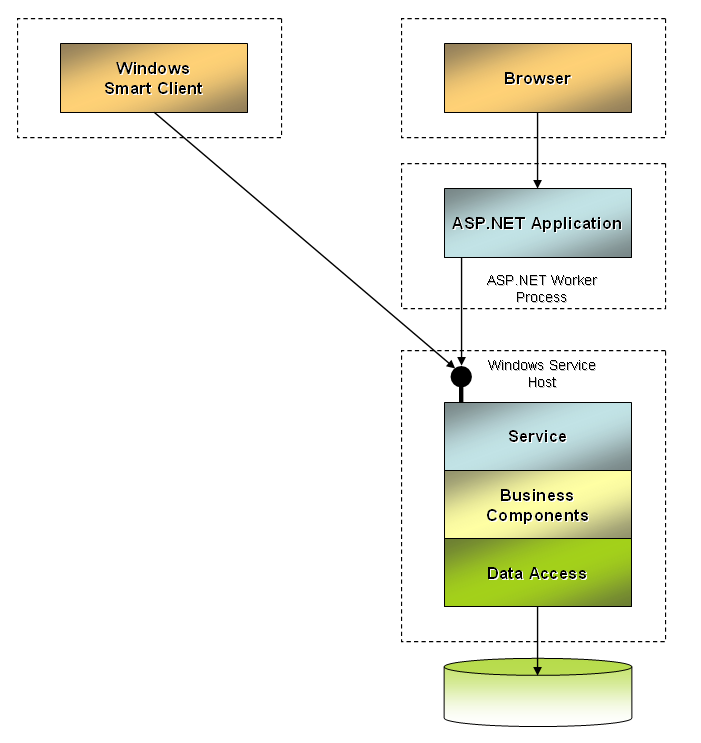
On Windows Server 2003 machines the Windows service is the most reliable way to host WCF services for access over named pipe, TCP, or MSMQ protocols. In particular, this would apply to scenarios such as intranet applications, or distributed services behind the firewall as illustrated in Figure 3.
IIS 6.0 Hosting
If you expose WCF services over the Internet using HTTP protocol on a Windows Server 2003 machine, IIS 6.0 makes for a much richer hosting environment than self-hosting. Unlike self-hosting, you don’t need code to instantiate ServiceHost instances, but you can still use declarative configuration in the application’s web.config file. More importantly, IIS 6.0 provides other much-needed hosting features making your service more reliable, available, and scalable.
In this section I’ll explain how IIS hosting works in general terms, discuss its distinct behaviors and added value, and provide you with an architectural overview of the IIS 6.0 hosting environment.
IIS Service Endpoints
When you host your services with any version of IIS you must provide at a minimum the following:
- An addressable Web Site or Virtual Directory for your service endpoints.
- A file with the extension .svc that will represent the ServiceHost instance.
- A service type that is linked to the .svc file for activation.
When you create a new Web Site project in Visual Studio, a WCF Service project template is provided. This template generates a project with a .svc endpoint, a sample service implementation, and a web.config with the appropriate <service> element to initialize the ServiceHost.
The .svc endpoint is the file that clients will address in their target URI to reach the service. It contains a @ServiceHost directive that indicates the service type and if applicable the service source code in the App_Code directory:
<% @ServiceHost Language=C# Debug="true"
Service="MyService"
CodeBehind="~/App_Code/Service.cs" %>
In reality, Visual Studio will compile your services into separate assemblies so your Web Site project must reference those assemblies and the .svc endpoint will reference the type only through the Service property of the @ServiceHost directive. For example, this Service.svc endpoint references the service type HelloIndigo.HelloIndigoService:
<% @ServiceHost
Service="HelloIndigo.HelloIndigoService" %>
The service type specified in the @ServiceHost directive also tells the service model which <service> section to use from the web.config to initialize the ServiceHost instance. One of the distinctions between self-hosting and IIS hosting is that the Web Site or Virtual Directory for the application provides the base address. The <service> section needn’t provide an address for each endpoint since the .svc file is the endpoint:
<service
name ="HelloIndigo.HelloIndigoService" >
  <endpoint
contract ="HelloIndigo.IHelloIndigoService"
binding ="wsHttpBinding"/>
</service>
Clients address the service using the .svc endpoint, for example:
<client>
  <endpoint
address ="http://localhost/IISHost/Service.svc"
binding ="wsHttpBinding"
contract ="Client.localhost.HelloIndigoContract">
  </endpoint>
</client>
In cases where you might want to expose multiple endpoints for the same .svc endpoint, you can use relative addressing. This example illustrates a case where clients can access the same Service.svc endpoint using BasicHttpBinding or WSHttpBinding to support different Web service protocols. The <endpoint> configuration for the service uses relative addressing, appending “/Soap11” and “/Soap12” to the endpoint address:
<service name="HelloIndigo.HelloIndigoService" >
  <endpoint address="Soap11"
contract ="HelloIndigo.IHelloIndigoService"
binding ="basicHttpBinding"/>
  <endpoint address="Soap12"
contract ="HelloIndigo.IHelloIndigoService"
binding ="wsHttpBinding"/>
</service>
Clients address each service endpoint in this way:
http://localhost/IISHost/Service.svc/Soap11
http://localhost/IISHost/Service.svc/Soap12
Note: For file-based Web sites, Visual Studio uses the ASP.NET Development Web Server instead of IIS. Endpoints function much the same as HTTP-based Web sites that are hosted in IIS, with the exception that a dynamically generated port assignment will exist in the endpoint address. For example:
http://localhost:1260/FileBasedHost/Service.
svc.
Message-Based Activation
One of the most important features IIS provides your WCF services is message-based activation. ServiceHost instances need not be open prior to processing requests for a given endpoint. Instead, the World Wide Web Publishing Service (WWW Service) is responsible for ensuring a worker process is present to handle requests. Then, when IIS forwards requests for a particular .svc endpoint to the worker process, the service model initializes the corresponding ServiceHost (if necessary), before dispatching the request through the channel stack.
“The WAS is a process activation service installed with IIS 7.0 that decouples the activation architecture from IIS in order to support non-HTTP protocols such as named pipes, TCP, and MSMQ.”
There are many participants in this activation process:
- Microsoft introduced the HTTP Protocol Stack (http.sys) in IIS 6.0. It is a kernel-mode message processing service that can receive messages even while worker processes are dormant. All requests arrive and return through this service.
- WWW Service is responsible for launching worker processes on demand to handle requests. It also determines the correct request queue (application pool) for http.sys to send messages for processing. WWW Service is a Windows service that must be running for http.sys to successfully forward requests.
- Ultimately, IIS forwards requests for .svc endpoints to an ASP.NET worker process, which looks to its HTTP handler configuration (<httpHandlers> section) to determine the correct runtime type to process requests. In the case of .svc endpoints, the HttpHandler type from the System.ServiceModel.Activation namespace handles requests.
Figure 4 illustrates how the IIS 6.0 architecture processes messages for WCF services. In fact, up to the point when the service model’s HttpHandler takes over, the ASP.NET ISAPI extension (aspnet_isapi.dll) handles the process much like any other HTTP request. What the service model’s HttpHandler does is initialize ServiceHost instances as needed to process requests.
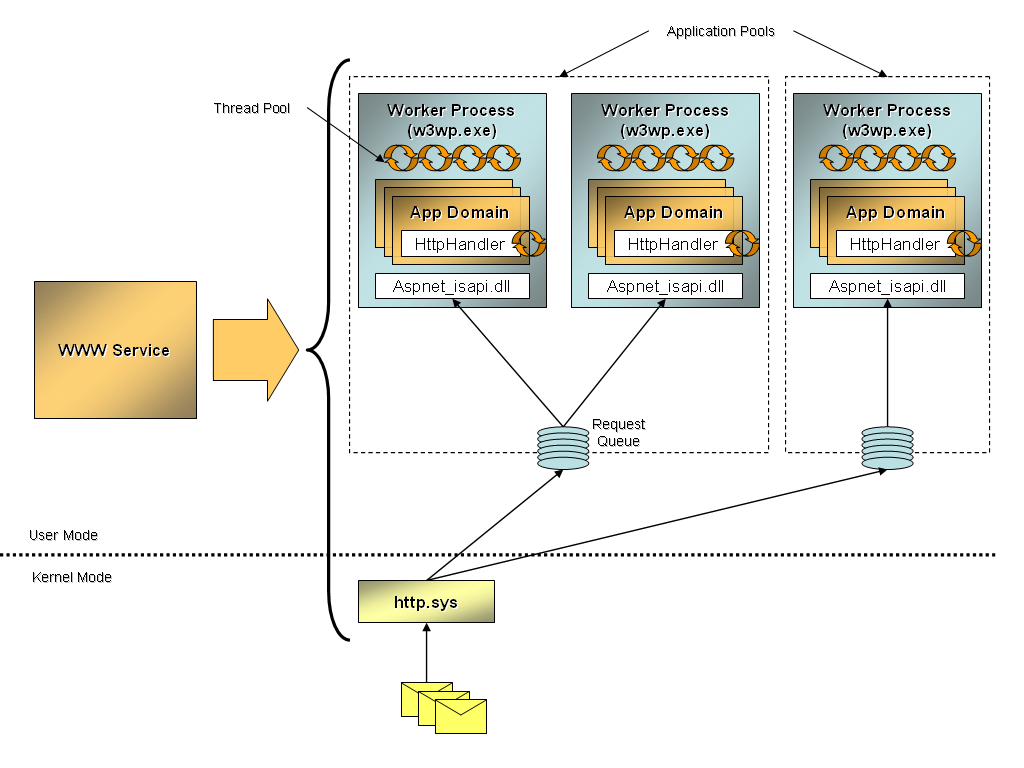
This message-based activation process allows IIS to balance the number of worker processes required to service request loads, releasing unused resources where appropriate. IIS also monitors the health of each worker process and will launch a new, healthy worker process to service requests as needed. In addition, you can configure IIS to periodically recycle worker processes to reduce the risk of resource and memory leaks. These features improve the overall reliability and availability of your WCF services.
ASP.NET Compatibility Mode
Once you activate the ServiceHost, hosting a WCF service with IIS operates much the same as self-hosted services. That is, the service model has a consistent way of processing requests. The ASP.NET processing model is only involved as far as passing the request to the correct HTTP handler, the service model’s HttpHandler type.
In fact, the service model has two modes for hosting WCF services:
- Mixed Transports Mode: This is the default hosting mode. In this mode the ASP.NET pipeline does not process service requests. This makes it possible to expose endpoints for multiple transports in a consistent manner.
- ASP.NET Compatibility Mode: This hosting mode restricts an application to HTTP services. When you enable this mode, the features supplied by HTTP modules such as file and URL authorization, session state, caching, and profile are available to the service. In addition, the hosting mode initializes HttpContext.Current to provide access to ASP.NET-specific context.
In most cases, access to ASP.NET features and the HttpContext should not be necessary. The service model provides a much richer set of authentication and authorization features that are more appropriate for services. The service model also supplies a global OperationContext with access to contextual information for the request including the security context, the request message and related headers, and information about the hosting environment.
If you are porting existing ASP.NET Web services (ASMX), you may have existing code that relies on the HttpContext or other ASP.NET features. For example, you may want to access the ASP.NET Session, Cache, or Profile objects to provide a consistent run-time experience as you would have with ASMX. You can enable ASP.NET compatibility by setting the aspNetCompabitilityEnabled property to true in the <serviceHostingEnvironment> section:
<system.serviceModel>
  <serviceHostingEnvironment
aspNetCompatibilityEnabled ="true"/>
<system.serviceModel>
This makes it possible for your service code, or its downstream objects, to interact with these aforementioned ASP.NET features. For example, you can write code that relies on the ASP.NET Profile. Consider this <profile> section in the web.config:
<profile enabled="true"
automaticSaveEnabled ="true">
  <properties>
    <add name="Culture" allowAnonymous="true"
defaultValue =""/>
  </properties>
</profile>
Your service code could access it as follows, using the current HttpContext:
// set the culture preference
string culture =
HttpContext.Current.Profile["Culture"];

// get the culture preference
HttpContext.Current.Profile["Culture"] = culture;
Services can also require a hosting environment that supports ASP.NET compatibility by applying the AspNetCompatibilityRequirementsAttribute from the System.ServiceModel.Activation namespace.
[AspNetCompatibilityRequirements(RequirementsMode=
AspNetCompatibilityRequirementsMode.Required)]
public class ProfileService : IProfileService
Other than porting ASMX services, you will most likely avoid using this feature in order to provide a consistent hosting model for your services over multiple protocols.
IIS 7.0 and WAS Hosting
On Windows “Longhorn” Server machines, you can host your WCF services with the Windows Activation Service (WAS). WAS is a process activation service installed with IIS 7.0 that decouples the activation architecture from IIS in order to support non-HTTP protocols such as named pipes, TCP, and MSMQ. Like IIS 6.0, WAS also provides features for idle-time management, health monitoring, process recycling, and management tools for configuring application pools among other things.
In this section I’ll explain how WAS hosting works, show you how the hosting architecture compares to IIS 6.0 hosting, and provide you with some tips for getting started with WAS.
WAS Hosting Architecture
IIS 7.0 introduces some architectural changes necessary to expand support for named pipes, TCP, and MSMQ protocols. The new architecture relies on protocol listeners, listener adapters, and protocol handlers to process requests.
- Protocol Listeners: A protocol listener is responsible for receiving requests for a particular protocol. There is a protocol listener provided for HTTP, named pipes, TCP, and MSMQ. For HTTP, the HTTP listener is http.sys (same as in IIS 6.0). Listeners for other protocols are provided by their respective listener adapter service.
- Listener Adapters: A listener adapter is responsible for bridging requests between WAS and the worker process for a particular protocol. There is a listener adapter for HTTP, named pipes, TCP, and MSMQ. WWW Service provides the HTTP listener adapter. IIS provides Windows services for each of the other protocols, supplying a protocol listener and listener adapter pair (Figure 5).
- Protocol Handlers: A protocol handler channels requests through the service model for a particular protocol. WCF provides managed protocol handlers for HTTP, named pipes, TCP, and MSMQ.
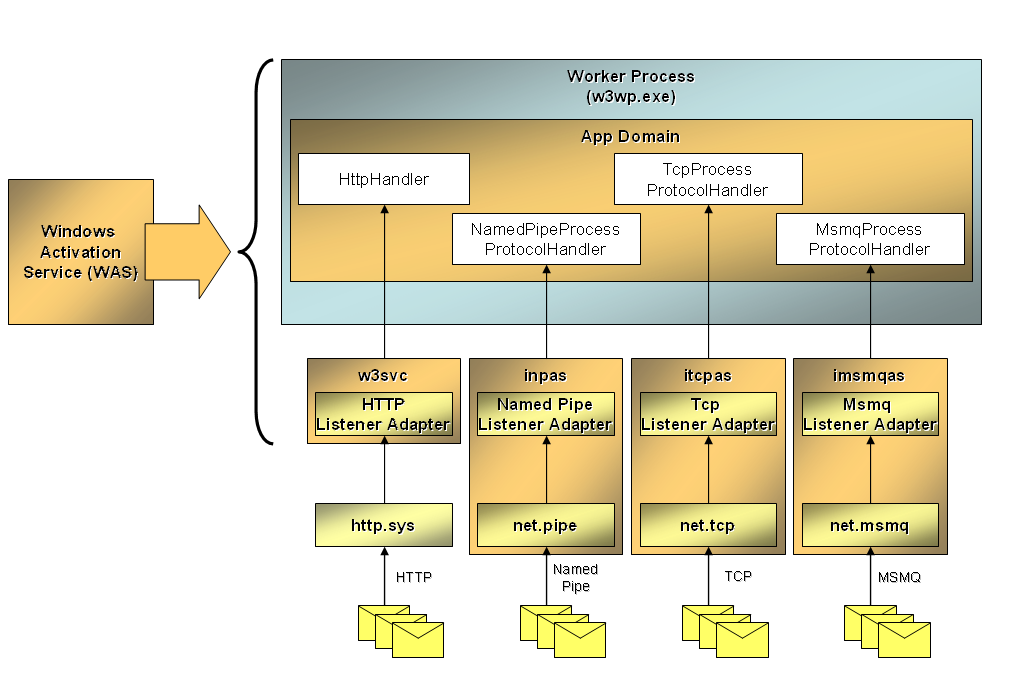
As each protocol listener receives requests, WAS checks for the existence of a worker process to service the request (according to application pool configuration). The listener adapter’s job is then to pull requests from the application pool queue and forward to the appropriate protocol handler for processing. Figure 5 illustrates this architecture and flow.
To support this new architecture there are two services:
- Windows Activation Service (WAS): This service handles configuration, application pooling, and process activation for all protocols.
- WWW Service: This service provides the listener adapter for the HTTP listener, http.sys.
Table 2 shows these and other services that support the architecture shown in Figure 5. Ultimately, it’s the protocol handler provided by WCF that ensures the ServiceHost instance has been created before requests can be processed.
Regardless of protocol, the service model handles all requests in a consistent manner, but WAS provides a message-based activation mechanism like IIS 6.0 to increase the overall reliability and scalability for requests over any protocol.
Enabling WAS
You’ll need to perform a few steps to configure IIS 7.0 and WAS before you can successfully host WCF services over any protocol. As you would with IIS 6.0, you’ll first have to make sure the machine has IIS 7.0 and WAS installed. With these Windows components installed you can configure WAS for the protocols you want to support for each Web site.
IIS provides a new command-line utility to configure Web sites-appcmd.exe. HTTP protocol is supported by default, but with this utility you can enable support for named pipes, TCP, or MSMQ for any Web site or application directory. The following illustrates enabling named pipes, TCP, and MSMQ support for the default Web site:
%windir%\system32\inetsrv\appcmd.exe set site
"Default Web Site" -+bindings.[protocol=
'net.pipe',bindingInformation='*']

%windir%\system32\inetsrv\appcmd.exe set site
"Default Web Site" -+bindings.[protocol=
'net.tcp',bindingInformation='*']

%windir%\system32\inetsrv\appcmd.exe set site
"Default Web Site" -+bindings.[protocol=
'net.msmq',bindingInformation='*']
After executing these commands, IIS updates the configuration file for WAS, applicationHost.config, with new <binding> entries for the Web site. IIS nests site configuration inside the <system.applicationHost> section as shown here:
<system.applicationHost>
  <sites>
    <site name="Default Web Site" id="1">
      <bindings>
        <binding protocol="http"
bindingInformation ="*:80:" />
        <binding protocol="net.pipe"
bindingInformation ="*" />
        <binding protocol="net.tcp"
bindingInformation ="*" />
        <binding protocol="net.msmq"
bindingInformation ="*" />
      </bindings>
    </site>
  </sites>
</system.applicationHost>
This section governs what protocols the Web site and WCF services can support. Put another way, services can only expose endpoints that use service model bindings matching the supported protocols for the application.
Choosing the Right Hosting Environment
As I mentioned at the beginning of this article, choosing a hosting environment for your services is something that is largely driven by your operating platform and choice of protocol. Now that you’ve had a chance to explore the different hosting environments, you can probably guess that the best possible hosting environment would be WAS for its rich set of features and protocol support. Unfortunately, WAS is only available on Windows Vista or Windows “Longhorn” Server machines.
Table 3 summarizes the hosting options available to you on each operating platform, including client and server platforms. Based on this summary, you will likely make one of these choices for your production services on each server platform:
- For Windows “Longhorn” Server machines you’ll use IIS 7.0 and WAS.
- For Windows Server 2003 machines you’ll use IIS 6.0 for HTTP and Windows services for other protocols.
For client systems the choice is a little bit more complex. In-process services introduce the least configuration overhead for clients, thus you’ll be using Windows Forms or WPF clients as your self-hosting environment. If the system is a complex, distributed system where you have significant control over setup, you may install Windows services to provide services for Windows XP machines. For Windows Vista machines your choice of self-hosting with Windows services or enabling WAS may be governed by client preferences.
