


Microsoft has recently launched the Windows Mobile 5.0 platform for Pocket PCs and Smartphones.
With the proliferation of Windows Mobile-based devices in the marketplace, companies are gradually mobilizing their enterprising applications to let their staff gain the competitive mobile advantage.
Coupled with the launch of Visual Studio 2005, the .NET Compact Framework is now in its second generation-version 2.0.
From a developer’s viewpoint, Windows Mobile 5.0 exposes many of its APIs as managed classes, thereby allowing developers using the .NET Compact Framework to easily build compelling applications that were once only possible to native developers.
In this article, I will demonstrate some of the new managed APIs made available by Windows Mobile 5.0 and the .NET Compact Framework 2.0. I’ll focus on the classes that are of interest to managed developers. (I won’t cover the new APIs that are only available to native developers.)
Devices
In recent months, vendors have been busy pushing out new Windows Mobile 5 devices and consumers now have many choices. The market seems to favor Pocket PC Phone Edition devices as these devices can easily replace your mobile phone with more functionality.
When the JASJAR from i-Mate (Figure 1) was launched, it was the world’s first Windows Mobile 5.0 3G-enabled GSM/GPRS Pocket PC with Wi-Fi capability. Everything you want on a Pocket PC, it basically has them-Wi-Fi, Bluetooth, USB, SD slot, VGA-resolution screen, swivel screen, landscape and portrait modes, phone capability, built-in cameras (it has two-one on the back and one at the front of the screen for video conferencing), as well as an illuminated QWERTY keyboard.

I tested all of the code examples in this article on the i-Mate JASJAR.
Visual Studio 2005
Microsoft’s release of Visual Studio 2005 makes developing Windows Mobile applications much easier. Using Visual Studio 2005, developers can target different platforms (Pocket PC 2003, Smartphone 2003, Windows Mobile 5.0 Pocket PC, and Windows Mobile 5.0 Smartphone; see Figure 2). In addition, you can use either the latest .NET Compact Framework 2.0, or the older version 1.0.
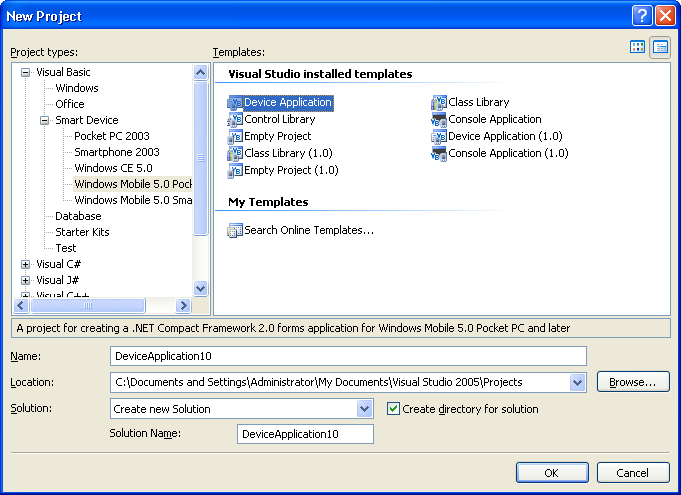
Once the two SDKs are installed, you will see the new Windows Mobile 5.0 Pocket PC and Windows Mobile 5.0 Smartphone project types in Visual Studio 2005.
The Windows Mobile 5 SDK ships with emulators of different flavors-Pocket PC as well as Phone Edition emulators, each with QVGA or VGA screen, and the emulators come in rectangular and square form factors. In addition, you can also download the various localized Windows Mobile 5.0 Pocket PC emulator images (see http://www.microsoft.com/downloads/details.aspx?familyid=EEC33AE3-C129-4C25-ABAA-18E8E842178F&;displaylang=en) for testing your applications on localized Windows Mobile platforms.
Visual Studio 2005 also makes it easy for developers to change the target platform of their application. For example, if you’ve designed an application for the Windows Mobile 5.0 platform, you can convert it to the Pocket PC 2003 platform, perhaps to support users that are still using the older devices. To convert the target platform of an application, you simply need to right-click on the project name in Solution Explorer and select Change Target Platform.
Improved Emulator Support
Visual Studio 2005 offers better emulator support than did previous versions of Visual Studio. You can use the Device Emulator Manager from the Tools menu and then choose Device Emulator Manager…) to synchronize with ActiveSync on your desktop. This ability allows you to better test your applications, such as testing how a setup application will install your application on a real device, etc.
Screen Orientation
Beginning with Windows Mobile 2003 Second Edition, devices now support portrait and landscape screen orientations. Developers targeting the latest platform should ensure that their applications are orientation-aware and are able to use the changes in screen estate. To make life simpler for developers, Visual Studio 2005 supports the change of screen orientation during design-time. Using the Rotate Left and Rotate Right buttons, you can change the orientation of the form (Figure 3).
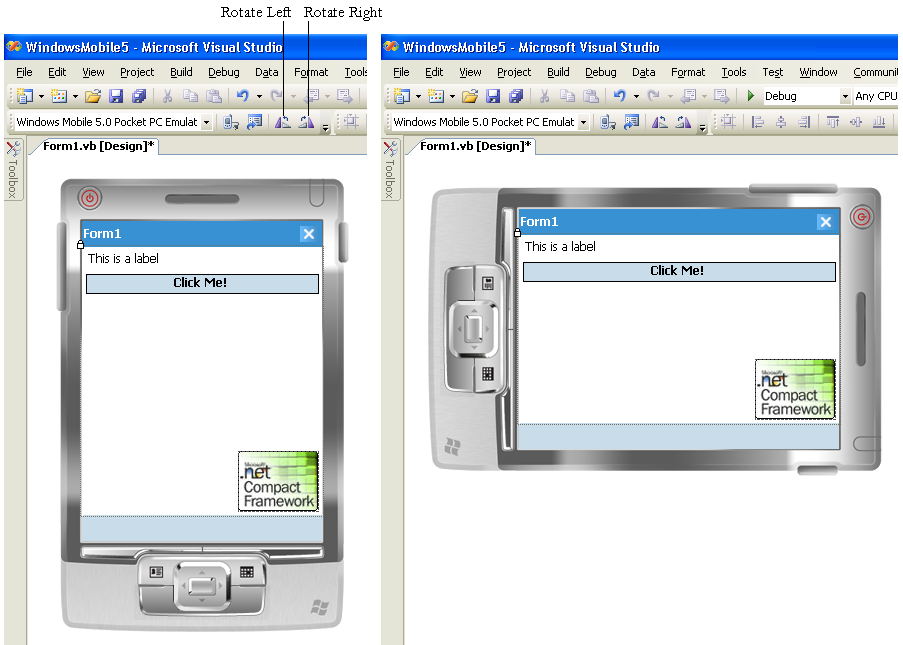
To ensure that you’ve properly positioned controls on a form during a screen orientation change, you should use the Anchor property of each control to anchor it against the four edges of the form. In the example shown in Figure 3, the three controls are aligned so that a change in screen orientation ensures that the controls display properly. You can anchor the control by modifying the Anchor property (found in the Property window) or set them programmatically during run time, like this:
Label1.Anchor = AnchorStyles.Left + _
                AnchorStyles.Top
Button1.Anchor = AnchorStyles.Left + _
                AnchorStyles.Right + _
                AnchorStyles.Top
PictureBox1.Anchor = _
                AnchorStyles.Right + _
                AnchorStyles.Bottom
You can also manually handle screen orientation by repositioning each control depending on the screen orientation. This method requires more work, but allows you to position the controls wherever they want. To do so, you need to handle the Resize event of the form and then set the Location and Size properties of each control depending on whether it is landscape mode or portrait mode.
Private Sub Form1_Resize( _
   ByVal sender As Object, _
   ByVal e As System.EventArgs) _
   Handles MyBase.Resize

    If Me.Width > Me.Height Then
        '---landscape mode---
        Me.Label1.Location = New _
          System.Drawing.Point(100, 4)
        Me.Label1.Size = New _
          System.Drawing.Size(100, 20)
    Else
        '---portrait mode---
        Me.Label1.Location = New _
          System.Drawing.Point(4, 4)
        Me.Label1.Size = New _
          System.Drawing.Size(100, 20)
    End If

End Sub
Screen Resolution
You also need to consider screen resolution when deploying your applications to the newer Windows Mobile devices. Some newer devices in the market come with VGA screen (480*640; 192 dpi). By default, the controls on a form will scale automatically depending on the screen resolution. This behavior is indicated by the AutoScaleMode property, which is set to Dpi by default. That is, a form designed to work on a QVGA screen (240*320; 96 dpi) will appear the same as on a VGA screen. The increase in resolution is to improve the readability of the screen, and not to squeeze more information into the same screen estate.
When I test the application shown in Figure 3 on a VGA screen device, notice what happens (Figure 4).
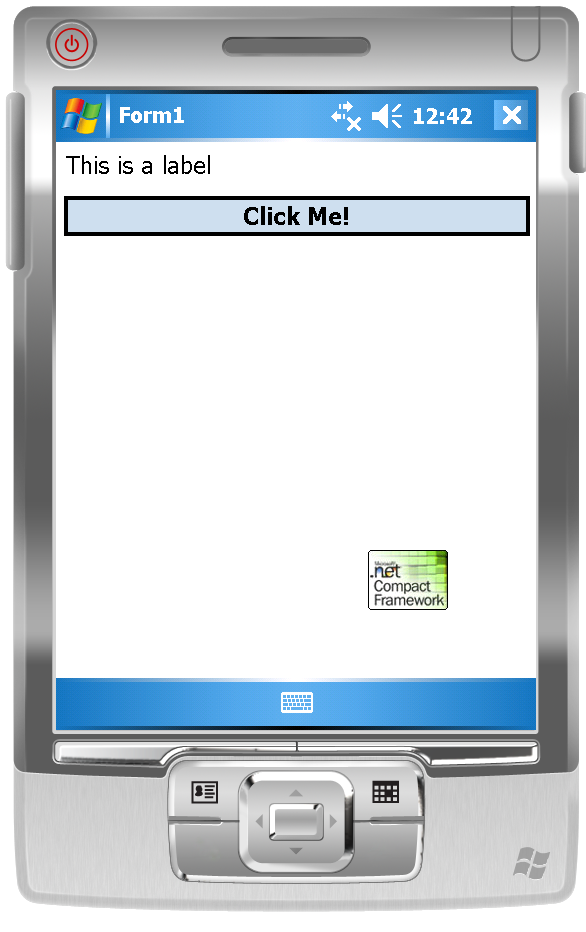
The Label and TextBox controls scale correctly while the PictureBox control does not automatically scale the image. This is important if you want to target users with different screen resolution. To fix the problem, you need to maintain two different images-one for a QVGA screen and one for a VGA screen. You can detect the type of screen resolution by using the following code segment:
If Me.Width = 640 Or _
   Me.Width = 480 Then
   '---VGA
   PictureBox1.Image = New _
      Bitmap("\Images\Image_VGA.jpg")
Else
   '---QVGA
   PictureBox1.Image = New _
      Bitmap("\Images\Image_QVGA.jpg")
End If
Data-Binding
One significant improvement in the support of mobile development in Visual Studio is drag-and-drop data-binding. Displaying data from a database is now an easy task that requires no more than just some drag-and-drop effort. As an example, you can add a new SQL Mobile database to your application by selecting Data and then choosing Add New Data Source…. Follow the steps in the wizard and add a SQL Mobile database. (A sample Northwind SQL Mobile database shipped with Visual Studio 2005.)
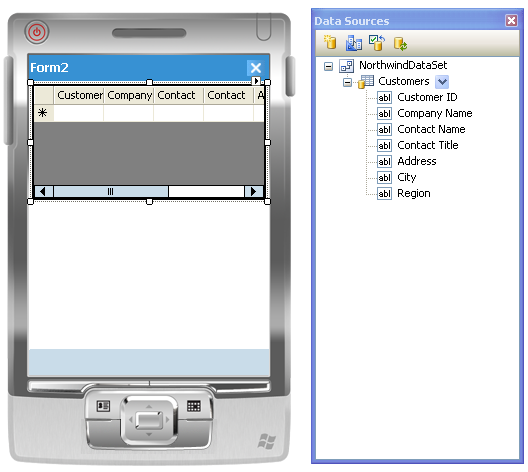
Once you’ve added the database to the project, you can drag the data source from the Data Sources window and drop it onto the form (Figure 5). Visual Studio will create a DataGrid control to display the rows of records from the selected database.
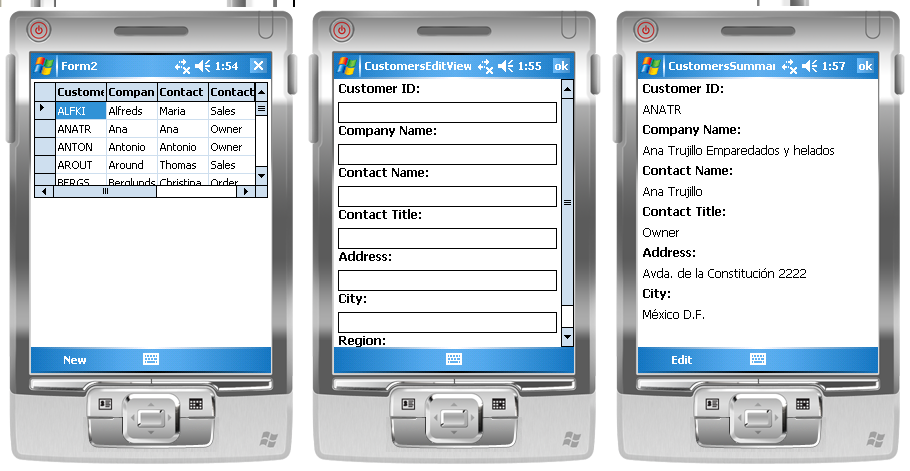
By default, the DataGrid control displays the records in the database in read-only mode. However, you can also make changes to the data in the database. To do so, simply click on the Generate Data Forms… link in the DataGrid’s smart tag (Figure 6) to auto-generate a series of forms that allow users to edit/add records to the database.
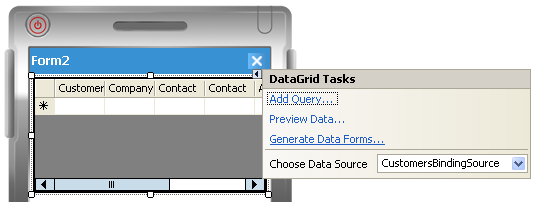
Once you’ve done this, you can tap the New menu to add a new record during run time, or simply tap on a record displayed within the DataGrid control to edit its content (Figure 7).
Integration with Outlook Mobile
In the past, integrating your application with the PIM functionality on your device was a hair-pulling experience. Windows Mobile 5.0 now exposes the functionality in Outlook Mobile through managed classes found in the Microsoft.WindowsMobile.PocketOutlook namespace. .NET Compact Framework developers can now easily integrate data from Outlook Mobile into their application using these managed classes.
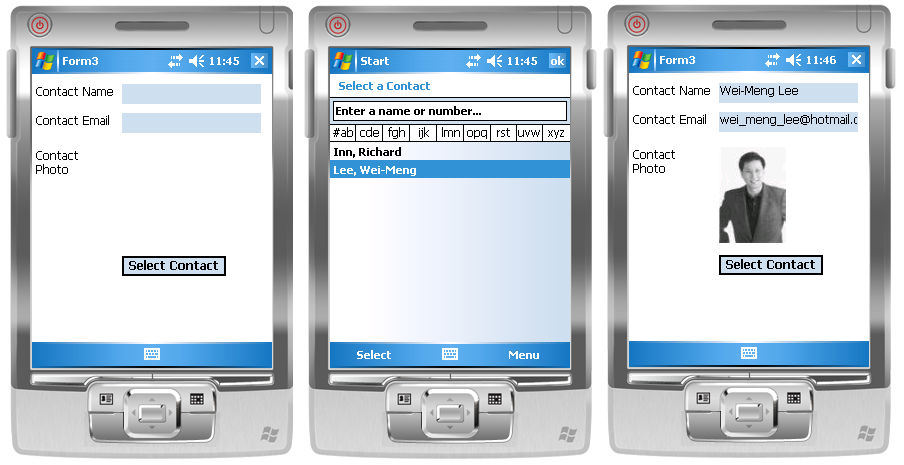
As an example, let’s build an application that allows a user to select a contact from Contacts and then send an e-mail to the selected contact.
First, add a reference to the Microsoft.WindowsMobile.Forms and Microsoft.WindowsMobile.PocketOutlook assemblies and import the required namespaces.
Imports Microsoft.WindowsMobile.Forms
Imports Microsoft.WindowsMobile. _
        PocketOutlook
To select a contact, use the ChooseContactDialog class.
Private Sub btnSelectContact_Click( _
   ByVal sender As System.Object, _
   ByVal e As System.EventArgs) _
   Handles btnSelectContact.Click

    Dim contactPicker As New _
       ChooseContactDialog
    Dim result As DialogResult = _
       contactPicker.ShowDialog

    If result = _
      Windows.Forms.DialogResult.OK  _
      Then
         lblName.Text = _
     contactPicker.SelectedContactName
         lblEmail.Text = _
     contactPicker.SelectedContact. _
     Email1Address
         PictureBox1.Image = _
     contactPicker.SelectedContact. _
     Picture
    End If

End Sub
Figure 8 shows the flow of the application.
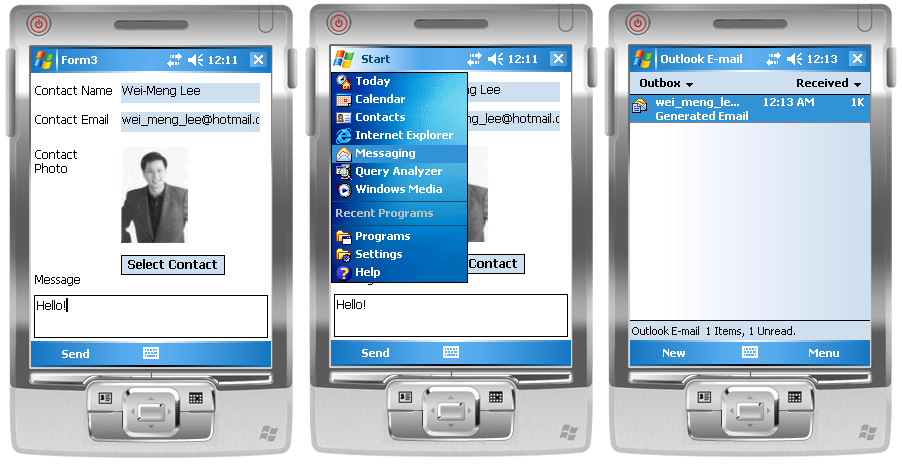
To send an e-mail, you use the EmailMessage class.
Private Sub MenuItem1_Click( _
   ByVal sender As System.Object, _
   ByVal e As System.EventArgs) _
   Handles MenuItem1.Click

    Dim message As New EmailMessage
    message.Subject = _
       "Generated Email"
    message.BodyText = txtMessage.Text

    Dim client As New _
       Recipient(lblEmail.Text)
    message.To.Add(client)

    Dim currentSession As New _
        OutlookSession
    currentSession. _
        EmailAccounts(0).Send(message)
    MsgBox("Message sent!")

End Sub
Figure 9 shows the flow of the application. Once the e-mail is sent, you can go to Messaging (choose the Outbox folder) to verify that an e-mail has indeed been created.
Intercepting SMS Messages
For managed developers, Windows Mobile 5.0 can intercept incoming SMS messages. For example, you might write your own custom push-email solution by sending yourself an SMS message whenever a new e-mail is received. When your Windows Mobile 5 device receives the message, your application can intercept the message and then automatically fire up your Web browser to navigate to your Web e-mail.
You can use the MessageInterceptor class to intercept incoming messages and then perform a check on its content so that if it fulfills your criteria, you can perform a specific action. Listing 1 shows how you can intercept incoming SMS messages by checking to see if the message body starts with the word “invoke”. If it does, the code launches Pocket Internet Explorer to navigate to http://www.hotmail.com/. (For this example, you need to add a reference to the Microsoft.WindowsMobile and Microsoft.WindowsMobile.PocketOutlook assemblies.)
The MessageInterceptor class is useful for automation purposes. Suppose your device contains confidential information and you are worried that the information may fall into the wrong hands if you lose your device. You could write an application that will wipe out all the sensitive data on the device if it receives a specially-coded SMS message.
Integrating with Calendar
You can now easily integrate your application with the Calendar application. The following code segment shows how easy it is to create an appointment in Calendar. (This example requires you to add a reference to the Microsoft.WindowsMobile.PocketOutlook assembly.)
Imports _
 Microsoft.WindowsMobile.PocketOutlook

...

Dim appt As New Appointment
appt.Subject = "Meeting with Jeff"
appt.Start = New _
    DateTime(2006, 7, 15, 9, 0, 0)

appt.End = New _
    DateTime(2006, 7, 15, 11, 0, 0)

'---vibrate the device as a reminder
appt.ReminderVibrate = True

'---repeat the reminder
appt.ReminderRepeat = True

Dim currentSession As New _
   OutlookSession
        currentSession.Appointments.Items. _
   Add(appt)
Camera APIs
In the past, integrating your application with the built-in camera on your device was not an easy task. In Windows Mobile 5, you can now invoke the built-in camera using the CameraCaptureDialog class. (This example requires you to add a reference to the Microsoft.WindowsMobile.Forms assembly.)
Imports Microsoft.WindowsMobile.Forms

...

Private Sub btnPicture_Click( _
   ByVal sender As System.Object, _
   ByVal e As System.EventArgs) _
   Handles btnPicture.Click

    Dim ccd As New CameraCaptureDialog
    ccd.Resolution = New _
       Size(100, 200)
    ccd.Mode = CameraCaptureMode.Still
    ccd.ShowDialog()
    If ccd.FileName <> String.Empty _
    Then
        PictureBox1.Image = New _
        Bitmap(ccd.FileName)
    End If

End Sub
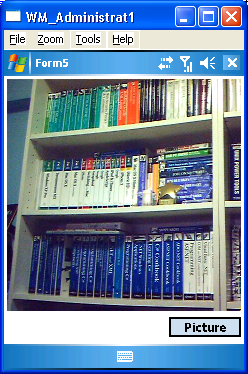
Besides capturing still images, CameraCaptureDialog also supports video capture, which you can enable by setting the Mode property to CameraCaptureMode.VideoWithAudio.
Figure 10 shows a PictueBox control showing the pictue that was taken using the built-in camera.
Serial Communication
In .NET Compact Framework 1.1, accessing the serial ports on the device involves performing a Platform Invoke (P/Invoke) operation, which is often an arduous and error-prone process. With .NET Compact Framework 2.0, you can access serial ports using the SerialPort class.
Figure 11 shows a Chat application that allows two Pocket PC users to chat over Bluetooth.
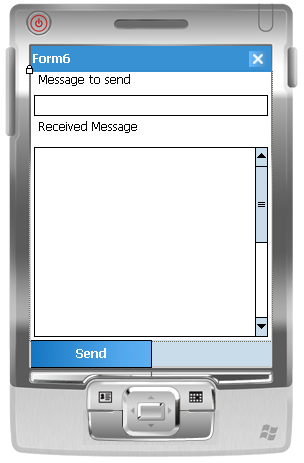
You can create it like this. First, create an instance of the SerialPort class.
Dim WithEvents serialPort As New _
   IO.Ports.SerialPort
When the form is loaded, open the serial port (this example assumes that your Pocket PC has an available COM4 associated with the Bluetooth connection) and initialize the SerialPort object.
Private Sub Form6_Load( _
   ByVal sender As System.Object, _
   ByVal e As System.EventArgs) _
   Handles MyBase.Load

    If serialPort.IsOpen Then
        serialPort.Close()
    End If

    With serialPort
        .PortName = "COM4"
        .BaudRate = 9600
        .Parity = IO.Ports.Parity.None
        .DataBits = 8
        .StopBits = _
           IO.Ports.StopBits.One
    End With
    serialPort.Open()
End Sub
The serialPort object has an event-DataReceived-that fires whenever incoming data is detected. When data is received, you call a delegate to update the received data in the TextBox control on the form. Note, you cannot directly update the Windows controls in this event as they are not running in the same thread as the main form.
Private Sub DataReceived( _
   ByVal sender As Object, _
   ByVal e As System.IO.Ports. _
     SerialDataReceivedEventArgs) _
   Handles serialPort.DataReceived

    txtReceivedMessage. _
    BeginInvoke(New _
       myDelegate(AddressOf _
       updateTextBox), _
       New Object() {})

End Sub
Define the delegate and the actual subroutine to update the received data on the form. The ReadExisting() method obtains the received data from the SerialPort object.
Public Delegate Sub myDelegate()
Public Sub updateTextBox()
    txtReceivedMessage.Text = _
       serialPort.ReadExisting & _
       vbCrLf & _
       txtReceivedMessage.Text
End Sub
To send an outgoing message, use the WriteLine() method from the SerialPort object.
Private Sub MenuItem1_Click( _
   ByVal sender As System.Object, _
   ByVal e As System.EventArgs) _
   Handles MenuItem1.Click

    serialPort.WriteLine( _
      txtMessageToSend.Text)
    txtReceivedMessage.Text = ">" & _
       txtMessageToSend.Text & _
       vbCrLf & _
       txtReceivedMessage.Text
    txtMessageToSend.Text = _
       String.Empty
End Sub
To test the application, load two Windows Mobile 5.0 Pocket PCs with the application. Pair up the two devices with Bluetooth and ensure that each device has an available serial port (which I hard-coded as COM4 for simplicity). You can now chat wirelessly with each other using Bluetooth!
Telephony
For Windows Mobile 5.0 Phone Edition devices, you can integrate telephony functionality into your applications using the Phone class (located in the Microsoft.WindowsMobile.Telephony assembly).
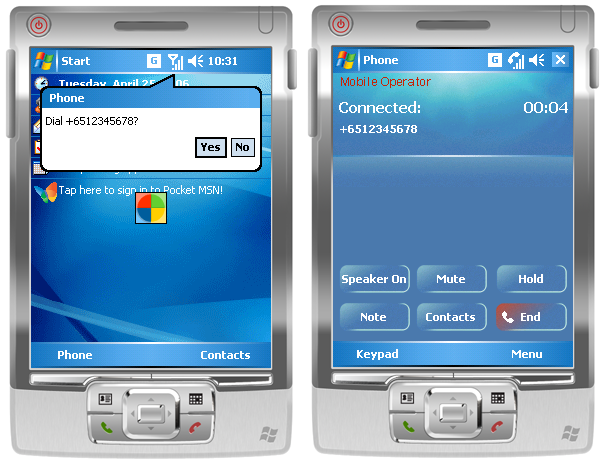
For example, the following code segment makes a phone call by first prompting the user (Figure 12). (This example requires you to add a reference to the Microsoft.WindowsMobile.Telephony assembly.)
Imports _
   Microsoft.WindowsMobile.Telephony

...

Dim phone As New Phone
phone.Talk("+6512345678", True)
Monitoring Changes in System State
Windows Mobile 5.0 contains the SystemState (found in the Microsoft.WindowsMobile.Status assembly) class that provides the ability to get the current value of a system state as well as the ability to be notified when that state changes. For example, you might want to synchronize your Pocket PC with ActiveSync when the user connects the Pocket PC to the cradle (or synching cable). As such, your application needs to monitor if there is a change in the cradle state.
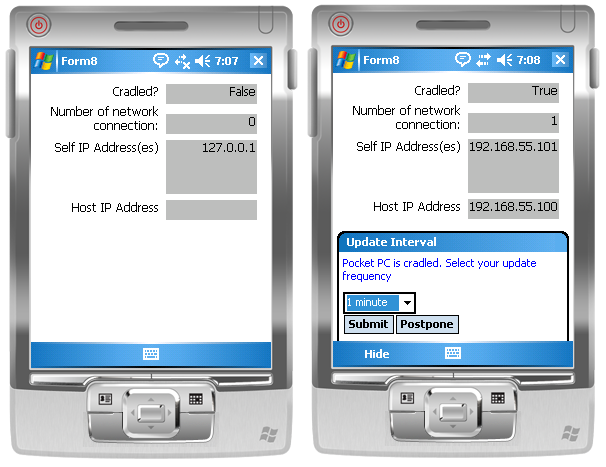
Figure 13 shows an application that displays the cradle state of the device as well as the IP address of itself and the host. Using such an application, you can write an application that synchronizes the content of the device with the desktop.
Let’s look at the source code of the application. First, import the necessary namespaces. (This example requires you to add a reference to the Microsoft.WindowsMobile, Microsoft.WindowsCE.Forms, and Microsoft.WindowsMobile.Status assemblies.)
Imports Microsoft.WindowsMobile
Imports Microsoft.WindowsMobile.Status
Imports System.Net
Imports System.Text
Declare two SystemState variables-one to keep track of the cradle state, and one to keep track of the network connection state. Next, the code creates an instance of the Notification class to display notifications to the user.
Private WithEvents cradleState As _
   SystemState
Private WithEvents _
   networkConnectionState As _
   SystemState

Private WithEvents notification1 As _
   New _
   Microsoft.WindowsCE. _
   Forms.Notification
Declare the DisplayGetOwnIPAddresses() subroutine to display the IP address(es) assigned to the Pocket PC.
'---display own IP address
Private Sub DisplayGetOwnIPAddresses()

    lblIPAddresses.Text = String.Empty
    Try
        Dim ownAddr() As IPAddress = _
           Dns.GetHostEntry( _
           Dns.GetHostName()). _
           AddressList
        If ownAddr Is Nothing Then
            Exit Sub
        End If

        For i As Integer = 0 To _
           ownAddr.Length - 1
            lblIPAddresses.Text &= _
            ownAddr(i).ToString & _
            vbCrLf
        Next
    Catch ex As Exception
        MsgBox(ex.ToString)
    End Try

End Sub
Declare the DisplayHostIPAddresses() subroutine to display the IP address(es) of the host computer:
'---display host IP address
Private Sub DisplayHostIPAddresses()

    lblHostIPAddress.Text = _
       String.Empty
    Try
        Dim hostAddr() As _
           IPAddress = _
              Dns.GetHostEntry( _
              "PPP_PEER").AddressList
        If hostAddr Is Nothing _
        Then
           Exit Sub
        End If
        For i As Integer = 0 To _
           hostAddr.Length - 1
           lblHostIPAddress.Text = _
              hostAddr(i).ToString
        Next
    Catch ex As Exception
        MsgBox(ex.ToString)
    End Try

End Sub
When the form loads, you instantiate the cradleState and networkConnectionState objects (Listing 2) so that any changes in the cradle state or network connection state will trigger the necessary events (you will service them next).
When the IP address of the device changes (such as when it is connected to a Wi-Fi network and assigned a new IP address), the Changed event of the networkConnectionState object will be fired. The new IP address of the device and the host PC will be updated.
'---event handler for handling changes
' in network connection state
Private Sub _
   networkConnectionState_Changed( _
   ByVal sender As Object, _
   ByVal args As _
   Microsoft.WindowsMobile. _
   Status.ChangeEventArgs) _
   Handles networkConnectionState. _
   Changed

   '---display own and host IP
   ' addresses
   DisplayGetOwnIPAddresses()
   DisplayHostIPAddresses()

End Sub
Likewise, when the cradle’s state changes (when you connect or disconnect your Pocket PC from the host computer), the Changed event of the cradleState object will fire (Listing 3). Here you will display a notification balloon to the user if the device is cradled to the computer. Notice that the content of the notification is coded in HTML. To dismiss a notification, you use the identifier “cmd:2” as the name for an input element. This identifier has special meaning in Windows CE and is used to dismiss notifications. The content of the notification allows the user to select the update frequency through a drop-down list box.
The code uses the DisplayNotification() subroutine to display a notification ballon on the Pocket PC.
'---display the notification
Private Sub DisplayNotification( _
   ByVal caption As String, _
   ByVal text As String)

    With notification1
        .Caption = caption
        .Text = text
        .InitialDuration = 20
        .Visible = True
    End With

End Sub
When the user submits the information in a notification balloon, it fires the ResponseSubmitted event from the notification1 object. Here you’ll add the logic to do whatever you are supposed to do, such as communicate with the host application to synchronize the content on the Pocket PC with the desktop.
Private Sub OnResponseSubmitted( _
   ByVal sender As Object, _
   ByVal args As _
   Microsoft.WindowsCE.Forms. _
   ResponseSubmittedEventArgs) _
   Handles _
   notification1.ResponseSubmitted

    '---A sample reply---
    ' notify?lstIntervals=2
    If (args.Response. _
       Substring(0, 6) = "notify") _
    Then
        Dim choice As Integer = _
        Convert.ToInt32( _
        args.Response.Substring( _
        20, 1))
        Select Case choice
            Case 0 '---do something
            Case 1 '---do something
            Case 2 '---do something
        End Select
    End If
    notification1.Visible = False

End Sub
Summary
In this article, I’ve shown you some of the new features available on the Windows Mobile 5.0 platform. With Visual Studio 2005, developers using the .NET Compact Framework can now develop compelling applications with ease, as most of the important APIs are exposed as managed classes. If you have not started on mobile application development yet, now is a good time to get started!
