The third release of the .NET Framework (version 2.0) introduces many changes and innovations not just in the application frameworks, but also in the essential mechanics of assemblies themselves.
Microsoft strived to improve on a few limitations of the original assemblies model, as well as provide new features and capabilities in assemblies and in the tools used to build and manage them, predominantly Visual Studio 2005. These include application assembly reference, reference aliasing, friend assembly, better strong name protection, specific versioning, and targeting specific CPU architectures, and more. This article describes each such new feature, and when applicable, recommends best practices and guidelines.
Referencing Application Assembly
Visual Studio 2003 only allows developers to add a reference to a library assembly. The client of a component in a class library assembly (.DLL) could reside in the same assembly as the component, in a separate class library, or in a separate application assembly (.EXE). The client of a component in an application assembly could only reside in the same application assembly as the component. This was analogous to the use of classic Windows DLLs, though there was nothing specific in .NET itself that precluded using components in an application assembly by other assemblies. Visual Studio 2005 allows developers to add a reference to both library and application assemblies. This enables you to treat an EXE application assembly just as if it were a DLL library assembly. This new capability is demonstrated in Figure 1. The client in the assembly named EXE 1 can consume Class D, which resides in the application assembly named EXE 2.
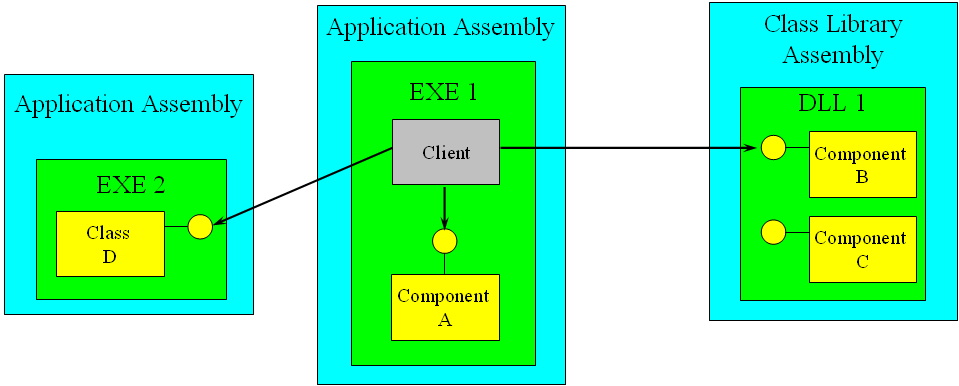
You can even add application assemblies to the GAC. There is no longer the strict distinction (inherited by convention not by capability from Windows) between DLLs and EXEs assemblies, and the lines between them are very much blurred.
Visual Studio 2005 allows developers to add a reference to both library and application assemblies.
Anything you can do with a DLL library assembly, you can do with an EXE application assembly. For example, nothing prevents you from having a logical application comprised of one EXE application assembly with the user interface in it, and several other EXE application assemblies referenced by the user interface assembly, all loaded in the same process (as well as the same app domain).
However, the other way around is not true there are a few things you can only do with an EXE application assembly:
- You can only directly launch an application assembly (be it a Windows or a Console application). You cannot launch a class library.
- Only an application assembly used to launch the process has a say on the CLR version used.
- Visual Studio 2005 partial trust debugging is only available for application assemblies.
- ClickOnce publishing and deployment is only available for an application assembly.
That said, I still recommend that you put components in library assemblies whenever possible. This will enable the components to be used by different applications with different CLR versioning policies. It will also enable bundling the components with different ClickOnce applications and deploy the components with different security and trust policies.
Reference Aliasing
In .NET 2.0, by default, all types are rooted in a namespace called global. For example, this class definition:
class MyClass
{}
is identical to this one:
namespace global
{
   class MyClass
   {}
}
You don't need to explicitly use the global namespace since it is always implied by default. The global namespace is instrumental in resolving type name conflicts, especially when multiple assemblies are involved.
When you add an assembly reference, it is possible to create a conflict with another type already defined by your application in another assembly it references. For example, consider the MyApplication.exe and MyLibrary.dll assemblies, which both define the class MyClass in the namespace MyNamespace.
//In MyApplication.exe
namespace MyNamespace
{
   public class MyClass
   {...}
}

//In MyLibrary.dll
namespace MyNamespace
{
   public class MyClass
   {...}
}
Each definition of MyClass is completely distinct, providing different methods and behaviors. If you add a reference to MyLibrary.dll from within MyApplication.exe, when you try to use the type MyClass like so:.
using MyNamespace;

MyClass obj = new MyClass();
The compiler will issue an error because it does not know how to resolve it that is, it doesn't know which definition of MyClass to reference.
C# 2.0 allows you to resolve type name conflicts by aliasing the assembly reference. By default, all namespaces are rooted in the global namespace. When aliasing an assembly, the namespaces used in that assembly will be resolved under the alias, not globally. To alias an assembly, first add a reference to it in Visual Studio 2005. Next, expand the Reference folder in the Solution Explorer, and display the properties of the referenced assembly (Figure 2).
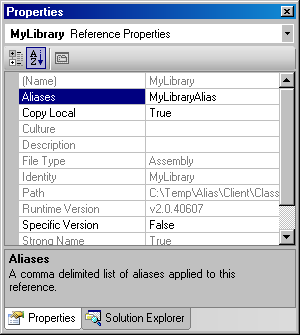
If you added the reference by browsing to the assembly, the Aliases property will be set explicitly to global. If you added the reference by selecting the assembly from the Projects tab, the Aliases value will be empty (but implicitly global). You can specify multiple aliases, but for addressing most conflicts a single alias will do (unless you also have conflicts with other aliases).
C# 2.0 allows you to resolve type name conflicts by aliasing the assembly reference.
Next, add as the first line of the file the extern alias directive, instructing the compiler to include the types from the alias in the search path.
extern alias MyLibraryAlias;
You can now refer to the class MyClass from MyLibrary.dll.
MyLibraryAlias::MyNamespace.MyClass obj;
obj = new MyLibraryAlias::MyNamespace.MyClass();
Note that the extern alias directive must appear before any using directives, and that all types in the MyLibrary.dll can only be referred to via the alias, because these types are not imported to the global scope.
Using aliases and fully qualified namespaces may result in exceedingly long lines. As shorthand, you can also alias the fully qualified name.
using MyLibrary = MyLibraryAlias::MyNamespace;

MyLibrary.MyClass obj;
obj = new MyLibrary.MyClass();
Friend Assemblies
An interesting assembly-level attribute introduced by .NET 2.0 is the InternalsVisibleTo attribute, defined in the System.Runtime.CompilerServices namespace. The InternalsVisibleTo attribute allows you to expose internal types and methods to clients from another specified assembly. This is also known as declaring a friend assembly. For example, suppose the server assembly MyClassLibrary.dll defines the internal class MyInternalClass as.
internal class MyInternalClass
{
   public void MyPublicMethod()
   {...}
   internal void MyInternalMethod()
   {...}
}
Suppose you add this line to the AssemblyInfo.cs file of MyClassLibrary.dll.
[assembly: InternalsVisibleTo("MyClient")]
Now any client in the assembly MyClient.dll and MyClient.exe can use MyInternalClass and call its public or internal members. In addition, any sub class in the MyClient assembly can access members marked as protected internal. Declaring an assembly as a friend could easily be abused and violate the essential encapsulation of the internals of the assembly, and tightly couple the client to the internals of the server assembly. Declaring a friend assembly is available for when you break an existing assembly into one or more assemblies by moving some of the types to new assemblies. If the relocated types still rely on internal types in the original assembly, declaring a friend assembly is a quick (albeit potentially dirty) way of enabling the move. Another case where a friend assembly is handy is when you want to test internal components but the text client resides in different assembly.
The InternalsVisibleTo attribute allows you to expose internal types and methods to clients from another specified assembly.
When you apply the InternalsVisibleTo attribute like so:
[assembly: InternalsVisibleTo("MyClient")]
It does not matter whether the MyClient assembly has a friendly name or a strong name in both cases it is allowed access to the internals of the server. Obviously this is not a very secure or safe way of exposing your internal types. Using the InternalsVisibleTo attribute should be restricted to assemblies developed in conjunction with the server assembly. All a third-party assembly has to do to access the server assembly internals is to change its friendly name. In addition, this use of the InternalsVisibleTo attribute is version indifference any version of the MyClient assembly can access the server internals.
To provide the additional degree of security to the InternalsVisibleTo attribute, the server assembly can also specify the token of the public key of the client assembly.
[assembly:InternalsVisibleTo(
  "MyClient,PublicKeyToken=745901a54f88909b")]
When specifying the public key token, the server assembly grants permission to access its internals only for client assemblies with a matching friendly and strong name, and the client-side compiler enforces that.
In addition to the friendly name of the client assembly, the server assembly can specify a version number.
[assembly:InternalsVisibleTo(
  "MyClient,Version=1.0.0.0")]
The effect of the version number depends on whether or not the client assembly has a strong name.
If the client assembly has only a friendly name, then the version stipulation has no affect, and such clients can freely access the internals of the server assembly. If, however, the client does have a strong name (any strong name), then the client-side compiler will insist that only a client assembly with a matching strong name and version number can access the internals. Note that this behavior is akin to reverse-versioning, where the server constrains the version of its clients.
Of course, the server assembly can specify both a version number and a public key token.
[assembly:InternalsVisibleTo(
  "MyClient,Version=1.0.0.0,
  PublicKeyToken=745901a54f88909b")]
In which case, only clients with a matching strong name and version number can access the internals.
Supplying Assembly Version Number
In Visual Studio 2003, you had to manually write the various assembly-level attributes, including the version number. Visual Studio 2005 provides visual editing of all the attributes commonly found in the AssemblyInfo file. Visual Studio 2005 will even auto-populate certain values such as company name and copyright statements based on the information found in the Registry as part of Windows activation process.
To specify the version number using Visual Studio 2005, bring up the assembly properties and open the Application tab. Next click the Assembly Information button to display the Assembly Information dialog (Figure 3).
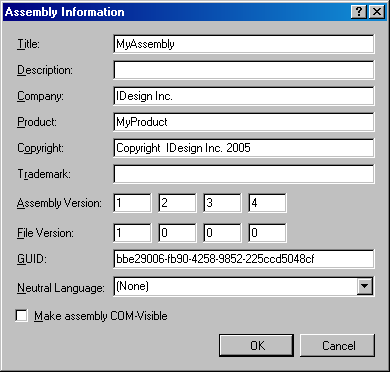
Under Assembly Version you'll find four text boxes that you can use to specify the assembly version. The Assembly Information dialog is merely a visual editor for the set of assembly attributes found in AssemblyInfo. For example, the AssemblyVersion and its value corresponding to the settings in Figure 3 is:
[assembly: AssemblyVersion("1.2.3.4")]
The Assembly Information dialog also lets you specify the file version number. The file version number has no bearing whatsoever on .NET versioning, and is simply available for your custom needs if you want to apply a proprietary semantic to it.
Signing Assemblies
In Visual Studio 2003, you had no way to create strong name keys and you were forced to use a command line utility (SN.exe). Microsoft simply assumed that creating strong names is a relatively infrequent operation, done once per company, and it saw no need to have that functionality in Visual Studio. However, in practice, it turns out that developers often create new strong names, used for testing, learning and experimenting, branching, security, configuration management, and so on.
Visual Studio 2005 can both create the encryption keys for you and sign the assembly, all without leaving the visual environment.
Visual Studio 2005 can both create the encryption keys for you and sign the assembly, all without leaving the visual environment. In the project properties, select the Signing pane (Figure 4). By checking the Sign the assembly checkbox, you instruct the compiler to sign the assembly with the key file specified.
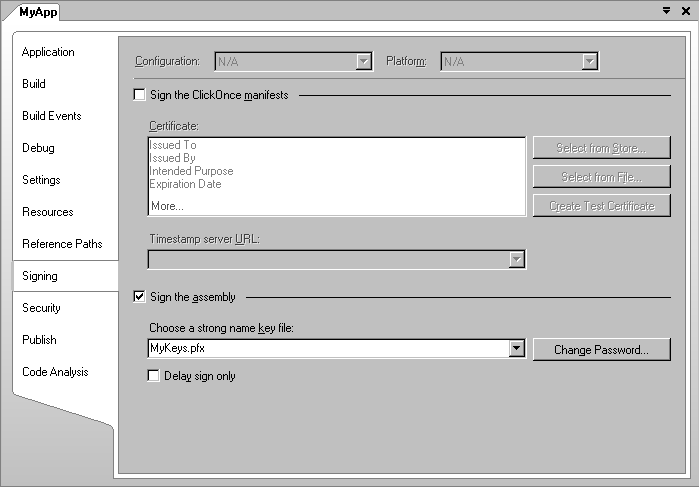
The Choose a strong name key file combo box will allow you to either create a new key or to browse to an existing file. If you choose to create a new key, Visual Studio 2005 will launch the Create Strong Name Key dialog box shown in Figure 5.
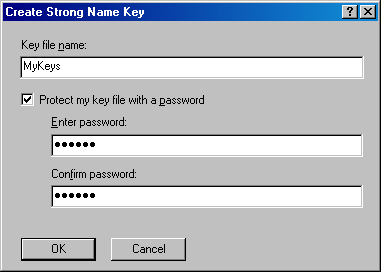
Strong name key files come in two flavors plain and password-protected. If you uncheck the Protect my key file with a password checkbox, Visual Studio 2005 will generate a file with the name specified and with the snk (Strong Name Key) extension. However, keeping the key in such a raw format carries great liability: since the strong name uniquely identifies an assembly vendor, if the private key is compromised, any malicious party could produce components as if they came from that vendor. To reduce the risk, I strongly recommend always choosing to protect the key using a password. Visual Studio 2005 insists that the password specified has 6 characters or more. If you check the Protect my key file with a password checkbox, Visual Studio 2005 will generate a file with the name specified and with the pfx (Personal Information Exchange) extension. The pfx file is more secure because whenever another user tries to use the file, that user will be prompted for the password. The other advantage of a pfx file is that you can add it to a certificate container (see the sidebar Protecting Your Keys).
If instead of creating a new key file you would like to browse for an existing key, Visual Studio 2005 will bring up a dialog letting you browse for either .snk or .pfx files. Once you have selected a file, Visual Studio 2005 will copy that file to the project folder. There is no way to share an existing file, and every project must have its own physical copy of the file.
In addition, unlike Visual studio 2003, Visual studio 2005 does not use attributes for storing the key file name. Instead, it persists that in the project settings.
Specific Reference Version
By default, Visual Studio 2005 will not keep track of the referenced assembly version. For example, suppose you browse in Visual Studio 2005 and add a reference to version 1.0.0.0 of the assembly MyAssembly.dll. The reference properties will reflect the assembly version (Figure 6) but will not have any affinity to it. If you replace the referenced assembly on disk with version 2.0.0.0 (while keeping the same friendly name or even the strong name), next time you build the client, the client-side complier will use the metadata and type definitions from version 2.0.0.0 of the server assembly. The manifest of the client assembly will record 2.0.0.0 as the server assembly version number, and .NET will try to provide version 2.0.0.0 to the client, not version 1.0.0.0, which the client developer added a reference to. In dynamic build environments, this default behavior will allow the client developer to always be synchronized with the latest server assembly version without doing anything special about it. The default behavior works well in a client project that adds references to other projects in the same solution. Whether you change the referenced assemblies' version explicitly or let the complier do it for you, you will always get the latest assemblies for your client debug sessions.
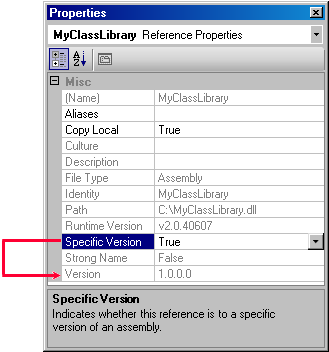
However, you can easily run into situations where this behavior is not what you want. Imagine developing a client application against a specific version of a control, version 1.0.0.0. The control is part of a framework that adds its components to the GAC when it is installed. The framework also provides a folder on the disk for you to add references to. If you install version 2.0.0.0 of the framework, it will add its components to the GAC, but will also override the disk folder with the newer assemblies. Consequently, your application will not be able to use version 1.0.0.0 of the control, even though it makes specific use of that version. To address this need, Visual Studio 2005 provides the Specific Version property of the assembly reference. Specific Version is set by default to False for all references. When Specific Version is set to True, Visual Studio 2005 will only build the client if it has access to the specific version of the referenced assembly. Specific Version set to True will have an affect whether the referenced assembly has a strong name or not. If Copy Local is set to true and the version number does not match, Visual Studio 2005 will not copy the referenced assembly. When trying to build the client assembly, Visual Studio 2005 will look for an assembly with a matching version. If an assembly with a matching version was not found, but the assembly has a strong name, Visual Studio 2005 will also try to look up the specific assembly version in the GAC. In this respect, the GAC on the development or build machine is actually used as a development resource, hosting side-by-side versions of component frameworks. If Visual Studio 2005 cannot find the specific version of the assembly, it displays a warning icon on the reference in the References folder, expecting the developer to resolve it.
When Specific Version is set to True, Visual Studio 2005 will only build the client if it has access to the specific version of the referenced assembly.
Note that the Specific Version property is only a build-time directive, and it has no effect on the runtime version resolution of the referenced assembly.
CLR Versioning
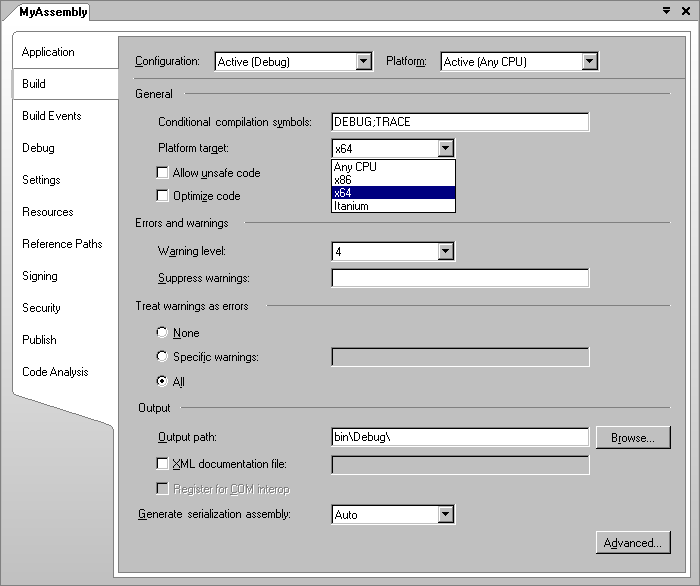
If the application doesn't indicate to .NET which CLR versions it requires, the application is actually telling .NET that any compatible CLR version is allowed. In that case, .NET detects the CLR version the application was compiled with and uses the latest compatible CLR version on the machine. To that end, .NET is aware of which CLR version is backward-compatible with other versions. Presently, Microsoft considers all newer .NET versions to be backward-compatible. Note that CLR backward compatibility is not the same as forward compatibility. Backward compatibility deals with the question of "Can an old CLR version assembly execute against a newer CLR version?" Forward compatibility deals with "Can an assembly that was built against a newer CLR version execute on an old CLR version?" Backward compatibility is mostly the product of changes to type definition and type behavior. Forward compatibility is governed by the metadata version. Both .NET 1.0 and .NET 1.1 have the same metadata version, and so they are both backward and forward compatible with respect to each other. .NET 2.0 has a new metadata version, and as a result it is only considered backward compatible - .NET 2.0 assemblies require the .NET 2.0 runtime. Table 1 depicts CLR version compatibility. The left column lists the CLR versions an assembly was built against and the rest of the columns list whether it can run against a particular CLR version. Note that Visual Studio 2005 can build only applications targeting CLR version 2.0.
Assemblies and CPU Architectures
In theory, any IL-based assembly could run on any target CPU because of the two-phase compilation process. If the IL has nothing in it that pertains to specific CPU architecture or machine languages, then the JIT compiler will generate the machine instructions for the target CPU at run time. However, in practice, it is possible to write un-portable assemblies. For example, C# lets you explicitly dictate the memory layout of structures. If you use explicit x86 memory layout, your code will not work on Itanium or any other 64-bit machines. In addition, if the assembly imports legacy COM objects, then the assembly will not work on 64-bit machines, because 64-bit Windows does not support COM natively. For that, your assembly will have to execute in the Win32 emulation environment (known as WOW, or Windows-on-Windows). However, if you simply load that assembly on a 64-bit Windows machine, it will run in the native 64 environment, not the WOW. The only solution for such CPU-specific assemblies is to incorporate the information on the target CPU into the binary executable that contains the assembly. That way, if an assembly which requires the 32-bit WOW emulation is loaded on a 64-bit machine, the loader will launch it in the WOW, whereas the 32-bit JIT compiler will compile it correctly. In case you develop an assembly that requires a particular CPU architecture, you need to inform Visual Studio 2005 about that CPU so that it could incorporate the information into the binary. In every project in Visual Studio 2005 in the Build tab under the project properties you'll find the Platform Target drop down list (Figure 7). The default is AnyCPU, but you can select x86, x64 or Itanium. When specifying a particular CPU, you are guaranteed that the assembly will always execute on that CPU architecture (or an emulation of it).