


R0emember batch files? They were simple, easy to program, and very productive since many tasks could be automated.
Windows still allows batch files, but batch files don't allow any control over the Windows shell and Windows environment. By introducing the Windows Scripting Host, Microsoft has introduced a script and COM based engine that can access the Windows Shell, the computer's environment and network settings using simple VBScript or JScript code. In addition you can even access any COM component, including your own. This column will introduce you to the basics of how the scripting host works and how you can incorporate its features into your Visual FoxPro Applications.
What you need to get started
The Windows Scripting Host ships with Windows 2000 and Windows 98, and is also available as part of the NT Option Pack when installed on Windows NT 4.0. Older Windows NT and 95 can download the Windows Scripting Host files from the Microsoft Website at: http://msdn.microsoft.com/scripting/. In addition to the core scripting engine, a series of whitepapers, code samples, and technical articles can be downloaded as well.
What is the Windows Scripting Host (WSH)?
The Windows Scripting Host is a language independent scripting engine. Scripting languages such as VBScript and JScript can be used to drive many processes. The same language that is used in client-side scripts in Internet Explorer (IE) or server-side scripts in Internet Information Server (IIS) can now be hosted by the Windows Operating System itself.
Prior to the release of the WSH, the only scripting language that existed for Windows was MS-DOS batch files. Although powerful, batch files lacked the control over the Windows Operating System that is truly required. The WSH provides this capability.
Scripting Files
Unlike scripting in Active Server Pages, where the language can be specified with tags, the same is not true for script files used by the Windows Scripting Host. Instead, the WSH relies on the file extension to determine which language to use. If the script file ends in VBS, VBScript is used. If the script file ends in JS, JScript is used.
The following files are simple hello world examples the point out the differences between VBScript and JScript:
VBSscript:
'hello world.vbs
Dim WSHShell
Set WSHShell = WScript.CreateObject("WScript.Shell")
WSHShell.Popup "Hello World"
JScript:
//  hello world.js
var WSHShell = WScript.CreateObject("WScript.Shell");
WSHShell.Popup("Hello World")
The following is a more complex example that uses scripting to open and control Microsoft Excel:
'This VBScript File opens Excel and creates a workbook
Dim objXL,oWorkbook
Set objXL = WScript.CreateObject("Excel.Application")
objXL.Visible = TRUE
Set oWorkbook = objXL.WorkBooks.Add
With objXL
    .Cells(1,1) = oWorkbook.Sheets.Count
End With
Running these script files is a very simple task. In Explorer, you can click the right mouse key over the file, and select Open. Alternatively, you can double-click the item in Explorer as well. Yet another alternative is to use the Run Method of the Windows Scripting Shell Object. This technique will be illustrated when the Shell Object is discussed in more detail. Furthermore, you can execute these script files directly from your applications using the ShellExecute() API simply by specifying the filename.
A quick word about debugging and handling errors
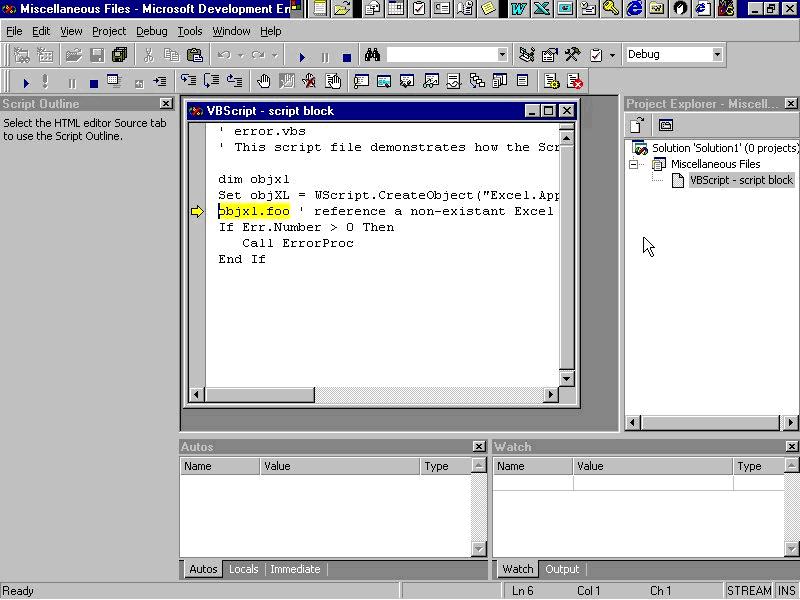
No programming environment is complete with a full-featured debugging environment and the Windows Scripting Host is no exception. As far as error handling is concerned, VBScript does not have a global error handler. Instead, errors need to be handled on an in-line basis. The following code demonstrates how to deal with errors on an in-line basis:
On Error Resume Next
dim objxl
Set objXL = WScript.CreateObject("Excel.Application")
objxl.foo ' reference a non-existent Excel Method
If Err.Number > 0 Then
    Call ErrorProc
End If

Sub ErrorProc
    msgbox err.description
End Sub
If no error trapping exists, you will be prompted with a dialog asking if you wish to debug the application. Figure 1 illustrates how the code will appear in the script debugger.
The scripting host objects
There are two primary objects contained within the Windows Scripting Host. The following code illustrates how these objects can be created:
WSHshell = CreateObject("Wscript.Shell")
WSHNetwork = CreateObject("Wscript.Network")
Both the shell and network objects are hosted by the wshom.ocx ActiveX Control.
Complete documentation for the WSHShell and WSHNetwork Objects can be found by navigating to the following URLS:
For the WSHShell Object:
http://www.microsoft.com/iis/support/iishelp/iis/htm/asp/wsho7t84.htm
For the WSHNetwork Object:
http://www.microsoft.com/iis/support/iishelp/iis/htm/asp/wsho20qc.htm
Wscript Methods
CreateObject (strProgid [,strPrefix])
This method creates an instance of an automation server. This article began with an example of using the Shell Object to create an instance of Microsoft Excel. The ability also exists to create instances of your own COM Components as well. The first parameter specifies the ProgID of the automation server instance you wish to create.
oMyObject = Wscript.Createobject("MyObject.MyClass")
The second parameter relates to instances where the new object supports an event model. For example, if the object you create has an event called MyEvent, you can write a handler for the event. The only requirement is that a procedure prefix must be specified:
oMyObject = Wscript.Createobject("MyObject.MyClass","eventhandler_")

Sub eventhandler_myevent()
    'Your custom event code goes here...
End Sub

ConnectObject (strObjName,strPrefix)
The ConnectObject method allows developers to hook into the event model for objects that have already been created. To illustrate, an object called oMyObject already exists. The oMyObject object has an event called myevent.
oMyObject = Wscript.Createobject("MyObject.MyClass")
Wscript.ConnectObject oMyObject, "eventhandler_"

Sub eventhandler_myevent()
    'Your custom event code goes here...
End Sub
DisconnectObject (ObjID)
The DisconnectObject method allows for the uncoupling of an object instance and an event handler. It is important to note that once the event handler is uncoupled, the object instance remains in tact.
Wscript.DisconnectObject(oMyObject)
Echo(...argN)
The Echo Method provides a host independent mechanism for dialoging the user. Within the Windows GUI, where Wscript.EXE is used, the Echo Method is manifested as a Messagebox:
Wscript.Echo "Cool"
script files can also be run from the command prompt. If the previous example was contained in a file called FOO.VBS, the following code would display the word Cool on the command line:
C:\Temp>cScript foo.vbs
Microsoft (R) Windows Script Host Version 5.1 for Windows
Copyright (C) Microsoft Corporation 1996-1999. All rights reserved.
Cool
Sleep
The Sleep Method suspends program execution for a specified period of time. The following example suspends execution for 2 seconds before continuing:
Wscript.Sleep 2000
Shell Object Properties and Methods
Environment: This property provides access to environment collection. Information such as number of processors, paths, OS, etc can be determined from this collection.
oEnv = wshshell.environment
For Each x In oEnv
    ?oEnv
Next x
The following is a partial listing of some typical environmental variables:
NUMBER_OF_PROCESSORSOSPROCESSOR_ARCHITECTUREPROCESSOR_IDENTIFIERWINDIR
So, to find out the number of processors:
Numprocessors = oEnv.Item("NUMBER_OF_PROCESSORS")
Like most collections, if you want to find out how many members are contained in the collection, you can refer to the Count Property:
Numitems = oEnv.Count
To be compliant with the Java Language, collections in the Windows Scripting Host also support the Length Property, which provides the same functionality as the Count Property:
Numitems = oEnv.Length
SpecialFolders: This property provides access to the collection of Windows Shell Folders. The following is a listing of folders:
AllUsersDesktopAllUsersStartMenuAllUsersProgramsAllUsersStartupDesktopFavoritesFontsMyDocumentsNetHoodPrintHoodProgramsRecentSendToStartMenuStartupTemplates
To find the actual path of the desktop folder, issue this line of code:
DesktopPath = WSHShell.SpecialFolders("Desktop")
CreateShortcut (strPathname)
This method creates and returns a shortcut object. The following block of code illustrates how to create a desktop shortcut:
*/ Read desktop path using WshSpecialFolders object
DesktopPath = WSHShell.SpecialFolders("Desktop")

*/ Create a shortcut object on the desktop
MyShortcut = ;
WSHShell.CreateShortcut(DesktopPath + "\Shortcut to MyFile.lnk")

*/ Set shortcut object properties and save it
FileName = GetFile()
If !Empty(FileName)
    FileDir = JustPath(FileName)
    With MyShortcut
        .TargetPath = Filename
        .WorkingDirectory = FileDir
        .Save
    EndWith
Endif
The CreateShortcut Method returns a WSHShortcut Object. This object is only exposed through the CreateShortcut Method. The WSHShortcut object has the following properties:
Arguments- Parameters to a shortcut object.Description- A description of a shortcut object.Hotkey- The hot key of a shortcut object.IconLocation- The icon location of a shortcut object.TargetPath- The target path of a shortcut object.WindowStyle- The window style of a shortcut object.WorkingDirectory- The working directory of a shortcut object.
The WSHShortcut Object only has one method, Save(), which saves the shortcut object to the file system.
ExpandEnvironmentSettings (*strString)*
This method expands a process environment variable and returns the result. A typical environment variable is WINDIR. The following code illustrates how this method works:
Fullpath = WSHShell.ExpandEnvironmentStrings("%windir%\notepad.exe, 0")
Popup (strText, [natSecondsToWait], [strTitle], [natType])
This method displays the Window MessageBox. Unlike the existing MessageBox Function, the Popup method accepts an optional argument to clear the dialog after a specified amount of time. The following line of code illustrates how the Popup Method works:
WSHShell.Popup("Message",1,"Title",64)
RegDelete(strName)
RegRead(strName)
RegWrite(strName, anyValue, [strType] )
The Windows Scripting Host Shell Object provides three methods for working with the Windows Registry. With these methods, entries can be created, written, read, and deleted. If you attempt to write to a key that does not exist, the key will be created. The following code illustrates how these three methods work:
To create a new key:
WSHshell.RegWrite("HKCU\Software\Microsoft\VisualFoxPro\6.0\Desktop\JVP",'Default Value')
Then, to modify the value:
WSHshell.RegWrite("HKCU\Software\Microsoft\VisualFoxPro\6.0\Desktop\JVP",'New Value')
Next, to just read a value from a key:
WSHshell.RegRead("HKCU\Software\Microsoft\VisualFoxPro\6.0\Desktop\JVP")
Finally, to delete a key:
WSHshell.RegDelete("HKCU\Software\Microsoft\VisualFoxPro\6.0\Desktop\JVP")
Run(strCommand, [intWindowStyle], [blnWaitOnReturn])
The Run Method creates a new process that executes a specified command with a specified window style. In addition to being able to specify the command and the window style, a third parameter can be used to determine if script execution should pause until the new process has terminated.
Applications windows can be started in several states. The following outlines the various options available:
SW_HIDE= 0SW_MINIMIZE= 6SW_RESTORE= 9SW_SHOW= 5SW_SHOWMAXIMIZED= 3SW_SHOWMINIMIZED= 2SW_SHOWMINNOACTIVE= 7SW_SHOWNA= 8SW_SHOWNOACTIVATE= 4SW_SHOWNORMAL= 1
The following code starts Notepad with a normal window:
WSHshell.Run("notepad",1)
This code starts Notepad with a maximized window. In addition, the user must close Notepad before control will return to Visual FoxPro:
WSHshell.Run("notepad",3,.T.)
Fully qualified paths can be used to denote a file to execute. The following code starts Visio:
WSHshell.Run("D:\VISIO\VISIO32.EXE")
Also, script files can be executed with the Run Method as well:
WSHshell.Run("hello world.vbs")
WSHshell.Run("hello world.js")
Network Object Properties and Methods
ComputerName: This property denotes the name of the computer.
ComputerName = WSHNetwork.ComputerName
UserDomain: This property denotes the domain to which the user belongs.
DomainName = WSHNetwork.UserDomain
UserName: This property denotes the ID of the currently logged-in user.
UserName = WSHNetwork.UserName
AddPrinterConnection(strLocalName, strRemoteName, [bUpdateProfile], [strUser], [strPassword] )
This method maps a network printer to a local resource.
WSHNetwork.AddPrinterConnection("LPT1","\\server\printer_share",.T.,"UserID","Password")
Of special interest here is the third parameter, bUpdateProfile. If this parameter is set to .T., the user profile for the local machine is updated to restore the printer mapping the next time the user logs onto the machine and network.
EnumNetworkDrives
This method returns a collection of drive mappings. The following code loops through the collection of network drive mappings:
oDrives = WSHNetwork.EnumDriveMappings
item = -1
For Each x In oDrives
    item = item + 1
    If Mod(item,2) = 0
        ?"Drive Letter:  ",x
    Else
        ?"Network Resource: ",x
    Endif
Next x
Like other collections, the drive mapping collection supports both the Count and Length Properties, as well as the Item() Method.
EnumPrinterConnections
This method works just like the EnumNetworkDrives, with the exception that the collection returned represents printers, not drive mappings:
item = -1
For Each x In oPrinters
    item = item + 1
    If Mod(item,2) = 0
        ?"Printer Name:  ",x
    Else
        ?"Network Resource: ",x
    Endif
Next x

MapNetworkDrive( strLocalName, strRemoteName, [bUpdateProfile], [strUser], [strPassword] )
This method works just like the AddPrinterConnection Method, with the exception that a local drive to a network resource is created:
WSHNetwork.MapNetworkDrive("z:","\\server\server_share",.T.,"User","Password")
RemoveNetworkDrive(strName, [bForce], [bUpdateProfile] )
This method removes a specified network drive mapping. Optionally, you can force the removal even if the resource is being used. An optional third parameter specifies if the user profile should be updated:
WSHNetwork.RemoveNetworkDrive("z:",.T.,.T.)
Or
WSHNetwork.RemoveNetworkDrive("\\server\server_share",.T.,.T.)
RemovePrinterConnection( strName, [bForce], [bUpdateProfile] )
This method works just like the RemoveNetworkDrive method, with the exception that a printer resource is being removed:
WSHNetwork.RemovePrinerConnection("LPT1",.T.,.T.)
Or
WSHNetwork.RemovePrinterConnection("\\server\printer_share",.T.,.T.)
SetDefaultPrinter(strName)
This method sets the default printer:
WSHNetwork.SetDefaultPrinter("\\server\printer_share")
Summary
The ability to work with the Windows Registry, create desktop shortcuts, map and view network resources, all required you to know how to use extensive Windows API Functions, or a 3rd party DLL. The Windows Scripting Host provides a simple and elegant set of objects with simple interfaces that allow you to accomplish many of these tasks. Perhaps your application requires special Registry Entries. Perhaps you have been tasked with developing a utility that modifies the default printer or dynamically maps network resources. All of these tasks can easily be accomplished with the Windows Scripting Host.
The good news is that the Windows Scripting Host is part of the Operating System beginning with Windows 98 and Windows 2000. For older systems you need to make sure WSH is installed on any client workstation that uses your application. One approach to this problem is to add a method to your application class that tests to see if the Windows Scripting Host is installed. If it is not, prompt the user through the process of both downloading and installing WSH.
The Windows Scripting Host is yet another valuable tool to add to your toolbox!
