



ListBoxes suck.
Except that statement is not true anymore. Not in WPF and Silverlight anyway, where ListBoxes have evolved from simplistic controls to true workhorse objects. ListBoxes have been around since the beginning of Windows (and other GUIs) and have served a pervasive yet simple purpose, which can be summed up as “show me a list of labels in a list with a scroll bar.” A premise that has its uses but is not sophisticated enough for advanced data presentation, which is why developers often use special controls such as “data grids” or “list views” among others. In WPF and Silverlight, however, ListBoxes are so flexible and powerful that they are the first choice for just about anything. In fact, WPF originally shipped without a data grid control since ListBoxes all but eliminated that need. Developer perception, however, was different and the power of the ListBoxes went largely unnoticed. That is reason enough for me to write an article that displays the ease, flexibility, and power of ListBoxes.
A Simple Scenario
In the scenario I chose as a basis for my examples, I have a simple window, which is mainly occupied by a ListBox, plus a drop-down list in the top-right corner that allows the user to switch between different views of the same ListBox. The event handler in the code-behind file handles changing ListBox styles. This code uses the selected index of the drop-down list and then loads and assigns styles from resource dictionaries accordingly (download the example file associated with this article for more details).
The actual ListBox is rather simple. This code defines it:
<ListBox x:Name="RestaurantList"
         DisplayMemberPath="Name"
         Grid.Row="1" Margin="8" />
As far as ListBox development in this article goes, that is about it. We have a ListBox positioned inside the main window’s grid area (in the second row) with a margin of 8 pixels all around. The ListBox has a name, so we can assign it some data from the code-behind file (which alternatively, I could have also accomplished with a binding expression) and I set the “DisplayMemberPath” right here, which defines which field/property from the data source should be displayed within the list.
The data itself could come from a variety of places. In a real-world implementation, the data would probably come from a database or a service. To keep this example self-contained (so you can download and run it without having to create and configure a database), I created a fake data source which I populate in code. My example data is a list of restaurants with associated names and addresses. I also create random ratings (1-5 stars) every time the list is created, plus a few other pieces of data that I’ll use throughout this example. This data is simply loaded in the constructor of the MainWindow class and assigned as the item’s source of the ListBox:
public MainWindow()
{
    InitializeComponent();
    RestaurantList.ItemsSource =
        RestaurantModel.Restaurants;
}
There you have it! This is as complex as the programming part of the ListBox gets. Everything you see in this article (feel free to glance at the screen shots ahead) uses this simple setup, which I will not touch or modify from here on forward. Everything demonstrated in this article is accomplished by means of styles. This in itself is a crucial piece of the puzzle, because it demonstrates how easy it is to change and enhance applications created in this fashion, even if these applications were never originally designed for that purpose. This ability is what ultimately makes this approach so flexible and maintainable. It also is what makes this approach so productive, since developers can initially create simple setups that are later enhanced with more advanced views.
Figure 1 shows what this setup looks like. As you can see, the ListBox is little more than a list of data-bound items with the names of the restaurants (which was defined as the display member path in the XAML above) shown as the label. Since the list is too long to fit, a vertical scroll bar appears, allowing the user to scroll up and down. This is the familiar appearance of ListBoxes as it has been used unchanged in decades of graphical user interfaces. It serves its purpose well, but it is very limited in usefulness for advanced data applications and data visualizations.
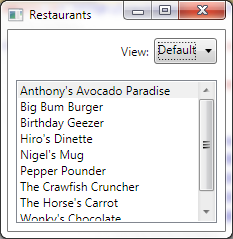
NOTE: In my example, I chose WPF as the implementation technology, but everything shown here also applies to Silverlight.
Why WPF/Silverlight ListBoxes Are Better
In WPF and Silverlight, ListBoxes are much more useful. The simple view shown in Figure 1 is just a default. As far as WPF and Silverlight are concerned, ListBoxes have a few distinct characteristics: For one, ListBoxes are bound to a data source, resulting in a list of items. (Data sources can be anything that is enumerable, so DataSets, Collections, List<T>,… are all valid data sources for ListBoxes). Each item in the list is positioned at a certain place within the control. Creating a top-to-bottom stack of labels is the layout shown in Figure 1. However, this is just a default and - as you’ll see in this article - you can change this default and even extend the ListBox at will. Finally, each item within that list is designable. While showing a single label as a caption is a default, it turns out that each item represents its own little microcosm of a user interface that can contain any composition of WPF/Silverlight controls.
The combination of all these aspects makes for an incredibly flexible and powerful setup. I would go as far as saying than any time you have to display anything that binds to IEnumerable<T> (any “list of things”, basically) you should first and foremost think of using a ListBox and only switch to other control options if you have a specific need, and that switch is based on an educated opinion about the specific requirements. You do not want to switch to a different control as your default option. Not to a data grid, because a ListBox can easily be styled as a data grid (see below) and, in fact, a ListBox offers more flexibility than many data grid controls. Not to a ListView, because it is trivial to turn a ListBox into a ListView. Not a carousel control with a 3D view, because you can easily write a style that accomplishes this. And so on, and so on. In fact, one of the great advantages of using ListBoxes is that you can so easily turn a ListBox into just about anything else.
I have often said that I wish 3rd-party vendors would stop creating WPF and Silverlight controls and instead they should start creating styles. I would much rather buy a ListBox style that turns my data into a data grid than buy a data grid control. I would rather buy a carousel style than a carousel control. And so on. It provides a lot more freedom. Also note that the techniques shown in this article are very reusable. You may decide that some of the styles shown in this article take some effort to create. However, a key aspect to understand is that you only have to create these styles once and you can then apply the styles to all your lists. This makes development of many data visualizations much simpler, because you can create a simple ListBox and then worry about the exact visual appearance later. It also makes it extremely easy to retrofit your applications with different or newer data visualizations. This approach provides excellent maintainability and flexibility. Compare this to switching your application from using one 3rd-party’s data grid to another’s!
Understanding the Item Template
In WPF/SL, each ListBox item is represented by an item template. So far I have not defined an item template. This means that my example scenario simply lets the system handle the item template with some default behavior. This example has a display member path specified that allows the ListBox to create an item template that displays a single data-bound label (showing the name of the restaurant, in this case). If I had not specified a display member path, the system would have simply performed a ToString() operation on the bound item, which in this case would have been a Restaurant object. The resulting output would have been the name of the class rather than anything useful.
To spin my example a little further, I created a ResourceDictionary with a special ListBox style. The style is assigned to the ListBox dynamically whenever the user picks the “Simple” view from the drop-down list. Inside that ListBox style, I set the ItemTemplate property:
<Setter Property="ItemTemplate">
   <Setter.Value>
       <DataTemplate>
           <StackPanel Orientation="Horizontal">
              <Rectangle Height="30" Width="30"
                     Margin="2"
                     Fill="{Binding Logo}" />
              <Label Content="{Binding Name}"
                     VerticalAlignment="Center"
                     FontSize="14" />
          </StackPanel>
       </DataTemplate>
   </Setter.Value>
</Setter>
This defines that each and every item in the ListBox (every Restaurant, in this case) uses a template based on a horizontal stack panel, with a rectangle followed by a label. The label is data-bound to the Name property of the Restaurant object. The Rectangle’s Fill property is bound to the Logo property of the Restaurant object. The Logo property is an interesting view-model property that uses the name of a resource (which identifies a XAML vector-graphics based logo downloaded free from Xamalot.com) to load a drawing brush. The rectangle object thus ends up showing the logo of the current restaurant. Note that I am using the stack panel object here to quickly create a simple yet appealing left-to-right layout for each list item that improves on the previous example. Figure 2 shows what the ListBox now looks like.

One interesting little detail in this example is the background color for the selected item. How to change the selection color might be the single WPF/SL question I get more than any other, simply because it is a common need yet it is non-intuitive. WPF and Silverlight use a brush that is defined as the default “selection color brush”. This brush is called “SystemColors.HighlightBrushKey”. Whenever a highlight in a ListBox is to be drawn, the rendering engine looks for that brush in the application’s resources. Usually, that means searching through all resources all the way into the default resources where this key is defined. However, if you define your own instance of this brush somewhere where it will be found first, then your definition takes precedence. And that is exactly what I do in this example. In the resources of this particular ListBox style, I added the following definition:
<Style TargetType="ListBox" x:Key="List-Simple">
    <Style.Resources>
        <SolidColorBrush Color="Goldenrod"
            Opacity=".25"
            x:Key="{x:Static
            SystemColors.HighlightBrushKey}" />
    </Style.Resources>
Note that this brush can be anything you want it to be. In this example, it is a SolidColorBrush, which is a brush of a single color (with associated transparency/opacity). You can use any other brush object as well (as you’ll see further down in this article) including the common use of a gradient brush, or a drawing brush (which can contain “geometries” or “vector drawings”), or even an image brush. You can also choose “Transparent” as the color if you want to completely hide the selection. Note that SystemColors.HighlightBrushKey is used for the selection color whenever the focus is in the control. The inactive selection is drawn using a less than intuitively named SystemColors.ControlBrushKey setting, which you can define in addition to the highlight brush key.
Creating Columns
Now that you’ve seen how to create templates for each item, we’ve pushed open a door that leads to a wide variety of options. For instance, it is now trivial to create a ListBox that has multiple columns (as shown in Figure 3). Columns are created by adding some sort of layout to the item template that aligns items in a way that makes them appear as if they are in columns.
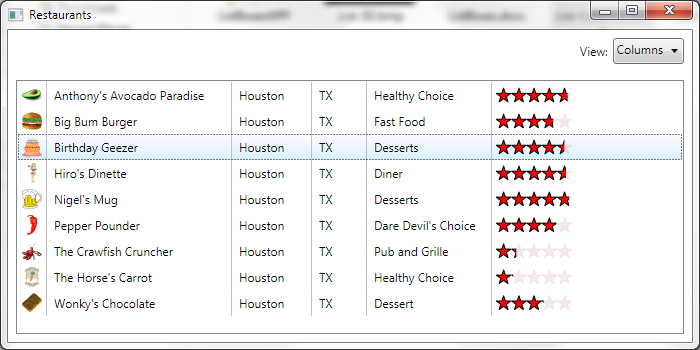
You can choose from various approaches to creating columns. For example, you can use an item template that employs a Grid element with defined grid columns and give each column a hardcoded width. The option I chose in this example was a horizontal stack panel just like in the previous example. Except, this time I added a hardcoded width to my labels (to ensure each row had labels of the same width in each column) plus I added vertical gray bars (rectangles) with a width of 1 pixel after each actual data element. The following code snippet shows the definition of the first few columns:
<StackPanel Orientation="Horizontal">
    <Rectangle Margin="2"
               Height="20" Width="20"
               Fill="{Binding Logo}" />
    <Rectangle Width="1" Fill="Silver"
               Margin="2,0" />
    <Label Content="{Binding Name}"
           Width="180" />
    <Rectangle Width="1" Fill="Silver"
               Margin="2,0" />
    <Label Content="{Binding City}"
           Width="75" />
    <Rectangle Width="1" Fill="Silver"
               Margin="2,0" />
    <Label Content="{Binding State}"
           Width="50" />
    …
There are a few other aspects of interest to this example. For one, I changed the selection color to be a blue gradient:
<LinearGradientBrush EndPoint="0.5,1"
        StartPoint="0.5,0"
        x:Key="{x:Static
        SystemColors.HighlightBrushKey}">
    <GradientStop Color="#55FFF1FF" Offset="0" />
    <GradientStop Color="#5586D8FB" Offset="1"/>
</LinearGradientBrush>
In many modern applications, the selection color can be very subtle. Consider the example in Figure 3, which uses a very faint gradient from almost white to a very light blue. In other examples, a subtle color with 80%-90% transparency may often be enough to create an obvious yet pleasing selection indicator.
The other interesting element is the rendering of the star rating. First I used Expression Design to create a star-graphic with 5 stars in a row. I then saved the graphic as a drawing brush (using Expression Design’s “Export as XAML” feature). Listing the code here would result in a meaningless series of numbers defining the vector outlines, but you can see the result in Stars.xaml, a resource dictionary in the Art folder of the example project.
I then proceeded to put the stars into the data template by means of creating a Grid container for my stars (think “rectangular canvas” whenever I use the “Grid” element). It contains a rectangle with 90% transparency (10% opacity) and the stars as the fill “color” (you can use brushes wherever you can define a “color”). This serves as a faint outline of all 5 stars regardless of the rating. I then create a second rectangle with the same setup except with no transparency at all. This will serve as the actual display of stars (Have a look at Figure 3 to see how the stars are rendered, with “solid” stars overlaying “faint” stars). To only display the number of solid stars actually indicated in the data, I create a Clip to cut this rectangle off based on the number of stars people rated the restaurant. The clipping region is a simple rectangle with a width based on that rating. That particular clipping rectangle is created by a binding converter called “StarWidthConverter”. (Note that another way to do this is to add the clipping rectangle to the Restaurant view-model object similar to how I added the logo as a brush to the view-model. There is no particular reason I chose this approach other than wanting to demonstrate different techniques.) The result is a very accurate representation of the average number of stars the restaurant is rated at. Due to the clipping approach, the star rating is not limited to larger increments but it will render the average rating at a smooth scale and can thus represent small fractional changes beyond the usual .5 star increment often seen elsewhere.
<Grid Height="16" Width="80">
    <Rectangle Opacity=".1"
           Fill="{DynamicResource FiveStars}" />
    <Rectangle Fill="{DynamicResource
           FiveStars}">
        <Rectangle.Clip>
            <RectangleGeometry Rect="{Binding
                AverageRating,
                Converter={StaticResource
                StarWidthConverter}}" />
        </Rectangle.Clip>
    </Rectangle>
</Grid>
Voila! Have a look at the result in Figure 3. Not bad at all. And best of all, this maintains a huge level of flexibility. While this now looks very similar to data grids, you’re free to do whatever you want in each item with a very high degree of flexibility. Also note that - although I am not demonstrating it in this article - you can use a template selector to actually have multiple data templates and pick the most appropriate one for each item. As a result, each list item could be completely different from the previous one.
A Modern Approach
The multi-column approach (what I call a “grid like” approach) is functional and certainly has a lot of uses. However, as data and business application developers, we tend to overuse grids by a wide margin. Why? Because we’ve used data grids for an eternity and we thus become proverbial hammer-wielding craftsman who think every job is a nail. In many cases, it pays to ignore the “data grid hammer” and realize that there are better tools for the job. The first step towards that is understanding the difference between read-optimized and read/write lists. In the past, developers have often used grids not just because they were the only tool we had to display complex lists of data, but also because we often wanted to edit data right within the list. This is still valid, but not always needed. In fact, more and more lists are read-only lists due to the nature of modern data collection, which leads to a lot more interfaces that are used for viewing data rather than editing that data. (Even the example used in this article is a prime example, as restaurant data would not be edited often, but people would often search for existing restaurants.)
NOTE: It is perfectly viable to use textboxes or other data manipulation controls inside your item templates and thus enable data editing, regardless of your exact layout. You can simply bind these controls to your data source in a two-way mode just like you would in all other UIs.
If you want to create read-optimized lists, what would you look for? For one, you want to be aware of data elements that are more important than others. In the example in this article, the name of the restaurant as well as the average rating might be the most interesting pieces of data for the user. Of course, phone numbers and such are also interesting, but users generally only look for those once they have chosen a restaurant. Another aspect is that data should flow nicely. Having a column for a phone number, another for fax, and another for an email address is not very readable. You can do much better than that simply by flowing data in a more natural fashion as you’d do in a section of normal text. You could flow labels and captions right in with the actual data, but formatted in a way that makes it easy to read.
Figure 4 shows such an example for the restaurant list. Note how this example draws attention to the name of the restaurant first. It also always shows the star rating prominently in the top-right corner of each item. Further information about each restaurant (in particular a concatenated version of the address as well as phone number and type of restaurant) is displayed inline. Labels to further explain some of the elements are embedded as well, using a different element color (one with less contrast to the background color than the data items is usually a simple way to achieve this effect) to not distract from the actual data elements. This layout also enables us to display the actual logo somewhat bigger and in a more pleasing fashion. All in all, this approach lends itself to showing more information in a way that is easier to comprehend. It is much easier to read the address in a concatenated form than in multiple columns. This layout also enables us to show multiple phone numbers without having to add additional columns that might often be blank if a restaurant has only one phone number. This specific example may not be the most advanced version of a read-optimized list, but even in its simple fashion it shows how much easier it is to comprehend data in this form compared to Figures 2 and 3 (not to mention that it shows significantly more information).
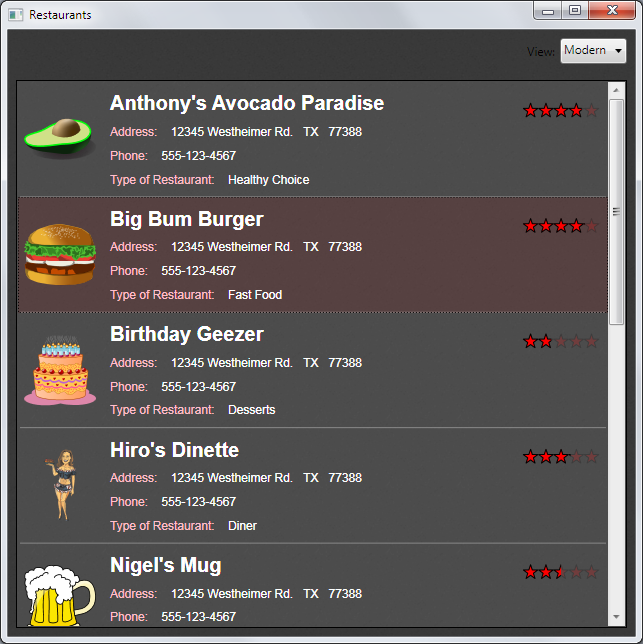
The actual implementation of this list style is relatively straightforward. Each list item is a Grid layout element with three columns. The first has a fixed width and only contains the logo. The second column takes up all the remaining width and contains all the text elements which are laid out using containers such as stack panels. The third column auto-sizes to accommodate the star rating by having its width set to “auto.”
All that sounds pretty simple and straightforward. However, there is one small gotcha: What is the width of the overall grid in each list item? If you simply let the grid auto-size, it will use the hardcoded width of the first column, add the auto-sized width of the last column, and also add the width of the widest item in the second column. Unfortunately, the grid does not automatically size to the available total width of each item. This would result in the star rating showing up to the immediate right of the second “column”, rather than always on the right edge of the ListBox. This is not what we want. So how do you determine the width of the Grid layout element so it uses up the entire width of the ListBox?
There are several ways of doing this. One is to bind the width of the grid to a relatively complex binding expression that includes finding the visual “ancestor” of type ListBoxItem and then taking its ActualWidth property. Often, you may want the actual width minus a few pixels, which means you have to also create a binding converter.
One approach I personally like is to create a new type of Grid derived from a basic Grid. I call this my ListItemGrid. This layout element behaves just like any other grid except it automatically adjusts its width to the list item it is a member of. This way I can create this class once and then simply use it in my data templates without having to worry about silly binding expressions and other stuff I can never remember by heart. It keeps my templates clean. It also gives me a place where I can add additional code if I need custom behavior. Besides, this technique provides a great example for the purpose of this article as to how to include custom behaviors in ListBox templates and styles without actually touching the ListBox itself. You can use the same technique to add any class you would like and once you add custom classes into your styles, you can use that as a hook for all kinds of custom code you would like to write. Doing a lot in XAML may be cool, but sometimes things are easier and more powerful if you can write imperative code!
Listing 1 shows the implementation of my ListItemGrid. The following snippet shows how it is used in the item template:
<Setter Property="ItemTemplate">
   <Setter.Value>
      <DataTemplate>
         <ListBoxesWPF:ListItemGrid>
            <Grid.ColumnDefinitions>
                <ColumnDefinition Width="80" />
                <ColumnDefinition />
                <ColumnDefinition Width="Auto" />
            </Grid.ColumnDefinitions>
                …
Note that even though I now use the special grid class, I can still define columns and such just like I would for any other grid.
Note that this requires that the ListBoxesWPF namespace is defined at the root element of the resource dictionary:
<ResourceDictionary
   xmlns="http://schemas.microsoft.com/winfx/2006/
xaml/presentation"
   xmlns:x="http://schemas.microsoft.com/winfx/2006/
xaml"
   xmlns:ListBoxesWPF="clr-namespace:
ListBoxesWPF">
The Grid Approach Revisited
Like all controls in WPF and Silverlight, ListBoxes use a template to define their entire overall look (not just each individual item as you have seen so far). A ListBox typically has a border. Within that border is an area that shows the items and, if need be, horizontal and/or vertical scroll bars are displayed. All of this is defined in the ListBox’s default template, and all of this can be changed. A good starting point for looking at a ListBox’s default template is to use Expression Blend and to right-click on any ListBox and choose Edit Template -> Edit a Copy. This produces all the XAML used by the default template. Here is an example of such a template:
<ControlTemplate TargetType="ListBox">
    <Border BorderBrush="{TemplateBinding
                          BorderBrush}"
            BorderThickness="{TemplateBinding
                          BorderThickness}"
            Background="{TemplateBinding
                          Background}"
            Padding="1">
      <ScrollViewer Focusable="False"
                    Padding="{TemplateBinding
                          Padding}">
              <ItemsPresenter />
       </ScrollViewer>
    </Border>
</ControlTemplate>
This is not the complete template used by a default ListBox (which would be a bit too lengthy to show here), but it shows the most important aspects. You can see that the template uses a Border element to draw the outline of the control. (Various colors and border thickness is bound to the actual properties on the ListBox control.) Inside the border is a ScrollViewer that provides scroll bars if needed. Inside that scrollable area, you finally have an ItemsPresenter control which is in charge of displaying the actual items inside the ListBox.
Why do you want to know about all this? Because you can change it of course! Why would you want to change this? Here is an example: Maybe you want to create something that is actually a bit more like a data grid than the example in Figure 3. A real data grid would need elements such as a header area (that doesn’t scroll out the top with the data). You could easily define this in the control template. Listing 2 shows such a template, which results in the list/grid show in Figure 5.
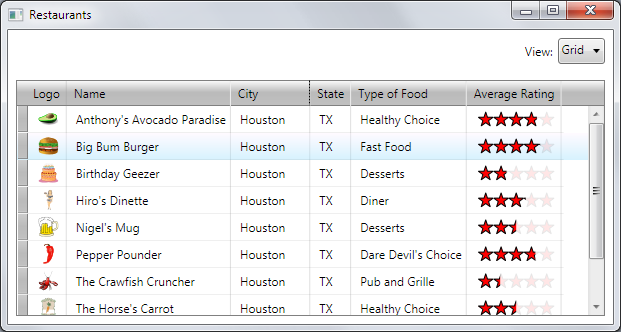
The template is a bit longer than the previous ones, but the idea is quite simple: I first define a Grid layout element for the overall list. I have two rows, the first one being for the header (it auto sizes to the content of the header, allowing for flexible height content, which is nice and more flexible than headers offered by many “real” data grid controls) and the second one being for everything else (the “main” area of the list). The header area also uses a rectangle background with a gray gradient to create the typical header appearance. I then define multiple columns, one for the little gray area at the left end of each row (10 pixels in width), one for each column of data I want, and finally, one more column to take up whatever space may be left over after the last “real” column. Note that the width of the data columns is set to “auto” to automatically accommodate the widest element encountered in any of the rows (of course I could have also chosen to hard-code an exact column width). I also define labels for each column header as well as vertical lines stretching all the way across the entire height of the control (if I didn’t want vertical grid lines, I would have left those out… no grid lines is an option that becomes more and more popular in modern apps). Finally, I add grid splitter controls at the right edge of each column I want to be resizable. All that’s missing now is the ItemsPresenter, which I put into the second row of the grid (spanning all columns). The items presenter is inside a scroll viewer to provide the desired scrolling feature.
Now we have the overall setup of the list as a data grid. Some people would call this the chrome, which is all the window dressing around the main data area. Of course, each and every list item so far has no idea about the column setup we created and you could make each list item look however you want with complete disregard to any column setup. But the general idea now is to create item templates that also have the same number of columns, so each row’s layout conforms to the overall setup of the “data grid.” (Note that each row still having the option to be different from this setup is significantly more flexible and powerful than your usual data grid control.) The item template for this version of the ListBox thus also defines a Grid with the same number of columns and with elements within these columns that represent the actual data (just like we did in the prior column example). However, the question is “what is the width of these actual columns in the item templates?” to make sure they conform to the widths defined by the headers and by other rows (especially once the user starts to resize headers and such).
The answer is relatively simple. I use a powerful, although little known feature of the Grid element: Shared size groups. In the Grid definition of the overall control template, I define the grid as a container for “shared size scope” and each column with a “shared size group” name. What this means is that I can now create other grids with columns that share these widths as the main grid element. I can put a Grid inside this Grid and simply define a column with the same shared size group name, and it will magically be of the same width. Here is a segment of the definition of the main Grid element inside the control’s overall template:
<Grid Grid.IsSharedSizeScope="True">
    <Grid.ColumnDefinitions>
        <ColumnDefinition Width="10"
          SharedSizeGroup="Column0" />
        <ColumnDefinition Width="Auto"
          SharedSizeGroup="Column1" />
        <ColumnDefinition Width="Auto"
          SharedSizeGroup="Column2" />
        <ColumnDefinition Width="Auto"
          SharedSizeGroup="Column3" />
        …
Now that I have this setup in the overall template, I can use the same size group in each column definition in the item template:
<Grid>
    <Grid.ColumnDefinitions>
        <ColumnDefinition
SharedSizeGroup ="Column0" />
        <ColumnDefinition
SharedSizeGroup ="Column1" />
        <ColumnDefinition
SharedSizeGroup ="Column2" />
        <ColumnDefinition
SharedSizeGroup ="Column3" />
        …
This even works for things like auto sizing (in other words: If you have 100 grids inside the main grid, the widest width of a shared size group column is the one all grids auto size to). And this nifty little trick makes all individual rows adhere to the columns defined in the header. They are resizable. They auto-size to the widest column in the data grid. The ListBox has, in fact, become a data grid. Of course in the interest of keeping this article to a reasonable length, I can’t do everything an actual data grid does. But you can still add features such as clicking on a header to re-sort data and such. Some of the scrolling doesn’t work right in some special cases. There are little things like that. But that is just a matter of defining additional features. You may also consider defining the columns in a more generic fashion (perhaps by means of attached properties) so you do not force people to re-define the style from scratch for every data grid they want to create. After all, it would be best to have a style that can be assigned to as many ListBoxes as we want without changing the style (this is the goal for all styles here, since we would not want to constantly create styles, but we would want to create a style library and then use those styles on hundreds of ListBoxes without having to make a lot of changes). All of that is very feasible but beyond the scope of this article.
Our data grid may not be perfect yet, but it is better than other data grids in terms of flexibility and power. This also gives you an idea of why Microsoft didn’t include a data grid control in the first version of WPF. Using a ListBox in this fashion is simply more powerful and more flexible. I hardly ever use the data grid controls now provided and opt for the styles ListBox approach instead.
Messing with the Item Layout
All examples you’ve seen so far manipulated item templates but not the overall layout of the list. In other words: all our lists so far simply arranged the items top to bottom using the default ListBox approach. Things get really interesting once you start manipulating the layout of the individual items within the list. Before I show you how to do that, let’s take a look at the default layout used by ListBoxes. You can look at that definition easily if you have a tool like Expression Blend since you can simply right-click on any ListBox in Blend and choose Edit Additional Templates -> Edit Layout of Items (ItemsPanel) -> Edit a copy. This creates a copy of the default layout panel. (Hint: This works with all kinds of templates and controls and is often a good way to find out how some of the default controls work in WPF and Silverlight.) Here is the default:
<ItemsPanelTemplate>
    <VirtualizingStackPanel IsItemsHost="True"/>
</ItemsPanelTemplate>
What this means is that by default, ListBoxes use a StackPanel to arrange the items within the list. (Or more accurately, a “virtualizing stack panel,” which is very similar to a conventional StackPanel except it is optimized rendering for invisible items to enable very large lists to perform well.) This results in the typical top-to-bottom stack of items as we have known since the beginning of ListBox time. You can easily replace this with another layout approach. For instance, this example creates a flowing layout where elements are put into the list left to right until horizontal space runs out, at which point the next item is put into the next row:
<ItemsPanelTemplate>
   <WrapPanel IsItemsHost="True"
     ScrollViewer.HorizontalScrollBarVisibility=
     "Hidden"/>
</ItemsPanelTemplate>
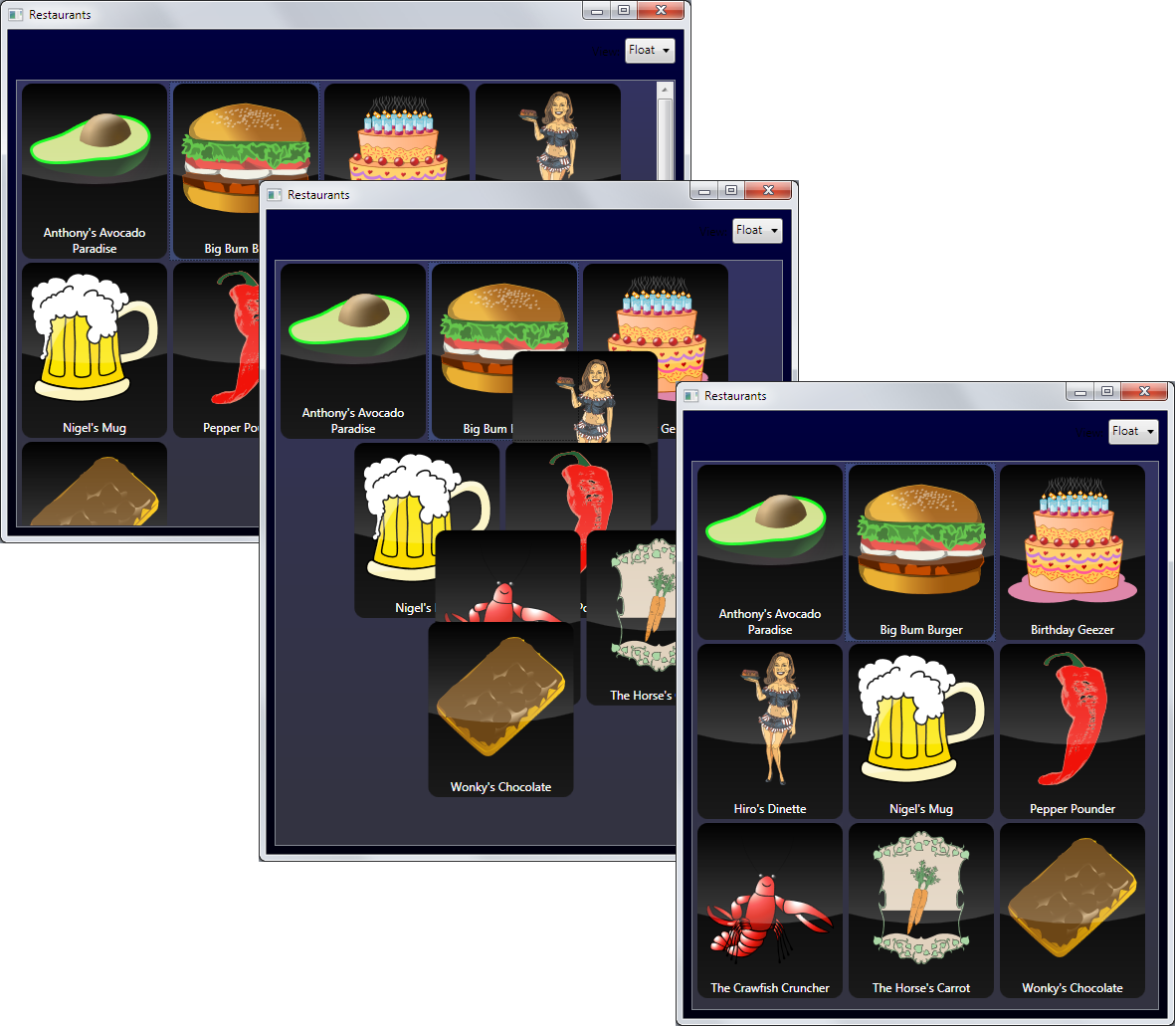
To take advantage of this setup, I created new item templates with each item being a Grid that is 150x180 pixels in size. Each item shows the logo as well as the name as a label. To make it look interesting, I styled the entire list (actually, the entire window) using a black glass style. In fact, I created a few more cosmetic additions. In particular, I am using a special subclassed Grid control called a FloatingGrid, which automatically animates positional changes. In other words: If this grid is moved from one location to another by changing its positional properties, it doesn’t just “jump” to the new position, but it creates a smooth animation over a short period of time. (The code for this is provided and is simpler than you might think. The Grid simply listens to the LayoutChanged event and uses the old and new position in a simple animation.)
Of course it is difficult to show animations in a print publication, but I have tried to capture the visual appearance in Figure 6. I encourage you to download the code samples associated with this article to observe the effect yourself. It creates a quite impressive and polished appearance.
Visualizing Data on a Map
The ability to customize the layout of items opens up a world of possibilities. In this article, I can only scratch the surface in terms of possibilities. However, one example that was a real eye-opener to me is that of a street map. Take a look at Figure 7. Believe it or not, but that’s still our same old ListBox!
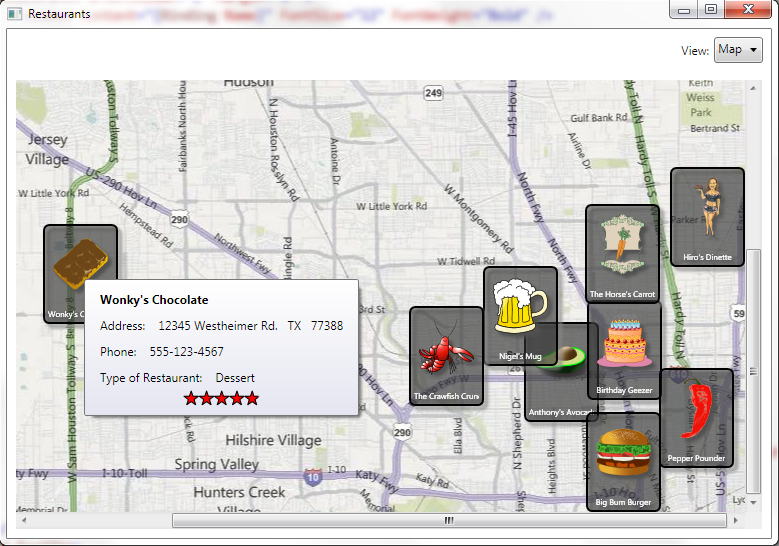
This example also uses a non-standard layout panel. In this case, it is a simple Grid layout element:
<ItemsPanelTemplate>
    <Grid IsItemsHost="True">
        <Grid.Background>
            <ImageBrush Stretch="None"
                ImageSource="HoustonMap.JPG"/>
        </Grid.Background>
    </Grid>
</ItemsPanelTemplate>
As you can see, I am using a Grid to lay out each and every item in the list (which means that by default, all list items will be in a pile at the top-left corner of the control). The Grid uses an image as the map background. Of course I am cheating a little bit here. After all, this is an article about ListBoxes, not an article about mapping APIs. However, you could relatively easily extend this example to call actual mapping services such as Bing Maps to retrieve the desired map and use it as a background brush. And then you could also use real-world coordinates rather than my simulated X and Y positions for each element. The fundamental idea remains the same.
So how does each restaurant appear on the right place on the map? The secret is in the item template:
<DataTemplate>
    <Grid Height="100" Width="75"
          Margin="{Binding CoordinateMargin}">
    …
Each and every item template binds its Margin property (which of course defines the position of the element within its parent… the overall Grid in our case) to the CoordinateMargin property in our Restaurant view-model objects. (I could have created a similar effect with binding converters and the X and Y coordinates.) This causes each item to show up in the map in its appropriate place. With that accomplished, I added some window dressing. I created a fancy semi-transparent black background. I also created a tooltip which itself is richly formatted and contains data-bound elements that show more information about each entry when the user moves the mouse over the item.
The overall appearance really is quite nice, and when you tell someone you can turn a ListBox into a mapping system within a few minutes, it sounds amazingly impressive. The reality is that it is quite trivial.
Who Needs Bar Graphs?
Another nifty example combined the techniques we saw in the last two examples to produce a bar graph (Figure 8). The first step here is to replace the overall control template to add labels (the “axis labels” and such) as well as a line along the bottom and left side of the graph. This is done by placing simple label and border objects inside a grid (see Listing 3). The actual items presenter sits in the middle and occupies the main area of the charts so it doesn’t overlap the static labels.
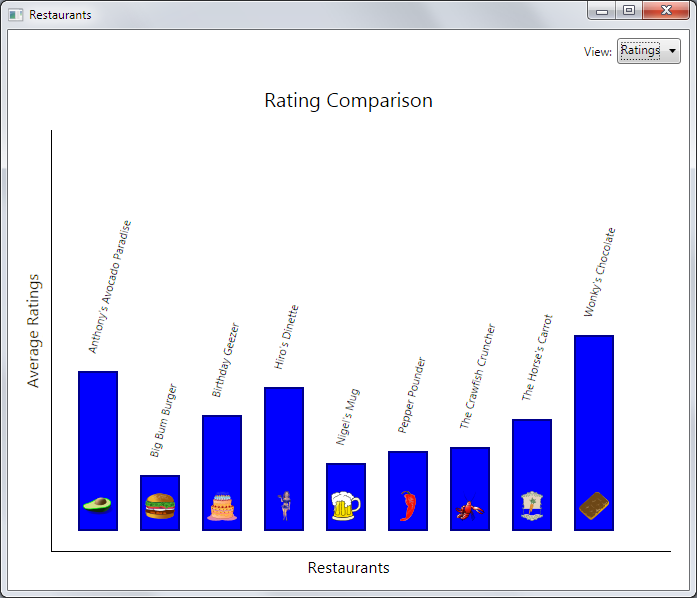
The content itself is a relatively trivial stack of elements. However, this time the elements are laid out left to right rather than top to bottom. This was a simple change from the default layout template. The only thing that is different is the orientation of the stack panel:
<ItemsPanelTemplate>
   <VirtualizingStackPanel
      Orientation="Horizontal"
      IsItemsHost="True"/>
</ItemsPanelTemplate>
Finally, we have the actual “bars” that make up the graph. Each bar is defined by its data template and is a composition of a blue rectangle (with the height adjusted based on the rating data) as well as a logo at the bottom, and a rotated label above the rectangle. The only part of this that is even remotely tricky is the height adjustment of the rectangle. This is done by means of a binding converter that is used in the data-bound Height property of the rectangle (see Listing 3). The rectangle sits in an auto-height row of a Grid layout element. The label sits inside the row above it and is thus moved up and down with the height of the bar.
Each and every element of this example is rather simple and most of it borders on the trivial, but the resulting effect is quite amazing. Once again, I kept this example simple, but I could have achieved a more polished look relatively easily. It would also be relatively straightforward to create other types of graphs using this same approach (or more advanced graphs with a custom layout approach as described below).
Throwing Things on the Table
You have now seen that you can use alternate layout elements to change the layout of individual items within the ListBox. You can take this a step further by defining a layout panel you create yourself. Using this approach you achieve complete freedom in the layout of items with only your imagination defining the limits. To illustrate this point, I created a “scatter view” example. You may have seen similar UIs in Natural User Interface scenarios such as Microsoft Surface’s Photo Viewer. Figure 9 shows my example.
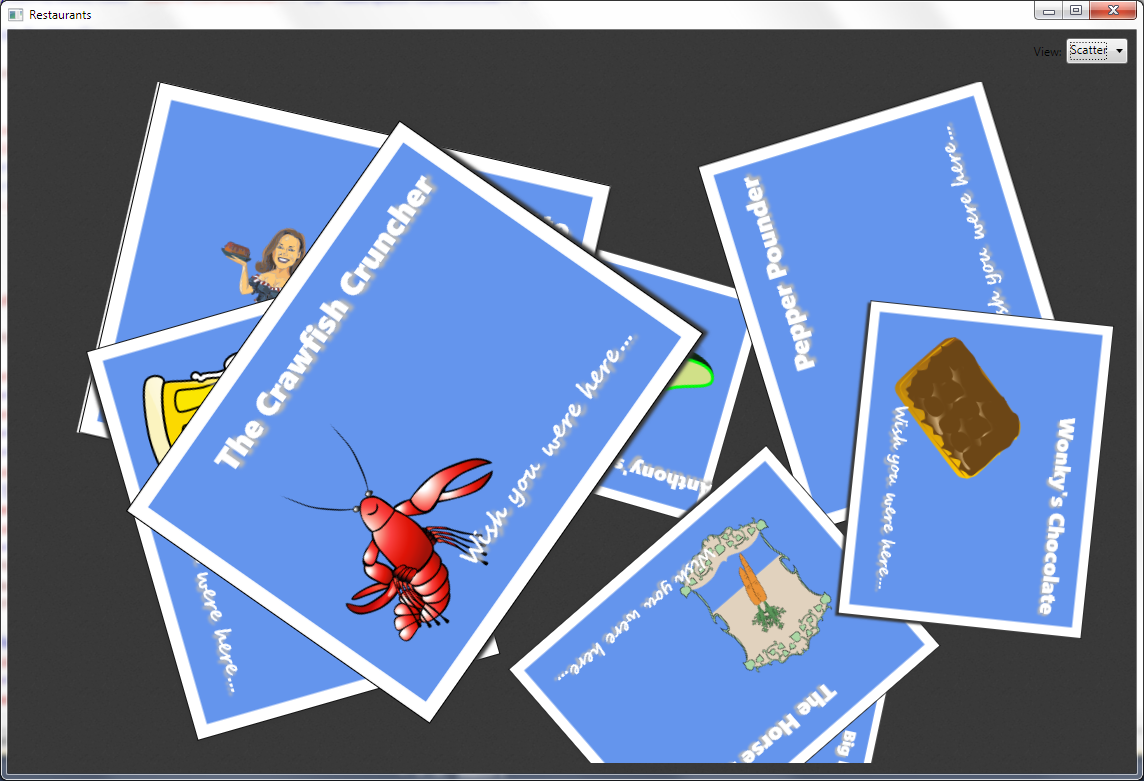
Of course complete “scatter views” require the implementation of multi-touch support as well as some physics simulations to enable pushing things around on the “table.” I didn’t go quite as far in my example, but I created everything needed for the basic setup. This first and foremost includes the use of a custom layout panel in the layout template:
<ItemsPanelTemplate>
   <ListBoxesWPF:ScatterPanel
      IsItemsHost="True"/>
</ItemsPanelTemplate>
Creating custom layout panels in WPF and Silverlight is a lot easier than it sounds (also read my article about creating automatic data edit form layouts in the November/December 2010 issue of CODE Magazine for more information on creating custom layout panels). First, you create a class that derives from the default Panel class. Then, your new panel needs to perform two tasks: 1) Tell all the elements contained within the panel how much room they have available and then allow these objects to measure themselves, and 2) arrange the child elements on the screen. Step 1 takes place in the overridden MeasureOverride() method:
protected override Size MeasureOverride(Size
availableSize)
{
    foreach (UIElement child in Children)
        child.Measure(new Size(10000, 10000));

    // Creating random positions and scales
    foreach (UIElement child in Children)
    {
        SetAngle(child, Randoms.Angle);
        SetOffsetX(child, Randoms.OffsetX);
        SetOffsetY(child, Randoms.OffsetY);
        SetScale(child, Randoms.Scale);
        child.RenderTransformOrigin = new
Point(.5, .5);
    }

    return base.MeasureOverride(availableSize);
}
In this case I do not have any specific size limitations for the child elements. I therefore simply iterate over all the children and ask them to measure themselves with an indication that they have lots of space (an arbitrary size of ten thousand pixels square). I then iterate over all the child items a second time and set some random values on attached properties, such as a random rotation angle, a random position, and a random scale factor.
Once this measurement step has taken place, it is time to arrange the elements on the screen. (Note that it is up to WPF/Silverlight to invoke rendering and measuring when needed and as often as needed.) This happens in the ArrangeOverride() method:
protected override Size ArrangeOverride(Size
finalSize)
{
   foreach (UIElement child in Children)
   {
      child.Arrange(new Rect(0, 0,
      child.DesiredSize.Width,
      child.DesiredSize.Height));

      var group = new TransformGroup();
      group.Children.Add(
          new RotateTransform(GetAngle(child)));
      group.Children.Add(
          new ScaleTransform(GetScale(child),
          GetScale(child)));
      group.Children.Add(
          new TranslateTransform(
          GetOffsetX(child), GetOffsetY(child)));
      child.RenderTransform = group;
   }

   return base.ArrangeOverride(finalSize);
}
Here, I simply iterate over all child items again and put them at position 0,0 with their desired height and width. Then, I add a transformation group which contains rotation, size, and positional transformations based on the attached properties set before (using random values). This transformation is what actually moves and rotates each element into its random position on the “table” creating the “scattered” look.
Of course, I also had to create an item template that uses a white and a blue rectangle as well as two labels (one of which is data bound) and the logo to create the appearance of each item. And voila! I now have yet another object that really does not resemble a ListBox very much at all, and I created this look without ever touching the original ListBox setup. It is all in the style. And guess what: This is exactly how a scatter view control on Microsoft Surface works!
Riding the Carousel
Do I have time for one more? OK, here is a quick bonus item: Let’s create a 3D carousel style! I am talking about the fancy 3D view popularized by Apple iTunes and the iPhone/iPod, which shows album covers in 3D space, with the selected item always being in the middle, and the caption of the selected control listed at the bottom in the center. Figure 10 shows my version of that UI.
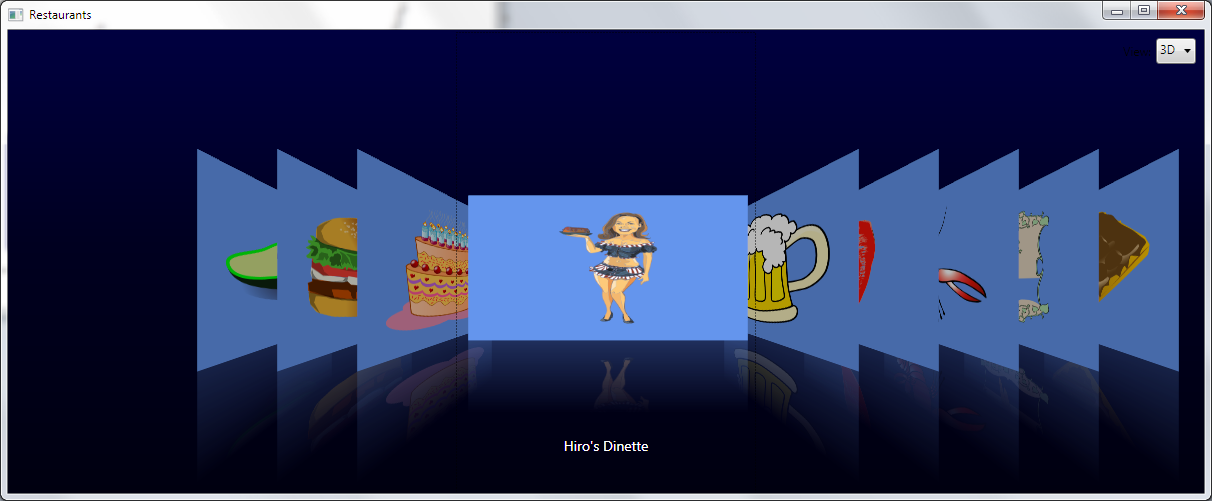
How was this done? Well, with a custom layout panel for one. This panel is defined as always:
<ItemsPanelTemplate>
    <ListBoxesWPF:CarouselPanel
        IsItemsHost="True"/>
</ItemsPanelTemplate>
What does this panel do? Fundamentally the same tasks the previous panel had to do: It measures and it arranges. Measuring is relatively simple since all I have to do is iterate over all the items and give them a chance to measure themselves. This time, however, I do not give them more space than they could ever need. Instead, I restrict the available size of each child item to 300x500 pixels. There is one other aspect I need to handle here. What’s unusual about this layout is that the selected item always has to be in the middle of the control. Therefore, I need to make sure that the entire control gets re-rendered and laid out again whenever the selected item changes. I handle this by hooking the SelectionChanged event of the ListBox in the MeasureOverride() method. To do so, I first have to find the actual ListBox this panel is in (which also means that this panel can only be used inside of ListBoxes) and I hook the SelectionChanged event to cause re-rendering.
Arranging items is another interesting step. First, I have to know which items are to the left and to the right of the selected item. I then arrange these items with a set distance out from the center. (Note that I am not yet worried about these items being in 3D space.) I also set the Z-Index of these items to make sure the items closest to the center are on “top” of the items further out (or “in front”). Otherwise, the items to the right would always overlap the ones further left, which would be incorrect for the items to the right of the selected item.
Remember I said I wasn’t concerned with the actual 3D aspect yet? That is only partially true. I set an attached Angle property on each element to a rotation angle of 65 degrees (clockwise and counter clockwise depending on whether the element is to the left or to the right of the selected item) and 0 degrees for the selected item. This doesn’t result in any immediate visual change, but it is a setting each item template can then respect to draw itself in 3D. This approach of using arbitrary attached properties is an approach that is useful in many styling tasks (and other tasks as well of course), since it allows creating and storing arbitrary additional information with UI elements. Without attached properties, one would be forced to change the underlying UI, which is an absolute no-no, as this would mean we would have to potentially change hundreds of ListBoxes in our application to enable this style. Our style must work without such changes and across the board, and attached properties enable us to do exactly that.
The actual 3D effect is produced in the item template. In my example, I am using WPF, which supports a “true” 3D setup. This means that one creates a 3D view port and creates 3D objects and sets up cameras and various light sources. If you have never worked with Direct 3D (or similar systems), this may seem like a daunting task. But here is a simple trick: Use Expression Blend and put an image on a UI. Then, pick Tools -> Make Image 3D and Blend will create all the required parts for you. The created XAML will be a little verbose, but that is probably OK (you could actually trim it down by hand quite a bit). The main part you are interested in is a ModelVisual3D object that has an AxisAngleRotation3D object set, which can be used to move the object in 3D space. In my case, I simply bind its Angle property to the attached property I set in my custom layout panel.
Of course you might now wonder why the heck you performed this trick with an image in Blend. Well, this is the easiest way to move any flat object into 3D space and Blend only supports this “trick” with image objects. To create the 3D setup, Blend turns the Image object into an ImageBrush. This is useful, because you can look for that ImageBrush object and turn it into any other kind of WPF Brush object. In my example, I replaced it with a VisualBrush, which allows me to put any kind of other WPF object inside it as its “Visual”:
<VisualBrush>
    <VisualBrush.Visual>
        <Grid>
            <Grid.RowDefinitions>
                <RowDefinition Height="*" />
                <RowDefinition Height="*" />
            </Grid.RowDefinitions>
            <Rectangle Fill="CornflowerBlue" />
            …
So this is where I put all my standard UI elements (which could be much more sophisticated than the version shown in Figure 10). I simply created a flat surface with a logo as well as a reflection for some nice polish. Once again, I tried to keep the example simple, so I didn’t add any animations, but you could use techniques such as the FloatingGrid introduced above to add animations and create a highly polished experience.
Note that 3D in Silverlight is quite a bit different from Silverlight in WPF. While WPF supports “true” 3D, Silverlight simply has the ability to perform a transformation around the X-axis on any 2D object. While this technique is generally more limited, it would make our carousel example much simpler since we could simply define an item template with a simple Grid that has a Z-rotation transformation applied. No need to set up all the cameras and lights and view ports! (See also the sidebars about Silverlight and WPF 3D.)
The actual code for this example is too long to print here (especially since it contains all the Blend-generated 3D math information), but you can download it as part of the code example attached to this article.
ListBoxes Rock!
There you have it! ListBoxes “lost their suck” with the introduction of WPF and have little in common with ListBoxes of old (or other systems, such as HTML5 for that matter). ListBoxes should be used a lot more in WPF and Silverlight than they currently are. They are great because they are so generic. All the different examples shown in this article could be created after an application is completed. The created styles could be assigned to a large number of lists that could all be changed or enhanced in one swoop without the need to re-test existing functionality. Imagine your boss telling you he wants every list to now also support the 3D carousel view. How would you do that if you had use some special data grid control? You simply couldn’t, but with ListBoxes, this scenario is no problem. What if all your lists of data now are supposed to be map-enabled? What if… well, the list goes on and on and ListBoxes can handle all these scenarios. Think about it this way: Any special control that shows IEnumerable<T> data can also be implemented as a style for a ListBox. So there is little (if anything) specialty controls can do that ListBoxes can’t do. Plus, these UIs now become portable. A simple Listbox setup is supported in WPF and all Silverlight flavors (including Windows Phone 7). You could thus reuse your main view definitions in all these scenarios but exchange the styles to make them appear most appropriate in each environment.
UI development tends to be very expensive, mainly due to changing requirements. (Switch from Windows to a phone and you often have to redo a lot!) This is what makes ListBoxes (and many other WPF and Silverlight techniques) so valuable business-wise. You simply can’t switch from a data grid view to a 3D view (or any other view) more efficiently and flexibly than with this approach. As with so many other things in WPF and Silverlight, I challenge anyone and any other UI technique or technology to do better than this!
Markus Egger
