


Smart phones are constantly evolving to fit your mobile lifestyle. Most modern phones function as full featured music and video players. Windows Phone 7 follows the path blazed by other smart phones, but adds its own twist. Your musical life on this device revolves around the Music + Videos hub. This article contains details on how to interact with the Music hub from your application.
Audio shows up in games and frequently provides auditory feedback for touch and gesture-based applications. This article shows you how to enhance your application by incorporating music and sound effects.
I will concentrate on Silverlight applications in this article but the XNA libraries for the phone have rich media libraries too. While it is fairly easy to add sound to your application, there are a few pitfalls to avoid. I learned about these issues while creating applications for the Windows Phone 7 Marketplace and I want to share what I discovered with you. I’ll discuss the most common media classes and teach you how use them correctly to ensure that your application passes the Marketplace certification process.
See the January/February 2011 issue of CODE Magazine for other articles on how to get started with Windows Phone 7.
Joining the Music + Video Hub
Microsoft envisions a seamless media experience with the Music + Video hub. This hub is the central location for everything related to media. This is where you find the Zune player, but you can also find third-party applications located here. Music hub applications share the same data stores and have certain responsibilities to uphold.
Under the right conditions, your app becomes a full-fledged member of the Music + Videos Hub. During certification, Microsoft determines if your app belongs in this hub by checking whether your code calls the Microsoft.Devices.MediaHistory or Microsoft.Devices.MediaHistoryItem classes. If so, your application is automatically added to the hub when installed.
The Windows Phone 7 Application Certification Requirements document (http://tinyurl.com/32jqzqt) spells out the details but here are a few tidbits for your enjoyment.
- 6.4.3 The application must update the “History” area of the Music + Videos Hub when the application plays media.
- 6.4.4 The application must update the “New” area of the Music + Videos Hub when media is added to the device or when the user creates an “object” in the application (for example, a radio station is created, a music tag is created).
The hub consists of four areas.
- Zune: the player for podcasts, music, radio and videos. Also contains the Zune Marketplace and your playlists.
- New: shows a list of the latest media added to the phone.
- History: lists all recently played media.
- Marquee: shows a list of all Music + Video hub applications. If your app qualifies it is automatically added to the marquee.
Creating a full-fledged member of the Music hub is beyond the scope of this article. Microsoft requires all third-party hub applications to behave in a consistent way. Because Microsoft enforces more rigorous certification requirements for Music + Video hub applications, they have better access to media and can update the user’s history list or play items from the Music hub. Not every app that plays music needs to be a member of the Music + Video hub, however.
Not Part of the Hub Club
Computer games are the cardinal example of applications that use music and sound effects to enhance the user experience. Music plays during gameplay but it is not coming from the user’s music library. A game that acts like this is not considered a Music + Videos Hub application by Microsoft. Instead it goes by a different designation. It’s called a MediaLib application. To qualify for this title, an application must access the MediaLibrary, MediaPlayer, MediaSource, MediaElement, or FMRadio classes. Microsoft adds the MEDIALIB capability to your application manifest during the certification process when they detect calls to these classes.
<Capabilities>
   <!-- A sample of application capabilities
   within the WMAppManifest file -->
   <Capability Name="ID_CAP_GAMERSERVICES"/>
   <Capability Name="ID_CAP_IDENTITY_DEVICE"/>
   <Capability Name="ID_CAP_IDENTITY_USER"/>
   <Capability Name="ID_CAP_LOCATION"/>
   <Capability Name="ID_CAP_MEDIALIB"/>
   <Capability Name="ID_CAP_MICROPHONE"/>
   <Capability Name="ID_CAP_NETWORKING"/>
   <Capability Name="ID_CAP_PHONEDIALER"/>
   <Capability Name="ID_CAP_PUSH_NOTIFICATION"/>
   <Capability Name="ID_CAP_SENSORS"/>
</Capabilities>
Microsoft uses capabilities to signal to the consumer what an application needs on the phone. For example, if your app launches the web browser, the consumer will be informed of this requirement before downloading the app.
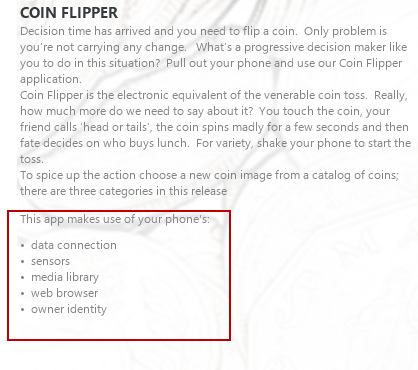
The product description page in the Zune Marketplace shows a list of required capabilities. The idea behind this proclamation is obvious - the user knows about the program requirements before installing it on their phone.
Figure 1 shows my Coin Flipper product description page. Coin Flipper plays an animation when the coin is flipped and provides further feedback by playing a sound effect and vibrating the phone briefly. Because Coin Flipper uses the phone’s VibrateController my app was flagged with the sensors capability. Since I play a few sound effects, it also got marked as a media library application. The other three capabilities are there because I use the Silverlight Ad control.
Learning the Libraries
At the current time you create phone applications with either Silverlight or XNA. Both platforms contain classes for working with sound. In Silverlight, the most viable candidate for playing sound on the phone is the Media element. In XNA, your choices are the SoundEffect and SoundPlayer classes. Microsoft frowns on mixing the two technologies in a single application. Here’s what they say in their certification guide.
- 4.2.5 The application must not call any APIs in the Microsoft.Xna.Framework.Game assembly or the Microsoft.Xna.Framework.Graphics assembly when using any methods from the System.Windows.Controls namespace.
With this certification restriction Microsoft effectively bans the use of many XNA classes from your Silverlight application. Fortunately this rule has an escape clause permitting the use of the XNA SoundEffect and other media classes.
- This requirement does not apply to applications that play sound effects through the Microsoft.Xna.Framework.Audio.SoundEffect class, as sound effects will be mixed with the MediaPlayer. The SoundEffect class should not be used to play background music.
There are a number of handy classes in the XNA world. I’ll start by looking at the FMRadio class.
Using the Radio class
The Internet has changed the way we listen to music. Radio stations have withered and died in some markets. But even in an Internet dominated world there are people who like to listen to the radio. Microsoft must love FM radio because they keep adding radios to their devices. Your app can activate the radio with a few lines of code.
try {
 FMRadio.Instance.CurrentRegion =
                  RadioRegion.UnitedStates;
 FMRadio.Instance.Frequency = 88.5;
 FMRadio.Instance.PowerMode = RadioPowerMode.On;
}
catch (Exception){
  // Note: device will throw an exception
  // if connected via USB to computer
  // and Zune desktop is open.

// also, headphones must be plugged into device
  MessageBox.Show("Cannot play radio...");
}
A Word about Working with the Device
Debugging an audio application on the emulator is not feasible. The emulator is missing the audio hardware for some tasks and doesn’t include the Music + Video hub. Debugging on the physical phone is the only real choice and it is straightforward as long as you do it properly.
To debug a media application you must take a few additional steps and use a special Zune utility. Before explaining the special steps I’ll review a normal debugging session. First, connect your phone to your computer with a USB cable. As soon as the phone is connected, Windows will launch the Zune desktop application (assuming you installed and configured the Windows Phone 7developer tools correctly).
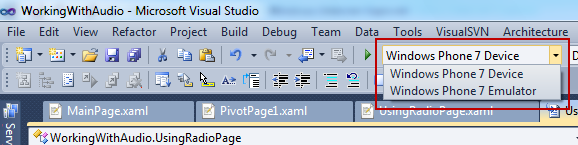
Next, open Visual Studio 2010 or Expression Blend 4 and load your project. For this example I’ll use Visual Studio. Once it’s loaded, choose the Windows Phone 7 Device from the deployment dropdown (Figure 2) and press F5.
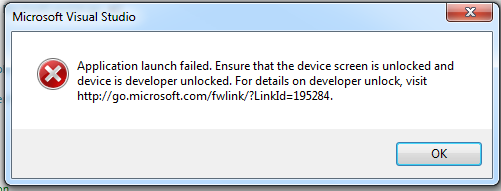
Visual Studio compiles the application and then deploys the app through the USB cable. It does this by using the connection services provided by the Zune software. Once the app is successfully deployed Visual Studio launches the app and attaches a debugger to the running assembly. If your phone lock screen is visible or the Zune software is not running then you cannot deploy and will see a deployment error message similar to the one shown in Figure 3.
Zune Blocks Playback on the Phone
Debugging a media application on a device is complicated by a few factors. Audio apps are different because of what happens to the Music hub when you connect to a PC through a USB cable. For reasons unknown to me, connecting your phone to the computer disables the Music + Video Hub on the device which effectively halts music playback. To work around this problem, Microsoft includes the WPConnect tool in the Windows Phone Developer Tools October 2010 Update http://tinyurl.com/366d37j.
The first step to debugging with WPConnect is the same as a normal debug session. Connect the phone to your PC with the USB cable and wait for the Zune desktop to load. Here’s where the steps diverge, however. Close the Zune desktop software and run the WPConnect.exe file. WPConnect is installed in the phone SDK folder. On my computer it’s located at C:\Program Files\Microsoft SDKs\Windows Phone\v7.0\Tools\WPConnect. Since I use this utility frequently I added it to the External tools section of the Visual Studio Tools menu.
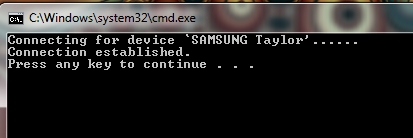
Don’t skip the Zune loading step, it is important to run the Zune software first in order to start some essential services. After running the utility you should see a success message similar to the one shown in Figure 4.
Media Element
In Silverlight, the obvious choice for playing audio is the MediaElement class. It works with most of the popular audio formats (MP3, MP4, WAV, WMA) and also supports video playback (AVI, WMV). It provides a handful of methods (Play, Pause, Stop, Seek and Mute) to control the media playback. In XAML you simply create the element, provide a path to the source file and choose whether to auto start the media when the page loads.
<MediaElement Source='games.wmv'
              Name='media1'
              AutoPlay='False' />
The MediaElement expands its UI when playing a video file and collapses the UI when playing a music file. Speaking of UI, the MediaElement is nothing fancy. If you want to see control buttons or status text you need to create your own. They’re not part of MediaElement.
Understanding Source Property
The MediaElement Source property denotes the location of the media file. In Silverlight you use a URL to indicate where to find the media file. The URL can point to a local file contained within your application or specify one located at an Internet endpoint.
To use a local file, add it to your Visual Studio project. Set the build action of the file to either Content or Resource (Figure 5). The file is embedded in your assembly when you choose the Resource option. This increases the size of the DLL and causes longer application startup time. To decrease load time, pick the Content build action instead. Now your DLL is smaller but your XAP file size is increased. Silverlight doesn’t load content files until needed so choosing this option ensures that your users will see your application UI sooner.
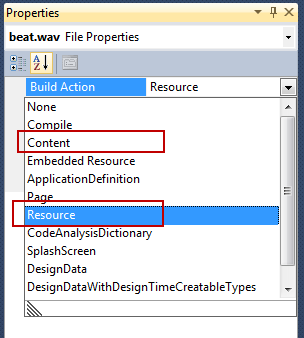
It’s likely that you will need to change the media source at runtime. Setting a URL for a local source is slightly different depending on whether you included the file as resource or content. Add a leading “/” for a content file.
// if marked as Resource use the path
// -- 'video/g.wmv'
// if marked as Content use the path
// -- '/video/g.wmv'
// note the leading forward slash /

media1.Source = new Uri("/video/g.wmv",
                    UriKind.Relative);
I should point out that you can’t change media unless the playback has stopped. Use the MediaElement CurrentState property to verify that it is safe to change the URI.
AutoPlay and Code Behind
The AutoPlay property indicates that the MediaElement will automatically begin playing a media file. In cases where auto start is not a desirable action, set AutoPlay to false and access the MediaElement in code. At first glance it seems simple to play the media, just call the Play method. But you shouldn’t start playback until the file is loaded and you don’t know how long that will take, especially when streaming a file from an Internet server. Microsoft provides the MediaOpened event for just this situation. Since you must wait for the media file to load before playing, it is common to start playback in the MediaOpened event.
void media1_MediaOpened(object sender,
                        RoutedEventArgs e){

  media1.Play();

}
If you need to switch to a different media file, be sure and stop the playback first. The following code shows one way to accomplish this.
if (media1.CurrentState
              != MediaElementState.Stopped)
{
   media1.Stop();
}
Be advised that merely setting the MediaElement source in your application XAML causes other phone media to stop playing.
<MediaElement Source='games.wmv' />
As you can guess this rude behavior might be met with scorn from your users. Not only is it discourteous but it violates the certification rules, so it’s better to set the media source in code, after asking the user for permission to interrupt their existing music. If you want to avoid disturbing current playback or wish to play simultaneous audio clips, consider using the XNA SoundEffect class instead.
As you can guess this rude behavior might be met with scorn from your users.
Sound Effects
As you’ve seen, the MediaElement makes it easy to add audio or video to your application. It’s not the right tool in every scenario, however. Sometimes you just want to provide audio feedback in your program by playing a short sound. Playing a beep when the user successfully touches a UI widget is an example of this type of effect. Sound effects can be played over existing music playback too. Using the MediaElement is overkill in this situation plus, as mentioned above, it can conflict with existing media playback. Luckily for us the XNA library provides an alternate class which solves the problem.
Understanding XNA Game Loops
Here’s a question for you. How are XNA applications different from Silverlight ones?
If you answered that XNA programs have a game clock controlling the action then you win today’s prize. At the core of all video games there is a game loop which gathers input from the game controllers, moves sprites around the game world and renders the audio and visuals for the game. In XNA this is exposed through methods on the Game class.
The Draw method is called by XNA when it is time to render the current game visuals to screen. The Update method is where you place your game logic. The game clock calls these methods frequently throughout game play. In order to function correctly the XNA SoundEffect class and other XNA classes must be called regularly by the XNA FrameworkDispatcher. In an XNA app this happens whenever the Update method is called. If you want to use XNA SoundEffect in a Silverlight application you need to implement a service to invoke the FrameworkDispatcher Update method. Microsoft explains more about this requirement here.
Creating the XnaFrameworkDispatcherService
To create the XNAFrameworkDispatcherService, add a reference to the Microsoft.Xna.Framework DLL to your project. Next, create a class that implements the IApplicationService interface. This interface permits your class to start and stop application-level services. You register the XnaFrameworkDispatcherService in the App.xaml file by adding it to the ApplicationLifetimeObjects element.
<Application.ApplicationLifetimeObjects>
   <local:XnaFrameworkDispatcherService />
</Application.ApplicationLifetimeObjects>
Your service is started during application startup and stopped after the application exits. See Listing 1 for the complete XnaFrameworkDispatcherService code. Once the service is running in the application it’s possible to play the effect.
Play the SoundEffect
Add a WAV file to the project and mark it as a resource. It must be a WAV file. MP3 files are not supported when using XNA SoundEffect in Silverlight. Grab the stream embedded in the DLL with the GetResourceStream method. Be sure to use the fully qualified path to the file as shown in this code snippet.
var wav = "/projectname;component/laser.wav";

StreamResourceInfo streamInfo =
  Application.GetResourceStream(
      new Uri(wav, UriKind.Relative));
Next, use the SoundEffect.FromStream method to load the effect into XNA.
var effect = SoundEffect.FromStream
          (streamInfo.Stream);
SoundEffect’s purpose is to load the media file and convert it to the proper audio format. It takes time to load the stream so Microsoft provides another class, SoundEffectInstance, for efficient playback of the loaded audio. The SoundEffectInstance class is dramatically faster at creating the effect once it’s loaded into the SoundEffect class so use it whenever you want to play the effect.
var instance = effect.CreateInstance();
Now, you can use the Play, Stop, Resume and Pause methods on the SoundEffectInstance class to control the effect. You can also control the pitch, pan and volume.
// Pitch is a value between -1 and 1
 instance.Pitch = (float)pitchSlider.Value;
 instance.Play();
You can have up to 16 instances playing simultaneously on the phone. Plus, you can overlay your effects with songs or videos played by MediaElement.
Finally, you can loop effects by setting the IsLooped property to true.
_drumInstance.IsLooped = true;
See Listing 2 for the complete XAML for this sample and Listing 3 for the C# code.
Microphone
Windows Phone 7 provides access to the microphone via the Microsoft.Xna.Audio.Microphone class. It’s simple to capture voice input with this class. Then you can process the stored audio with other media classes. A very popular effect in phone apps is altering the sample pitch before playback. The overabundance of voice “chipmunking” programs available in the marketplace testifies to the popularity of this technique.
The overabundance of voice “chipmunking” programs available in the marketplace testifies to the popularity of this technique.
Behind the scenes, the Microphone class uses XNA so you need the XNAFrameworkDispatcherService mentioned earlier in this article. I’ll use the Microphone.Default property to get a reference to the default mic. At this time, phone hardware contains one microphone but that may change in the future. As you see, I also create a few other variables for working with the microphone.
// at class level
Microphone _mic = Microphone.Default;
MemoryStream _stream = new MemoryStream();
byte[] _soundBuffer;
SoundEffect _effect;
In the page constructor set the Microphone buffer duration to 800 milliseconds, create the byte array to hold the sample and wire up the BufferReady event procedure.
// buffer duration must be between 100 and 1000
// and divisble by 10

_mic.BufferDuration =
    TimeSpan.FromMilliseconds(800);
_soundBuffer = new byte[_mic.GetSampleSizeInBytes
                          (_mic.BufferDuration)];
_mic.BufferReady += Mic_BufferReady;
XNA calls the BufferReady event procedure when an audio slice is available from the microphone. This is the ideal place to load the data into the buffer array and write the buffer to a MemoryStream. This is also the place to flush the buffer and call the Microphone.Stop method. This may seem counter-intuitive but it is important to call Stop here and not in the Stop Button event procedure. By stopping it here, you give the microphone the opportunity to process the last audio slice. This avoids clipping the last 800 milliseconds of the sample.
// called when audio buffer
// is ready for processing
void Mic_BufferReady(object sender,
                      EventArgs e){

  _mic.GetData(_soundBuffer);
  if (_isRecording)
  {
    _stream.Write(_soundBuffer, 0,
                  _soundBuffer.Length);
  }
  if (_isRecording == false) {
    _stream.Flush();
    _mic.Stop();
  }
}
Now that everything is ready just call the Start method to begin capturing the incoming audio.
_mic.Start();
Did I mention that the Zune Marketplace has a number of pitch changer applications? I’ll show you how easy they are to make.
To create the chipmunk voice, use the SoundEffectInstance class for playback. In the earlier example, the SoundEffect was loaded via the FromStream method. I’ll use a different approach in this example. This time I’ll use a constructor method on the SoundEffect class because it has the extra parameters needed to configure the audio sample. The first parameter is the audio buffer array, next comes the desired sample rate, and finally the number of audio channels on the microphone. Don’t bother choosing AudioChannels.Stereo because it’s not supported on the current phone hardware.
private void playButton_Click(object sender,
                         RoutedEventArgs e) {
  if (_stream == null)
  {
    return;
  }
  _effect = new SoundEffect(_stream.ToArray(),
    _mic.SampleRate, AudioChannels.Mono);

  var instance = _effect.CreateInstance();
  // raise pitch for "chipmunking"
  instance.Pitch = 0.7f;
  instance.Play();
}
Once you have the audio you want, you may need to save it for later playback. On the phone you can easily write the stream to isolated storage using standard Silverlight code.
MediaLibrary
As mentioned earlier, the phone contains a Music hub. There may be hundreds of music files available in the hub, just waiting to be played from your app. You can playback songs from the Music hub through the MediaLibrary, MediaSource and MediaPlayer classes.
The MediaSource class represents the physical location of the media files. On devices like the XBOX there can be multiple sources. For example, music files stored on the XBOX hard drive are available via MediaSourceType.LocalDevice. Files stored on your home network are available at MediaSourceType.WindowsMediaConnect. To get a list of available MediaSources call the GetAvailableMediaSource method. On the phone this method will always return a single media source: the local device.
var sources =
   MediaSource.GetAvailableMediaSources();
Iterate over the collection and get the real source as shown in this sample. Then create a MediaLibrary instance from the source.
foreach (var source in sources){

   if (source.MediaSourceType ==
                MediaSourceType.LocalDevice) {

     mediaLib = new MediaLibrary(source);

     break;
    }
 }
The MediaLibrary class provides access to songs, playlists, and pictures in the device’s media library. The Songs collection provides full access to the songs available in the Music hub. You can reference a song by URL if you choose but in this example I play a random song via the MediaPlayer.
if (mediaLib != null)
  {
    index =
      _random.Next(0, mediaLib.Songs.Count);

    try {
      MediaPlayer.Play(mediaLib.Songs[index]);
    }

    catch (Exception ) { /* failed  */}
}
Sharing the Audio Space
If your application plays music or videos you need to share the music space with other applications. Here’s what the Microsoft certification document says about interrupting the user’s playlist.
Playback Certification Rules
An application that plays music, audio, or sound effects (except applications in the Music + Videos Hub) must meet the following requirements:
- 6.5.1 Initial Launch Functionality When the user is already playing music on the phone when the application is launched, the application must not pause, resume, or stop the active music in the phone MediaQueue by calling the Microsoft.Xna.Framework.Media.MediaPlayer class. If the application plays its own background music or adjusts background music volume, it must ask the user for consent to stop playing/adjust the background music (e.g. message dialog or settings menu).
That seems clear enough. If a song is playing when your application starts you must obtain the user’s permission before playing other music. So what should you do? The easiest approach is to detect whether music is playing and disable your own music. This meets the certification requirements and only requires a few lines of code.
Remember that you can play sound effects over existing media without seeking approval, so you aren’t violating the rules in that case.
That seems clear enough. If a song is playing when your application starts you must obtain the users permission before playing other music.
Gaining Permission
If you insist on playing your own music you must actively seek consent from your user. The obvious approach to gain permission is to show a dialog and ask “Stop current song and play game music?” In order to be compliant with the certification rules you must do this every time your application starts. To get around this problem some programs use an application setting. Now the question becomes “Always play game music instead of Zune music during gameplay?” With this question the user opts into using your music for all future games. My personal preference is to silently stop music upon application startup, yet have a configuration setting with these three music options (None, Zune, Game).
To find out if media is currently playing, use the GameHasControl method.
string message =
      "Stop current song and play game music?";

     // returns false if any other program
     // is playing media.
     if (MediaPlayer.GameHasControl)
     {
       PlayRandomSong();
     }
     else
     {
       if (MessageBox.Show(message) ==
                   MessageBoxResult.OK)
       {
         PlayRandomSong();
       }
Final Thoughts
I’ve written a number of applications for Windows Phone and have been using the tools for several months. I studied the skimpy Beta documents and spent late nights wrestling with the debugger. How do I feel about the audio support on the phone?
On the one hand, I like the rich set of audio APIs available for the phone. In most scenarios they worked the way I expect and are easy to use. On the other hand, successfully navigating the certification process requires strong knowledge about the certification rules. You really have to understand the rules and abide by them. The online forums contain dozens of plaintive posts written by developers who didn’t understand these rules and wasted time submitting non-compliant programs. Here’s my suggestion: Print out a copy of the certification guidelines and read them daily until you understand them completely.
Also, the audio debugging tools need some improvements. For the most part using WPConnect to debug media is helpful. Once I understood the steps necessary for a successful debugging session I was stepping through my code in no time. But occasionally Visual Studio, Zune desktop, WPConnect and the phone conspired against me and I found myself extremely frustrated. The most frustrating aspect for me was when Visual Studio failed to connect to the device to upload the files. I’d repeat the steps that worked minutes earlier, and I’d get an error message. Waiting for a few minutes then trying again occasionally solved the problem. Several times, I was forced to restart the phone to free the roadblock. I’ve yet to get a clear answer to why this happens.
Don’t get me wrong. I love working with the phone and using Silverlight to create my mobile applications. Overall, it is a remarkable platform but like most V.1 projects from Microsoft it needs improvements in certain areas.
I’ll close by sharing this list of tips I’ve collected over the last few months with you.
- If you play media in your application you must provide a volume control. The phone has hardware volume buttons, but they control the volume for the entire device. The user must be able to control volume for each application.
- The built-in radio will not play unless a headphone (which acts as an antenna) is plugged into the headphone jack.
- Streaming radio from the Internet, (not playing local over-the-air radio stations) requires the SmoothStreaming library.
- Do not interrupt current music when running your application.
- Marking a media file as a resource inflates the size of the application DLL. This may cause your application to load slowly. If your application doesn’t show a responsive UI within five second it fails certification.
- Marking media files as content shrinks the DLL size. However some file types cannot be played when marked as content.
- When you plug a USB cable into the device while playing music the Zune desktop application will halt playback on the phone.
- There are reports of intermittent crashes when playing a media with MediaElement while connected to PC with a USB cable.
- If AutoPlay is set to false on MediaElement you must wait for MediaOpened event before calling Play.
- The emulator doesn’t have the radio or Music + Video hub. Test on a real device.
- Play WAV and MP3 files with MediaElement. Play WAV files with SoundEffect.
Listing 1: XnaFrameworkDispatcherService class
public class XnaFrameworkDispatcherService
                               : IApplicationService
{
  DispatcherTimer _t;

  public XnaFrameworkDispatcherService()
  {
    _t = new DispatcherTimer();
    _t.Interval = TimeSpan.FromTicks(333333);
    _t.Tick += Timer_Tick;
    FrameworkDispatcher.Update();
  }

  void Timer_Tick(object sender, EventArgs e)
  {
    FrameworkDispatcher.Update();
  }

  void IApplicationService.StartService
          (ApplicationServiceContext context)
  {
    _t.Start();
  }

  void IApplicationService.StopService()
  {
    _t.Stop();
  }
}
Listing 2: SoundEffect XAML
 <StackPanel x:Name="LayoutRoot"
             Background="{StaticResource PhoneChromeBrush}">
    <Button Name='pitchButton' Content='Laser' Height='72'
            Width='160' Margin='10'
            HorizontalAlignment='Center'
            Click='pitchButton_Click' />

    <Slider Name='pitchSlider' Height='98' Width='287'
            HorizontalAlignment='Center' Margin='10'
            Minimum='-1' Maximum='1' LargeChange='.1'
            VerticalAlignment='Top' />

    <Button Name='panButton' Content='Drum' Height='72'
            Margin='10' Width='160'
            HorizontalAlignment='Center'
            Click='panButton_Click' />

    <Slider Name='panSlider' Height='98' Width='287'
            HorizontalAlignment='Center' LargeChange='.1'
            Margin='10' Maximum='1' Minimum='-1'
            ValueChanged='slider2_ValueChanged'
            />
  </StackPanel>
Listing 3: SoundEffect C# Code
private void pitchButton_Click(object sender,
                               RoutedEventArgs e)
  {
    // it is neccessary to use
    // the fully qualified path to the wav
    // for the URI

    var wav = "/projectname;component/audio/laser.wav";
    StreamResourceInfo streamInfo =
      Application.GetResourceStream(
                          new Uri(wav, UriKind.Relative));
    var effect = SoundEffect.FromStream(streamInfo.Stream);
    var instance = effect.CreateInstance();

    instance.Pitch = (float)pitchSlider.Value;
    instance.Play();
  }
  SoundEffectInstance _drumInstance;
  private void panButton_Click(object sender,
                                RoutedEventArgs e)
  {
    StreamResourceInfo streamInfo =
      Application.GetResourceStream(
      new Uri("/projectname;component/audio/drumloop.wav",
        UriKind.Relative));

    if (_drumInstance == null)
    {
      var effect = SoundEffect.FromStream(streamInfo.Stream);
      _drumInstance = effect.CreateInstance();
    }

    if (_drumInstance.State != SoundState.Playing)
    {
      _drumInstance.IsLooped = true;
      _drumInstance.Play();
    }

  }

  private void slider2_ValueChanged(object sender,
    RoutedPropertyChangedEventArgs<double> e)
  {
    _drumInstance.Pan = (float)panSlider.Value;
  }
