


The Open Data Protocol (OData) is an open REST-ful protocol for exposing and consuming data on the web. Also known as Astoria, ADO.NET Data Services, now officially called WCF Data Services in the .NET Framework. There are also SDKs available for other platforms like JavaScript and PHP. Visit the OData site at www.odata.org.
With the release of .NET Framework 3.5 Service Pack 1, .NET developers could easily create and expose data models on the web via REST using this protocol. The simplicity of the service, along with the ease of developing it, make it very attractive for CRUD-style data-based applications to use as a service layer to their data. Now with .NET Framework 4 there are new enhancements to data services, and as the technology matures more and more data providers are popping up all over the web. Codename “Dallas” is an Azure cloud-based service that allows you to subscribe to OData feeds from a variety of sources like NASA, Associated Press and the UN. You can consume these feeds directly in your own applications or you can use PowerPivot, an Excel Add-In, to analyze the data easily. Install it at www.powerpivot.com.
As .NET developers working with data every day, the OData protocol and WCF data services in the .NET Framework can open doors to the data silos that exist not only in the enterprise but across the web. Exposing your data as a service in an open, easy, secure way provides information workers access to Line-of-Business data, helping them make quick and accurate business decisions. As developers, we can provide users with better client applications by integrating data that was never available to us before or was clumsy or hard to access across networks.
In this article I’ll show you how to create a WCF data service with Visual Studio 2010, consume its OData feed in Excel using PowerPivot, and analyze the data using a new Excel 2010 feature called sparklines. I’ll also show you how you can write your own Excel add-in to consume and analyze OData sources from your Line-of-Business systems like SQL Server and SharePoint.
Creating a Data Service Using Visual Studio 2010
Let’s quickly create a data service using Visual Studio 2010 that exposes the AdventureWorksDW data warehouse. You can download the AdventureWorks family of databases here: http://sqlserversamples.codeplex.com/. Create a new Project in Visual Studio 2010 and select the Web node. Then choose ASP.NET Empty Web Application as shown in Figure 1. If you don’t see it, make sure your target is set to .NET Framework 4. This is a new handy project template to use in VS2010 especially if you’re creating data services.
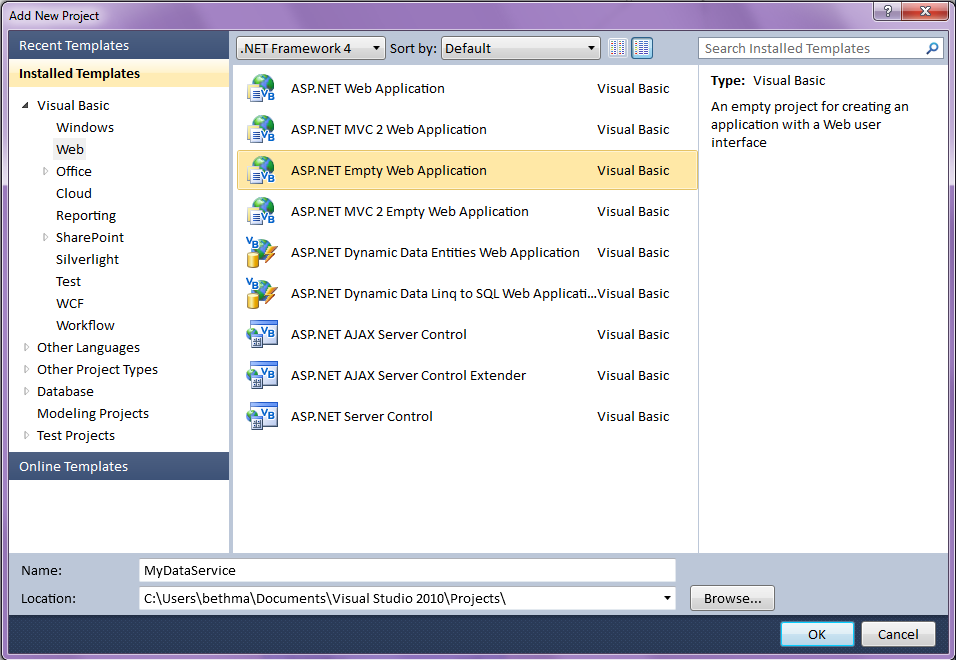
Click OK and the project is created. It will only contain a web.config. Next add your data model. I’m going to use the Entity Framework so go to Project -> Add New Item, select the Data node and then choose ADO.NET Entity Data Model. Click Add and then you can create your data model. In this case I generated it from the AdventureWorksDW database and accepted the defaults in the Entity Model Wizard. In Visual Studio 2010 the Entity Model Wizard by default will include the foreign key columns in the model. You’ll want to expose these so that you can set up relationships easier in Excel.
Next, add the WCF Data Service (formerly known as ADO.NET Data Service in Visual Studio 2008) as shown in Figure 2. Project -> Add New Item, select the Web node and then scroll down and choose WCF Data Service. This item template is renamed for both .NET 3.5 and 4 Framework targets so keep that in mind when trying to find it.
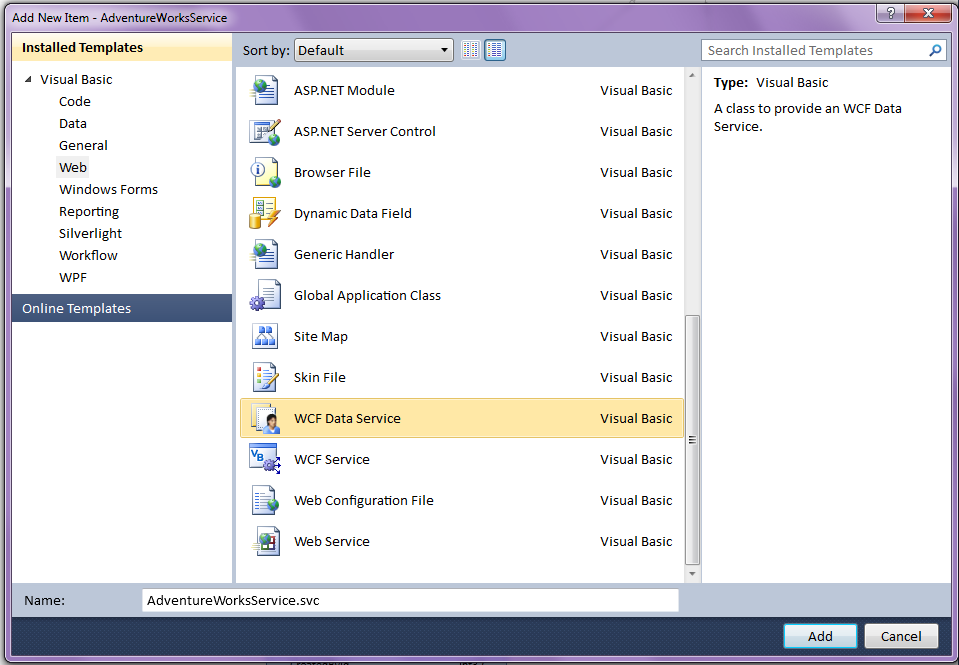
Now you can set up your entity access. For this example I’ll allow read access to all my entities in the model:
Public Class AdventureWorksService
    Inherits DataService(
             Of AdventureWorksDWEntities)

  ' This method is called only once to
  ' initialize service-wide policies.
  Public Shared Sub InitializeService(
   ByVal config As DataServiceConfiguration)
    ' TODO: set rules to indicate which
    'entity sets and service operations
    ' are visible, updatable, etc.
    config.SetEntitySetAccessRule("*",
          EntitySetRights.AllRead)
    config.DataServiceBehavior.
           MaxProtocolVersion =
           DataServiceProtocolVersion.V2
  End Sub
End Class
You could add read/write access to implement different security on the data in the model or even add additional service operations depending on your scenario, but this is basically all there is to it on the development side of the data service. Depending on your environment this can be a great way to expose data to users because it is accessible anywhere on the web (i.e., your intranet) and doesn’t require separate database security setup. This is because users aren’t connecting directly to the database, they are connecting via the service. Using a data service also allows you to choose only the data you want to expose via your model and/or write additional operations, query filters, and business rules. For more detailed information on implementing WCF Data Services, please see the MSDN library.
You could deploy this to a web server or the cloud to host for real or you can keep it here and test consuming it locally for now. Let’s see how you can point PowerPivot to this service and analyze the data a bit.
Using PowerPivot to Analyze OData Feeds
You can find a lot of good video tutorials on the PowerPivot site that are aimed at power users so I suggest you have a look at www.powerpivot.com. I’m not a power user of Excel per se, but I am a developer and I can tell you after I installed PowerPivot I was consuming feeds in about two minutes, so it’s really easy to get started. PowerPivot isn’t just about OData feeds but rather a consumer of many kinds of BI data sources, many more than what you get out of the box with Excel. For instance, you could have just as easily connected directly to SQL Server or Access data or loaded data from Reporting Services, a text file, or other spreadsheet.
To start consuming a data service, first make sure the service is running. If you just built it in Visual Studio then you can just start the debugger to test it by hitting F5. This will open the browser and you can drill into your data service from there. The URL to the data service will look something like http://localhost:1234/AdventureWorksService.svc/ when in development.
Now open Excel and select the PowerPivot tab and click the PowerPivot Window button to open it. This will open a second Workbook that you can use to collect the data from multiple sources and set up relationships between them. On the Home tab select From Data Feeds and then choose From Other Feeds. This will open the Table Import Wizard where you specify the URL to your data service as shown in Figure 3.
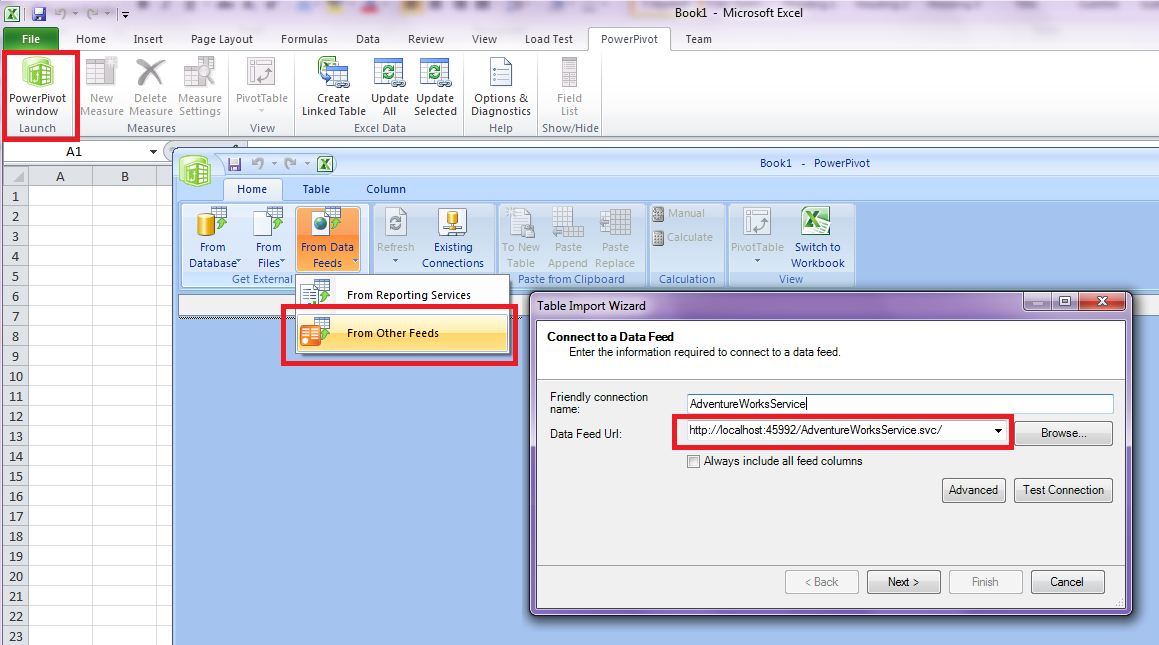
Click Next and now you can pull in a couple tables and do some analysis. For this example pull in the DimEmployees and FactSalesQuotas tables. Click Finish. Now you need to set up a relationship between them on EmployeeKey. You do this by selecting the Table tab and then clicking the Create Relationship button on the Ribbon. Set Table equal to FactSalesQuotas and Related Lookup Table to DimEmployees and then both columns to EmployeeKey and click the Create button. You can continue to pull in data from a variety of sources and set up relationships across them in PowerPivot. You can think of PowerPivot as a gigantic view of data from sources all over the web, file system and/or network.
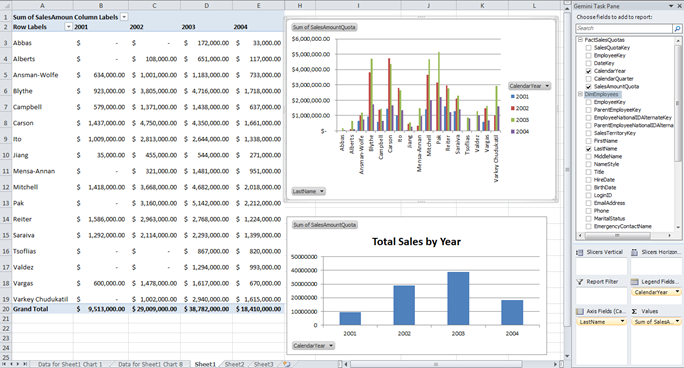
Now you can party on this data. Let’s create a PivotTable and a couple charts to look at the sales quotas for employees. From PowerPivot’s Home tab, select the PivotTable button and select Chart and Table (horizontal). This will flip you over to your workbook where you can choose a worksheet to put it. A task pane will open that should look relatively familiar if you have ever created a pivot table and chart in Excel. Select the appropriate fields to report on and viola; you have your data analysis against the data service as shown in Figure 4.
Analyze Deeper with Sparklines in Excel 2010
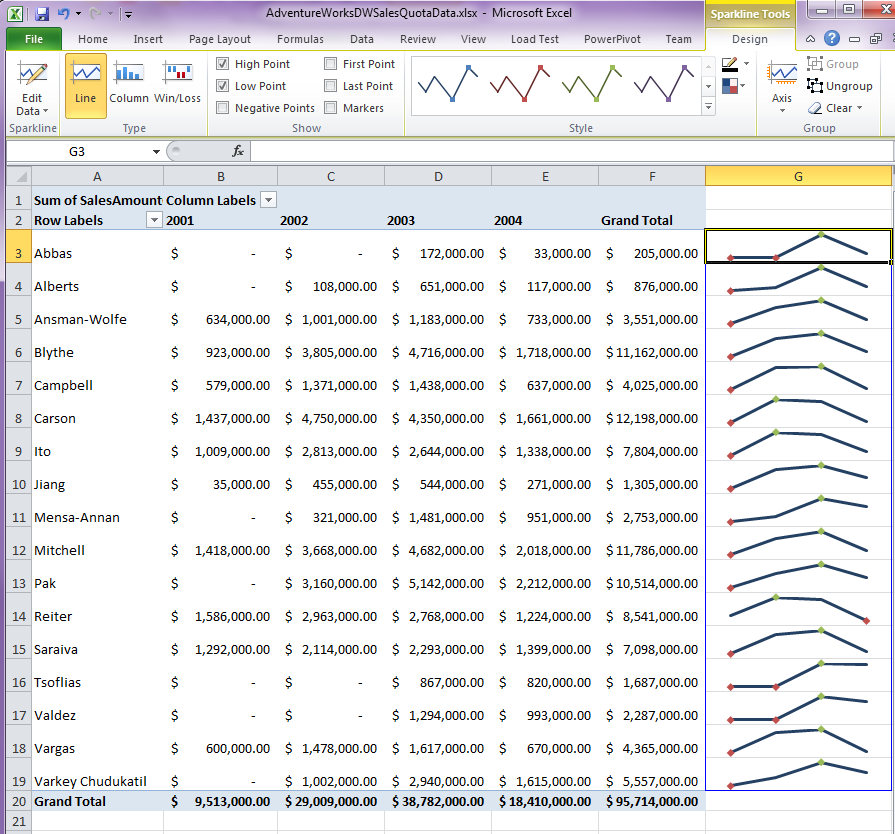
One of my favorite features of Excel 2010 is sparklines. Sparklines are little graphics in a cell that give a visual indication to what’s happening with the data in that row. For instance, you could add trend lines for each of the rows in the pivot table to quickly see the yearly performance for each individual employee. Instead of creating a filtered chart that you have to flip through, you can immediately see the visualization inline.
To add sparklines, select the Insert tab on the Ribbon, then choose the type of sparkline you want to create. Next, select the data range and the location. In this example, I chose the Line sparklines and am displaying the high and low points as shown in Figure 5. Note that by default, each sparkline is independent of each other, meaning you’re just seeing the trend of data in that row only. If you want to see how data compares across rows you can play with the Axis min and max properties.
Consuming SharePoint 2010 Data Services
The PowerPivot client is an Excel Add-In that users must install separately. There’s also a server piece to PowerPivot that is available for SharePoint 2010 which allows users to collaborate on the spreadsheets they create with the PowerPivot client. For more information, check out the PowerPivot site.
You can build your own document customizations and add-ins for a variety of Microsoft Office products using Visual Studio. You can provide data updating capabilities, integration with external systems or processes, write your own productivity tools, or extend Office applications with anything else that you can imagine with .NET. For more ideas and tutorials, check out the VSTO Developer Center http://msdn.com/vsto.
Let’s create a customization to Excel that analyzes some data from SharePoint 2010. SharePoint 2010 exposes its list data and content types via an OData service that you can consume from any client. You can also use the service to edit data in SharePoint as well (as long as you have rights to do so). If you have SharePoint 2010 installed, you can navigate to the data service for the site that contains the data you want to consume. To access the data service of the root site you would navigate to http://<servername>/_vti_bin/ListData.svc.
For this example, I created a sub-site called Contoso that has a custom list called Incidents for tracking the status of insurance claims. Items in the list just have a Title and a Status field. When I navigate my browser to the Contoso data service http://<servername>/Contoso/_vti_bin/ListData.svc, you can see the custom lists and content types get exposed as well.
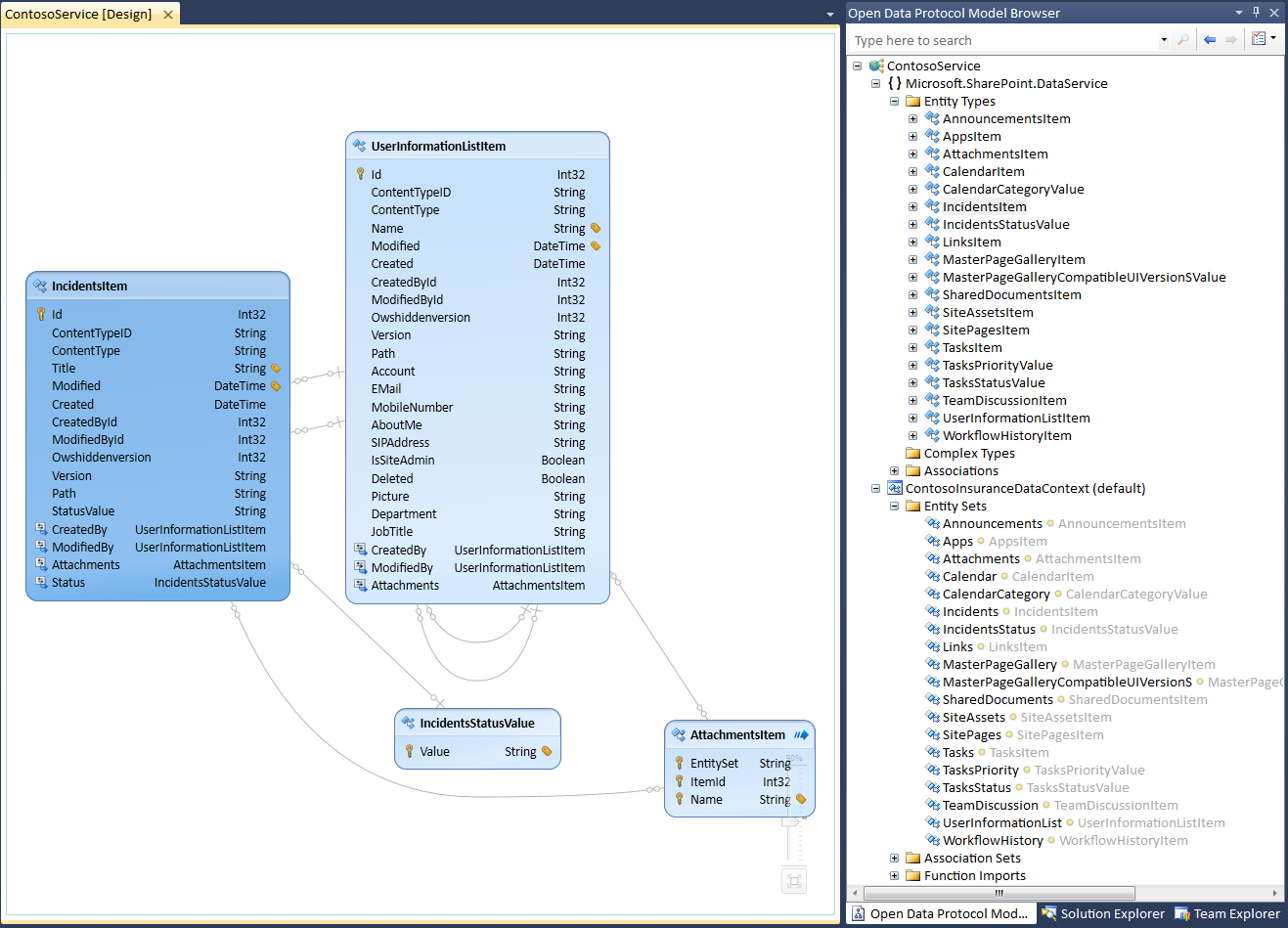
However, there is a better way to explore the types that OData services expose using a Visual Studio 2010 extension called the Open Data Protocol Visualizer. You can install this extension directly from Visual Studio 2010. On the Tools menu select Extension Manager, then select the Online Gallery tab, choose the Tools node and from there you can install the visualizer. Once you restart Visual Studio you can add a service reference to the data service, right-click on it and select View in Diagram. Then you can select the types you want to explore as shown in Figure 6.
Creating a Document Customization for Excel 2010 Using Visual Studio 2010
Now I will show you how to customize Excel with your own .NET code that calls this SharePoint data service and does some data analysis on the Incident data stored in the Contoso SharePoint site. Starting in Visual Studio 2008 you could select from a variety of Office 2007 project templates, Excel Workbook being one of them. Visual Studio 2010 now adds support for Office 2010 projects as well as 64-bit support.
In Visual Studio 2010 create a new project and select the Office 2010 node and choose Excel 2010 Workbook. This will create a document-level customization for Excel 2010. The difference between selecting an Add-in versus a document customization is that an Add-in will run every time the user opens the application, regardless of the document being opened. Here I want to create a document-level solution so that only this document has the custom code. This also lets you use the Excel designer to quickly lay out controls on the worksheet.
You now want to bind to the list of claims data coming from the Incidents list to an Excel worksheet so first you need to add a reference to the SharePoint 2010 data service. Open the data sources window (from the Data menu select Show Data Sources) and click the link Add New Data Source… to start the Data Source Configuration Wizard. New in Visual Studio 2010, you can select a SharePoint data source as shown in Figure 7.
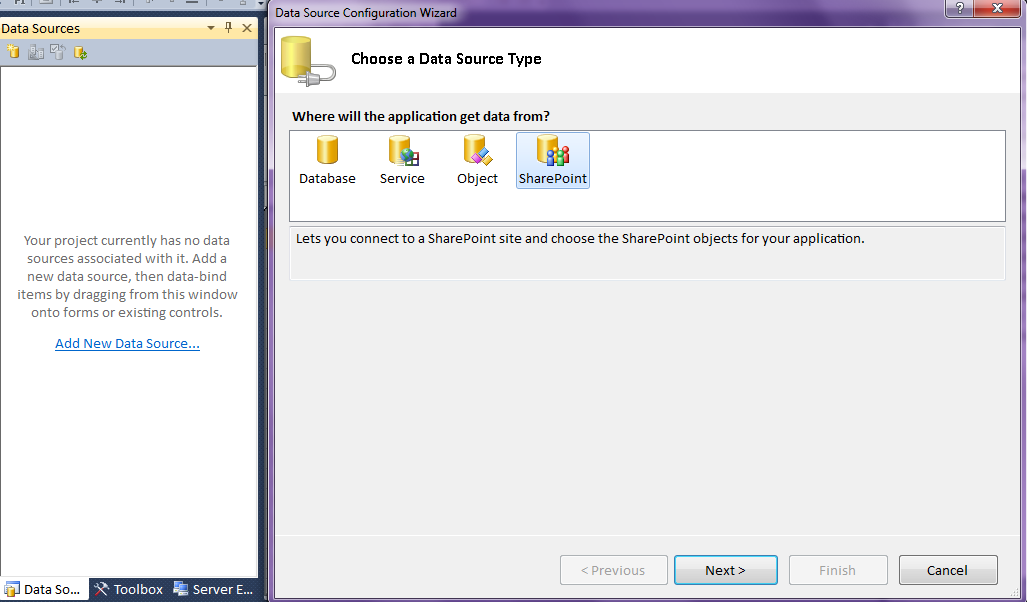
Selecting this and clicking Next will just open up the Add Service Reference dialog which is the same as adding it directly from the Solution Explorer; it’s just more convenient here since you’re going to do some data binding. Here you specify the address of the SharePoint 2010 data service; I named the service reference ContosoService in this example. Click Finish and now you will see the Data Sources window populated with the types exposed by the data service.
Now it’s time to do some data binding. Simply drag the Incidents list from the Data Sources window onto the design surface for Sheet1 as shown in Figure 8. This design surface is actually Excel 2010 itself being hosted inside Visual Studio. You can access all of the design features of Excel from here just like if you were working in Excel outside of Visual Studio.
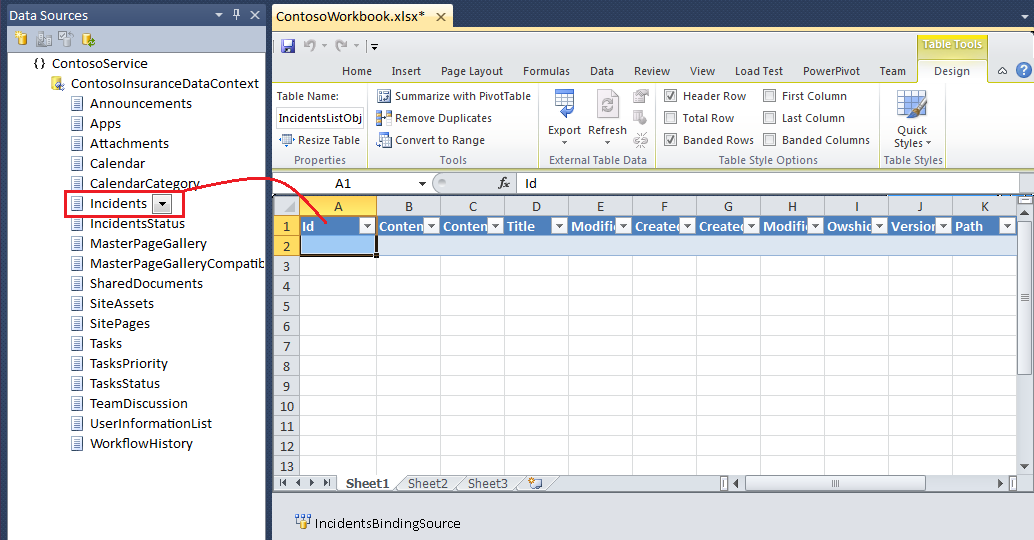
This sets up a ListObject control named IncidentsListObject that is bound to a Windows Forms BindingSource that is created for you in the component tray. When you set the DataSource property of this BindingSource the data is displayed. But before we query the data from the data service, I want to hide some of the columns in the IncidentListObject to only show the Title and StatusValue columns. I will do this by selecting the column range, right-click and choose Hide.
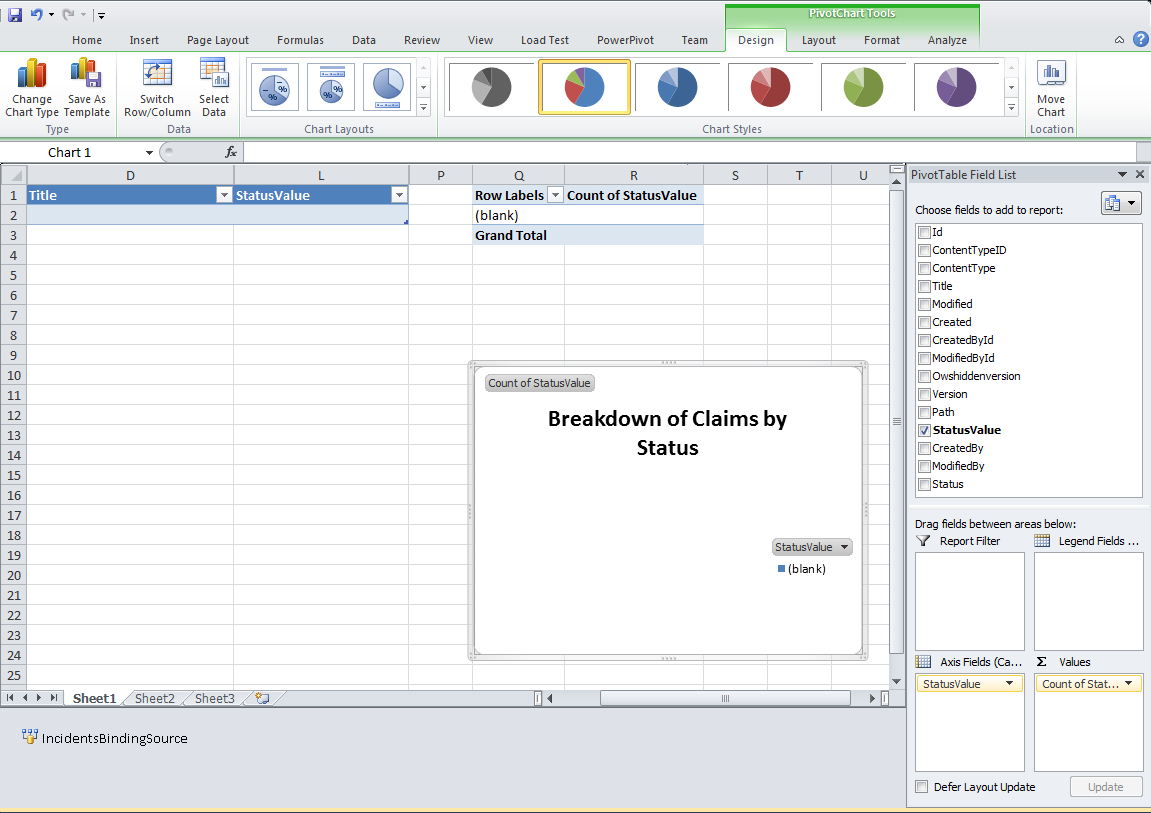
Next I'll show you how to add a PivotTable and pie chart to show a breakdown of incident claims by their status. If you are familiar with creating PivotTables and charts in Excel then this part is easy. Select the IncidentListObject on the sheet, then on the Excel Ribbon choose the Insert tab and drop down the PivotTable button on the far left and select PivotChart. The range will be set to the IncidentsListObject so just choose a location; for this example I placed it in the same sheet. In the Pivot Table Field List check the StatusValue field, drag it to the Values section, and then set the chart type to Pie Chart as shown in Figure 9.
Now that the data and charts are laid out how you want, you can write a LINQ query to get the SharePoint data.
Calling the SharePoint OData Service and Binding Data
When you add a data service reference to your project, a .NET assembly reference is added automatically for you to System.Data.Services.Client. This client assembly is needed in order to write LINQ queries against any data service. We could easily provide a UI to the user to call this service in the form of a custom Task Pane or Ribbon using those designers in Visual Studio, but for this example we’ll keep it simple and just add the code to the sheet directly. So open up the code-behind for Sheet 1 and in the Sheet1_StartUp event handler, write the following code:
'Pull in sharepoint list data via OData
'service
Dim ctx As New ContosoService.
   ContosoInsuranceDataContext(New Uri(
   "http://<servername>/contoso/
_vti_bin/listdata.svc"))

ctx.Credentials =
   System.Net.
   CredentialCache.DefaultNetworkCredentials

'LINQ query to return incidents data from
'SharePoint
Dim results =
    From i In ctx.Incidents
    Order By i.StatusValue

'Databind the list
Me.IncidentsBindingSource.DataSource =
    results.ToList()

'Refresh pivot table
Dim pvt As Excel.PivotTable =
    Me.PivotTables("PivotTable1")

pvt.RefreshTable()
Hit F5 to start the debugger and Excel will display the data from our SharePoint data service and you will see the breakdown of status on the claims in the Incidents list.
Adding Sparklines in the Customization Code
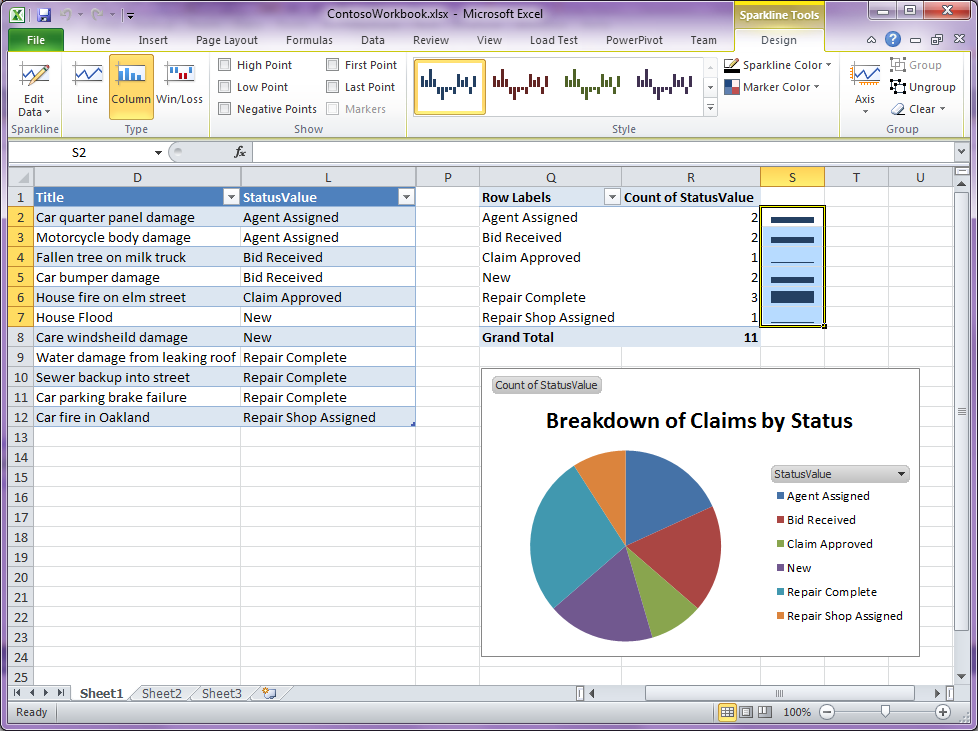
Now I'll show you how to add those cool sparklines. I want to add the column type of sparkline to give a visual queue of how many claims fall into the respective status. Same data as the pie chart in this case but just a different visualization. And since I don’t have a series of data in each row like in the previous example, I need the sparklines to scale across the group. Listing 1 shows the code to do that.
Add a call to the AddSparkLines method after the call to RefreshTable and now when you hit F5 again you’ll see the column style sparklines as shown in Figure 10.
Conclusion
As you can see there are a lot of possibilities of what you can do with the Open Data Protocol and the types of analysis you can do with OData feeds in Excel 2010. You can easily build WCF data services in Visual Studio to expose your own OData feeds. You can use PowerPivot, a powerful Excel Add-in, to analyze data from a variety of sources or you can use Visual Studio to build your own Excel clients to consume and analyze data services you expose from your own Line-of-Business systems like SQL Server and SharePoint. Enjoy!
