


Although you can create lots of kinds of projects both for Windows and the Web with Visual Basic 2010, there is a common set of files for each project. In this chapter you learn which files give the structure to each project and how the files influence the building of an application. You also get an overview of references, namespaces, classes, modules, and Visual Basic keywords.
In This Chapter
- Brief Overview of Types and Members
- Visual Basic 2010 Reserved Keywords
- Understanding Project Files
- Understanding References
Although you can create lots of kinds of projects both for Windows and the Web with Visual Basic 2010, there is a common set of files for each project. In this chapter you learn which files give the structure to each project and how the files influence the building of an application. You also get an overview of references, namespaces, classes, modules, and Visual Basic keywords.
Brief Overview of Types and Members
In the second part of this book, we discuss important topics related to the object-oriented programming with Visual Basic 2010, and we explore features such as types, classes, modules, namespaces, interfaces, and class members. Before going into this, it would be a good idea to have at least an overview of classes, modules, namespaces, and class members because you will find these objects in code examples or in Visual Basic features that are shown prior to Chapter 7, “Class Fundamentals.”
If Something is Not Clear
The following is only a brief overview of some important topics. Don’t be afraid if any of the following concepts are not clear or worry if things seem small. Starting in Chapter 4, “Data Types and Expressions,” and continuing through Part 2, “Object-Oriented Programming with Visual Basic 2010,” of this book, all concepts are discussed in detail.
Classes
Classes in .NET development represent objects whose declaration is enclosed within Class..End Class blocks. The following is an example of class declaration:
Class Person
End Class
Classes are reference types (explained more in Chapter 4) and can expose members that influence the object’s behavior, such as properties and methods. Classes can implement interfaces and they can also be static (or Shared according to the VB terminology) and can provide support for inheritance.
Properties
Properties are characteristics of a type. For example, the previously shown class Person could have two properties, such as the first name and the last name:
Class Person
  Property FirstName As String
  Property LastName As String
End Class
Properties in Visual Basic 2010
Visual Basic 2010 introduces a new syntax for properties known as auto-implemented properties. To declare properties you need just the Property keyword without explicitly specifying getters and setters. This is discussed further in Chapter 7.
Methods
Methods are the .NET representation of what in other programming environments you define as functions and procedures. A method can be a member of classes, structures, and modules. Methods that return a value are represented by Function..End Function blocks, such as the following:
Function DoSomething() As String
      Return “A text message”
End Function
Methods that do not return a value are represented by Sub..End Sub blocks, such as the following:
Sub DoSomething()
‘write your code here
End Sub
Methods can receive parameters that can be processed within code blocks. Such parameters are called, using .NET terminology, arguments. The following code block shows an example of an argument named message:
Sub DoSomething(ByVal message As String)
    Console.Writeline(message)
End Sub
Modules
Modules are defined within a Module..End Module code block. Modules are basically Shared classes but, unlike classes, they cannot implement interfaces. The following is an example of a module:
Module Module1

    Sub DoSomething()
        ‘Code goes here
    End Sub
End Module
Members defined inside modules don’t require the name of the module when invoked.
Structures
Structures are .NET objects represented by a Structure..End Structure code block. Structures are value types, which are described more in Chapter 4, and for classes, can expose properties, methods, and so on. The following is an example of a structure declaration:
Structure SomeValues

    Property FirstValue As Boolean
    Property SecondValue As Integer

    Sub DoSomething()

    End Sub
End Structure
Inheritance
Inheritance is one of the most important features of the .NET Framework. A class can inherit or derive from another class, meaning that the new class can have all properties, methods, and members exposed by the first class, which is called base class, and can then define its own members. Inherited members can then be overridden to adapt their behavior to the new class’ context. The .NET Framework provides one-level inheritance, meaning that a class can inherit from one other class per time. Each class derives implicitly from System.Object. The Inherits keyword is used to inherit classes. The following code provides an example of a base class named Person and of a derived class named Customer:
Public Class Person
    Public Property FirstName As String
    Public Property LastName As String

    ‘A new definition of System.Object.ToString
    Public Overrides Function ToString() As String
        Return String.Concat(FirstName, “ “, LastName)
    End Function
End Class

Public Class Customer
    Inherits Person

    Public Property CompanyName As String

    Public Overrides Function ToString() As String
        Return CompanyName
    End Function

End Class
In the preceding example the Person class overrides (that is, provides a new definition of) the System.Object.ToString method. The Customer class exposes a new CompanyName property whereas, via inheritance, it exposes the FirstName and LastName properties. Finally, the class also overrides the Person.ToString method. Inheritance is discussed in Chapter 12. “Inheritance.”
Namespaces
A namespace is basically a container of types. This means that one namespace can contain multiple classes, multiple modules, multiple interfaces, multiple structures, and so on. The following is an example of a namespace exposing two classes, one module, one structure, and one interface:
Namespace Test

    Class Person
        Property FirstName As String
        Property LastName As String
    End Class

    Class Employee
        Inherits Person

        Property EmployeeID As Integer
    End Class

    Module Module1

        Sub DoSomething()

        End Sub
    End Module

    Interface ITest
        Sub TakeATest()
    End Interface

    Structure SomeValues
        Property FirstValue As Boolean
        Property SecondValue As Integer
    End Structure
End Namespace
Namespaces are important for a better organization of types, but there is another reason. You could have two classes with the same name (for example, Employee) but with different properties. Namespaces enable you to avoid conflicts in such scenarios. You can access types exposed by a namespace by simply writing its identifier followed by a dot and then by the type name. For example, if you want to invoke the method DoSomething in Module1 you could write the following line of code:
Test.Module1.DoSomething()
Namespaces are described in detail in Chapter 9, “Organizing Types Within Namespaces.”
Accessing Members
Unless you declare shared objects, you need to instantiate classes and structures before you can use members and store information within those objects. You instantiate a class declaring a variable and using the New keyword as in the following line of code:
Dim testPerson As New Person
Then you can set properties for the new instance or eventually invoke other members such as methods. For example, you could initialize testPerson’s properties as follows:
testPerson.FirstName = “Alessandro”
testPerson.LastName = “Del Sole”
Basically when you need to invoke a member of a class, you type the name of the instance (in this example testPerson) followed by a dot and by the name of the member. For shared members, you just write the name of the class or structure followed by a dot and by the name of the member.
Initializing Members
Visual Basic 2010 offers an alternative way for initializing members’ valued when instantiating classes. This feature is known as Object Initializers and is discussed in Chapter 7.
Imports Directives
As we saw before, namespaces can expose objects that expose members. Moreover, namespaces can expose nested namespaces, exposing objects and so on. You often need to access members of objects exposed by nested namespaces. To avoid the need of typing the entire name of long (or nested) namespaces and writing long lines of code, the Visual Basic language offers the Imports directive. For example, consider the following lines of code that open a file on disk:
Dim myFile As New System.IO.FileStream(“C:\test.bin”,
                                       IO.FileMode.Open)

myFile.Close()
The FileStream class is exposed by the IO namespace that is exposed by the System namespace. You could place the following directive at the beginning of the code:
Imports System.IO
At this point the first line of code could be rewritten as follows:
Dim myFile As New FileStream(“C:\test.bin”, FileMode.Open)
Imports directives are useful because they help to handle a much clearer code. Just remember that such directives must be the first lines of each code file. The only exception is constituted by the Option clause that must precede the Imports directives.
#Region..#End Region Directives
Visual Basic provides an efficient way for organizing your code within regions. A region represents a collapsible area of the code editor that can contain any code and that takes the advantage of the outlining feature of the Visual Studio 2010 code editor. Regions are defined with #Region..#End Region directives. The following code snippet shows how to define a region:
#Region “Private Members”

    Private firstItem As String
    Private secondItem As Integer

#End Region
The #Region directive requires the specification of a descriptive caption. When you declare regions, you can then collapse regions by clicking on the - (minus) symbol on the left of the #Region directive. When collapsed, the region shows just the descriptive caption and can then be expanded again by clicking on the + (plus) symbol. Also notice that the Visual Studio 2010 IDE allows collapsing a region by double-clicking anywhere on the #Region..#End Region connector line on the left side of the code window. Such directives will not be compiled and will not affect performances at all.
Attributes
Attributes are classes deriving from the System.Attribute class and provide declarative information to objects or members they are applied to, providing also the ability to change their behavior. As a convention, applying an attribute is also known as decorating or marking a member. Attributes are basically class instances; you can apply attributes enclosing their names within < > symbols; moreover they can receive arguments. The following are examples of decorating members with attributes:
<Serializable()> Class Test

End Class
<CLSCompliant(True)> Class Test

End Class
In the preceding snippets, the Serializable attribute creates a new instance of the System.SerializableAttribute class that indicates to the compiler that the decorated class can take advantage of the serialization process. The CLSCompliant attribute, whose value is True, means that the decorated class is compliant to Microsoft’s Common Language Specifications. Attributes are discussed in Chapter 48, “Coding Attributes,” and you often find examples in this book that require code to be decorated with attributes.
A New Feature: Implicit Line Continuation
Visual Basic 2010 introduces an important new feature when writing code (which is a historical change in the language) known as implicit line continuation. Back in older versions, if you needed to split a long line of code into more brief and readable lines of code in the editor, you needed to add an underscore ( _ ) character. With Visual Basic 2010 this is no longer necessary, with a few exceptions. You can simply press Enter when you need to split a line of code, and the compiler will automatically recognize a line continuation, depending on what kind of code you are writing.
Tip
Implicit line continuation is not mandatory. If you prefer adding underscores for line continuation, of course you are still allowed to do it.
The following are situations in which the implicit line continuation is allowed:
- Within LINQ queries
- Within embedded expressions in LINQ to XML queries
- After dots
- After commas
- After brackets
- When decorating members with attributes
- Before an assignment
Let’s see how implicit line continuation works. The first code snippet shows a LINQ query:
Dim query = From proc In Process.GetProcesses.AsEnumerable
            Where (proc.ProcessName.StartsWith(“A”))
            Select proc
In Visual Basic 2008 you needed to add an underscore after the first and second line of code. Now this is no longer necessary. The second code snippet shows a LINQ to Xml query with embedded expressions without underscores:
Dim doc = <?xml version=”1.0”?>
          <Processes>
            <%= From proc In query
              Select <Process>
                             <Name <%= proc.ProcessName %>/>
                           </Process>
            %>
          </Processes>
The third code snippet shows both commas and brackets without underscores:
Dim p As New List(Of Integer) From {
                                    1,
                                    2,
                                    3,
                                    4}
The fourth code snippet is about dots. In this case implicit line continuation can be useful when invoking methods or properties:
Dim appDataDir As String = My.Computer.FileSystem.
SpecialDirectories.AllUsersApplicationData()
The fifth code snippet shows implicit line continuation with attributes:
<CLSCompliant(True)>
Class Test

End Class
The sixth and last code snippet demonstrates how you can use implicit line continuation before an assignment:
Dim aValue As Integer
aValue =
        10
All the preceding code snippets are now perfectly legal. In all cases of the preceding examples, implicit line continuation is not allowed. For example, you still must add an underscore after the Handles clause when handling events:
Private Sub AnEventHandler(ByVal sender As Object, ByVal e As EventArgs) _
                           Handles anObject.Disposed

End Sub
Although you might expect such discussion in Chapter 2, “Getting Started with the Visual Studio 2010 IDE,” about the code editor, you first need to get an overview of concepts that help you understand where implicit line continuation is allowed or disallowed.
Visual Basic 2010 Reserved Keywords
When writing code, you often define types or declare variables. Types and variables are recognizable via identifiers. An identifier is essentially the name of a type or of a variable and not necessarily a word that makes sense, although it is a good practice to assign human readable identifiers. For example, an identifier such as DoSomething is much better than DoSmt. For this, there are some words in the Visual Basic lexical grammar that you cannot use as identifiers for your variables because they are reserved for the language.
Identifiers Naming Conventions
.NET programming principles establish that identifiers must match some rules when writing code, including identifiers. Such naming conventions are stated by the Common Language Specifications that are covered in Chapter 21, “Advanced Languages Features.” For now keep in mind the best practice regarding human readable identifiers. Later in the book you learn how identifiers should be correctly written.
Using Reserved Words as Identifiers
As an exception, you can use reserved words as identifiers enclosing them in a couple of square brackets. For example, New is a reserved word and cannot be used whereas [New] can be accepted. Although allowed, this practice should be used only in particular cases because it could lead to confusion, especially if you are not an experienced developer.
Although the code editor is powerful enough to advise when you are attempting to use a reserved keyword as an identifier, having a reference is practical.
Visual Basic is Case-Insensitive
When writing code remember that Visual Basic is a case-insensitive programming language. This means that, differently from C#, writing Hello is the same of writing HELLO or hello or heLLo. Take care with this feature when assigning identifiers.
Understanding Project Files
Each Visual Basic project is composed of several code files. Some of them are by default visible to the developer and are the ones that you need to edit to create your application. There are also some other files (which are hidden by default but that can be made visible manually) that we can consider as support files. To understand what kind of support these files offer, we have to think that most of the settings that we can provide to our applications via the My Project window are represented with Visual Basic code. Particularly, Visual Basic translates into code the content of the Application, Resources, Settings and My Extensions tabs. In this chapter you get a detailed description of files that represent the Application tab in My Project and then you get an overview of files that represent other tabs. Although you seldom edit these code files manually, because all of them have design time support from My Project (as detailed in Chapter 20, “The ‘My’ Namespace,” when describing the My namespace), there could be some situations in which you need to manually edit them, so it’s important to know something about them. Before going on, you need to click the Show All Files button in Solution Explorer. This gives visibility to several code files that are hidden by default and that provide the main infrastructure for each Visual Basic project.
Dissecting My Project
In Chapter 2 we introduced the My Project window and saw how it offers graphical tools for specifying some settings when developing applications, such as application information and compile options. Understanding My Project is important because it also provides the infrastructure of the My namespace, offering the ability for specifying important settings that are discussed in Chapter 20. For now, we need to know that My Project offers a graphical representation of information that is stored in some code files. In Solution Explorer you can notice an element named My Project. When you double-click this element, you are redirected to the My Project window. But when you enable the All Files view, you notice how the My Project element becomes a folder that can be expanded. Within this folder (which is physically stored inside the project’s folder and contains all files described in this section), you can notice the presence of several files packaged into the assembly’s metadata when you build the project. We now describe such files and how they work.
My Project is Versatile
Depending on what kind of application you develop, My Project can implement additional tabs or remove some. For example, if you develop a Silverlight application you can find tabs in My Project that are specific for Silverlight and that will be discussed in the appropriate chapters.
Application.MyApp
The Application.myapp file is an XML representation of the project’s main properties. Listing 3.1 shows the content of this file as it becomes available when you create a new Console application.
XML elements in this file are self-explanatory, and you may notice how each of them represents a particular item on the Application tab. The Application.myapp file is the brother of another file named Application.Designer.vb. Such a file basically stores information related to Windows Forms applications such as the authentication mode and the shutdown mode. It is the complement for those application options that you can see in the Windows Application Framework Properties group in the Application tab. Listing 3.2 shows the content of the Application.Designer.vb as it is generated for a Windows Forms application.
For the sake of simplicity, in the preceding code some attributes are omitted that Visual Studio adds to class members and that are related to the debugger interaction. As you can see examining Listing 3.2, items in the Application tab of My Project have been mapped to Visual Basic properties. The Me identifier represents the instance of the current application. The OnCreateMainForm method establishes which window must be the startup one. In this case Form1 is the default name that Visual Studio assigns to the main window when a new project is created. If you also examine the code inside the IDE, you can notice how there are some comments in the code that advise that the code itself is auto-generated and that you should not edit it manually, because you can use the My Project designer that will automatically map changes to the Visual Basic code. You might need to set custom actions for application events (such as Startup or Shutdown, which are usually handled in the ApplicationEvents.vb file) and Application.designer.vb is the right place.
AssemblyInfo.vb
In Chapter 2 we discussed the Assembly Information dialog, describing how it is used for specifying information about applications. All the information is stored in a file named AssemblyInfo.vb. Listing 3.3 shows the content of this file as it is available when you create a new project.
As you can notice examining the Visual Basic code shown in Listing 3.3, there are several items whose identifier begins with the word Assembly, such as AssemblyTitle, AssemblyCompany, and so on. Each item is in relationship with fields of the Assembly Information dialog. Moreover such items are marked with an attribute named Assembly. Attributes are discussed in Chapter 48. The reason why it is useful knowing about the above file is that there are situations in which you need to edit this file manually. Examples are localization of WPF applications or marking an assembly as compliant to Microsoft Common Language Specifications.
Resources and the Resources.resx File
Visual Studio 2010 enables defining resources that you can embed in your assembly’s metadata and use within your applications. Resources can include strings, icons, picture files, audio files, and so on. My Project offers a tab named Resources that provides a visual way for defining project level resources.
Practical Usage of Resources
Although available in several kinds of projects, resources have to be used to fit particular scenarios. For example resources can be successfully used in Windows applications such as Console and Windows Forms, but they are not the best choice for Windows Presentation Foundation applications. So you need to pay attention when using resources according to the particular situations.
Figure 3.1 shows the Resources designer with the definition of a String resource named TextMessage that has a value and a description. We revisit the Resources tab in Chapter 20, where we discuss My namespace, but if you are curious, you can play with the designer to see what kind of resources you can add.
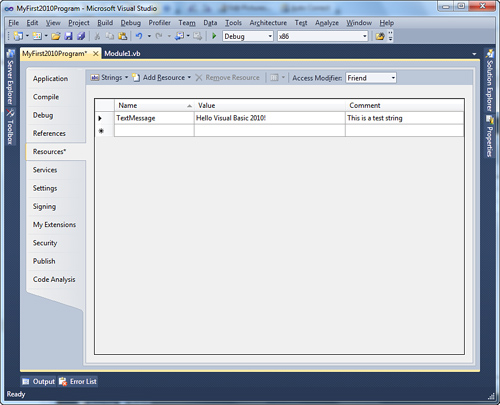
Resources are supported by two files stored inside the My Project folder: Resources.resx and Resources.designer.vb. The first one is basically an XML schema used by Visual Studio for working with resources. Listing 3.4 shows the content of the schema.
This schema establishes how a resource is defined, with names, values, comments, and a MIME type that identifies the file type. At the end of the XML markup code, you can see how resources are stored. Continuing with our example, you can see the name of the resource (inside the data element), its value, and the description we provided via the designer. This schema is used by Visual Studio for design time purposes. To work with resources in our applications, Visual Studio also needs to provide Visual Basic code support for resources. Such support is provided by a code file named Resources.designer.vb. This file handles a reference to a .NET object called ResourceManager that is responsible for managing resources in code. Listing 3.5 shows the content of Resources.designer.vb. (For the sake of simplicity, auto-generated attributes are not covered here.)
At this point in the book you don’t effectively need to know what each type used in code refers to, whereas it is useful to know the existence of the ResourceManager property that points to the project resources. (See the declaration of the temp variable.) This handles a reference to the application-level ResourceManager that enables access to resources. There is another property named Culture that is of type System.Globalization.CultureInfo. This property sets or returns the current localization for resources. The last property in the code is named TextMessage and is the Visual Basic representation of the string resource defined in My Project. This is a read-only property, because you cannot change it in code (you can change it only via designer) and returns a localized version of the resource invoking the GetString method of the ResourceManager class. GetString requires an object of type CultureInfo (in our code it’s resourceCulture) that represents the culture that the resource must be localized to. The following line of code shows how you can access the preceding defined resource, which is discussed further in Chapter 20:
Dim myString As String = My.Resources.TextMessage
When you access resources, as shown in Chapter 20, you do not need to manually invoke this background code, but you need to know how it is structured to better understand what’s happening behind the scenes. Resources are not the only feature in My Project that is supported by Visual Basic code for design time features. Settings are another one of these features.
Application Settings
Settings in Visual Basic development are particular objects that provide a managed way for manipulating applications and user level settings. For example, you could provide users with the ability of customizing options in the user interface of your application. To save and read such customizations to and from disk, you can use .NET Settings. My Project provides a tab named Settings that enables specifying information at the application or user level. Figure 3.2 shows an example.
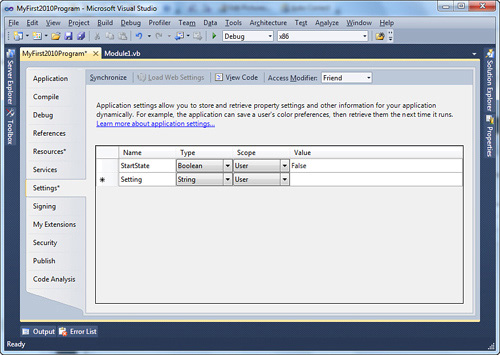
As you can see in Figure 3.2, you can specify an identifier for each setting, a type (which you can understand better by reading Chapter 4), the scope, and the value. For the scope, User means that only the user that runs the application can use that setting. Application means that the setting is available at the application level, independently from the user that logged into Windows (and therefore is available to all users). As with Resources, Settings will be also described in detail in Chapter 20. Settings are represented by a simple XML file, named Settings.settings. Listing 3.6 shows the content of Settings.settings after the addition of the sample setting.
Viewing the Settings.Settings File with the Xml Editor
In order to view the Xml content for the Settings.settings file, right-click the file name in Solution Explorer, select the Open With command and select Xml (Text) Editor in the Open With dialog.
In the XML markup you can see the presence of a Settings node that stores as many Setting elements and as many settings that you specify in My Project. In our example there is just one Setting element that contains the name of the setting, the data type, the scope, and the default value (which means the value you specify in My Project). The Settings.settings file also has Visual Basic support, which is represented by another file named Settings.designer.vb. We do not need to examine all the content of this file when just a couple of parts of the code can be interesting for us. First, this file implements a property named Settings that is accessible via the My namespace, as detailed in Chapter 20. Listing 3.7 shows the definition of this property.
The Settings property represents the active instance of the Settings object that you can use in your applications. How the active instance is defined is beyond the scope of this chapter, but now you know that the Settings tab in My Project also has a counterpart in two support files. Just for your convenience, the following line of code shows how you can access settings and how we set them before:
Dim currentValue As Boolean = My.Settings.StartState
The value stored in the StartState setting will be assigned to a variable named currentValue. Examining My namespace in Chapter 20 can clarify the usage of Settings and Resources and of many other interesting features.
Understanding References
The Base Class Library exposes types through several assemblies that are part of the .NET Framework, and you will often need to invoke types from those assemblies. Moreover, although very rich, the BCL cannot define types covering every aspect of application development. This means that you will often need to use types exposed by other assemblies, such as other projects in the same solution or external compiled assemblies.
Note
Each time you create a new project, Visual Studio automatically adds references to some .NET assemblies that are necessary for each kind of application and that expose the BCL’s core part, such as System.dll and System.Core.dll.
To use types defined in external assemblies, you need to add a reference in your project to the desired assembly. To accomplish this, right-click the project name in Solution Explorer and click the Add Reference command from the pop-up menu or select the References tab in My Project and click Add. This activates the Add reference dialog, as shown in Figure 3.3.
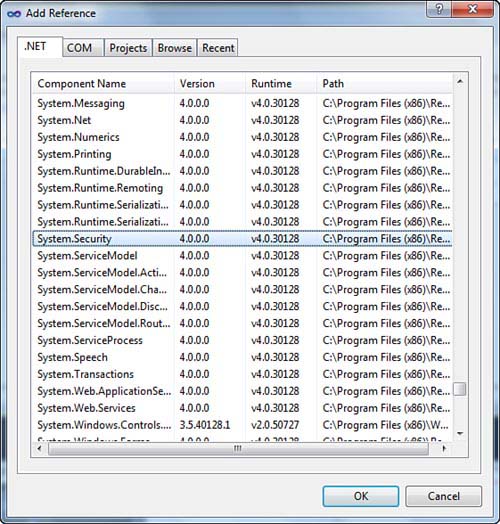
You need to select the assemblies you want to reference. More than one assembly can be selected by pressing Ctrl and then click on the name of the required assembly. The Add Reference dialog is divided into several tabs. The default tab is named .NET and shows a list of all the available assemblies in the Global Assembly Cache.
What is the Global Assembly Cache?
The Global Assembly Cache (or GAC) can be described as a repository for information and locations on installed assemblies. The .NET Framework knows where assemblies can be found by browsing the GAC, which also can distinguish between different versions of an assembly. The GAC is discussed in detail in Chapter 53, “Understanding the Global Assembly Cache.”
The Add Reference dialog shows the version number of assemblies; this is useful because you can have different versions of an assembly with the same name. It also shows the full path for the assembly. When you add a reference to an assembly, Solution Explorer updates the References node. For example, if you want to add security features to your applications, you need to add a reference to the System.Security.dll assembly (refer to Figure 3.3), which is part of the Base Class Library. When added, Solution Explorer looks like Figure 3.4.
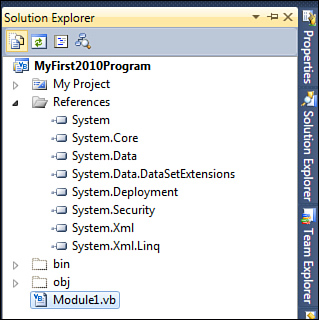
You can use in your code types exposed by the specified assemblies that have public visibility. The Add Reference dialog provides other tabs. The Recent tab shows a list of all the most recently used assemblies for faster reuse. The Browse tab enables searching for assemblies that are not registered into the GAC. The Projects tab enables adding references to other projects in the solution. This is typically the case when you have a class library that exposes types that you want to use inside a client application. There is also another tab, named COM, which enables adding references to COM type libraries as we discuss next.
Adding References to COM Libraries
There could be situations in which you might be required to use COM type libraries in your .NET applications, scenario known also as COM Interop. This should be a spare scenario, because .NET and COM are such different architectures, and the second one was not born for working within the first one. Visual Studio 2010 enables you to add references to old type libraries. To accomplish this, you need to select the COM tab in the Add Reference dialog. All the registered COM type libraries will be shown within the dialog, and you can select needed components (see Figure 3.5).
For example, you might want to include the Windows Media Player functionalities in your application; for this purpose you can select the Windows Media Player component and then click OK (see Figure 3.5). Visual Studio will show a reference named WMPLib.dll in Solution Explorer and generate an assembly named Interop.WMPLib.dll. This assembly is a managed wrapper for the Windows Media Player component and will provide managed access to types exposed by the type library. More generally, Visual Studio generates an Interop.AssemblyName.dll assembly (where AssemblyName is the original name of the assembly) for each referenced type library, which is known as Primary Interoperability Assembly (also known as PIAs) and that allows interoperation between .NET and COM architectures. Different from previous versions of .NET Framework and Visual Studio, by default you no longer see the wrapper assemblies included in your build output because of a new feature called Deploy Without Primary Interoperability Assemblies.
Deploy Without PIAs
When deploying applications that reference a COM library, you also must include in your distribution the primary interoperability assemblies. In our example, the PIA is Interop.WMPLib.dll. In Visual Studio 2010 you can avoid including primary interoperability assemblies in your distributions, although you reference those assemblies. This is possible because Visual Studio can embed in your executable only the types that you effectively use from the referenced assembly. This avoids the need of including the assembly itself in the build output and, consequently, in the deployment process. For our sample scenario about including the Windows Media Player component, we could write a small application that has the name of a media file provided by the user and then launches WMP. Listing 3.8 accomplishes this.
In the preceding code, you need to take a look at this simple line:
Declaring an instance of the WMPLib.WindowsMediaPlayer class is sufficient for Visual Studio to embed the definition of the WindowsMediaPlayer object inside our executable so that it will not need to include the entire Interop.WMPLib.dll assembly in the build output. As you may imagine, this is a great feature because if you have a large type library and you need to use only a few types, you can save space and preserve performances. The Deploy Without PIAs feature is enabled by default. If you instead prefer to avoid embedding types within your executable and including the primary interoperability assemblies in your build output, you simply need to right-click the referenced assembly in Solution Explorer and then click Properties. Continuing our example, we would need to select WMPLib.dll in Solution Explorer. The Properties window will show a property called Embed Interop Types that is set to True by default (see Figure 3.6).
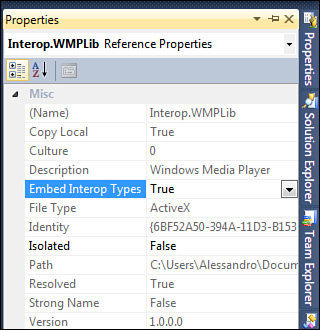
If you change the value to False, types will no longer be embedded in your executable, and the primary interoperability assemblies will be included in the build output.
Verifying Types Embedding
If you are an experienced developer, you can easily verify if types have been embedded in your executable via the Deploy without PIAs feature by opening executables with tools such as Reflector or IL Disassembler.
Final Considerations
The first three chapters of this book provide a necessary overview of tools and features that you must understand before moving on. Now that you have completed the introductory steps, you are ready to get your hands dirty on the core of the Visual Basic 2010 programming language.
Summary
In this chapter you got an overview of some important language features. An overview was necessary because, before discussing a particular feature further, you need to know what that feature represents. You also got a complete list of the Visual Basic 2010 reserved words that you cannot use as identifiers for your variables. Another important topic we discussed is how a Visual Basic project is structured and what files compose a Visual Basic project. Finally, you got an overview of references and why they are important in developing applications. In this discussion you learned about a new feature of Visual Studio 2010 and .NET Framework 4.0: the deployment without the primary interoperability assemblies.
