


Can you imagine a world without search?
I don't think a single day goes by when I don't do a least one Internet search. Internet search has gotten leaps and bounds better than what it started out as years ago; yet aside from adding a search box to the browser chrome, browsers, as of yet, have not significantly changed the way that users search online.
With Internet Explorer 8 Beta 2, Microsoft is taking some big steps that we hope will change the way you search. Our goal is to enable you to search for the right term on the right provider and get the right information as quickly as possible. With contributions from your favorite search providers, we are now providing suggestions in Internet Explorer 8 Beta 2 that can help you formulate great search terms. In addition, in Internet Explorer 8 Beta 2 it is now very easy to search with any search provider. You can easily install multiple providers and switching over to use them is simple. We know you don't just search on Google or Yahoo or Windows?Live; Searching with Wikipedia, eBay, or your favorite online store is just as easy.
What Can You Do with Search in Internet Explorer 8 Beta 2?
Let's imagine that you want to use Internet Explorer 8 Beta 2 to conduct some Internet searches to plan a night out on the town (in this example, Seattle). You might want to start out by searching for ?seattle restaurants?, so you start typing in the search box. As you are typing, one of the first things you'll notice is Internet Explorer 8 Beta 2's new search suggestions as seen in Figure 1.
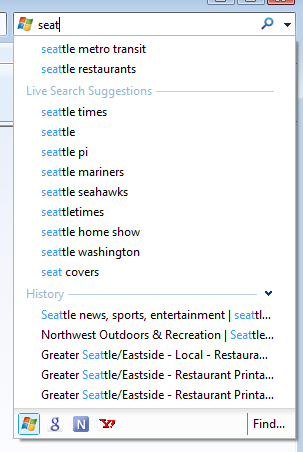
Search suggestions appear as you are typing and offer you some ideas on things you might like to search for. In fact, as I type ?seattle? I see ?seattle restaurants? as one of the suggestions. Clicking on the suggestion brings me right to the results page. This is great for me as restaurant is one of those words that I chronically misspell. (I've used Word's spelling correction feature twice already as I'm typing this article so not having to type out the full word in the search box is great for me.)
Our goal is to enable you to search for the right term on the right provider and get the right information as quickly as possible.
As you type more, you will notice that some suggestions include small images. These are called visual suggestions. Visual suggestions may cue you in to particularly important suggestions such as in Figure 2 where ?seattle space needle,? ?seattle mariners? and ?seattle seahawks? have been highlighted with visual suggestions.
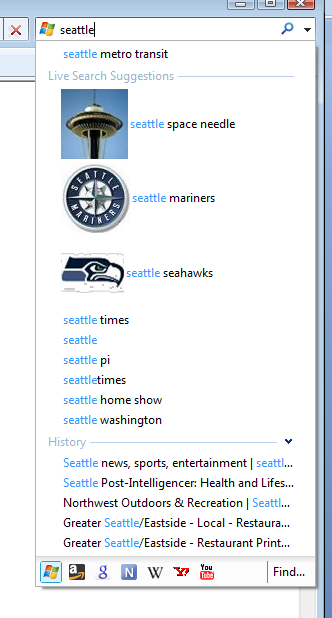
In addition to highlighting interesting suggestions, visual suggestions can also be used to provide some bit of information such as in Figure 3 where I've typed ?seattle weather?.

There are two additional sections you'll notice under the search box. The first section, directly under the search box contains your previously typed search terms. From observation, we know that people tend to search for the same things over and over again. Maybe you read an article last week that you want to go back to, or maybe like me, there are sites that you visit infrequently enough that you can't remember the URL, you don't have in your Favorites folder and you just know how to get to because every time you search for ?seattle metro transit? (for example), the first result is the King County Metro website.
The other section you'll notice under the search box is a section of results from your History. This section is new to Internet Explorer 8 Beta 2. Using Windows Search, Internet Explorer 8 Beta 2 will search over your stored history. The search results are based on the pages' title and URL. Perhaps you didn't actually do a search for that interesting news article that you read last week. You might have just been browsing your favorite news site. With history results under the search box, you can find the page you were looking for without ever doing a search.
In all three sections under the search box, we have added hit highlighting so that you can glance through the results and know exactly why each one was suggested to you. The search box dropdown is also consistent in look and feel to the address bar. In normal use, the address bar will display results from your Favorites, History, and Feeds, however, you can also switch the address bar over to search mode by typing ??? followed by a space and then your search term. This will allow you to get search suggestions in the address bar.
Now that you've seen what's available under the search box, let's go back to planning a night out on the town. Having issued the query for ?seattle restaurants? we are now looking at a search results page. One of the results that came up is Wild Ginger, which sounds like a good choice. However, thinking about it more, it would be a really good idea to read what the Seattle Post-Intelligencer newspaper (Seattle P-I) has to say about Wild Ginger since they frequently do restaurant reviews. With the Seattle P-I installed as a search provider, you can just select the name of the restaurant and click on the Accelerators icon. There you will find all your installed search providers and clicking on one you can issue a search. This is just like how Accelerators work. In Figure 4 you can see how your search providers are available as accelerators.
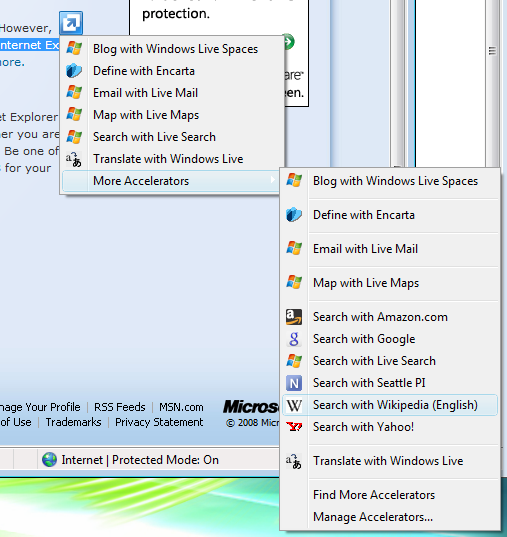
Any installed search provider will automatically behave like an Accelerator. Your default search provider will be listed as the default in the Accelerator list and your secondary providers will be listed in the overflow menu. Search providers don't have to do any extra work to enable Accelerator support-this is done automatically whenever you install a search provider. Search providers can even support Accelerator previews if they want, although this does require some new work on the part of the search provider.
After issuing your search via the Accelerator menu, you will now be viewing a search results page for Wild Ginger. After reading the review of Wild Ginger, you decide that you aren't in the mood for Asian food tonight and would rather go for Italian. So you search for Italian restaurants on the Seattle P-I site. If you are paying attention, you'll notice that the text ?Italian restaurants? has now been placed in the search box. This is because Internet Explorer 8 Beta 2 detects searches that you do from within the websites of your installed search providers.
One of the biggest advantages of the search box is that it allows you to initiate a search from anywhere. You don't have to first go to your provider's homepage. But we know that once users are already at their search provider's website they may change or refine their query on the site. By keeping track of your most recent search query string, we have made it very easy to switch over to a different search provider if you decide that a different provider is more appropriate to handle your query. For example, you could decide that instead of searching for restaurants on one site, you would rather search on another. In which case, your most recent search term is all ready for you in the search box. Speaking of which…
Switching search providers in Internet Explorer 8 Beta 2 is much improved from how it was in Internet Explorer?7. Internet Explorer 8 Beta 2 has a nifty little menu under the search box called the QuickPick menu. Here you will see the favicons of all your installed search providers. Clicking on one of these icons lets you execute a search with that provider. The QuickPick menu will appear when you first click into the search box and it will remain accessible as you begin typing. Once you start typing the QuickPick menu moves to the bottom of the dropdown below your history results. We really hope that this will make secondary providers more accessible and encourage everyone to use the search box for all the sites they use, not just for search sites.
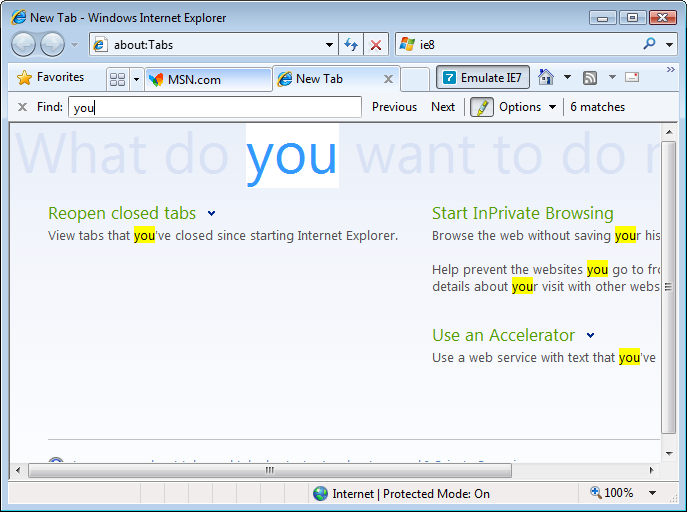
Within the QuickPick menu, you also have the option to access the Internet Explorer Find on Page feature. Find on Page in Internet Explorer 8 Beta 2 is much improved from what was available in Internet Explorer?7. Find on Page is now a single line bar that drops down from the Internet Explorer chrome. It supports highlighting of all the hits within the website and highlights the hits as you are typing instead of having to press enter when you are finished. In addition, Find on Page will display to you the number of hits within the page. Figure 5 shows IE8's new Find on Page functionality.
How Do You Create Search Features for Internet Explorer 8 Beta 2?
Having seen all the great search features available in Internet Explorer 8 Beta 2, the question you may have as a website owner is how your users can start using these great features with your site. Well, I have some great news to start off with. If you have any search features on your website which worked with Internet Explorer?7, those will continue to work with Internet Explorer 8 Beta 2.
The first step in creating search features for Internet Explorer 8 Beta 2 is to enable users to install your website as a search provider in the search box. To do this, there are two steps you will take. The first step is to create an OpenSearch description file of your search provider and the second step is to expose the description file on your website so that users can install it.
Creating OpenSearch Description Files
OpenSearch is a collaborative community started originally by Amazon and A9 that has created a specification for how to describe search providers and search results. The great thing about using OpenSearch is that it is used by Internet Explorer?7, Internet Explorer 8 Beta 2, Firefox 2, and Firefox 3. You can find more details about the organization and the full specification at http://www.opensearch.org.
OpenSearch description files are small XML files that describe your search provider to a client, in this case to Internet Explorer. Within an OpenSearch description several bits of information can be found:
- Search Provider Name: The name that will be displayed in the search box when your provider is selected.
- Search URL: This is the URL where searches for your search provider are sent to.
- Icon: A favicon file for your search provider. This icon is displayed next to your provider name in the search box.
All OpenSearch description files must include the search-provider name and search URL. Without these elements, Internet Explorer cannot install your search provider. We also highly recommend that you include an icon within the OpenSearch description file, since if Internet Explorer can't find an icon for your provider either in your description file or at the root of your website, it will use a generic icon to represent your search provider in the QuickPick menu. If you choose to support search suggestions, you will also include the suggestions URL in the description file, which I will explain how to do later.
Here is a sample OpenSearch Description file which contains the search providers name, URL, and icon:
<?xml version="1.0" encoding="UTF-8"?>
<OpenSearchDescription xmlns="http://a9.com/-/spec/opensearch/1.1/">
<ShortName>My Search Provider</ShortName>
<Url type="text/html" template="http://example.com/?q={searchTerms}&source=IE"/>
<Image height="16" width="16" type="image/icon">http://example.com/websearch.ico</Image>
</OpenSearchDescription>
The ShortName element contains the search provider name that is displayed in the Internet Explorer search box. The Url element contains the URL where searches will be sent for this search provider. One thing that people sometimes forget to do is to escape the ampersands within their URLs; otherwise your description file breaks. In the example above there is an escaped ampersand. The Image element contains the favicon file for this search provider.
Within the search URL provided for this search provider, you can see the parameter ?q={searchTerms}?. When Internet Explorer navigates to this provider to get search results, {searchTerms} will be replaced by the query string that the user typed into the search box. You should make sure that this text is found somewhere within your search URL, otherwise you will not know what your user was looking for.
You can find further details on OpenSearch description files at http://www.opensearch.org.
Installing Your Search Provider
Once you have created your OpenSearch description file, there are two ways that users can install it. Users can install via an embedded link on your website, or with a link or button that you create and promote on your website.
If your page contains an embedded link, when Internet Explorer displays your page, the search box dropdown arrow will light up orange as seen in Figure 6. Users can then install your provider via the Internet Explorer search box drop-down menu. The advantage of using this install method is that you don't have to change the layout of your page at all to support this. The disadvantage, however, is that not all users will discover that you have a search provider available as not everyone will notice the change in color in the search box or know to click on it.
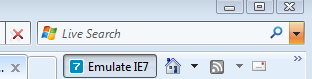
To add an embedded provider to your website, you must include a special link element within the head of your Web page.
<link title="My Provider" rel="search" type="application/opensearchdescription+xml" href="http://www.example.com/provider.xml";>
The rel attribute of the link must have the value ?search? and the type attribute must have the value ?application/opensearchdescription+xml?. The value of the href attribute is an absolute or relative URL that specifies the location of the OpenSearch description file. The title attribute is displayed in the search box dropdown menu to let people know what search provider they are installing. The title should match the title of your search provider in the OpenSearch description file otherwise the search box will always light up orange when your customers visit your website, regardless of whether they have your search provider installed or not.
Alternatively, instead of relying on a hidden link for the user to install your search provider, you could also create a link or button from which users can install your search provider. The Windows Search Guide (http://www.microsoft.com/windows/ie/searchguide/en-en/default.mspx) is an example of a page that uses links to allow the user to install search providers.
If you have any search features on your website that worked with Internet Explorer?7, those will continue to work with Internet Explorer 8 Beta 2.
You can use the JavaScript method AddSearchProvider to create a button or link from which your search provider can be installed. For example, here is a button which adds a search provider:
<INPUT TYPE="button" VALUE="Add Search Provider" onClick='window.external.AddSearchProvider("http://www.example.com/Provider.xml";);'>
When users click on your link or button, they will see a dialog that will let them install the search provider. If the user chooses to, they can make your search provider the default provider by selecting a check box on the install dialog.
Creating Search Suggestions
I told you previously that Internet Explorer 8 Beta 2 now supports search suggestions in the search box. As a user types in the search box, Internet Explorer can send a request to your search provider with the current query string and you can supply suggestions which might enable the user to create a better search term. Internet Explorer 8 Beta 2 supports two formats of search suggestions-a JSON format and an XML format. The JSON search-suggestion format lets you send text-based search suggestions, which can be augmented with descriptions and URLs. The XML search-suggestion format lets you send all the content available with JSON suggestions, as well as visual suggestions and section titles.
JSON search suggestions are returned as a JavaScript array of arrays. The array contains four values:
- Query String (required). The search term that was requested. If the browser requested suggestions for ?seattle? then the query string is ?seattle?. Returning the query string allows the client that requested the suggestion to check that the results retuned are for the correct query.
- Completions (required). These are the suggestions for the given query string.
- Descriptions (optional). Alternate strings that provide additional information or context about a given completion.
- Query URLs (optional). A list of URLs that should be used if the user selects a given suggestion.
The following is an example JSON response.
["seattle",
   ["seattle weather", "seattle seahawks", "seattle mariners"],
   ["rainy all the time", "football team", "baseball team"],
   ["http://www.weather.com/seattle";,"http://www.nfl.com/seahawks";, "http://www.mlb.com/mariners";]
]
This JSON response will produce the search box dropdown seen in Figure 7. In the JSON response, the first element in the first array, plus the first element in the second array, plus the first element in the third array, create a single search suggestion.
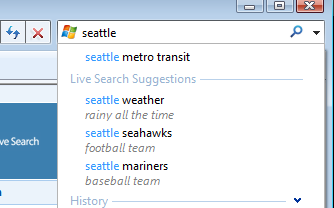
Descriptions and query URLs are optional elements in the JSON response. If you do not wish to include these, you can simply leave out the arrays entirely as seen in the example below.
["seattle",
   ["seattle weather", "seattle seahawks", "seattle mariners"]
]
The JSON suggestion format does not let you specify the title that you want your suggestions section to have; if you are using JSON suggestions, Internet Explorer will title the section with the name of your search provider plus the word ?Suggestions.? If your search provider was titled ?Joe's Search? then your suggestions would be titled ?Joe's Search Suggestions?.
XML search suggestions support all of the same features as JSON search suggestions, along with a few additional features that are not available in JSON. These additional features include the ability to:
- Name the title of the suggestions section.
- Split suggestions across multiple sections.
- Include visual suggestions.
The Basic XML suggestion looks like the following:
<?xml version="1.0"?>
<SearchSuggestion >
    <Query>seattle</Query>
    <Section>
        <Item>
            <Text>seattle weather</Text>
            <Description>rainy all the time</Description>
            <Url>http://www.weather.com/seattle<;/Url>
        </Item>
        <Item>
            <Text>seattle seahawks</Text>
            <Description>football team</Description>
            <Url>http://www.nfl.com/seahawks<;/Url>
        </Item>
        <Item>
            <Text>seattle mariners</Text>
            <Description>baseball team</Description>
            <Url>http://www.mlb.com/mariners<;/Url>
        </Item>
    </Section>
</SearchSuggestion>
This XML response is equivalent to the previous JSON response and will produce exactly the same output including the same section name, as shown in Figure 7. If you do not wish to include the descriptions or query URLs with your suggestions, you simply remove those elements from the items.
If you do not specify a title for your suggestions section, Internet Explorer will title your suggestions with the name of your search provider followed by ?Suggestions?; this is the same as how JSON suggestions are titled. If you wish to specify the title of your suggestions, you can add a title attribute to the
To create multiple sections, you can insert a `
If you wish to add images to your suggestions, you just need to include an `
By default, if you include text with an image, the text will be vertically centered next to the image. However, you can change the text alignment by an align attribute on the image element. By setting the align attribute value to ?top?, ?middle?, or ?bottom?, you can specify the text alignment. You can create items with text and an image, or you can create items which only display an image. If you do not include text you must include a URL so that Internet Explorer knows where to navigate a user to when they click on that suggestion. It is highly recommended that you include the height and width attributes of your image when sending a visual suggestion. However, if you do not include these values, Internet Explorer will allocate a default amount of space to the image and scale the image to fit within that space. The default amount of space is the vertical equivalent of one line of text. As I alluded to previously, if you support search suggestions in either JSON or XML format, you need to specify your suggestions URL in your OpenSearch description file. You can do this by adding additional URL elements to the file. If you are supporting JSON suggestions then add a URL of type ?application/x-suggestions+json?. If you are supporting xml suggestions then add a URL of type ?application/x-suggestions+xml?. These URLs should be added after your main search URL to maintain compatibility with Internet Explorer?7. Use the same {searchTerms} parameter to indicate where in the URL to include the query string. I hope you've been intrigued by what you've read here today. If you have not yet done so, install Internet Explorer 8 Beta 2 and check out some of the search features that you've read about here. I hope that they will make a difference in the way that you search and enable you to search more efficiently. If you own a website and don't already advertise an OpenSearch description of your site, add one and then consider if search suggestions would be appropriate for your site as well. Happy searching!<?xml version="1.0"?>
<SearchSuggestion >
<Query>seattle</Query>
<Section title="My Custom Suggestions">
...
</Section>
</SearchSuggestion>
<Item>
   <Text>seattle mariners</Text>
   <Image source="http://www.search.com/mariners.jpg"; alt="Seattle Mariners" width="69" height="70" />
</Item>
Call to Action

