


Connect the user to your Web application with Accelerators!
Accelerators provide an easier and faster way for users to access your Web application while seamlessly plugging in to your existing infrastructure.
Accelerators, formerly known as Activities, are a new concept that allows users to interact with a Web service or application from the browsing experience. Users typically copy and paste text from one Web page to another for various reasons. Internet Explorer?8 Beta 2 Accelerators make this much easier to do.
Building an Accelerator is as easy as specifying a set of parameters (XML-based Codeless Accelerators) or using a
COMobject (Code-based Accelerators).
The browser is becoming more than just a place to read content on the Web. Increasingly, users are interacting with Web content in several different ways. Examples include pasting selected text in a blog post, mapping out an address, or checking the definition of a word. With Accelerators, users can reach beyond the page to various services for these common tasks.
Accelerators are easy to create for Web developers and can be written to plug in to existing applications. They are great ways to attract users to your website through a single click!
Select (Search, Map, Blog)!
Accelerators work on selected text, hyperlinks and the current document. The user sees different options in the Accelerators menu depending upon the type of content. The most common content is selection, when a user makes a selection the Accelerator button appears. Clicking the button displays the set of Accelerators the user has installed that work for selected text.
Alternatively, users can also bring up the Accelerators menu through the context menu of the selected text or hyperlink. They can access the current page's Accelerators from the context menu of the page or the Page button on the Internet Explorer Command bar.
Accelerators typically involve two types of scenarios: ?look up? of information within a Web page, and ?sending? of content to a Web application.
Consider the example of a user who is interested in a restaurant and wants to see its location. Figure 1 illustrates this form of a ?look-up? Accelerator, where the user selects the address and sees a quick preview of the map with an Accelerator.
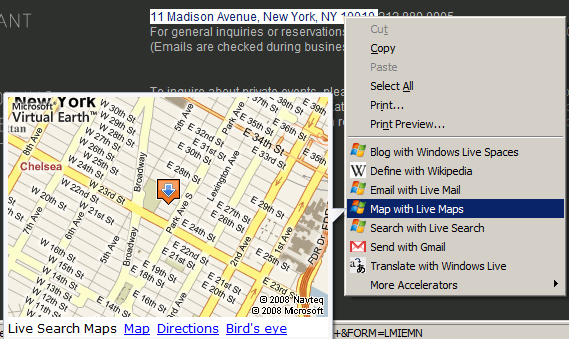
In an example of a ?send? Accelerator, a user reads an interesting article and wants to include it in a blog post. The user can select a portion of the article and use an Accelerator which navigates to the user's blog site with the selection already available in the edit field.
Web Developers, Write Your Own Accelerators Easily
Accelerators plug in easily with existing HTTP GET/POST architecture. Building an Accelerator is as easy as specifying a set of parameters (Codeless Accelerators) or by using a COM object (Code-based Accelerators) for local application integration.
This article focuses on writing Codeless Accelerators for existing Web applications. Enabling Codeless Accelerators allows existing services to easily integrate with the browser without having to change the service implementation. They are secure and easy to install.
OpenService Description Format
The OpenService Description Format provides a structured way to describe an Accelerator to the browser. Internet Explorer?8 Beta 2 uses this XML file to know how to display the Accelerator to the user and how to send content to the service.
The example of an Accelerator in Listing 1 illustrates the OpenService Description Format.
Listing 1: Accelerators example
<?xml version="1.0" encoding="UTF-8 Beta 2"?>
<openServiceDescription xmlns="http://www.microsoft.com/schemas/openservicedescription/1.0";>
    <!-- Identity of the Accelerator -->
    <homepageUrl>http://maps.live.com</homepageUrl>

    <!-- How the Accelerator is displayed to the user -->
    <display>
        <name>Map with Live Maps</name>
        <icon>http://www.live.com/favicon.ico<;/icon>
    </display>

    <!-- Functionality of the Accelerator -->
    <activity category="map">
        <activityAction context="selection" >
            <preview action="http://maps.live.com/geotager.aspx";>
                <parameter name="b" value="{selection}" />
                <parameter name="clean" value="true" />
                <parameter name="w" value="320" />
                <parameter name="h" value="240" />
                <parameter name="format" value="full" />
            </preview>
            <execute action=" http://maps.live.com/default.aspx";>
                 <parameter name="where1" value="{selection}" type="text" />
            </execute>
        </activityAction>
     </activity>
</openServiceDescription>
Accelerators are grouped by category when displayed to the user. These categories are arranged in alphabetical order in the menu.
The XML namespace for Accelerators is http://www.microsoft.com/schemas/openservicedescription/1.0
The main components of the format are:
- homepageUrl
- display
- activity
homepageUrl element
The homepage URL along with the category is the identity of the Accelerator and is a required parameter. This is the URL where the user can access the Web application through browsing.
All the URLs expressed in the file must match the same domain as the homepage URL.
display element
These elements govern how the user sees the Accelerator. These include the name of the Accelerator that is displayed in the menu and an optional icon and short description. The name is required and should typically be in the ?verb with service? format. Example: ?Search with LiveSearch?
activity element
The elements contained within the activity element describe the functionality of the Accelerator.
These are some of the options you can specify for your Accelerator:
- category
- content type it works on
HTTPmethod it uses to send the content to your service- URI template for HTTP submission
- encoding and character set information
The example in Listing 1 illustrates how a few of these can be set by using the OpenService Description Format.
Choose a Category for Your Accelerator
Accelerators are grouped by category when displayed to the user for users to find a service based on its functionality. The user can select a default Accelerator for each category and these are displayed in the top level Accelerator menu. All other Accelerators are listed in the second level menu as shown in Figure 2.
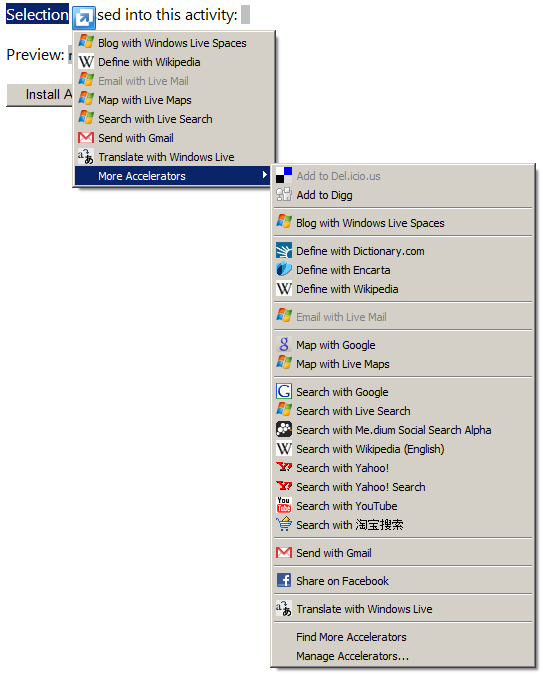
Table 1 shows some of the categories that Internet Explorer promotes, along with examples of existing services.
Choose the category that best fits your Accelerator. If your category is unique and none of the recommended categories align with your Accelerator, you can define your own. The following example defines the category ?share?.
<activity category="share">
Your category should meet the following criteria:
- It should be a verb that users can recognize
- It should be generic enough so that other Accelerators can share it
- It should not be tied to a specific brand or application
How It All Works
Accelerators are displayed in the Accelerators menu based on the content type (the context attribute of the Accelerator). Internet Explorer queries the installed Accelerators to get the available Accelerators that can run on this content type.
The content (selected text/hyperlink/document) is submitted to the service to handle using GET/POST submissions specified in the Accelerator. The Accelerator expresses the data to send using form-based or inline parameters.
Cookies can be used to store state and user credentials as part of the HTTP request.
A variable is enclosed in brackets, as in {documentUrl}. A variable can be specified as optional by using a ??? after the variable name; for example, {documentUrl?}.
Inline Parameters: These specify the inputs to a service through the URI template.
<execute method="get" action="http://example.com/done.aspx?url={documentUrl}&title={documentTitle?}" />
Form-Based Parameters: These specify the inputs to a service through name-value pairs, similar to HTTP form submissions. This is useful for making HTTP POST requests, or if the HTTP GET request could be longer than the URL character limit.
<execute method="post" action="http://example.com/done.aspx">
    <parameter name="url" value="{documentUrl}"/>
    <parameter name="title" value="{documentTitle}" />
</execute>
Using the Preview Window
Accelerators provide an optional HTML preview window that displays when the user hovers over an Accelerator menu item. The preview window is a great place for quick actions like viewing an in-place definition, translation or even a map.
This functionality is optional and should only be used for lightweight interaction. The idea is to provide users with a quick preview and encourage them to go to your website by clicking on a hyperlink within the preview or by clicking on the Accelerator menu item.
You can write Accelerators for all the locales that your website supports.
Preview functionality is described through the Accelerator XML within the preview element. During the hover, Internet Explorer makes an HTTP GET/POST request and displays the resulting HTML within the HTML preview window.
The preview window supports JavaScript sandboxed to the domain of the Accelerator. It also supports ActiveX controls that are already installed and opted-in by the user for the given domain.
Localization for Accelerators
Each Accelerator XML file represents a single locale. If your service works for multiple languages, you will need multiple XML files. After identifying the user's preferred language you can provide the user the appropriate file to install.
Following is an example of an Accelerator in Spanish where the display and category have been localized.
<!-- Localize the text displayed to the user -->
<display>
    <name>Mapa con Live Maps</name>
    <icon><a href="http://www.live.com/favicon.ico";>http://www.live.com/favicon.ico<;/a></icon>
</display>


<!-- Localize the category.  Map is mapa in Spanish -->
<activity category="mapa">
    ...
</activity>
Getting the User to Install Your Accelerator
You can promote your Accelerators from your website. Internet Explorer has a browser API that is accessible by Web pages and supports easy installs through the click of a button.
The following example checks if an Accelerator is installed:
window.external.IsServiceInstalled("http://maps.live.com/GetMap.xml";, "map"); <!-- map is the category -->
The following example displays a button that installs an Accelerator:
<button onclick="window.external.AddService('http://maps.live.com/GetMap.xml')">Add map Activity</button>
Putting It All Together
Through this article, you can see that Accelerators are a great way to attract users to your website and very easy to write for Web developers. Once you get used to Accelerators, copying text, opening a new tab, navigating to a website and pasting text seems very old school.
Internet Explorer has a browser API that your website can access and provide easy installs of Accelerators through the click of a button.
For Codeless Accelerators, in essence you need to specify the display elements, the category, the content type of the input and the parameters that need to be sent to your service. You can optionally use the preview window to display HTML content returned from your service or the user can navigate to your website by clicking on the Accelerator menu item.
Listing 2 is a simple checklist to make sure that your service is consistent with other Accelerators and takes advantages of the Internet Explorer?8 Beta 2 functionality.
Listing 2: Accelerators checklist
1. Display Name - make it descriptive
The display name should lead with the verb, article, and then the product/service. The verb should be the category. This should not exceed 50 characters. Here are some examples:
-   Map with Live Maps         (category ="map")
-   Blog with Windows Live Spaces   (category="blog")

2. Categories - use a recommended category
Categories are a way to group similar Accelerators so that users can quickly find what they are looking for. IE allows Web developers to define their own category, but suggest using a recommended category.

Blog            A blog service that creates a new blog post based on a link or user-selection
Bookmark        A service adds a link to the user's personal bookmarks on the Web
Define          A service that provides definitions based on selected text
Email           A service that can create a new email message
Find news       A service that finds related articles within the scope of the site
Find product    A service that finds related products within the scope of the site
Find            A service that finds related content within the scope of the site
Map             A service that provides maps for a selected address
Send            A service that converts Web data into application data
Share           A service that shares a link with the site community or network
Translate       A service that translates the current Web page or selection to another language

**3.** Preview - entice users to your site
The preview is the window that pops up when users are hovering over the Accelerator. Use it as a visual way to attract users to your site. These should be simple views that load quickly (under 500ms) and do not require any interactivity as this creates an undesirable user model (form fields, tabs to switch to another view, etc.)

4. Content - not just selection
Accelerators are available on text selection, links, and the current Web page. You can also create one Accelerator that uses all three contexts.

5. Tests - make sure it works
Test your Accelerator on different types of content so that it works properly.
a.   Blank content - what happens when blank content is sent to your service?
b.   Multi-line content - does your service handle line-breaks?
c.   Script - Some user selection may have JavaScript associated to it. If you specify HTML selection, then your service should be filtering this script on the server.
| Category | Accelerators |
|---|---|
| Add | Del.icio.us, Reddit, Google Reader |
| Blog | Windows Live Spaces, Windows Live Writer, Blogger |
| Define | Encarta, Wikipedia, Dictionary.com |
| Map | Windows Live Map, Google Maps, Yahoo! Maps, Mapquest |
| Translate | Windows Live Translation, Babelfish, Google Translation |
