


Compatibility View allows access to content designed for older Web browsers.
When a website says that it supports modern Web standards, Internet Explorer 8 Beta 2 respects that and displays the site using its most standards compliant mechanism. In the majority of cases, this works out just fine. However, every once in a while, a page that says ?display me using modern standards? really means ?display me like Internet Explorer 7 used to display modern standards pages?. This is where Compatibility View comes in.
To set the stage, let me begin with a quick, overly simplified view of Web content. There are a set of rules which determine how websites should be displayed. Internet Explorer 8 Beta 2 follows a set of rules as defined in modern Web standards.
A ton of existing pages on the Web-the majority, actually-were developed with either no concept of these modern Web standards (developers just didn?t know or care) or were authored pre-standards (yes, there are plenty of pages that old still in use today). These older, non-standard pages work just great in Internet Explorer 8 Beta 2 as they depend on behavior that has been included in the browser for quite some time and hasn?t dramatically changed release to release.
As you might expect, there?s also a large number of pages authored according to modern Web standards and the trend is that standards mode pages will soon become the majority. Unfortunately, there are differences between modern browsers and older browsers in the level and type of standards support they provide. New standards have emerged; existing standards have been clarified; bugs have been filed.
Think of this as no different than the gasoline you pump into your car each week. At one point in time, leaded fuel was the standard. Then came unleaded. Diesel is the standard in trucks, but is also used in some cars. And, going forward, who knows-maybe alternative fuels? In any case, an original Ford Model-T supports a different fuel type than modern day Ford models.
It follows then that there are differences in standards support between browser versions. For example, Internet Explorer 8 Beta 2?s support for modern Web standards is different than Internet Explorer 7?s support for modern Web standards. Thankfully, just about every site written according to modern standards works in Internet Explorer 7 today. Some, but not all, of these will work in Internet Explorer 8 Beta 2 by default. But, there is a small class that won?t. Compatibility View allows access to this content by making the browser emulate Internet Explorer 7 behaviors when displaying Web pages.
Internet Explorer 7 Compatibility View
Three elements make it possible for Internet Explorer 8 Beta 2 to look and act like Internet Explorer 7 when displaying Web content.
The first of these is Layout mode, the set of HTML, CSS, and DOM rules used by the browser when evaluating markup and placing elements on the screen. Internet Explorer 8 Beta 2 ships with a Layout mode equivalent to Internet Explorer 7 Standards mode. When in Compatibility View, Internet Explorer evaluates pages that would normally trigger Internet Explorer 8 Standards mode, the latest and most standards compliant Layout mode, as mapping to Internet Explorer 7 Standards mode.
The second is User Agent string. When you visit a Web page, your browser sends a User Agent string to the server that hosts the content. This string indicates which browser you are using, its version number, and details about your system such as operating-system version. The Web server can use this information to provide content that is tailored to your specific browser. In Compatibility View, Internet Explorer 8 Beta 2 sends a User Agent string indicating a browser version of ?7? -
Mozilla/4.0 (compatible; MSIE 7.0; Windows NT 6.0;Trident 4.0;)
A new token indicates the underlying Trident engine version and serves as a signal that Internet Explorer 8 Beta 2 is running in Internet Explorer 7 Compatibility View.
The final element is version vector, which is used in the evaluation of Conditional Comments. Conditional Comments are ?if? statements within your HTML. The code contained within a conditional comment block is only exercised if the expression evaluates to TRUE. The expression generally takes the form of a declared Internet Explorer version value and a comparison is performed against Internet Explorer?s Version Vector registry key.
To recap, when Compatibility View is enabled:
- Standards mode pages map to Internet Explorer 7 Standards mode pages (Quirks pages still map to Quirks mode)
- The User Agent string indicates a version of ?7?
- The Version Vector, used in the evaluation of Conditional Comments, indicates a version of ?7?
Putting the User in Control
A new UI button controls the Compatibility View feature. The button is located in the navigation bar just to the right of the Address bar (next to the refresh button, see Figure 1) and it only displays when toggling into Compatibility View makes sense such as when viewing Standards mode pages. In all other cases, such as when viewing Quirks mode pages, viewing intranet sites (they?re already being displayed in Compatibility View as explained later), or viewing sites with a '` tag / HTTP header indicating Internet Explorer 7 or Internet Explorer 8 Standards, the button is hidden.

Depending on the speed of your machine, you may see the page refresh when the Compatibility View button is selected. In any case, a balloon tip lets you know that the site is now running in Compatibility View. Additionally, the Compatibility View icon shows a ?pressed? state so that you can know what view you?re running in after the balloon tip disappears.
The ?scope? of emulation is limited to the domain you are viewing when you press the button, not some other mechanism like the life of the process or the tab. And, Internet Explorer remembers your button press so that the next time you visit the site you don?t have to press the button again.
Compatibility View and Local Intranet
A large number of line-of-business websites located on corporate intranets are Internet Explorer 7 capable today, but may not be Internet Explorer 8 Beta 2 capable by default. In order to preserve compatibility, Internet Explorer 8 Beta 2 ships with smart defaults based on zone evaluation. In the default state, all Internet websites display in Internet Explorer 8 Standards mode (Compatibility View off) and all intranet websites display in Internet Explorer 7 Standards mode (Compatibility View on).
Let?s look at some examples.
If you navigate to sites on the Internet like www.msn.com and www.live.com, Compatibility View is off by default. Internet Explorer 8 Beta 2 identifies itself with a User Agent string of ?8?, Version Vector of ?8? and displays Web pages that trigger standards mode in Internet Explorer 8 Standards mode. The same is also true if you navigate by IP address, such as http://192.168.0.1. As Internet Explorer can?t tell offhand whether the IP address is internal or external, it assumes the latter. Use Compatibility View to fix problems with websites in this category.
If you navigate to sites on the intranet like http://myPortal and http://sharepoint/sites/mySite Internet Explorer 8 Beta 2 identifies itself with a User Agent string of ?8?, Version Vector of ?7?, and displays Web pages that trigger Standards mode in Internet Explorer 7 Standards mode.
A new entry in the Tools menu allows for advanced configuration of the feature. You can make it so that all intranet sites display in Internet Explorer 8 Standards mode. You can also configure policy such that every site is viewed in Internet Explorer 7 Compatibility View (identical to the behavior from Internet Explorer 8 Beta 1 when the ?Emulate IE7? button was pressed). Lastly, you can pre-populate a list of sites (Figure 2) that should always be viewed in Compatibility View and/or edit the current entries.
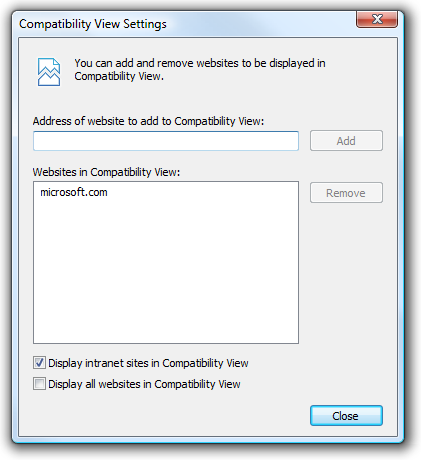
And, of course, all of the feature?s settings, including the advanced configuration options, are configurable via Group Policy and the Internet Explorer Administration Kit (IEAK).
Making Your Pages Work with Internet Explorer 8 Beta 2
The best way to ensure users have a great experience with your website, and thus don?t have to use the Compatibility View feature at all for Internet sites, is to test your site using Internet Explorer 8 Beta 2 and update it as necessary.
For more information on using the ``` tag / HTTP header, see the article ?Making Your Website Compatible Across Multiple Versions of Internet Explorer?.
Conclusion
Compatibility View is an end-user site compatibility mitigation option for gaining access to content built for older Web browsers. When a user leverages the feature for a particular website, components of the Internet Explorer subsystem-the User Agent String, the Version Vector, and Layout mode-change to resemble the way things were in Internet Explorer 7.
Unfortunately, most users will only discover the Compatibility View feature after they?ve had a less than stellar experience with a particular Internet facing website. You can prevent such an event from happening on your website by testing your pages in Internet Explorer 8 Beta 2.
