XML is everywhere from XML Web Services to databases to config files to Office documents.
This article will show you tooling support offered in Visual Studio 2008 that will make working with XML easier. It will cover editing XML files, working with XML schemas, debugging XSLT style sheets and extending Visual Studio by writing your own custom XML Designers.
When you open a file with an XML extension in Visual Studio 2008 (for example, .xml, .xsd, .xslt, svg, or .config), you will invoke its XML Editor. XML Editor comes with a full range of features you would expect from a Visual Studio editor, which includes IntelliSense, color-coding, brace matching, outlining, and formatting. It provides full XML 1.0 syntax checking, end-tag completion, as well as DTD and XML schema support with real-time validation.
XML Editor comes with a full range of features you would expect from a Visual Studio editor, which includes IntelliSense, color-coding, brace matching, and formatting.
Editing XML Files
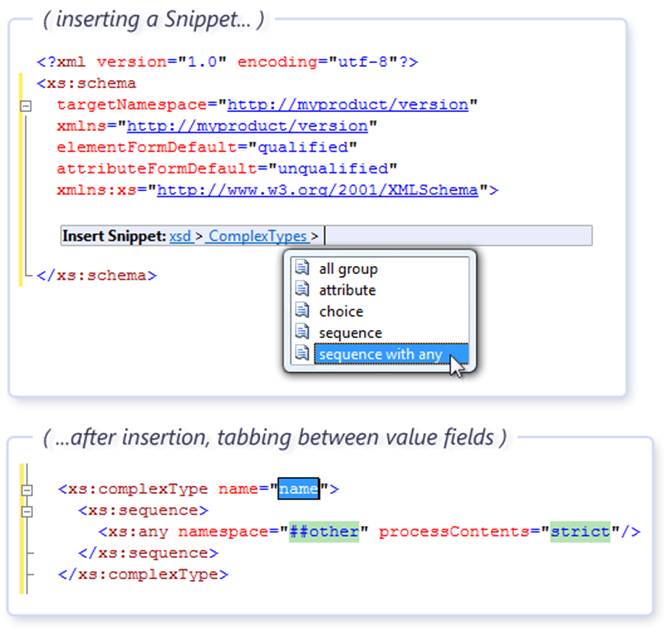
Face it, manual editing of XML files can be very tedious and time consuming. To help with this, the Visual Studio 2008 XML Editor comes with a number of productivity enhancement features. One such feature is an extensible library of XML code snippets-XML files that contain a configurable code segment, which acts as a template to use while editing documents. Visual Studio installs a number of XML code snippets that help developers to write XML schemas and XSLT style sheets. To invoke a snippet while editing an XML file, select “Insert Snippet” from the “Edit > IntelliSense” menu. Once you have inserted a snippet, you can TAB between highlighted modifiable fields to enter data. Figure 1 shows an example of inserting a snippet.
You can also write your own snippets. If you want to create a simple snippet, follow these easy steps:
- Create a new XML file and type in:
<snippet
- Press ESCAPE to close the IntelliSense window.
- Press TAB.
- Fill in the blanks.
- Press ENTER to finish.
For more detailed information about creating snippets, I recommend VSEditor’s blog post “Code Snippet - Schema Description” (http://blogs.msdn.com/vseditor/archive/2004/07/14/183189.aspx).
So what do you do when there are no snippets and you need to create an XML file based on an existing schema? XML Editor offers a wide range of features when you associate your XML documents with XML schemas. Schema-based IntelliSense, real-time validation, and error reporting are just a few of them. In addition, XML Editor can dynamically generate snippets based on an existing schema. Once you provide a name of the element you want to add, the XML Editor can parse the schema for required information, generate a snippet, and insert it for you. To invoke dynamic snippet functionality, all you need to do is type the name of the element as in the following example:
<element_name
and press TAB. The XML Editor will create a snippet, which looks very much like the one in Figure 1 except this time you didn’t have to do anything up front. This is a very powerful feature, especially when you need to create documents with large content models.
By default the XML Editor generates only the required content, but this can be customized by annotating your XML schemas. More information is available on MSDN under, “How to: Generate an XML Snippet From an XML Schema”.
Schema Cache and Schema Catalogs
For advanced users, XML Editor offers features such as schema cache and schema catalog files. Schema cache is a folder that contains a number of well-known W3C schemas, as well as a number of Microsoft-specific schemas. It serves as a repository of widely used schemas that are unlikely to change. You’ll find the default location for the schema cache at %vsinstalldir%\xml\schemas, where “%vsinstalldir%” is a variable representing the location in which Visual Studio itself was installed. When you declare one of the namespaces defined by these schemas in your XML files, XML Editor will automatically associate appropriate schemas from the cache location and instantly provide you with IntelliSense and validation.
Schema catalogs are XML files located in the Schema Cache directory (catalog.xml file is the default). They give advanced users more granular control over various namespaces they might want to use. For example, you can associate specific namespaces with external locations:
<Schema
    href="mylocation/myschema.xsd"
    targetNamespace="http://myschema"/>
You can also use catalog files to create associations between schema files and file extensions, which you can find particularly useful when your schema has no targetNamespace:
<Association
    extension="config"
    schema="xml/schemas/dotNetConfig.xsd"/>
New in Visual Studio 2008, you can also add conditions:
<Association
    extension="config"
    schema="xml/schemas/dotNetConfig30.xsd"
    condition="%TargetFrameworkVersion% = 3.0" />
This condition means that the dotNetConfig30.xsd schema should only be associated when the current project is targeting .NET Framework version 3.0.
Finally, you can create a chain by pointing one catalog file at another:
<Catalog href="http://mycompany/catalog.xml"/>
Working with Large Files
Another important editing feature I would like to highlight is the XML Editor’s support for editing large files. While you could work with large files in previous versions, Visual Studio 2008 supports incremental parsing of the XML documents. Now if you work with a 10 MB file, you don’t have to wait for Visual Studio to parse the entire file every time you make an edit. The XML Editor will isolate the edits and reparse only what’s needed, offering better performance and responsiveness.
I have covered a few interesting features of XML Editor, but obviously couldn’t go over all of them. Table 1 shows some of the other features available to Visual Studio users.
Debugging XSLT Style Sheets
XSLT is a W3C standard transformation language, which is very popular among a large group of developers. Visual Studio Professional edition provides support for both editing and debugging XSLT style sheets. Editing XSLT files is very similar to editing other XML files. When it comes to XSLT debugging, Visual Studio supports two main scenarios:
- Debugging of standalone transformation, which is useful when your primary interests are input document, transformation itself, and output document.
- CLR-integrated debugging, which is useful for debugging transformations in the context of your CLR application.
Debugging Standalone Transformations
Figure 2 showcases the debugging environment when you work with XSLT transformations. In the default configuration, you can see the XSLT file and a tabbed view of the input and output documents. You can also configure Visual Studio to simultaneously show all three documents. When you step through the transformation code, you can see the input data, the transformation that handles the input, and the generation of the output file.
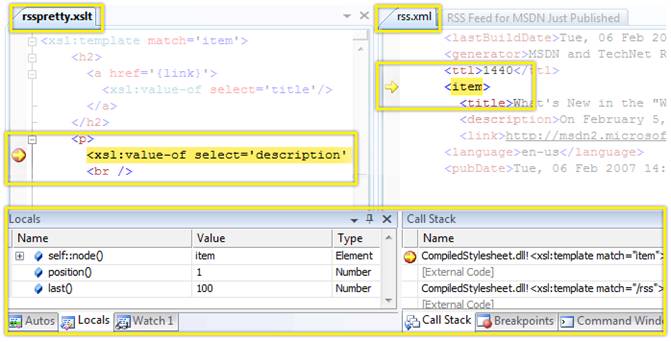
If you are used to either the C# or Visual Basic debugging environment, you will notice that debugging XSLT looks very similar to debugging other CLR language programs. All the controls and keystroke combinations are the same. In Figure 2 you can also see the Locals window, which can show implicit XSLT variables (self, position, and last), as well as all local and global variables declared in your template. You can also see the call stack window, which you can use to navigate to various XSLT templates up and down the call stack. You can also use the XSLT debugger to set breakpoints in both your XSLT code and in your input XML documents.
Integrated CLR Debugging
While debugging standalone transformations is useful, sometimes you need to debug XSLT as a part of your C# or Visual Basic application. XSLT Debugger, which is tightly integrated with other CLR debuggers, lets you seamlessly step from C# to XSLT to Visual Basic while debugging your application. The following example shows a C# code snippet that uses the XslCompiledTransform class to initiate an XSLT transformation:
XSLT Debugger is tightly integrated with other CLR debuggers, which lets you seamlessly step from C# to XSLT to Visual Basic while debugging your application.
XslCompiledTransform xsltcmd =
new XslCompiledTransform(true);
xsltcmd.Load(XSLTFile);
XmlUrlResolver resolver = new XmlUrlResolver();
XmlWriter writer = XmlWriter.Create(OutputFile);

xsltcmd.Transform(XMLFile, writer);
If you set a breakpoint on the call to Transform method and step into it, the debugger will take you to the XSLT style sheet (Figure 3). All of the features described in the standalone debugging section are also available here. The only exception is the ability to set breakpoints in the data files. This feature is not available when stepping into XSLT from another CLR program. Everything else behaves exactly the same.
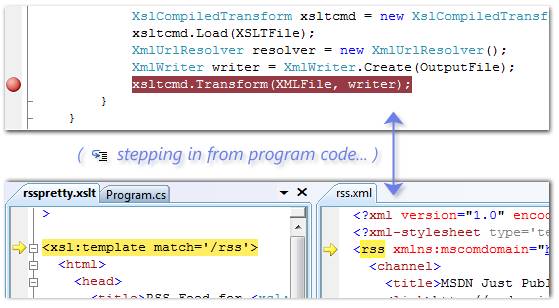
Table 2 shows a summary of various features available when debugging XSLT transformations.
Extending XML Tools
XML Editor provides a good foundation for developers to build custom designers on top of it. Figure 4 shows how it was done in the previous version of Visual Studio (Visual Studio 2005). Developers could build on top of XML Editor by sharing the buffer. They would create their custom designer by sharing IVsTextLines buffer and parsing XML using System.Xml.XmlReader or XmlDocument. Don Demsak used this approach when he created XPathmania, an XPath add-on to Visual Studio (for more information about XPathmania, see http://www.donxml.com). However, because the integration happened on the buffer level, this method created a lot of large buffer edits. In addition, it was somewhat limited because System.Xml parser consumes only valid XML while designers, by definition, should work with invalid files.
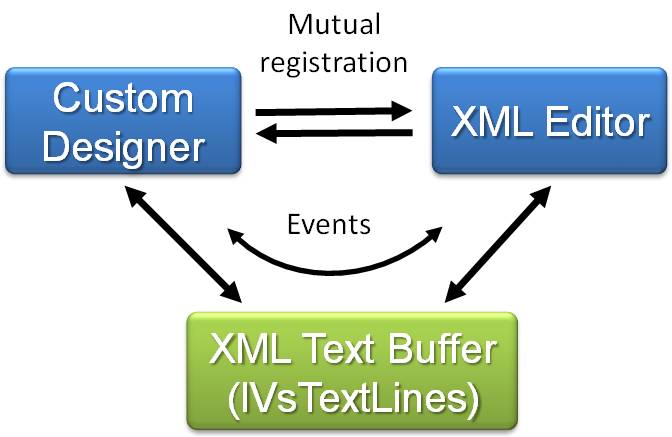
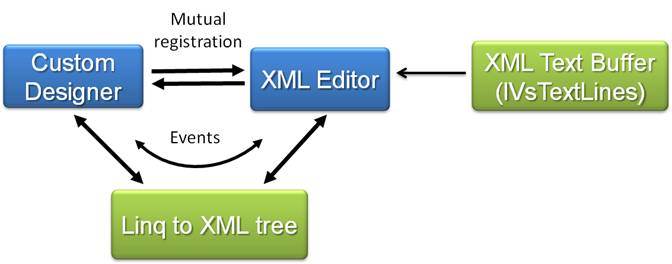
XML Editor, on the other hand, has its own parser with error recovery. It also builds its own parse tree representing the contents of the buffer. In Visual Studio 2008, Microsoft exposed this LINQ to XML tree to third-party developers. You can see the new architecture in Figure 5. The new API allows developers to create custom views over XML Editor parse tree, provides them with XML Editor’s error recovery logic, and the LINQ to XML parse tree with a transacted update that goes all the way back to the buffer, integrated with Visual Studio UndoManager. These changes will make it easier for developers to build great XML tools on top of Visual Studio 2008.