


Growing up in the 80s, two of the concepts that drew me in to computer science were computers that were small enough to take with you (called “Luggables” then) and displays that were thin enough to hang on a wall.
Technology has come a long way in that time-and the Ultra-Mobile class of personal computers that run the Windows Vista™ operating system is a great example of that progress. So what is a UMPC and why would I be interested in writing an application that is optimized for it?
Microsoft defines the Ultra-Mobile PC as an ultra-small form factor Windows Vista PC that leverages mobile features for its design. UMPCs weigh less than two pounds, feature a 7-inch or smaller touch-enabled display, and have connectivity features available (Wi-Fi b/g, Bluetooth®, USB 2.0, and GPRS), so these machines can bring your products to places you never considered before.
UMPCs weigh in at less than two pounds with a 7-inch or smaller touch-enabled display and have all the connectivity features available (Wi-Fi b/g, Bluetooth, USB 2.0, and GPRS).
When people first see a UMPC, they often ask, “What operating system is it running?”, which is pretty natural due to the UMPC’s small size. Whenever I talk about UMPCs I am talking about the full Microsoft® Windows® operating system. Will these be the fastest Windows Vista machines you can buy? No, at least not in the short term. However, they are fully capable of running the desktop Windows Vista applications that you rely on and provide a great mobile experience.
All UMPCs meet these specifications:
- Intel® or Via™ CPU running at least 900 MHz
- 7” widescreen display or smaller
- Integrated video card with up to 128 MB RAM
- 2.5” HDD with up to 120 GB of storage
- Up to 1 GB of SDRAM
- USB 2.0 ports
- Optional ports for video out and media cards
- Integrated GPS and/or camera
- Integrated high-speed cellular data (such as GPRS)
This is, of course, the current specifications at the time of this article and varies between manufacturers-you’ll see speed, power, and feature improvements over the course of the next few months, as well as the addition of built-in keyboards included in many of the new designs.
What? No Keyboard?
Many of the current UMPC designs are slate models, which rely on the touch screen for input, but several models include a built-in keyboard and a mouse thumbstick for more traditional input. In either case, the input methods on the UMPC provide a natural way to interact with the mobile scenarios mentioned above. The UMPC uses one of the following input methods:
Touch Screen (Select with a Finger)
From the user as well as an application’s point of view, the touch screen works just like the mouse.
The digitizer interprets tap and double-tap on the screen as mouse clicks and double-clicks. Movement of the cursor is also the same, but since you use your finger or a stylus to tap you no longer need to move the pointer from one location to another-you just move your finger.
Stylus (Type or Write with a Pen)
Windows Vista has Tablet PC technology built in, so the UMPC can leverage the operating system components such as the handwriting recognizers and Tablet PC Input Panel previously found only on Tablet PCs.
For the end user this means they can use the stylus to handwrite information right on the screen. The engine converts that data to text, whether it is a Web site address or an e-mail message, and sends it to the application.
The fact that Windows Vista contains Tablet PC technology also opens up the ability for applications to offer ink-based features such as ink gestures, flicks, and handwriting areas in applications without having to take on dependencies-it’s all in the operating system.
Hardware Controls (Navigate and Select with Buttons on the UMPC)
Every UMPC design includes a set of hardware buttons to complement the touch screen. These buttons vary from model to model but include some combination of a directional pad, enter key, page up/down, mouse left/right buttons, and a set of user-configurable buttons.
Users can configure some of the buttons so they can choose what function they perform. For example, a user might reconfigure buttons to play a game that allows the user to select which buttons allow a character to move, attack, or interact in a role-playing game.
Optional: Add on Bluetooth or USB-based Keyboard
Because the UMPC design includes USB 2.0 ports and Bluetooth connectivity, you can use any compatible accessory including keyboards and mice. Devices like Bluetooth headsets and speakers, GPS devices, and cameras are also great pairings.
What Can I Do with a UMPC (That My Laptop Can’t)?
In the spare time I have away from work, I love woodworking. I learned a wood shop lesson long ago-always have the right tool for the task. This rings true for PCs. While it may seem that for mobile computing the laptop fits the bill every time, when you really look at it there are many mobile scenarios that go beyond the laptop. In fact, any scenario beyond the conference room is a case in point.
When you boil it down, the Ultra-Mobile PC has a few unique features that make it the perfect fit for current and new mobile scenarios:
Very small size. If you travel much, you’ll probably agree that in comparison to traveling with a full-size laptop, taking a sub-two-pound device with you is a dream. While the current UMPCs typically weigh between 1.7 - 2 pounds and feature a 7-inch, widescreen display, manufacturers will eventually offer models that are both lighter and smaller (4.8-inch display).
Integrated touch display. Consider a scenario where you try to use a mouse or a notebook touch pad while standing on a subway. In comparison, a touch screen on a UMPC makes your commute more productive. The first time people use a touch digitizer they might be little intimidated. They usually ask where the keyboard is. Once they realize that touching the screen acts just like the mouse, they find it intuitive to use a UMPC. It’s true that you won’t want to write a long article, develop applications, or compute pi to the nth decimal point on a touch display, but it’s all about choosing the right tool for the task.
Low cost. With any new platform, you’ll see higher costs at the early stages, but as hardware manufactures launch additional models you should see significant drops in prices of UMPCs. In part, UMPCs use standard, off-the-shelf components (display, RAM, HDD) to help to reduce the manufacturing cost and make UMPCs a great companion device.
With the integrated WWLAN capabilities, Wi-Fi, or Bluetooth via a cell-phone data connection, streaming media is now possible on the go rather than just at your desktop.
Long battery life. The current standard battery configuration runs Windows Vista for 2-3 hours but many manufacturers offer extended batteries to last you more than 5 hours; ample enough time for a decent plane ride or work day with an appropriate power plan. There will always be an opposition between size and weight against longer battery life. The trick is to make use of standby/hibernate and use applications that are optimized for the mobile experience.
The combination of these unique factors with the fact that this platform is running the exact same version of Windows Vista as a desktop or laptop means that the UMPC is another great tool to use for accomplishing mobile computing tasks.
Mobile Scenarios
Let me walk you through some of the mobile scenarios that make the Ultra-Mobile form factor the right tool for the job. Many of these scenarios focus on consumption of content with less of a focus on creation, which is intentional. This isn’t to say that you can’t create documents, rip music, or edit videos on the UMPC, but much of the value in truly mobile scenarios that I am covering is related to consumption of data.
Media and Entertainment
With its clear, bright display, I can have a great movie or TV experience on the UMPC. The ability to record television shows on the device via Windows Media Center, for example, and then take those shows with me really salvages a boring train commute. With all the downloadable video content on the Internet these days, having a UMPC makes it easy to purchase movies for download as well.
The form factor, touch digitizer, and low cost lead the features that work well in educational environments.
With the integrated WWLAN capabilities, Wi-Fi, or Bluetooth via a cell-phone data connection, the UMPC makes streaming media possible on the go rather than just at your desktop. As you’d expect, the quality for streaming video may limit the bandwidth of the GPRS data connection, but audio is a perfect match, making the UMPC a great way to listen to your favorite Internet radio station wherever you are.
Digital Memories
Digital photographs are such a part of our everyday lives that you often don’t do anything more with them than send, view, and print them, right? A UMPC makes it easy to accomplish even more. For example, I take a lot of digital photos and now have so many that I need a way to search through the mass to find that one good vacation photo. Adding keywords to photos has been around for a while, but Windows Vista and its photo gallery makes it easy to add them-now called Tags-and search for the photos by tag when I need to find one.
The features of the UMPC make it a good match for adding value to the digital photo experience due to the good sized display, small form factor, and touch screen. I regularly use my UMPC for these digital photo-related tasks:
- Photo display: Either on my desk at work or the coffee table at home, if I’m not using the device, it’s showing full-screen photos of my kids.
- Handwritten photo keywords: You already know how to add keywords, but what about the ability to handwrite on the photo to add a keyword or star rating? You don’t need to alter the original photo; just recognize the ink, add the strings as keywords to the image data, and you have a quick way to tag photos on the go.
- Searching tagged images without a keyboard: An extension of the ink-based tagging enables an ink search feature. Ink-based searching allows you to use ink to create a keyword search for images with the handwritten word. The application could even present suggestions for the search term while you’re writing it. Writing the letter “M’ for example could produce all tags beginning with that letter, and then narrow the list as you write additional letters.
Games
Computer games are one of the driving factors in hardware innovation and performance. At any given time, many games require the latest graphics cards and CPUs to keep up with the realistic textures, shading, and lighting in the virtual worlds they so amazingly present. I don’t expect this to change in the near future since many of the video cards in these machines are the size of the entire UMPC itself. This doesn’t eliminate all the other games running on Windows however.
Generally, the limiting factors for running a high-end game on a UMPC will first be gated by video-card capabilities such as Microsoft DirectX® hardware and software rendering. Next is any game-specific resolution requirements followed by security restrictions like needing the DVD to be inserted during game play. High-end hardware requirements do not make for a great mobile scenario.
However, I love playing games on this platform. I’m not big on the high-detail, super-realistic games with dozens of keyboard commands that take hours to figure out. I like the games that offer great game play and rich colors and sound that entertain me when I have a few minutes here and there. I call these casual games. They make great use of screen real estate and I can pause them if I’m interrupted.
I also look forward to games that take advantage of the mobility of an Internet-connected device that I can easily take with me and that is running Windows Vista. Network-aware, multiplayer games that even take into account my location (via integrated GPS or IP address) and that allow me to interact with touch and on-screen gestures could add a whole new genre to Windows gaming.
Imagine a driving game that knows the city you are currently in and sets the race course to be in that matching location, a trivia game that orients its content to points of interest in your location, or a puzzle game that simply chooses images for its background to match your locale are all interesting possibilities.
Navigation / Location-based Scenarios
Speaking of location awareness-there’s an entire industry built around this scenario. Dedicated GPS and navigation devices are great, but what about getting real-time traffic, point of interest, or restaurant information right off the Internet? The combination of the UMPC’s features (including the integrated GPS) and connectivity provides this set of information.
A simple Web query can pull any kind of contextual-based piece of information imaginable off the Internet to help navigate this busy and always changing world. Combining that with Wi-Fi or GPS location and access to the user’s calendar can provide great context for narrowing a large amount of information.
Education
From grades K-12 through college, the UMPC not just adds some value but improves on current scenarios.
The form factor, touch digitizer, and low cost lead to features that work well in educational environments. Children in lower grades can obviously appreciate the small size of the device, being able to handle it easily; but the natural interaction of the touch display is what improves on traditional software applications.
In developing applications for the UMPC, you are potentially just developing robust applications for Windows Vista that are optimized for mobility, touch, and varying display sizes.
I can’t imagine a better way to learn to write than instant feedback on the shapes of written letters. Some applications will play a sound or show the object matching for the word that was written (for example, the application might show an image of an apple for the correctly written word).
Younger students do have the capability of using a pen, but have not learned how to use a keyboard. An increased speed of interaction can occur with the ability to write or draw answers to questions.
For math applications, scenarios range from the user’s ability to point at and count items to create handwritten formulas or manipulate data in a graph using their finger.
With current ink-enabled, classroom-based learning applications, teachers could monitor their pupils’ progress and highlight answers to share with the class.
The natural input with the pen allows the teacher to see more than the answer from the student. The teacher can see handwritten formulas, diagrams, or even scratched-out ideas that may show the thought pattern of the student. In addition, normally quiet students could have their answers highlighted when they may have been otherwise overlooked without this model.
In higher-education levels, students could download curriculum over the Wi-Fi connection, take notes about classes, and mark up presentations with handwritten annotations. The ability to “grab on” to data on the screen using touch and manipulate it could help students understand the cause and effect of changing the data.
Windows Vista Applications that Are Optimized for Mobile Scenarios
In many cases where the talk is about Windows Vista applications that are optimized for touch or small displays, often the talk turns to “lifestyle applications.” Whatever we call these applications, I think of them as applications that perform a non-business task or set of related tasks which add value for users when they are away from their desks. The obvious key point here is being mobile.
If you search the Internet for “lifestyle applications” you’ll find that there aren’t very many of them. What you do find are health, weather, or travel-related applications-showing how these types of applications are just starting to take shape.
As I mentioned earlier when talking about the mobile scenario strengths that start to appear while using the UMPC platform, Media and Entertainment is a category that immediately shows value. A UMPC has a big hard drive to hold my music and videos and I usually have a decent amount of time during my commute or on a plane.
There’s no reason why I can’t run the standard desktop media software on my UMPC. However, there are some drawbacks to the high-density data and small target areas of a traditional media library or tiny transport controls (play/pause buttons) when walking around using the device or traveling anywhere beyond my stationary desk.
There are a few applications out there that show how slight optimizations in their UI or feature design can make a real positive impact on the mobile solutions they are presenting.
I want to highlight some of the features in current applications so that I can show which areas to pay attention to when thinking about making optimizations in your own applications.
Origami Experience
The Origami Experience for Windows Vista (http://www.microsoft.com/windows/products/winfamily/umpc/default.mspx) is a great example of an application optimized for the UMPC platform. It runs full screen, allows access to your applications and media with a touch-friendly UI (no double taps or context menus) and displays system information that you can read in a glance.
One of the features I like most in this application is that you can get to anything you want in a click or two. Not only that, but you have system information and currently playing media always visible.
The Origami Experience also combines related topics into one application so a user can listen to music while watching a slide show, for example. Let me highlight a few of its features:
Home Area
Figure 1 shows the Home area of the Origami Experience. Right away, you can get a clear idea of what functionality it provides. The Origami Experience includes Music, Videos, Pictures, and Programs as the main set of buttons on the screen. It also clearly presents Settings and Help.
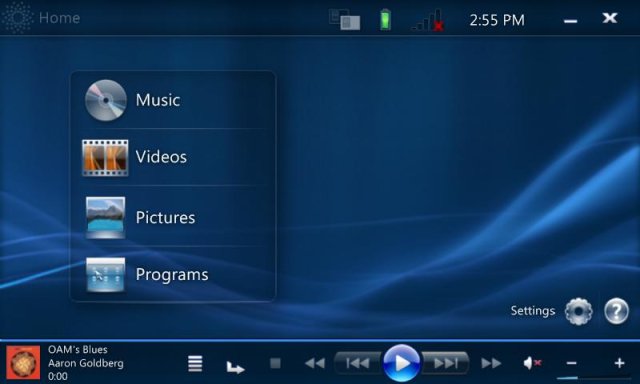
In almost every screen within Origami Experience, you have immediate access to the playback controls at the bottom and the title bar controls at the top. In addition to the typical media controls, you’ll also see that the last song or video that you were playing is already queued up (whether an individual track or playlist), so you can resume playback immediately after launching the application.
This is a great time to make one point clear: you don’t need a UMPC device in order to develop applications to run on one.
Along the top of the screen, the Home button always returns you to the Home screen from wherever you are. The top of the Home screen also contains the Window Switcher button, battery status, network status, and current time. Each button performs the associated task or opens up the appropriate control panel area when tapped.
Programs
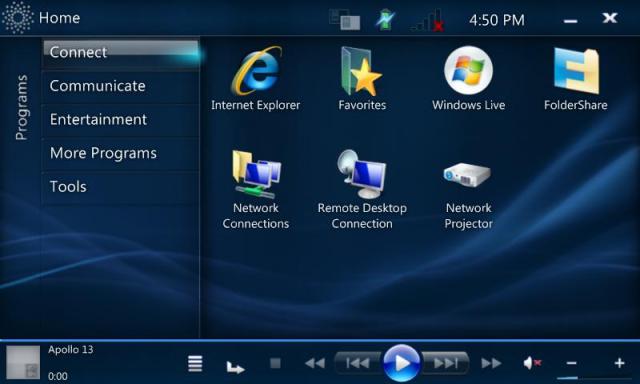
Similar to the Program Launcher from the Touch Pack (the UMPC navigation UI that was released through OEMs on UMPCs running Windows XP Tablet PC Edition), the Programs view (Figure 2) allows you to create multiple categories with shortcuts to applications, files, folders, or Web sites.
Music, Pictures, and Videos
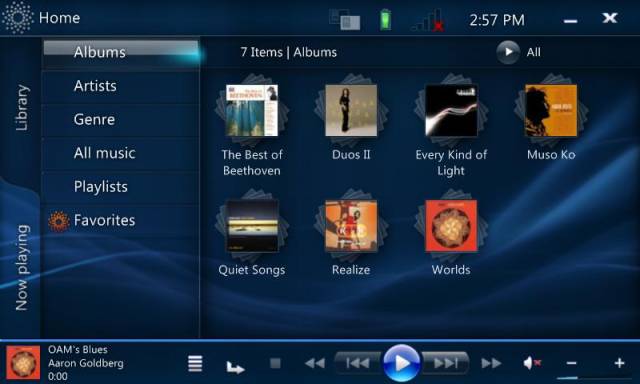
When you open Music, Videos, or Pictures (Figure 3), you’re taken to the Now Playing screen. This screen shows you what’s currently queued up for that media type (based on what you previously played). There’s also a scrollable list of all of your playlists (Music), all videos (Videos), and slide shows (Pictures). Tapping one of the items in that list immediately starts playing the selected item.
Settings
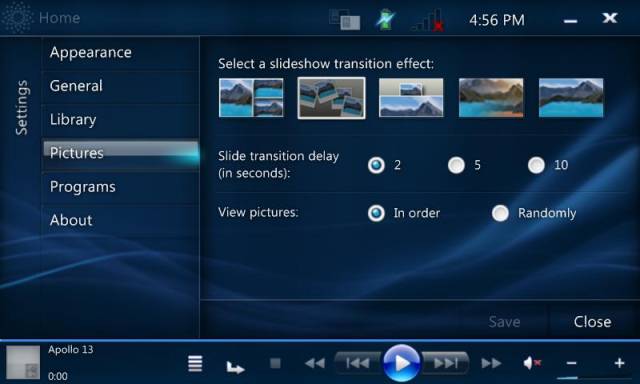
The Origami Experience continues its single-tap user interface into its settings screen (Figure 4). A user can configure the appearance, program shortcuts, and media libraries from this area.
UMPC Design Guidelines
In order to present the suggested means to creating an optimized UMPC application, Microsoft has published a set of general guidelines on the Web for Mobile PC applications that has a section specifically targeted at the UMPC platform. You’ll find these guidelines available in the Mobile PC section of the Win32 and COM section of MSDN. You can also find them through the Mobile PC Developer Center, http://msdn.microsoft.com/mobilepc. To save you from having to search the Web, I’ve included the seven major areas in the guidelines below:
Designing a Great Ultra-Mobile PC User Experience
At minimum, your Ultra-Mobile PC application should do the following:
Since the UMPC is running Windows Vista and the Tablet and Touch Technology is built-in, you can add ink and gesture functionality to an application without having to redistribute additional dependencies.
Be easy to use and fully functional in the absence of a standard input device, such as a mouse and keyboard.
Present information in such a way that users can digest it at a glance. Avoid an overly dense user interface.
Launch and run in full-screen mode.
Provide exit control while in full-screen mode.
Run in both portrait and landscape modes.
Ensure that all user interface elements are visible and unclipped at 800 x 480.
Ensure that dialog box height is less than 480 pixels.
Be designed for multiple resolutions and display sizes. Ensure that user interface elements scale to accommodate a range of display sizes and typical display resolutions.
Disable or eliminate all user interface elements that are not required for a specific task, including captions and status bars.
User Experience Design Principles
The Ultra-Mobile PC is particularly well-suited for applications that emphasize content consumption over content creation and that give users spontaneous and precise command and control. Quick, simple, and direct access to rich and engaging content is the hallmark of a great Ultra-Mobile PC user experience.
Design Principles
Use the set of high-level design principles in Table 1 to address user scenarios and guide feature development for Ultra-Mobile PC software.
Additional Recommendations
Use a mode that incorporates full-screen displays and asks users to accomplish one task at a time.
Invest extra time to create a well-designed, complete user interface.
Design applications that encourage personalization.
Investigate opportunities for extending the user experience through specialized hardware.
Optimize the application for touch interaction.
Optimizing Touch Command and Control
A well-designed Ultra-Mobile PC user interface provides users simple, direct, and reliable touch interaction. Design and organize touch targets, such as buttons and links, in such a way as to maximize legibility, accessibility, and precision.
Touch Target Recommendations
Make touch targets at least 1 cm x 1 cm.
Scale targets to accommodate a range of display sizes and resolutions.
Space targets sufficiently to ensure an accurate interaction layer.
Ensure that your target's graphics maintain legibility. Keep in mind that graphics don't have to fill an entire target area in order to maintain legibility.
Ensure that targets are not obscured by the finger or hand when the user is interacting with the display.
Provide larger targets when your application will be used in limited attention scenarios, such as driving or walking.
Create an aesthetically organized touch experience by grouping targets by related functionality.
Avoid placing targets at the edges of the display, where touch targeting can be difficult. Targets that are positioned at the edge of the display should have additional buffering so they can't be moved off the display.
Designing for Keyboard-free Scenarios
While some Ultra-Mobile PCs have built-in keyboards, and all are keyboard-extensible, you shouldn't assume that users will always have access to a conventional keyboard. Even when a keyboard is available, using it can inhibit the kind of spontaneous, flexible command and control users expect from their UMPCs.
Security authentication is a further consideration in a keyboard-free environment. In mobile situations, it can be challenging for users to manage authentication dialog boxes with or without a keyboard. Password entry is a process that requires the user’s full attention to complete successfully. Password security may be compromised by visual feedback from soft key events. For these reasons, you should think about how, when, and where your application requires security authentication.
Keyboard-free Recommendations for Text Input
Provide on-screen alternatives to commonly used keyboard shortcuts, such as Copy, Paste, Undo, Save, and Open.
Provide on-screen alternatives to keyboard modifier keys, such as CTRL, ALT, and SHIFT.
Where text is required, offer user assistance, such as autocomplete from history, MRUs, or predefined “quick text.”
Investigate ways in which alternate control functionality, such as speech recognition, might replace keyboard input as well as expand your application's capabilities.
Consider providing specialized features, such as GPS navigation and video conferencing, through peripheral hardware accessories and OEM-installed hardware.
Use hardware control buttons to simplify user navigation tasks; however, hardware buttons may be specific to a particular OEM-configuration.
Security and Login
Use authentication dialog boxes as sparingly as your application's security requirements allow.
Make your authentication requests predictable. Avoid prompting users during tasks or at other times when they do not expect a security prompt.
Designing for Mouse-free Scenarios
Like standard keyboards, mice are optional Ultra-Mobile PC command and control devices. A good UMPC user interface assumes that users are likely to rely on alternative input devices, such as touch and stylus.
Hover Feedback
In the absence of a mouse, the Ultra-Mobile PC touch screen does not provide hover-like feedback. As a result, ToolTips and other information that typically display as a result of a mouse-over hover state are not accessible on the display.
Don't rely on hover feedback for critical tasks.
Clearly label all user interface elements, or use icon graphics to communicate meaning.
Consider providing hover feedback with object focus after an item is tapped.
If you use pop-up dialog boxes to provide hover feedback, make sure to provide a way for the user to quickly close them.
Contextual Menus
Without a right-click mouse or stylus event, it isn't possible to open standard contextual menus.
Minimize overall reliance on right-clicking.
Now, almost every conversation I have about portable devices starts off with the question: “How long does the battery last?”
Don't require that an action be accessible only by right-clicking.
Consider opening context menus with object focus after a user taps an item.
Scrolling
Scrollbars require fine motor control and focused attention to target and manipulate. Users may find them difficult to manipulate by touch.
Make scrollbar thumb and up/down buttons at least 1 cm x 1 cm.
Consider using paged or draggable content as alternatives to scrolling.
Drag-and-Drop
Finger dragging, gestures, and direct manipulation of content and user interface elements should be quick and simple.
Ensure that dragging by using a finger or gestures is discoverable.
Include drag-and-drop functionality only when the drag source and drop target are both on the screen.
Ensure that the user’s hand will not obscure critical user interface elements while dragging.
Ensure that a user does not need to have fine motor control to initiate a drag.
Optimizing the Display Area
Ultra-Mobile PC applications should present information in a form that users can easily digest at a glance. Overly dense content is difficult to read quickly in mobile situations, and a dense user interface layer requires a great degree of user attention.
Display Recommendations:
Design with information density in mind. The less dense your presentation is, the easier it is to read.
Provide a means to hide or eliminate common desktop window controls, such as resize and restore controls, multiple toolbars, and multiple panes.
Consider scaling. Can the user interface be hidden at the lowest resolution?
Make user interface elements large enough to quickly understand and interact with.
Minimize reliance on small targets, such as spillers and spinners.
Minimize reliance on menus and lists.
Launch your application into full-screen mode by default.
Dedicate the full screen to one task at a time.
Avoid complex tasks where possible. Break up complex tasks into a sequence of simpler tasks.
Design so that a single tap on the screen is sufficient. In scenarios in which a single tap isn't feasible, provide a light, user-interface layer or overlay that will give users access to the full control layer.
For applications that do not display user interface elements in full-screen mode, such as picture displays, games, and videos, a tap on the screen should display controls to close or reveal the caption bar.
Make media and other rich content applications open, with minimal or no user interface controls displayed. For such applications, ensure that there is a way for the user to access controls that are necessary to exit the application and to change configuration settings.
Using Notifications Well
Status information is particularly critical to the Ultra-Mobile PC user, because the UMPC is likely to encounter frequent changes in environmental and system conditions. However, notifications require a greater shift in user attention on the smaller UMPC display than they do on larger desktop or laptop screens. Balance status information requirements against the risk of distracting users with invasive notifications.
Notification Recommendations
Use invasive notifications for critical information only.
Provide hyperlinks in notifications so users can navigate directly to related tasks or information.
Highlight ambient status information.
Developing Applications Targeted for the UMPC Platform
In developing applications for the UMPC, you are potentially just developing robust applications for Windows Vista that are optimized for mobility, touch, and varying display sizes. Your efforts here are not limited to just the UMPC platform.
Choosing the right tool for the task is key for mobile applications and the UMPC is a great platform to base them on.
I am applying many of the Windows APIs to writing applications tailored for the UMPC platform, but really, you can incorporate these optimizations into any application-you wouldn’t think of writing a different application for each model of laptop or desktop and I wouldn’t suggest you do that for UMPCs. The UMPC optimizations that add value usually tend to be ones that work fine on a desktop or even add value to the usability (especially if that desktop has a touch-enabled display).
This is a great time to make one point clear: you don’t need a UMPC device in order to develop applications to run on one. All the Tablet and Touch Technology, speech, data synchronization, power management, and network awareness APIs that relate to optimizing for the UMPC are “in the box” in Windows Vista.
You do need a digitizer, either built-in to a Tablet PC or UMPC or an external one for a desktop, in order for the Tablet PC technology features of Windows Vista to become more visible. Once Windows Vista recognizes a digitizer is present, Windows Journal, Tablet PC Input Panel, and handwriting recognition features become available.
Optimizing an Existing Application: UMPC Media Player Sample
You can do a few things to optimize your application for the small display size and touch-based digitizer of today’s UMPCs. The UMPC design guidelines cover this topic in detail, but since each application is unique you can choose what optimizations work for you.
In the media player sample I’ll discus in this section, I’ve chosen to create a C# Windows Forms application that hosts the Windows Media Player control and I have optimized it for the UMPC. You can find this sample application on the Windows Vista development center for Mobile PC (www.msdn.com/mobilepc) if you’d like to try it out.
Adding a control to a Windows application and calling the methods or properties on that control is not specific to a mobile scenario, so I’ll focus on the specific changes I’ve made to enable this application to take advantage of the display, digitizer, connectivity, Tablet and Touch Technology, and other mobile factors in the UMPC.
Optimizations in this particular example range from touch-friendly user interface, ink commands and gestures, ink annotation, speech, power status, network awareness, and data synchronization.
Building the Optimized UMPC User Interface
An application user interface is completely dependent on the functionality of the application and the style of the product. In my case I want to provide a full-screen capable application that has a clean UI and implements ink gestures and speech features. I would certainly add additional buttons and features for a shipping product, but this sample just illustrates that you can get a lot done with simple gestures.
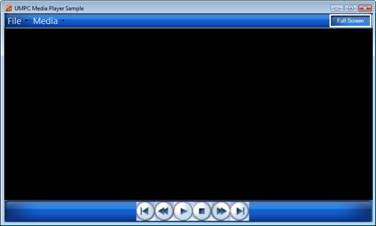
Following the design guidelines, I’ve added larger sized buttons and menus and have exposed the main tasks that are great for this scenario: playing media and navigating between tracks.
In Figure 5 you’ll notice that there is a “Full Screen” button. This allows my application to take advantage of the screen real estate and can toggle back to windowed mode if the user chooses. You can see in the following code snippet how the application toggles between the two display states:
private void btn_FScrn(object sender, EventArgs e)
{
 if (this.FormBorderStyle == FormBorderStyle.None)
 {
  this.FormBorderStyle = FormBorderStyle.Sizable;
  this.WindowState = FormWindowState.Normal;
  this.btn_fullscreen.Text = "Full Screen";
  } else {
  this.WindowState = FormWindowState.Maximized;
  this.FormBorderStyle = FormBorderStyle.None;
  this. btn_fullscreen.Text = "Windowed";
  }
 }}
My main point here is that you make sure you scale your UI elements properly for touch displays to give the user a great visual and input experience.
Adding Ink and Gesture components
Since the UMPC is running Windows Vista and the Tablet PC features are built-in, you can add ink and gesture functionality to an application without having to redistribute additional dependencies.
The touch screen fits really well with using ink-based commands and gestures since they are a natural way to interact (you can just point at items or write on the screen).
The handwriting recognition functionality provided in Windows Vista has rich interfaces capable of creating and analyzing complex handwritten content, but I am going to use just a small part of it here. I simply want to recognize an individual character and perform an action mapped to it.
To do this, I’ve chosen to use an InkOverlay to collect the ink stroke and an InkAnalyzer object to tell me what the character is recognized as. The process is pretty straightforward as you can see in Listing 1, I just add the reference to Microsoft.Ink, declare an InkOverlay and InkAnalyzer and hook up the events that I’m interested in. I want to be notified when each stroke is created so I can tell if this is the letter I am interested in.
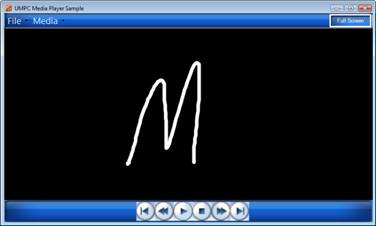
For this simple example I am just watching for the letter “m” and have mapped that to opening up the music library of the Windows Media Player library. You could add a timer to allow for multiple strokes to be collected before analyzing if you want to support more elaborate commands:
void inkOverlay_Stroke(object
   sender,InkCollectorStrokeEventArgs e){
// Remove existing strokes and add the new one
inkAnalyzer.RemoveStrokes(theIA.RootNode.Strokes);
inkAnalyzer.AddStroke(e.Stroke);
// Analyze the ink
if (inkAnalyzer.Analyze().Successful)
 switch (inkAnalyzer.GetRecognizedString())
 {
  case "m":
   // Set the color
   e.Stroke.DrawingAttributes.Color = Color.Green;
   Player.Refresh();
   openLibrary("music");// Perform the InkCommand
   break;
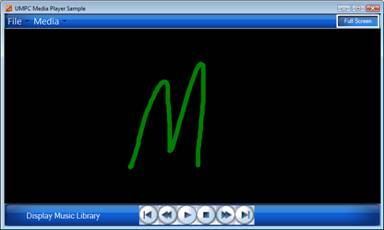
When the user writes the letter “m” on the application (Figure 6), they will first see the white ink stroke get created, and then it will turn green as user feedback that the command was recognized (Figure 7).
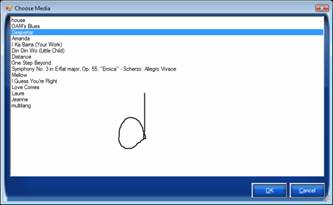
You can use this type of ink command throughout your application. Once the music library opens in this sample, it displays a list box with the current music in the library (Figure 8). I’ve switched out the standard list box with an ink-enabled list box from the InkListBox sample on http://msdn.microsoft.com/mobilepc. This gives me the opportunity to provide consistent ink support on other controls. When the user creates ink on the control, it automatically selects the song with a matching title. This functionality is built into the sample InkListBox control from the developer center.
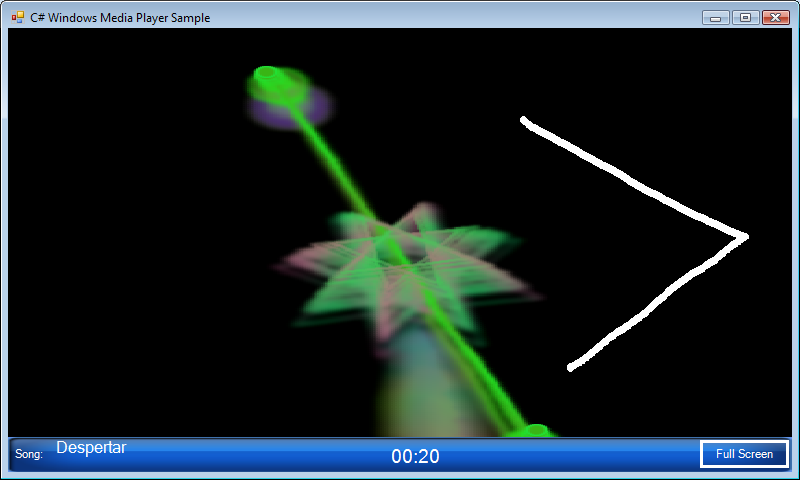
Once a user selects a song, it begins playing in the main window with a selected visualization in the background-similar to a standard media player. The difference here is that the user can simply write or tap directly on the window. In the sample, I have mapped tapping the screen to toggle play/pause of the media. If the user quickly moves their finger to the left on the screen (a left gesture), the media will skip backwards and replay the previous 20 or 30 seconds.
With an InkOverlay created, adding this gesture support is equally easy as the Ink commands. In the gesture event handler, the application needs to determine what gesture the user performed and to do the matching task they have associated with it:
void theInkOverlay_Gesture(object sender,
   InkCollectorGestureEventArgs e)
{
 switch (e.Gestures[0].Id)
  {
   case ApplicationGesture.Tap:
    if(Player.Ctlcontrols.get_isAvailable("Play"))
       Player.Ctlcontrols.play();
    else Player.Ctlcontrols.stop();
   break;
   case ApplicationGesture.Left:
    SkipBackInCurrentTrack();
   break;
  }
}
The InkRenderer automatically renders the ink directly on the visualization area of the media player and updates the time (in this case decremented by 20 seconds) when the user creates the “left” gesture (Figure 9). Your application could add a host of these commands. Since discoverability can be difficult, be sure to add clear documentation, ToolTips, or alternative buttons for these tasks.
Adding an Ink Annotation Component
Adding tags to photos using ink is a great way to organize photos on the go. Since you have already enabled ink collection in your application and associated an InkAnalyzer, all the application needs to do is to determine what to do with the recognized text.
The simple case is to take all handwritten content on a photo and add that text as keywords to the image properties (the Windows Media Player control allows access to the Photo library as well as music).
The Origami Experience for Windows Vista is a great example of an application optimized for the UMPC platform.
In this sample (Figure 10) the InkAnalyzer recognizes the handwritten text and adds it to the list of keywords for the photo. The analyzer renders the ink on the image, but it has not altered the quality of that image. You can use the ink as a means to obtain the keywords, or the application can choose to keep the ink-storing it in one of the binary properties of the image data. This storage would allow the application to render the ink on the photo when a user loads it again and gives the user a chance to manipulate it.
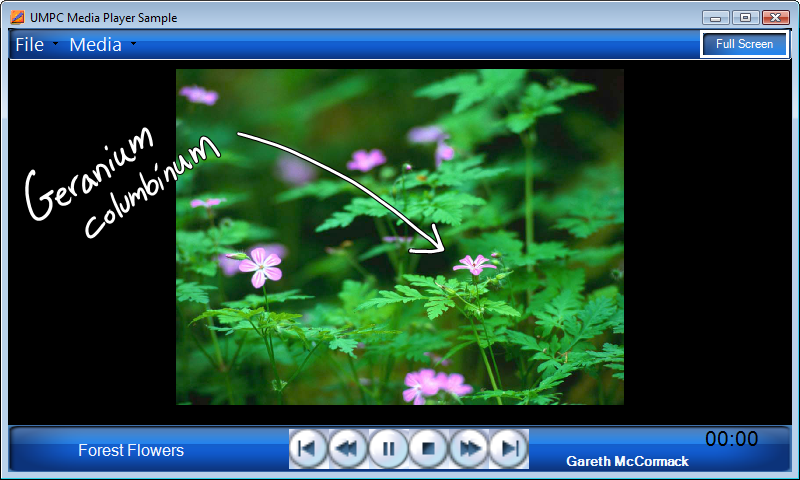
You could extend this feature to recognize ink content in different ways. One addition could be to interpret any content that is contained by a circle as the photo title and any other text as a set of keywords.
Adding a Speech Recognition Component
In Listing 2 I have added support for speech recognition to this sample. Speech commands match up very closely to the ink commands that I added earlier. The application can use the same helper methods in the code for both scenarios and can provide a consistent set of ink and speech-related commands to make it more intuitive for the user.
The touch screen fits really well with using ink-based commands and gestures since they are a natural way to interact (you can just point at items or write on the screen).
Adding good feedback for speech commands is equally or more important than ink gestures since there is no traditional interaction with the application. In this sample, the application will audibly repeat the spoken command back to the user, but your applications should use UI feedback such as status messages as well.
Save the Batteries! Pay Attention to Power
I have to confess that when I started writing Windows applications with the Windows 3.1 SDK, I really didn’t pay any attention to power management until a few short years ago. Why? Until developers started seeing battery operated devices, there really was no benefit in making sure an application did anything different with power.
Now, almost every conversation I have about portable devices starts off with the question: “How long does the battery last?”
Optimizing an application’s usage of power is difficult to measure, but can have a lasting impact on the user. There have been a set of Win32 APIs around for a long time that allow you to determine if you are plugged in to AC current or on battery-powered DC. You can also determine what the level of the devices battery is via these APIs.
Utilizing this information, an application can now determine whether to enable high intensity CPU/GPU features like animations or shading-or give the user a choice to disable those features.
A great example is when you are starting a movie while on battery power. If the application knows the length of the movie is two hours, but the battery level shows less than that amount is available, it could notify the user of their options: watch the movie at current settings and risk not finishing or change screen brightness to have a better chance of completing.
To query the power status in your application, you can get most of what you need from the GetSystemPowerStatus API:
[DllImport("Kernel32.DLL",
     CharSet = CharSet.Auto, SetLastError = true)]
private extern static
  bool GetSystemPowerStatus(
    SYSTEM_POWER_STATUS SystemPowerStatus);
It returns a SYSTEM_POWER_STATUS class containing all the relevant information about AC and battery connections:
[StructLayout(LayoutKind.Sequential)]
public class SYSTEM_POWER_STATUS
{
   public byte ACLineStatus;
   public byte BatteryFlag;
   public byte BatteryLifePercent;
   public byte Reserved1;
   public Int32 BatteryLifetime;
   public Int32 BatteryFullLifetime;
}
The ACLineStatus tells you whether the machine is plugged into an outlet, and the BatteryFlag informs you of the current state of the battery:
public enum ACLineStatus : byte
{
   Battery = 0,
   AC = 1,
   Unknown = 255
}
public enum BatteryFlag : byte
{
   High = 1,
   Low = 2,
   Critical = 4,
   Charging = 8,
   NoSystemBattery = 128,
   Unknown = 255
}
The rest of the information regarding power that your application will be interested in monitoring is the WM_POWERBROADCAST message. To monitor this, call the RegisterPowerSettingNotification method to request notification of the following power management events. These events are sent with the WM_POWERBROADCAST (http://msdn2.microsoft.com/en-gb/library/aa372715.aspx) message:
Optimizing for Network Connectivity
I previously mentioned that UMPCs have the latest network connectivity available, including wireless LAN (Wi-Fi 802.11b/g), and also have the capability to connect to high-speed CDMA or 3G cellular-based networks (those provided by your cell phone carrier).
This is a great advance for mobile computing scenarios; having the ability to get to my data, media, and games on the go is great. But just like my desktop and its broadband Internet that I can’t live without, I want my mobile PC to be constantly connected too. I can’t even imagine what life would be like without broadband Internet access anymore on my desktop. The mobile computing possibilities are just starting to unfold with an always-on connection wherever we are whether it is the now traditional Wi-Fi or a new GPRS connection.
“FileNotFoundException has occurred”
In building applications in these scenarios, you might think that you need to do nothing-if the network is available, via whatever means, your application simply sends or receives data and the particular network stack is completely transparent.
Sure, that statement is partially true. But think about all the applications that you’ve used in the past that would hang before they figured out that a FileWrite or WebRequest had timed out and the network wasn’t available. Not a great user experience.
All the application really had to do was add some simple code to see if the network was active before making the request. Your application should do the same and use good notifications to your user to let them know what network state changes are occurring.
Save Your Energy; Reduce the Chattiness
Beyond the connection issue is connection speed and how you can optimize your application regarding it. Similar to being smart about detecting the existence of a network, your application can easily determine the connection type and throughput.
Using the Network Location Awareness (NLA) service in Windows Vista, your application can query current network properties and be notified of any changes in those networks. Depending on the situation, you can optimize network communication for the user or let them select from options.
For a client/server relationship you could automatically reduce the number of times the client talks to the server or choose to reduce the amount of content delivered; omitting images for example.
You can use the EnumNetworks method in INetworkListManager to enumerate the network profiles for Windows Vista.
Each network profile has a name and description that you can access by using the INetwork::GetName and INetwork::GetDescription methods. You can use the INetwork::GetState method to determine whether the network is connected to the computer and whether the connection has Internet connectivity. Use the INetwork::GetType method to determine whether the network is a managed (domain) network and whether the user is authenticated on that network.
Am I Online or Offline? Data Synchronization Is a Must
Inevitably, users will need to update, upload, or synchronize their data. One approach to this type of data management, used by many ISVs today, assumes that the user is always online and has a server available to communicate with (either Wi-Fi or WWLAN). It’s not difficult to see the shortcomings in this solution when a connection is sporadic or the user travels outside the range of the network.
But what is a low-cost alternative? The Data Synchronization service in Windows Vista is one. The simple summary for Windows Vista Data Synchronization is that it allows you to reliably write data to local files and that the Sync Center will update the cache periodically when a connection is available.
This Data Synchronization service was available in Windows XP but Microsoft updated it for Windows Vista. The Sync Center has a new UI, is integrated into the shell, and has an integrated conflict resolution capability and updated API.
This service provides the framework and some UI for your needs, but does still require you to determine what to synchronize and how to handle conflicts in files-especially important if you choose to allow data to be modified on both the remote and synchronized locations.
If I want to automatically synch the data without the user having to initiate, or if I want to use my own UI for the sync, I can still do this with the Sync Center API.
Whether you use this Data Synchronization service, the focus here is to enable your applications to seamlessly handle all connectivity situations, even sometimes-online ones by using the rich set of APIs available to you.
Summary
Creating an application that is targeted for the UMPC is potentially no different than writing a robust Windows Vista application. Choosing the right tool for the task is key for mobile applications and the UMPC is a great platform to base them on.
Software that is well targeted for mobile scenarios and adds clear value to users is what will really help define where these mobile devices go in the future.
I look forward to seeing upcoming Windows Vista software and UMPC hardware so I can leave my notebook on my office desk when I’m on the go.
