


After four years of trying out every iteration of Web server application deployment that Microsoft created for .NET, ClickOnce has finally allowed me to succeed in deploying one particularly complex smart client application.
But I still had to tear a few more hairs out before I got it working and came to love ClickOnce. I’m writing this article to share some of the not-so-obvious ways (including a hack or two) to use ClickOnce for application deployment.
The January/February 2006 issue of CoDe Magazine has an excellent overview article of ClickOnce by Patrick Darragh, a Program Manager at Microsoft who had a lot of responsibility for ClickOnce. Patrick’s article also digs under the covers a little to explore the mechanics of ClickOnce. What I will do in this article is talk about some of the specific deployment issues I ran into and how I solved them.
Deploying Applications with Dynamically Loaded Forms
My application’s architecture is a little more complex than average, though it is certainly not a major enterprise application. It is nearly a typical MDI application that hosts child forms in a window. The atypical feature is that the child forms are loaded dynamically based on user selection. I designed the application so I can add new forms over time by merely dropping a new DLL into the application folder; the application itself has no built-in knowledge of these forms or their assemblies. This is a critical point of departure for the ClickOnce model (and its predecessors) which uses System.Reflection to analyze the application and determine what goes into the deployment package.
It took a number of times through this manual process of building the manifest before it became second nature to me and I no longer dread providing updates.
In order for ClickOnce to discover a particular DLL, my application would need to reference that DLL. But the DLLs containing my child forms are not referenced. When the user chooses her form, the application reads the text of the selection, (for example, “Test42”) then uses File.IO to ensure that a file named “Test42.dll” exists in the application folder, and finally uses Reflection to dynamically load the Test42 form.
Because of this architecture, ClickOnce will never discover the assembly on its own and thus won’t include it in the package.
You have to use a combination of the ClickOnce Publish tool in Visual Studio 2005’s IDE and the external MAGEUI application to deploy the application. It took a number of times through this manual process of building the manifest before it became second nature to me and I no longer dread providing updates. The list may look detailed, but it’s actually quite simple. Here’s how I do it:
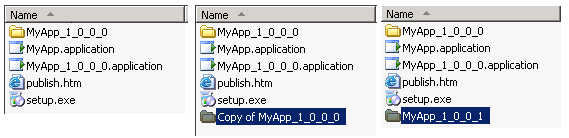
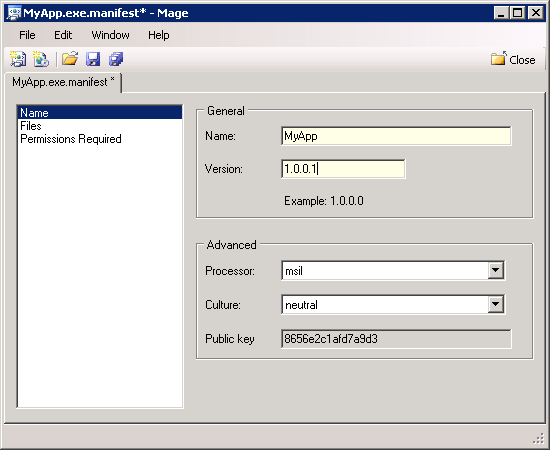
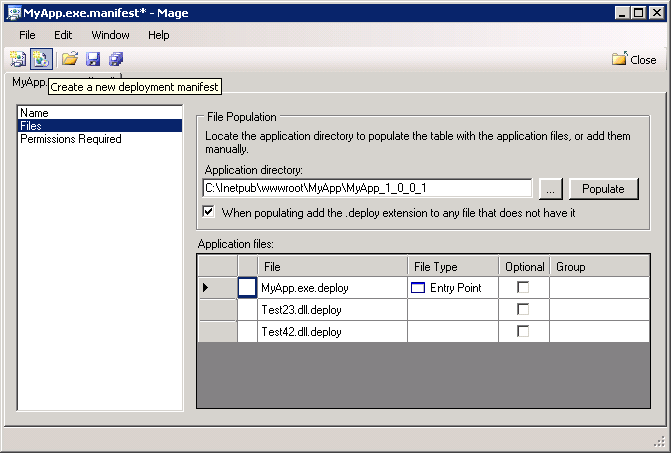
That was the Application Manifest. Now we need to update the Deployment Manifest!
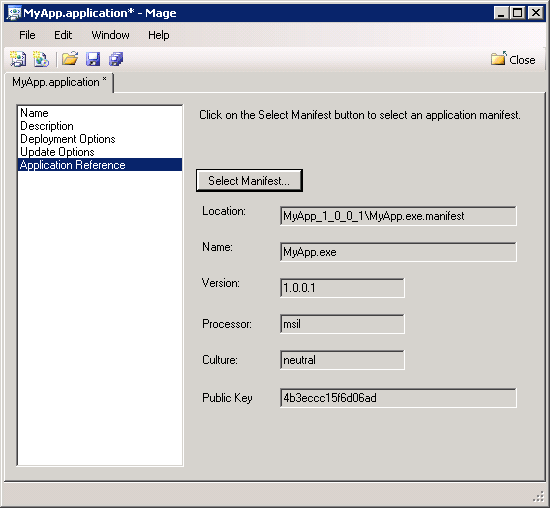
That’s it!
You may wonder what to do with those versioned deployment manifests in the main folder. The purpose of these is so that you can do a server-side rollback. For example, if you are up to version 1.0.0.5 and you want everyone to go back to 1.0.0.3, you can copy the MyApp_1_0_0_3.application back over to MyApp.application and (assuming that the matching folder is still there) the next time the users hit the update, they will install the older version. It is up to you to choose whether or not to retain the manifest version files. If you do, simply make a copy of the manifest file after it is created and give it the appropriate name.
More Efficient Deployments to a Remote Server
In my scenario, the Web server that my deployments live on is not in my office. I access it remotely via VPN and then use Remote Desktop to get to the Web server. I have medium speed DSL. My full application with all of the dynamic assemblies is now about 12 MB. If I make one little change to my main executable, which is only about 500 KB, I sure don’t want to have to copy the entire 12MB up to the server. I am a woman of very little patience, you see. So I finally figured out a more efficient way to deploy my application.
Don’t overlook the pages of the MSDN Documentation called “Troubleshooting ClickOnce Deployments”.
Rather than do all of the manifest updates on my own computer, I finally smartened up and am doing them on the Web server. Therefore, the only files I need to transfer to the server are the ones that changed. I copied the MAGEUI.exe and my certificate for signing up to the Web server, then installed the certificate into the server’s certificate store.
Once I copy the 12MB folder directly on the Web server the first time, each subsequent time I only need to copy the new file(s) from my computer to the Web server’s new folder. Now I can run MAGEUI to update the application and deployment manifests remotely.
This has cut my deployment time by at least 75%, which of course leaves me more time for blogging!
What About a Shared Host Web Application?
This solution won’t work in a scenario where you are on a shared Web host and cannot run applications like MAGEUI. You will have to prepare the complete manifest locally and then FTP the new folder and files up to your Web server. Another option, still copying all of the files, is to use the remote publishing that ClickOnce offers. I have found this to be too complex and too filled with caveats.
Semi-securing Your Installation with Forms Authentication
Semi-securing doesn’t sound too comforting, but I prefer it over this text in the MSDN documentation for ClickOnce: “...if you are deploying offline applications, any authentication scenario besides Windows NT authentication is unsupported. An acceptable solution would be to allow any user to install the application, but have the client application authenticate the user by means of Web services at activation.”
I was not happy when I read that. In fact, I wrote a long rant in my blog about this limitation. The driving reason behind my persistence to make this technology work for nearly four years is to enable remote employees who do not have access to (or accounts on) the domain to be able to easily install and update the application. This recommendation looked like a serious show-stopper.
Know the Risks
I understand Microsoft’s reasoning and do not take security lightly. Besides the issue regarding cookies that is noted in the MSDN documentation: “ClickOnce uses persistent cookies; these present a security risk because they reside in the Internet Explorer cache and can be hacked*,”* I’ve been warned of another possible hack (that I can’t figure out how to do myself).
My application already uses Web services and WS-Security for authentication. Therefore, even if someone could install the application, they cannot use the application without appropriate credentials.
Nevertheless, I was adamant about not just letting anyone download and install my application, even though I knew that I couldn’t protect myself from serious evil-doers. So I secured my installation portal with Forms Authentication using ASP.NET 2.0’s membership APIs.
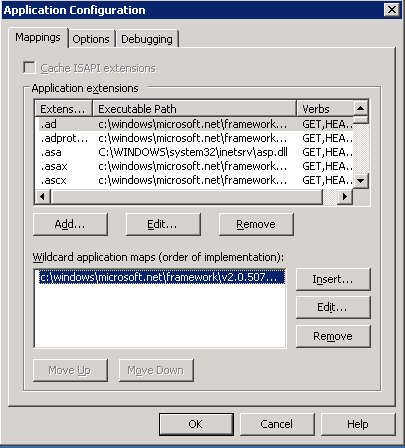
The key to hiding your manifests behind Forms Authentication is to ensure that ASP.NET knows to handle these files as they would any other ASP.NET files. The file extensions for your manifests (.application, .manifest, .deploy) are not inherently recognized by ASP.NET. Therefore, by default, ASP.NET will serve these files up without authenticating, just as they would an image file. The ISAPI mappings in IIS are responsible for this. There is an explicit list of file types that IIS is instructed to handle with the aspnet_isapi executable when ASP.NET 2.0 initially configures IIS for your application, which means they will get processed with the ASP.NET rules. Therefore, if you want your non-ASP.NET files to also be handled by aspnet_isapi, you need to tell IIS.
The following instructions describe how to do this with IIS6. See the Further Reading sidebar for a link to more detailed information.
<deny users= "?"/>
<location path="imagesanon">
      <system.web>
         <authorization>
            <allow users="?"/>
         </authorization>
      </system.web>
</location>
The Golden Egg: Desktop Shortcuts
One of the side benefits of ClickOnce is that I don’t have to worry about end users who wouldn’t know what to do with a new DLL if I e-mailed it to them and said “copy this into c:\program files\the app” folder. The fact that ClickOnce does not have the ability to automatically install desktop shortcuts to the application becomes a problem with this same group of users.
The driving reason behind my persistence to make this technology work for nearly four years is to enable remote employees who do not have access to (or accounts on) the domain to be able to easily install and update the application.
If you do your initial installation with an MSI file, this isn’t a problem. But if your users install from a Web site with the manifests, then it definitely is.
Once Again, Know the Risks
I’m about to delve into another hack, which means you better know why ClickOnce does not put shortcuts on the user’s desktop. One reason is that it requires your application to have full trust. By default, applications deployed with ClickOnce only have partial trust and you should set them to full trust only with a good understanding of what you are doing. Check the ClickOnce article that Patrick Darragh wrote (see sidebar) in the Jan/Feb 2006 issue of CoDe Magazine for more info on that.
Brian Noyes (see Further Reading) reminds us that Microsoft created ClickOnce with specific rules so that it could be trusted not to muck with the end user’s machine. Putting a desktop shortcut on the user’s desktop falls into this bucket.
But I’m Doing It Anyway!
My client specifically requested that I do this as part of their installation and frankly, they trust me even more than they trust ClickOnce. To create a desktop shortcut you must tap into the Win32 API’s Windows Script Host object model.
Adding the desktop shortcut is not part of the ClickOnce deployment. It is a function of the application that you are deploying.
Listing 1 shows my DesktopShortcut class with two methods. One determines if the shortcut already exists. The other creates it. The methods are shared, so the class does not need to be instantiated. The basis for this class came from an article by Les Smith. See the Further Reading sidebar for the URL to his article.
Call these methods from your application’s startup code.
If Not DesktopShortcut.Exists("MyApp") Then
   DesktopShortcut.Create("MyApp")
End If
This is a rude solution that just slams the shortcut on the desktop without asking if the user wants it or not. If the user deletes the shortcut, the application will just re-create it on next startup. That’s what my client requested.
A more polite approach would be to check for the existence of the shortcut and then ask the user if they want it installed or not.
You could also choose to leverage the IsFirstRun property of the System.Deployment.Application class. Check the Remarks section of the IsFirstRun property to learn more about how the Deployment API determines if this property returns True or False. This way you only create the shortcut the first time the user runs the application. If the user deletes the shortcut, it will not get re-created by the application.
Troubleshooting ClickOnce Deployments: The Docs
Don’t overlook the pages of the MSDN documentation called “Troubleshooting ClickOnce Deployments.” In fact, don’t even wait until you have a problem to check it out. Go print it out and staple it to the end of this article and read it when you are finished here. Here’s the online link to that document: http://msdn2.microsoft.com/en-us/fb94w1t5(VS.80).aspx
Points of Confusion
I struggled with a number of things before I had a better understanding how ClickOnce works. So these are my own personal FAQs, or POCs, if you prefer.
Where Does ClickOnce Install?
ClickOnce installs my custom application in the ClickOnce application cache (buried deep in the user’s Local Settings) for the user that is logged in when the application is installed. If you take a look at the path of the file that the shortcut is pointing to, you may have a small fainting spell as one my clients did. The versions of my custom application are also maintained in the cache as updates are downloaded.
What if More than One User Shares the Computer? Can I Create a Desktop Shortcut for All Users?
Since the application is installed in the user’s application cache, each user (with separate Windows logins) on a shared computer needs to install the application for their own login. The .NET Framework and other common pieces such as third-party tools or your own custom APIs that get shared across applications, only need to be installed once and will be available to all users. But the application itself requires per-user installation and a shared shortcut won’t work.
Hey! I Updated Only One DLL but the Progress Bar Is Saying the Entire App Is Being Downloaded Again
This issue really bugged me, but, in fact, the progress bar does not tell the whole story! ClickOnce needs to create a completely new version folder for each update. ClickOnce will determine which files are new and copy only those files down from the Web server. It then copies the rest over from the previous version folder in the user’s assembly cache. So ClickOnce is, in fact, copying all of the files, but since most of those files are coming from a local source it’s not really wasting time downloading anything more than it has to from the Web server.
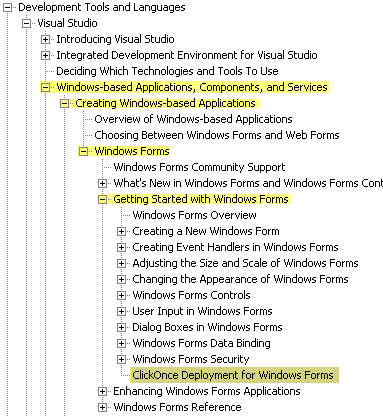
Where Is that ClickOnce Documentation, Anyway?
If you have the MSDN Library installed, the ClickOnce documentation is buried deeply and not so easy to find. Figure 6 shows you where it is in my version. Online you can start looking at http://msdn2.microsoft.com/en-us/library/wh45kb66(VS.80).aspx
A Special Scenario: Intranet Users, ISA Server and Internet Explorer Proxy Issues
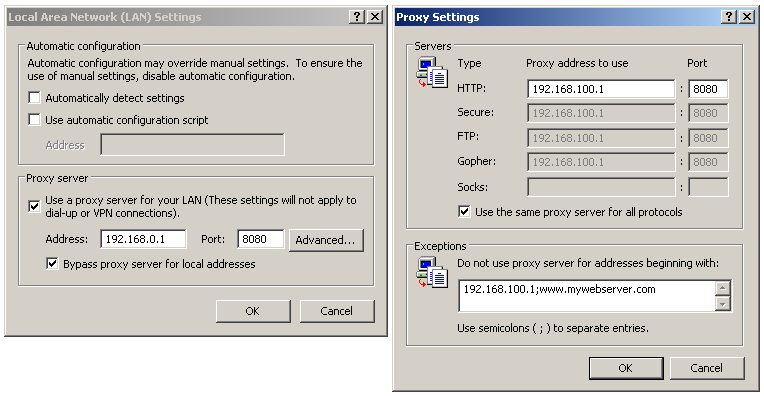
My client’s application is used in-house and out in the wild by remote workers. The internal people hit the Web server through the local network while the remote people are coming in over the Web through an ISA Server. They had a proxy problem (identified by the Show Details link in the ClickOnce error dialog) that prevented them from getting at the manifests. I found that I had to do one extra switch to the local users’ IE proxy settings. Although “Bypass proxy server for local addresses” was checked, entering the IP address and/or domain name (whichever the local users are using) into the proxy exceptions list fixed the problem. Figure 7 shows this dialog box.
Conclusion
After years of publicly documented frustration with early iterations of technologies that evolved into ClickOnce, I have finally found ClickOnce to be the tool I needed. It doesn’t answer all of my needs, but with the little hacks that I’ve figured out (implemented in ways that I don’t feel put my client’s data or intellectual property, nor the end user’s PCs at risk) I’ve finally accomplished what I set out to do to simplify the deployment and updating of this application. The ClickOnce Publishing wizard will suffice as a perfect solution for many applications, but don’t ignore the possibilities that exist to go much deeper with the Deployment API (System.Deployment). The fact that people are writing entire books on the topic says a lot about the depth of this technology.
Listing 1: This DesktopShortcut class has methods to determine if a shortcut exists and also to create a shortcut. Don’t forget to add in exception handling!
Imports IWshRuntimeLibrary
Imports System.Reflection.Assembly
Public Class DesktopShortcut
  Public Shared Function Create(ByVal shortcutName As String) _
 As Boolean
    Dim Shell As New WshShell
    Try
      Dim DesktopDir As String = _
         CType(Shell.SpecialFolders.Item("Desktop"), String)
      Dim shortCut As IWshRuntimeLibrary.IWshShortcut

      ' short cut files have a .lnk extension
      shortCut = CType(Shell.CreateShortcut(DesktopDir & "\" & _
      shortcutName & ".lnk"), _
      IWshRuntimeLibrary.IWshShortcut)
      With shortCut ' set the shortcut properties
        .TargetPath = GetExecutingAssembly.Location()
        .WindowStyle = 1
        .Description = "ATC FieldApp II"
        .WorkingDirectory = DesktopDir
        'use reflection to get the first Icon from the app
        .IconLocation = GetExecutingAssembly.Location() & ", 0"
        .Save() ' save the shortcut file
      End With
      Return True
    Catch ex As System.Exception
      ' add your exception handling here
      Return False
    Finally
      Shell = Nothing
    End Try
  End Function
  Public Shared Function Exists(ByVal shortcutName As String) _
 As Boolean
    Dim shell As New WshShell
    Dim deskTopDir As String = _
   CType(shell.SpecialFolders.Item("Desktop"), String)
    If IO.File.Exists _
   (deskTopDir & "\" & shortcutName & ".lnk") Then
      shell = Nothing
      Return True
    Else
      shell = Nothing
      Return False
    End If

  End Function

End Class
