



Gaining the full potential of object binding requires more than just dragging and dropping your properties onto forms.
In this article I’ll present a few tricks you need to know to get the most from your object binding.
I was one of those many developers who, since Visual Basic 2.0, have hated the concept of data binding. It incorporated patterns that were not extensible, it did not make use of good programming practices, and it frequently didn’t work as expected. But I have to admit, I love object binding.
Any time you add a property to the business object, you must rebuild the project before the property will appear in the Data Sources window.
This article first reviews some object binding fundamentals. It then presents tips and tricks for enhancing your object binding. Once you see all of the things that object binding can do, you may find a new love as well.
Object Binding Fundamentals
The basic premise of object binding in Windows Forms is to tie Windows Forms control properties, such as the Text property, to your business object properties. When you create a business object and assign values to the properties, the user interface of your application will reflect those values without you needing to write code to copy property values into the controls. And when the user modifies the contents of the controls, the updated values are automatically assigned to the properties of your business object.
For example, suppose you have a form that displays customer information and a Customer business object with Last Name and First Name properties. With object binding, you don’t have to write code to put the value of the Last Name property into the Text property of the Last Name TextBox and the First Name property value into the Text property of the First Name TextBox. And then visa versa when the user changes the text in the controls. Rather, all of this is handled automatically.
Unlike binding to a database, which generates a significant amount of code and then binds to that generated code, object binding binds to your code. That gives you much more control and greatly simplifies the maintenance of your application.
To try out object binding, create a new Windows Forms project and add a class to the project. (In a “real” application, you’d likely put the class into a separate project. This sample adds all of the classes to the Windows Forms project for simplicity.) Then give that class several properties. For example, a Customer class has LastName, FirstName, and CustomerID properties. The LastName property code is as follows.
In VB:
    Private _LastName As String
    Public Property LastName() As String
        Get
            Return _LastName
        End Get
        Set(ByVal value As String)
            _LastName = value
        End Set
    End Property
In C#:
    private string _LastName;
    public string LastName
    {
       get { return _LastName;}
       set { _LastName = value;}
    }
The quickest way to create property procedures is to use the property snippet. In a VB code window, type property and then press tab to create a VB Property procedure. In a C# code window, type prop and then press tab twice to create a property. For more information on using snippets or creating your own, see the article “Having Fun with Code Snippets” in the Jan/Feb 2006 issue of CoDe Magazine.
After you have defined any desired properties on your business object, build the project. The build process makes your business object accessible to the Data Sources window. Any time you add a property to the business object, you must rebuild the project before the property will appear in the Data Sources window.
Next you’ll build the data source. If you don’t already see it, show the Data Sources window by choosing Show Data Sources from the Data window, then click Add New Data Source. This launches the Data Source Configuration Wizard.
To create an object binding data source, select Object on the first page of the wizard and the desired business object on the second page of the wizard. Click the Finish button and the new object data source will appear in the Data Sources window. Notice that each of the properties of the object appears below the object name in the window.
Now the fun part. Open the default form that was created when you created the project. Then drop down the combo box associated with the business object in the Data Sources window and select DataGridView to display all business objects in a grid or select Details to display each individual business object property as a separate control on the form. Finally, drag the name of the business object from the Data Sources window to the form. Figure 1 shows the result using the Details selection. For more information on building forms using the Data Sources window, see “Drag-Once Databinding” in the September/October 2004 issue of CoDe Magazine.
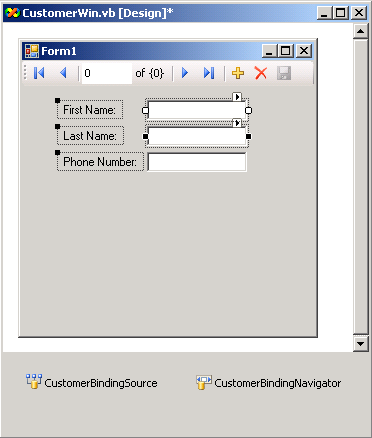
The object binding data source is automatically added to the component tray of your form and named after the name of your business object, in this case it is CustomerBindingSource. The generated controls are automatically bound to this binding source.
The Visual Studio IDE uses the names of your properties to create the labels for the controls and is smart enough to add spaces between words based on underscores or alphabetic casing. This provides a very good starting point for the user interface of your application.
Populating Your Business Objects
If you run your application at this point, you will see that it does not do anything. Even though the controls are bound to the properties, the properties have no values. So the next big step in object binding is populating the business objects.
Object binding to a class that inherits from BindingList(Of T) provides a very nice way to display and manage lists of things.
You can retrieve data and populate your business objects in many different ways. You could use a DataSet or DataTable; you could set up a DataReader; you could call a Web service to retrieve the needed data; or you could use TableAdapters to further bind your properties to database fields.
To keep this example simple, a private Retrieve method on the business object pretends to retrieve the needed data. Actually, it uses ADO.NET to create a DataTable in code. That way you don’t need to create a database, stored procedures, and/or Web service in order to test out object binding. Listing 1 shows the VB code for the Retrieve method; Listing 2 shows the Retrieve method in C#.
Best practices dictate using the factory pattern to create the business objects and populate them from the retrieved data. You could choose a number of ways to implement the factory pattern. In this example, the factory pattern implementation makes the constructor private (so no other code can create the object) and defines a static (shared) Create method that creates and populates the instance as shown.
In VB:
Private Sub New()
' Don't allow creation of this object
End Sub

Public Shared Function Create(ByVal CustomerID _
                           As Int32) As Customer
   ' Create the customer
   Dim oCustomer As New Customer

   ' Retrieve the data for this customer
   Dim dr As DataRow
   dr = oCustomer.Retrieve(CustomerID)

  ' Populate the business object
   oCustomer.Populate(dr)

   Return oCustomer
End Function
In C#:
private Customer()
{
    // Don't allow creation of this object
}

public static Customer Create(Int32 CustomerID)
{
   // Create the customer
   Customer oCustomer = new Customer();

   // Retrieve the data for this customer
   DataRow dr =oCustomer.Retrieve(CustomerID);

  // Populate the business object
   oCustomer.Populate(dr);

   return oCustomer;
}
The method that populates the business objects is as follows.
In VB:
Private Sub Populate(ByVal CustomerDataRow As _
                               DataRow)
   With CustomerDataRow
      Me.LastName = .Item("LastName").ToString
      Me.FirstName = .Item("FirstName").ToString
      Me.CustomerID = .Item("CustomerID").ToString
   End With
End Sub
In C#:
private void Populate(DataRow CustomerDataRow)
{
    this.LastName =
      CustomerDataRow["LastName"].ToString();
    this.FirstName =
      CustomerDataRow["FirstName"].ToString();
    this.CustomerID =
   Convert.ToInt32(CustomerDataRow["CustomerID"]);
}
You would need to enhance the code in the populate method each time you add a property to the business object. If you use a TableAdapter or typed DataSet to retrieve the data instead of using an untyped DataSet, DataReader, or some other technique, you would reference the data columns by their automatically generated strongly typed names instead of their quoted string column names.
To complete the object binding, add code in the Load event for the form to create and bind the object. Call the Create method to create the instance and then assign the CustomerBindingSource to that instance to bind it as follows:
In VB:
Private Sub CustomerWin_Load(ByVal sender As _
     Object, ByVal e As System.EventArgs) _
     Handles Me.Load
        Dim CustomerInstance As Customer
        CustomerInstance = Customer.Create(1)
        CustomerBindingSource.DataSource =
                                  CustomerInstance
End Sub
In C#:
private void CustomerWin_Load(object sender,
                                  EventArgs e)
{
    Customer CustomerInstance =
                               Customer.Create(1);
    customerBindingSource.DataSource =
                                 CustomerInstance;
}
At this point you can run the application. If all is well, the form should appear with the property values assigned as the text of the controls.
Data Management
As soon as you allow a user to update any values on any forms, you will need to perform validation on those values. When all of the values are valid you will need to provide the option to save the changes. Object binding has some features that aid in the validation and data management processes.
To bind to a set of radio buttons, you need to create separate business object properties for each radio button.
The first step in implementing validation using object binding is to add the ErrorProvider control to the form and set its binding source to the CustomerBindingSource created earlier in this article. By setting its binding source to the object binding source, the ErrorProvider can recognize errors from the business object.
Once you have the ErrorProvider in place, implement any field-level validation rules directly in the properties of the business object. Throw an exception in the property if the property is invalid. The text of the exception will then automatically appear in the ErrorProvider icon if the user-entered value is invalid.
As a simple example, suppose you have a business rule for the Customer business object that requires the user to enter the last name. You could implement this as follows.
In VB:
Public Property LastName() As String
    Get
        Return _LastName
    End Get
    Set(ByVal value As String)
        If String.IsNullOrEmpty(value) Then
            Throw New Exception( _
                 "The Last Name cannot be empty")
        End If
        _LastName = value
    End Set
End Property
In C#:
public string LastName
{
    get { return _LastName;}
    set
    {
        if (String.IsNullOrEmpty(value))
        {
            throw new Exception(
                 "The Last Name cannot be empty");
        }
        _LastName = value;
    }
}
Note: Any unexpected exception generated by any code in any property procedure or code called by any property procedure will be caught by the object binding and displayed in the ErrorProvider. So if you have, for example, a casting error at runtime, you will not see this error. Instead, the object binding code will catch the error and display it in the ErrorProvider icon.
You can add any required validation directly in any of the business object properties and throw exceptions as needed. However, for a more flexible and reusable approach for validation, you could create a separate Validation class that performs several types of validation such as required field checking, string length checking, numeric checking, date range checking, and so on. Your Validation class could then maintain a collection of the validation errors instead of throwing exceptions. The business object should then implement IDataErrorInfo and expose that collection to the ErrorProvider. (The details for this are beyond the scope of this article, but if readers express enough interest in this technique, I’ll cover this topic in a future article.)
Once you’ve validated the user-entered values, the business object needs to track what values have changed. This allows you to implement features such as asking the user to save changes on exit only if something is changed. It also provides a way to keep track of which objects have been updated, created or deleted so that they can be appropriately processed back to the original data source.
This data management requires four basic steps:
You can implement these steps in every business object class, repeating much of the code. Alternatively, you can create a base business object class and implement the code for these steps in that base class. Then inherit from the base class for every business object class.
To keep the example simple, this code demonstrates implementation of these steps directly in the Customer business object class.
Step 1, define the constants for the data states.
In VB:
Public Enum EntityStateEnum
    Unchanged
    Added
    Deleted
    Modified
End Enum
In C#:
public enum EntityStateEnum
{
    Unchanged,
    Added,
    Deleted,
    Modified,
}
Step 2, define a property to retain the state.
In VB:
Private _EntityState As EntityStateEnum
Public Property EntityState() As EntityStateEnum
    Get
        Return _EntityState
    End Get
    Private Set(ByVal value As EntityStateEnum)
        _EntityState = value
    End Set
End Property
In C#:
private EntityStateEnum _EntityState;
public EntityStateEnum EntityState
{
    get { return _EntityState; }
    private set { _EntityState = value; }
}
Note that the implementation of the set is private. This prevents other code from modifying the state.
Step 3, implement the INotifyPropertyChanged interface. By implementing this interface and raising PropertyChanged events when a property value is changed, the object binding will automatically detect changes. This ensures that any changes made to the properties are updated in the user interface.
In VB:
Public Class Customer
    Implements INotifyPropertyChanged

Public Event PropertyChanged(ByVal sender As _
    Object, _
    ByVal e As PropertyChangedEventArgs) _
    Implements _
        INotifyPropertyChanged.PropertyChanged
In C#:
class Customer : INotifyPropertyChanged

public event PropertyChangedEventHandler
    PropertyChanged;
Step 4, raise the PropertyChanged event.
In VB:
Private Sub DataStateChanged(ByVal dataState As _
    EntityStateEnum, ByVal propertyName As String)
    ' Raise the event
    If Not String.IsNullOrEmpty(propertyName) Then
       RaiseEvent PropertyChanged(Me, _
       New PropertyChangedEventArgs(propertyName))
    End If

    ' If the state is deleted, mark it as deleted
    If dataState = EntityStateEnum.Deleted Then
        Me.EntityState = dataState
    End If

    If Me.EntityState = _
                   EntityStateEnum.Unchanged Then
        Me.EntityState = dataState
    End If
    End Sub
In C#:
private void DataStateChanged(EntityStateEnum dataState, string propertyName)
{
    // Raise the event
    if (PropertyChanged != null &&
                             propertyName != null)
    {
        PropertyChanged(this, new
          PropertyChangedEventArgs(propertyName));
    }

    // If the state is deleted, mark it as deleted
    if (dataState == EntityStateEnum.Deleted)
    {
        this.EntityState = dataState;
    }

    if (this.EntityState ==
                    EntityStateEnum.Unchanged)
    {
        this.EntityState = dataState;
    }
}
This DataStateChanged method raises the PropertyChanged event and sets the appropriate data state. You call the DataStateChanged method in the property procedures of each property in your business object as follows.
In VB:
Public Property LastName() As String
    Get
        Return _LastName
    End Get
        If String.IsNullOrEmpty(value) Then
            Throw New Exception( _
                 "The Last Name cannot be empty")
        End If
        If value <> _LastName Then
          Me.DataStateChanged( _
          EntityStateEnum.Modified, _
          "LastName")
        End If
        _LastName = value
    End Set
End Property
In C#:
public string LastName
{
    get { return _LastName;}
    set
    {
        if (String.IsNullOrEmpty(value))
        {
            throw new Exception(
                 "The Last Name cannot be empty");
        }
        if (value != _LastName)
        {
            this.DataStateChanged(
            EntityStateEnum.Modified,
            "LastName");
        }
        _LastName = value;
    }
}
With the basic data management code in place, you can then implement additional features, like a simple read-only “IsDirty” property.
In VB:
Public ReadOnly Property IsDirty() As Boolean
    Get
        Return Me.EntityState <> _
                        EntityStateEnum.Unchanged
    End Get
End Property
In C#:
public Boolean IsDirty
{
    get{ return
     this.EntityState!=EntityStateEnum.Unchanged;}
}
This property can be called by the user interface in the Closing event to determine whether or not to ask the user to save changes.
As mentioned earlier, you could add all of this data management code, including the IsDirty property, to a base class that every business object inherits from. That provides a basic set of functionally in every business object with one set of code.
Managing Lists
There are frequently times when you need lists of things in the user interface of your application. For example, you may want to display all of the customers in a combo box for the user to select the customer to edit. You may want to provide a list of customer types, states, or payment plans. Or you may want to display a list of all products that the customer has purchased in a grid.
Let’s look first at how to implement a reasonably-sized list of items where you need to display and possibly edit a number of the properties of the item. The example mentioned above was to display a list of the items that a customer purchased in a grid.
To begin the implementation, add a PurchasedItem class to your project and give it suitable properties such as ItemName, Description, and ItemID. Implement a Create method similar to the Create method for the Customer class, but this time allow passing in of a DataRow instead of an ID. (For the implementation of this class, see the downloadable code for this article on the CoDe Magazine Web site.)
Add a PurchasedItemCollection class to your project and inherit this class from BindingList(Of T). Note that the BindingList generic collection is located in System.ComponentModel.
In VB:
Public Class PurchasedItemCollection
Inherits BindingList(Of PurchasedItem)
In C#:
class PurchasedItemCollection :
                    BindingList<PurchasedItem>
Following the factory pattern, implement a Create method that will create the collection entries.
In VB:
Public Shared Function Create(ByVal CustomerID As Int32) As PurchasedItemCollection
    Dim oCollection As New PurchasedItemCollection
    Dim dt As DataTable

    ' Perform the appropriate retrieve
    dt = oCollection.Retrieve(CustomerID)

    ' For each row, create an object in the list
    For Each dr As DataRow In dt.Rows
        Dim oItem As PurchasedItem
        oItem = PurchasedItem.Create(dr)

        oCollection.Add(oItem)
     Next

    Return oCollection
End Function
In C#:
public static PurchasedItemCollection Create(Int32
                                      CustomerID)
{
    PurchasedItemCollection oCollection =
                   new PurchasedItemCollection();

    // Perform the appropriate retrieve
    DataTable dt =
                oCollection.Retrieve(CustomerID);

    // For each row, create an object in the list
    foreach (DataRow dr in dt.Rows)
    {
        PurchasedItem oItem =
                       PurchasedItem.Create(dr);

        oCollection.Add(oItem);

    }
    return oCollection;
}
Add a Retrieve method similar to the Customer Retrieve method. (For the implementation of this method, see the downloadable code for this article on the CoDe Magazine Web site.)
When the implementation of both classes is complete, build the project to ensure that the new classes are accessible to the Data Sources window. Then create a data source for the PurchasedItemCollection class following the same steps as for the Customer class. Ensure that you’ve set the DataGridView as the default and then drag the PurchasedItemCollection data source and drop it onto the bottom of the form. A grid should appear with a column for each property defined in the PurchasedItem class.
In the form’s Load event, set the DataSource for the PurchasedItemCollectionBindingSource to an instance of the PurchasedItemCollection class.
In VB:
Private Sub CustomerWin_Load(ByVal sender As _
    Object, ByVal e As System.EventArgs) _
    Handles Me.Load
    Dim CustomerInstance As Customer
    CustomerInstance = Customer.Create(1)

    CustomerBindingSource.DataSource = _
                                CustomerInstance

    Dim ItemCollection As PurchasedItemCollection
    ItemCollection = _
                PurchasedItemCollection.Create(1)

    PurchasedItemCollectionBindingSource. _
                    DataSource = ItemCollection
End Sub
In C#:
private void CustomerWin_Load(object sender,
                                      EventArgs e)
{
    Customer CustomerInstance =
                           Customer.Create(1);
    customerBindingSource.DataSource =
                             CustomerInstance;

    PurchasedItemCollection ItemCollection =
             PurchasedItemCollection.Create(1);
    purchasedItemCollectionBindingSource.
                   DataSource = ItemCollection;
}
Object binding to a class that inherits from BindingList(Of T) provides a very nice way to display and manage lists of things. However, notice that it creates and populates an instance for every item in the list. That is not a problem when you have a reasonable set of items, like in this example. But it may not perform well if you have hundreds of thousands of items in the list.
When you need large read-only lists of key values, such as a list of customer names from which the user can select a customer to edit, it does not seem efficient to create an instance for each one. In this case, you may want to bind directly to a DataTable of key values. But with a little trick, you can still have the illusion of object binding in this case.
Add a CustomerList class to your project and give it properties that match the names of the key values. For example, CustomerID and FullName. Also give it a CustomerDataTable property that returns the DataTable of key values. Finally, implement a Retrieve method to retrieve the DataTable. The resulting code is shown in Listing 3 and Listing 4.
Build the project and create a data source for the CustomerList class. In the Data Sources window, set the FullName property to display as a combo box. Then drag the FullName property onto the form. Figure 2 shows the results that should appear.
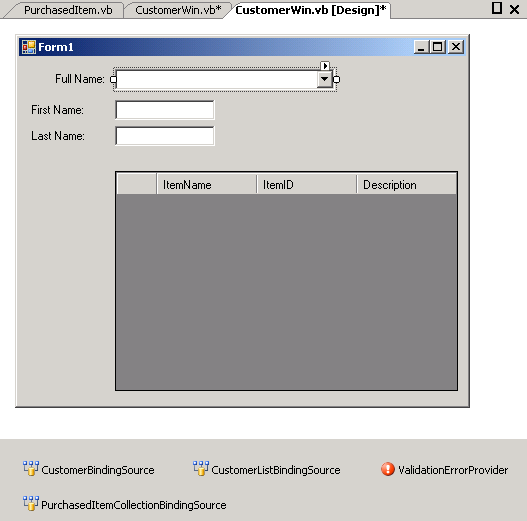
Click on the smart tag of the combo box to set the combo box properties. Set the DisplayMember to FullName and the ValueMember to CustomerID.
Finally, modify the user interface to populate the combo box and then to populate the other controls when the user selects the customer from the combo box. (Be sure to comment out or delete the Load event code created earlier.)
In VB:
Private Sub CustomerWin_Load(ByVal sender As _
    Object, ByVal e As System.EventArgs) _
    Handles Me.Load
    ' Bind the list
    Dim oList As New CustomerList
    CustomerListBindingSource.DataSource = _
                        oList.CustomerDataTable
End Sub

Private Sub _
    FullNameComboBox_SelectionChangeCommitted(_
    ByVal sender As Object, _
    ByVal e As System.EventArgs) _
Handles FullNameComboBox.SelectionChangeCommitted
    Dim oCustomer As Customer
    oCustomer = _
  Customer.Create(FullNameComboBox.SelectedValue)
    CustomerBindingSource.DataSource = oCustomer

    Dim oCollection As PurchasedItemCollection
    oCollection = _
            PurchasedItemCollection.Create(_
            FullNameComboBox.SelectedValue)
    PurchasedItemCollectionBindingSource. _
        DataSource = oCollection
End Sub
In C#:
private void CustomerWin_Load(object sender,
                                     EventArgs e)
{
    CustomerList oList = new CustomerList();
    customerListBindingSource.DataSource =
                        oList.CustomerDataTable;
}

private void
    fullNameComboBox_SelectionChangeCommitted(
                      object sender, EventArgs e)
{
    Int32 selectedID =
  Convert.ToInt32(fullNameComboBox.SelectedValue);
    Customer oCustomer =
                      Customer.Create(selectedID);
    customerBindingSource.DataSource =
                                 oCustomer;

    PurchasedItemCollection oCollection =
       PurchasedItemCollection.Create(selectedID);
    purchasedItemCollectionBindingSource.
                      DataSource = oCollection;
}
This basically fakes the object binding into thinking that it is binding to an object when in reality it is binding to a DataTable. This technique is very useful any time that you don’t need instances of the class but want to standardize all of your data sources to use object binding. (If you don’t mind mixed data sources, you could bind directly to a TableAdapter using Database binding instead of “fake” object binding here.)
In the Customer example, it makes sense to bind to a DataTable because of the possible large number of customers. And from a work flow perspective; it is highly likely that the user would only edit a few customers at a time-making it wasteful to create hundreds of thousands of individual instances and then bind to the list of these instances.
You can also use this fake object binding technique in cases where you need a list of types such as customer types, states, payment plans, and so on. In these cases the lists will always be read-only so there is no real need to create and manage instances.
As an example, add a State property to the Customer class. Build the project and you will notice that the State is added to the Data Sources window. Then build a StateList class similar to the CustomerList class created in this article. This StateList class will manage the list of states.
When using lists such as these, there are three properties of the combo box that you need to work with, all accessible from the combo box smart tag:
-
Display Member. Property you would like displayed in the combo box, such as “StateName”. This should be a property of your StateList class. -
Value Member. Property you would like used as the value of the combo box selection, such as “StateID”. This should also be a property of your StateList class. -
Selected Value. Binding source and property to which the user-selected value should be assigned. This should be a property of the Customer class, such as “State” and therefore a property of the CustomerBindingList.
This gives you full-featured object binding without needing to create classes and instances for all of your type codes.
User Interface Oddities
There are a few user interface oddities with regard to object binding. For example, there is no easy way to bind to radio buttons or add parent properties to a grid of child data. I’ll explain that last item in a moment.
The best way to bind to a radio button would be to have a RadioButtonList control. But there is no such control in Windows Forms. To bind to a set of radio buttons, you need to create separate business object properties for each radio button.
For example, say that you have a set of radio buttons that defines how a customer likes to receive invoices: E-mail, FAX, or Postal. In order to bind these, you need to create three separate Boolean business object properties: E-mail, FAX, and Postal, and then bind each property to an individual radio button. In the property procedure for each property, you will need to add code that sets the other property values to false whenever this property is set to true. (For the implementation of this, see the downloadable code for this article on the CoDe Magazine Web site.)
The second user interface oddity is that there is no easy way to show parent information on a grid of child data. For example, say you have a user interface that lists all invoices, similar to the grid on the Customer form shown in Figure 2 but without all of the other detail on the form. For the grid to be useful, it would need to display the Customer name from the associated Customer instance.
It would seem intuitive to reference the parent business object, Customer in this case, from the PurchasedItem business object to create the Customer instance. You can do this, and the Customer instance will show up in the Data Sources window, but you cannot access that Customer instance data from the grid.
The only workaround to this is to add a CustomerName property to the PurchasedItem business object. The property procedure for this property would then get the associated Customer’s Customer Name. See the downloadable code for an example.
Conclusion
Object binding provides a very logical mechanism for hooking controls on a user interface to business object properties. By implementing some of these tips and tricks, you can gain even more benefits from object binding.
Object binding is not perfect, but when has anything we’ve loved been perfect?
Listing 1: Temporary Retrieve method used for testing (VB)
Private Function Retrieve(ByVal CustomerID As Int32) As DataRow
    Dim dt As New DataTable

    ' Define the columns
    dt.Columns.Add("CustomerID")
    dt.Columns.Add("LastName")
    dt.Columns.Add("FirstName")

    Select Case CustomerID
        Case 1
            dt.Rows.Add(1, "Einstein", "Albert")
        Case 2
            dt.Rows.Add(2, "Curie", "Marie")
        Case 3
            dt.Rows.Add(3, "Brahe", "Tycho")
        Case 4
            dt.Rows.Add(4, "Faraday", "Michael")
    End Select

    Return dt.Rows(0)
End Function
Listing 2: Temporary Retrieve method used for testing (C#)
private DataRow Retrieve(Int32 CustomerID)
{
    DataTable dt = new DataTable();

    // Define the columns
    dt.Columns.Add("CustomerID");
    dt.Columns.Add("LastName");
    dt.Columns.Add("FirstName");

    switch (CustomerID)
    {
        case 1:
        dt.Rows.Add(1, "Einstein", "Albert");
        break;

        case 2:
        dt.Rows.Add(2, "Curie", "Marie");
        break;

        case 3:
        dt.Rows.Add(3, "Brahe", "Tycho");
        break;

        case 4:
        dt.Rows.Add(4, "Faraday", "Michael");
        break;

    }

    return dt.Rows[0];
}
Listing 3: Class to support binding to a DataTable with the illusion of object binding (VB)
Public Class CustomerList

    Public ReadOnly Property FullName() As String
        Get
            Return ""
        End Get
    End Property

    Public ReadOnly Property CustomerID() As Int32
        Get
            Return 0
        End Get
    End Property

    Public ReadOnly Property CustomerDataTable() As DataTable
        Get
            Return Retrieve()
        End Get
    End Property

    Private Function Retrieve() As DataTable
        Dim dt As New DataTable

        dt.Columns.Add("FullName")
        dt.Columns.Add("CustomerID")

        dt.Rows.Add("Einstein, Albert", 1)
        dt.Rows.Add("Curie, Marie", 2)
        dt.Rows.Add("Brahe, Tycho", 3)
        dt.Rows.Add("Faraday, Michael", 4)

        Return dt
    End Function
End Class
Listing 4: Class to support binding to a DataTable with the illusion of object binding (C#)
class CustomerList
{
    public string FullName
    {
        get { return "";}
    }

    public Int32 CustomerID
    {
        get { return 0;}
    }

    public DataTable CustomerDataTable
    {
        get { return Retrieve();}
    }

    private DataTable Retrieve()
    {
        DataTable dt = new DataTable();

        dt.Columns.Add("FullName");
        dt.Columns.Add("CustomerID");

        dt.Rows.Add("Einstein, Albert", 1);
        dt.Rows.Add("Curie, Marie", 2);
        dt.Rows.Add("Brahe, Tycho", 3);
        dt.Rows.Add("Faraday, Michael", 4);

        return dt;
    }
}
