



Being able to take handwritten notes or annotations is nice, but the real power of Tablet PCs comes from the ability to analyze and recognize digital Ink.
Recognition of handwriting is important as it allows for the conversion of digital Ink into standard text strings. Ink analysis takes the concept a step further and adds spatial interpretation to the mix to apply further semantics. Gesture recognition enables the user to trigger real-time actions.
An application can have several ways to interpret and recognize digital Ink. Simple handwriting recognition returns the most likely result as a string, but you can dig a lot deeper and retrieve alternate results, confidence levels, and much more. It is often helpful to divide Ink into individual segments, such as words or paragraphs.
Recognizing Ink as text becomes simple with the Tablet PC SDK.
But you can retrieve more information from Ink beyond its simple text representation. Users can perform gestures that your application can interpret separately from the writing itself. For instance, your application could recognize a scratch out gesture to erase a section of previously written Ink.
Your application may need to analyze Ink based on its location. One example is that your application might recognize Ink written at the side of a document with a line attaching it to an area of the document as an annotation. This sort of functionality also requires recognition of primitives, such as lines, circles, triangles, or rectangles, and recognition of the spatial relationship.
Recognizing Ink as Text
Simple recognition is so straightforward that I would almost call it primitive. This, of course, is only true from the developer’s point of view after applying the functionality of the SDK. There is nothing simple or primitive about handwriting recognition at all, but unless you work for Microsoft and/or write custom recognizers, you will not have to worry about the complexity of it.
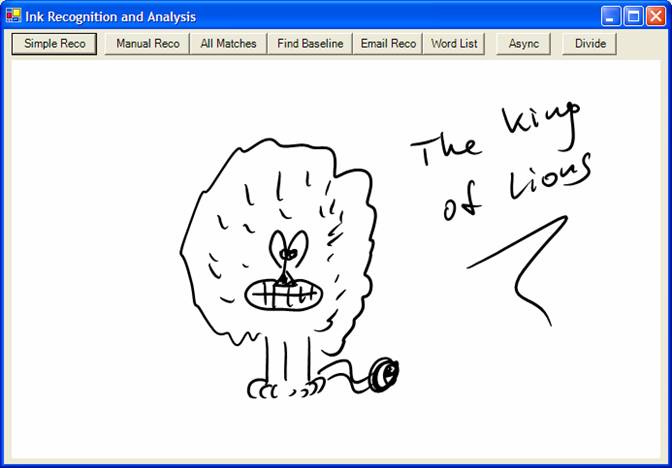
As a first Ink recognition example, I will walk you through a simple form that provides a panel area that is Ink-enabled through a simple InkCollector (or InkOverlay) object (Figure 1). The details of the implementation of the form are not particularly important (see Listing 1 if you want to follow along with the examples). What matters is that you ultimately arrive at a situation where you have an Ink object stored inside the InkCollector or InkOverlay object. In this first simple example, you’ll learn to convert that digital Ink to a text string. You’ll use a piece of code like this.
string result = collector.Ink.Strokes.ToString();
MessageBox.Show(result);
This takes all the strokes inside the Ink object and returns the most likely recognition result. A lot of work needs to happen under the hood. The system first has to determine which recognizers are installed. Almost all Tablet PC operating systems ship with multiple recognizers including (in the USA) an English handwriting recognizer and a gesture recognizer. To retrieve the most likely result, the default recognizer is used (on a US Windows Tablet PC operating system, that is likely be the English handwriting recognizer), and the collection of strokes is passed to the recognizer engine. This returns a result set that includes a whole lot of information (I will explore the details below), but most of it is ignored and only the single most likely result is returned.
You can write code to implement this approach yourself.
Recognizers recs = new Recognizers();
Recognizer reco = recs.GetDefaultRecognizer();
RecognizerContext context =
    reco.CreateRecognizerContext();
context.Strokes = this.collector.Ink.Strokes;
RecognitionStatus status =
    RecognitionStatus.NoError;
RecognitionResult res =
    context.Recognize(out status);
if (status == RecognitionStatus.NoError)
{
    MessageBox.Show(res.TopAlternate.ToString());
}
You can use a Recognizers object to determine the default recognizer installed (which replicates the behavior of the ToString() method. In real-life scenarios, it is more prudent to explicitly pick a specific language recognizer, such as the US-English recognizer, instead of relying on the default being set properly). Once you have that object, you have to create a private context.
Recognizers are busy objects. Imagine the recognizer context like a personal handle into a recognizer. You can change and configure your recognition context in any way you want without influencing other recognition operations. (Note: It is also possible to simply instantiate a RecognizerContext object with a similar result.) Once you have your own context, you can assign it the strokes you want to recognize. Then, all that’s left is to call the Recognize() method and retrieve the result set, assuming that the out-parameter (similar to a ByRef parameter in Visual Basic terms) returned a success code. To simulate the exact operations of the ToString() method, you simply look at the top alternate, which is the recognition result the recognizer is most confident about.
Recognition results can be improved drastically by providing factoids.
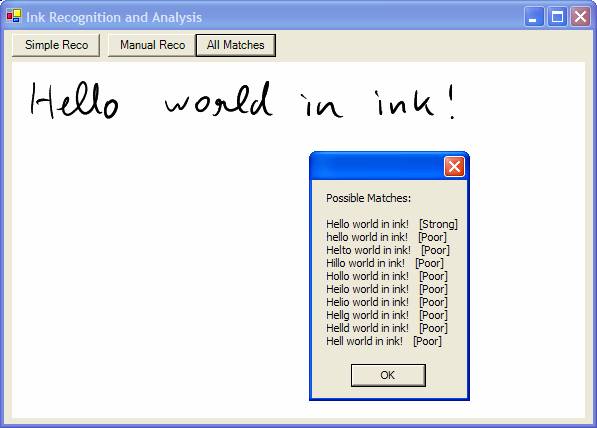
At this point, you’ve jumped through a lot of hoops to do what the ToString() method did in the first example. I think you need to understand how this set up works because you’ll often want to do a lot more with recognition results than just retrieve the top alternate. For instance, you may want to look at all other variations the recognizer considers possible matches and find out how confident the recognizer is about those matches. Here’s how to change the previous example to achieve that.
RecognitionResult res =
    context.Recognize(out status);
if (status == RecognitionStatus.NoError)
{
    string text = "Possible Matches:\r\n\r\n";
    foreach(RecognitionAlternate alt in
        res.GetAlternatesFromSelection())
    {
        text += alt.ToString() + " [" +
            alt.Confidence.ToString() + "]\r\n";
    }
    MessageBox.Show(text);
}
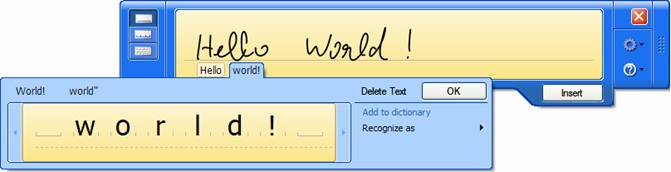
Figure 2 shows this example at work. Using this information, it becomes relatively easy to create an interface that allows the user to pick alternate recognition results. The TIP (Tablet PC Input Panel) is a good example for such an interface (Figure 3).
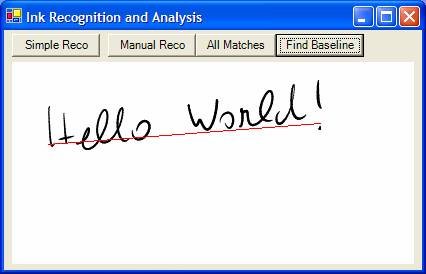
The recognition result also contains information beyond text, such as the baseline. The baseline is crucial in all handwriting recognition because it tells the recognizer where letters start and end. Typically, whenever you write on a piece of paper, you write on lines. These lines are the equivalent of baselines. The baseline determines the bottom of characters without under-lengths. (Characters without under-lengths are characters such as “a” or “b” but not the character “g”.)
Here is some code that finds the baseline for a single line of recognized text and draws it on the window.
if (status == RecognitionStatus.NoError)
{
    Line bl = res.TopAlternate.Baseline;
    Graphics g = this.panel1.CreateGraphics();
    Renderer rend = this.collector.Renderer;

    Point p1 = bl.BeginPoint;
    Point p2 = bl.EndPoint;
    rend.InkSpaceToPixel(g,ref p1);
    rend.InkSpaceToPixel(g,ref p2);

    g.DrawLine(Pens.Red,p1,p2);
}
The tricky part of this example is that all coordinates retrieved from Ink are stored in Ink space. This is the fancy way of saying that Ink is stored in higher resolution than display information. As a result, the code has to translate Ink coordinates to screen coordinates. This is pretty straightforward in this scenario because the Ink overlay used to collect the Ink happens to have a Renderer object, which provides translation functionality you can use. (Note: For detailed information on how to translate Ink coordinates to screen coordinates, see the “Real Time Stylus” article in this issue.) Figure 4 shows a detected baseline in a single line of Ink.
Note that the approach for baseline detection shown above only works if the Ink contains a single line of text. This is never guaranteed in Ink. If there is more than one line of Ink (or if the recognizer thinks there is more than one line of Ink), you need to use the LineAlternates collection to retrieve all the available baselines.
Having access to a recognizer context not only allows you to retrieve a significant amount of information about the recognition result, but it can also be used to improve recognition quality. The simplest way to do so is by providing a factoid. For instance, you can set the context’s factoid to “EMAIL”, indicating to the recognizer that you expect to find an e-mail address. This improves recognition results because the recognizer can apply rules such as “there shouldn’t be any spaces in an e-mail address” or “the weird character is probably an @”. This code sample specifies such a factoid.
RecognizerContext context =
    new RecognizerContext();
context.Factoid = "EMAIL";
context.Strokes = this.collector.Ink.Strokes;
RecognitionStatus status =
RecognitionStatus.NoError;
RecognitionResult res =
    context.Recognize(out status);
if (status == RecognitionStatus.NoError)
{
    MessageBox.Show(res.TopAlternate.ToString());
}
context.Dispose();
The Tablet PC supports such factoids that can be set and combined at will. (See the documentation for a complete list.) For instance, you can provide a factoid indicating that the recognition result should be either an e-mail address or a URL.
context.Factoid = "EMAIL|WEB";
There also is a Factoid class featuring static members that you can use instead of having to remember the actual factoid strings assigned to factoids. The above example could have also set the factoid, like so:
context.Factoid = Factoid.Email;
Note that factoids are always strings and are not limited to what is defined in the Factoid class, nor is there any guarantee that all the settings in the Factoid class are supported by each language or culture.
Support for gestures such as scratch out can significantly improve the user experience.
You can take a similar approach by providing a word list suggesting a list of potential recognition results. This is very useful whenever you want to use Ink recognition to recognize a set of terms. For instance, an insurance application can be used to annotate a photo of a car. Using a word list, you can optimize the recognizer to find key terms such as “hail damage.” Here’s how it works.
WordList lst = new WordList();
lst.Add("hail");
lst.Add("damage");
lst.Add("car");
lst.Add("crash");
context.WordList = lst;
context.Factoid = Factoid.WordList;
If you are following along with these examples, you may have noticed that Ink recognition is pretty resource-intensive, and whenever you ask the recognizer to recognize large amounts of text, things can get pretty slow. Whenever you run into this particular problem, you may want to think about asynchronous Ink recognition.
In asynchronous scenarios, the recognizer context is created and stored away for later use. It is also assigned a stroke collection right away. Everything else is handled through an event model. Recognition happens on a secondary thread, but all events are funneled back to the UI thread (“your” thread) and therefore developers do not have to worry about threading issues. There are two events of importance: Whenever a new stroke is added to the Ink collector, this stroke also has to be added to the recognizer context and subsequently, background recognition has to be triggered, which will cause a Recognition event on the recognizer context object. Here is the code that defines the context and wires up all the required events.
private RecognizerContext myContext;
private Strokes myStrokes;

private void button7_Click(object sender,
    System.EventArgs e)
{
    this.myContext = new RecognizerContext();
    this.myStrokes = this.collector.Ink.Strokes;
    this.myContext.Strokes = this.myStrokes;
    this.collector.Stroke +=
        new InkCollectorStrokeEventHandler(
        collector_Stroke);
    this.myContext.Recognition += new
        RecognizerContextRecognitionEventHandler(
        context_Recognition);
}
Here is the code that reacts whenever a new stroke is received.
private void collector_Stroke(object sender,
    InkCollectorStrokeEventArgs e)
{
    this.myStrokes.Add(e.Stroke);
    this.myContext.BackgroundRecognize();
}
This code subsequently triggers the following code (length of the delay depends on the amount of Ink, but will likely be very short), which receives the recognition result and displays it in the form’s title bar.
private void context_Recognition(object sender,
    RecognizerContextRecognitionEventArgs e)
{
    this.Text = e.Text;
}
Note that this event passes along all the recognized text each time. This is important, because previously recognized text can change as more Ink becomes available. For instance, the recognizer may think the user wrote an “I”, but after a few more strokes, that character may look more like an “H.” This also applies for words and sentences. A recognition result of “1am” may later turn into “I am here” after the last word has been added, as that makes a lot more sense than “1am here.”
Recognizing Gestures
All the examples I’ve shown so far have used the default text recognizer to turn handwriting stored as digital Ink into string data. A somewhat different aspect of recognition is the ability to recognize gestures. Using the Ink collector object you have used in all examples so far, you can enable gesture recognition for individual gestures you’re interested in and then apply your own logic to react to those gestures.
When the amount of Ink grows beyond a few words or lines, additional semantics, such as paragraphs and lines, become increasingly important.
For example, consider the “scratch out” gesture which allows the user to scratch out (delete) Ink that was previously written. As a first step in this scenario, you want to enable gesture recognition on the Ink collector and to specify which gestures you are interested in.
this.collector = new InkCollector(this.panel1);
this.collector.CollectionMode =
    CollectionMode.InkAndGesture;
this.collector.SetGestureStatus(
    ApplicationGesture.Scratchout, true);
this.collector.Enabled = true;
Note that it is not enough to just enable gesture recognition on the collector. You also need to specify the individual gestures you are interested in, otherwise, the system would spend a lot of processing time finding gestures you do not care about and then alert you about an overwhelming number of gestures. For this example, you will only be interested in the scratch out gesture, but you could enable gesture recognition for as many different gestures as you desire.
Based on this configuration, the collector object fires events whenever it thinks it has discovered a gesture. You can hook that event in the following fashion:
this.collector.Gesture +=
    new InkCollectorGestureEventHandler(
    this.collector_Gesture);
Whenever you receive a gesture event, you need to first decide whether you agree that a scratch out gesture occurred, and subsequently, you need to decide how to react to that gesture.
To confirm that a scratch out gesture occurred, you need to verify that the ID of the recognized gesture is that of a scratch out gesture. In the current scenario no other gestures should occur, but in most scenarios, you will use more than one gesture. Furthermore, you’ll only consider the scratch out gesture to really have occurred if the recognizer is reasonably certain about its findings. In other words: you’ll ignore gestures with anything lower than intermediate recognition confidence.
But there is more. A scratch out is really only a scratch out if it scratched something out. So you need to check whether there is any Ink under the area that has been scratched out. To be somewhat tolerant, you need to find all previously existing strokes of Ink that have at least a partial overlap with the performed scratch out gesture. I generally find a 60% overlap to work very well for this sort of operation. The way to implement this check is to first get the bounding box of the scratch out gesture (the rectangular area the scratch out gesture occurred within) and then use that information to query all the previously existing strokes that fall within that area (give or take 40%). This is relatively complex functionality, but luckily the Tablet PC SDK provides it all for you.
Once you’re certain that a scratch out did in fact occur, you delete the affected existing strokes. Note that the scratch out gesture also created a set of Ink strokes. Because you’ve determined that they were used to perform a scratch out gesture, you do not want the system to use that Ink for anything else (such as handwriting recognition). You’ll therefore set the Cancel property on the event arguments object to true and also remove all of the new strokes from the Ink object.
Voila! Your scratch out support is complete. Listing 2 shows the implementation of the Gesture event handler.
The Ink Divider
Whenever you need to analyze small amounts of text, the techniques introduced above are usually sufficient. However, when the amount of text grows to multiple lines and paragraphs, you may have the need to apply further semantics to the Ink before you perform any recognition. For instance, you may need to first identify paragraphs and then perform recognition on an individual paragraph. To do so, you need to be able to find all the strokes that make up a paragraph.
The same semantic identification may also arise for needs other than handwriting recognition. For instance, the user may resize your Ink area, forcing you to either stretch or shrink the Ink (this possibility arises whenever only small amounts of Ink need to be resized) or even re-flow the Ink. In that case, you need to implement word wrap for Ink, which is completely dependent on your ability to find strokes that make up individual words within a large collection of strokes.
Microsoft created the Ink Divider object for exactly these purposes. It can take a collection of strokes and apply logical divisions. Once a division result has been achieved, the developer can ask to get specific sets of information based on various criteria. Common scenarios are paragraph identification, line identification, and word identification. “Words” are actually called “segments” because a clear separation of words is not always easy. Is “InkDivider” one word or two words? With regular text, it is one word if there isn’t a space in it, but with Ink, boundaries are not as clear cut. For most purposes, you can equate “segments” to “words.”
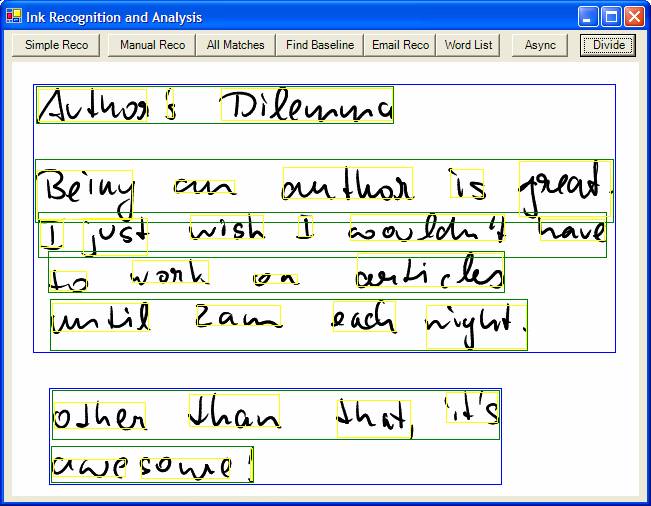
Listing 3 shows an example that accepts all strokes in an Ink object for spatial analysis and division. The sample next retrieves three division results to find all paragraphs, lines, and segments, and then draws bounding rectangles around all the strokes that make up these sub-sections of the Ink. You can see the result in Figure 5. Note that there is much more you can do with these division results than retrieving the bounding rectangle. The results provide quick access to the top-alternate recognition result for each section. The result also provides access to the collection of strokes that make up each segment, allowing the developer to perform all operations that can be performed on other stroke collections, such as recognition, manipulation, or transformation.
It also needs to be mentioned that Ink Dividers have two small but (for some) significant shortcomings: Ink Dividers can not retrieve recognition alternates the same way regular ink recognition does. Secondly, Ink division results cannot be stored externally once they have been retrieved. Both of these shortcomings are addressed in technology I will talk about next: Ink Analysis.
Ink Analysis
Everything you have seen in this article so far is available in the Tablet PC SDK version 1.7 and later. But it doesn’t stop there. Microsoft is busy working on additional capabilities for developers who attempt to make programmatic sense of the mess of strokes and package points that is Digital Ink. The Community Technology Preview (CTP) for the Tablet PC SDK released in September 2005 features some very intriguing capabilities that all fall under the umbrella of Ink analysis. Because this is CTP technology, it is still in beta as I write this article. Nevertheless, it is functionality that I should introduce you to.
Ink analysis is a superset of the older recognizer context and Ink divider.
Ink analysis is a superset of everything I’ve discussed in this article so far, including various ways of Ink recognition and Ink division. However Ink analysis takes these concepts to the next level and provides a much smarter and more convenient approach to extracting meaning from Ink beyond strings. The Ink divider can find important logical units such as paragraphs, but with Ink analysis, you’ll be able to distinguish more sophisticated concepts, such as annotations or bulleted lists. Ink analysis also provides new recognition options such as the recognition of graphical primitives (circles, lines, rectangles, triangles, and more).
To start out, let’s look at the hierarchical representation of flow text. To retrieve a hierarchical representation of Ink, you first have to analyze a collection of strokes. To do so, you’ll create an Analyzer object, assign it some strokes, and call the Analyze() method.
InkAnalyzer analyzer =
    new InkAnalyzer(this.collector.Ink,this);
analyzer.AddStrokes(this.collector.Ink.Strokes);
analyzer.Analyze();
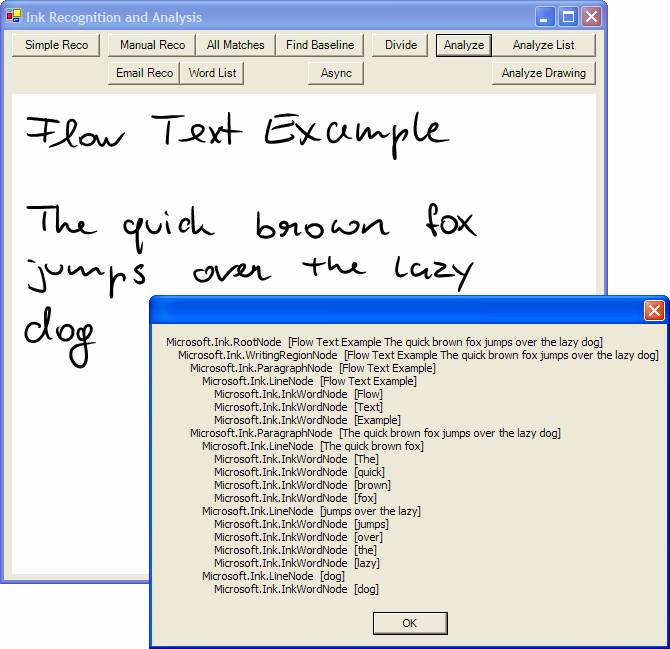
At this point, the analyzer contains detailed information about the Ink assigned to it. You can retrieve this information in a variety of ways. For instance, you can look for certain pieces of information you are interested in (such as all the paragraphs). Another alternative is to simply start out with the root of the Ink and drill into its drawing areas, paragraphs, lines, words, and much more. Listing 4 shows an implementation that drills through the entire tree and lists all the nodes and their types, as well as the text recognized for each node. Figure 6 shows the result.
There are a few differences between this approach and the Ink divider approach shown above. For one, Ink analysis provides a more consistent approach with spatial analysis, context parsing, and handwriting recognition all provided by a single service. (It is also possible to pass cultural information to AddStrokes(), allowing for easy multi-lingual recognition.) Also, using Ink analysis is much easier than using the Ink divider, yet at the same time it is more powerful because it can detect more meaning in Ink. It can find things such as bulleted lists and it also does a much better job in finding words, rather than just segments.
Developers can now recognize drawings such as circles, triangles, squares, and much more.
Furthermore, Ink analysis provides services that aren’t provided by the previous version of the SDK at all. Drawing analysis is one such example. The following code snippet finds all the drawings in a collection of strokes.
InkAnalyzer analyzer =
    new Microsoft.Ink.InkAnalyzer(
    this.collector.Ink,this);
analyzer.AddStrokes(this.collector.Ink.Strokes);
analyzer.Analyze();
ContextNodeCollection drawings =
    analyzer.FindNodesOfType(
    ContextNodeType.InkDrawing);
string drawingString = "You drew:\r\n\r\n";
foreach(InkDrawingNode drawing in drawings)
{
    drawingString +=
        drawing.GetShapeName() + "\r\n";
}
MessageBox.Show(drawingString);
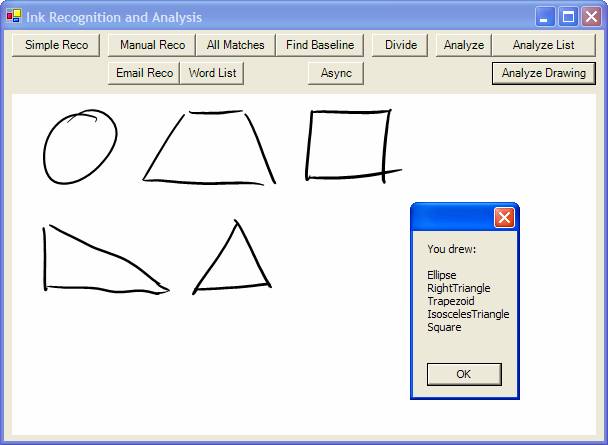
This finds drawings such as rectangles, circles, various types of triangles, trapezoids, and much more. Figure 7 shows an example.
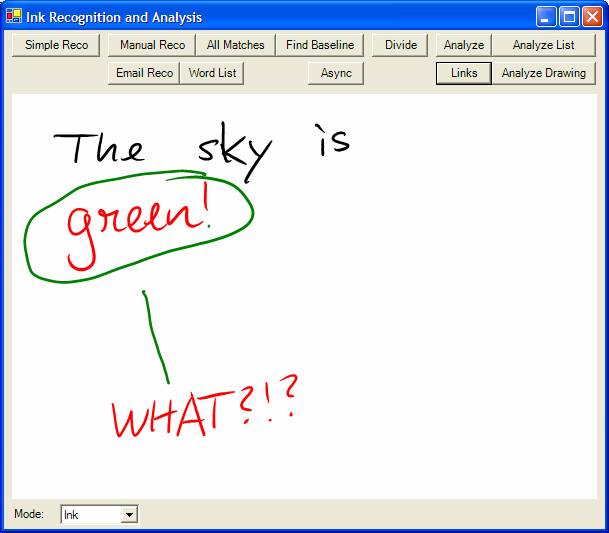
Another great feature that Ink analysis provides is the ability to derive meaning from various strokes of Ink and their association with each other. For instance, a line under a word is generally interpreted by humans as an underlined word. The line communicates meaning by emphasizing a word. The line certainly should not be interpreted as a separate drawing. Similarly, a circled word with an arrow pointing to additional text would be interpreted by a human reader as an annotation. It also implies certain behavior when that Ink is manipulated. If the circled word moves to another line, for instance, the annotation should still link to the word and not to a blank space or a different word that now moved in the place of the old word. In other words, the annotation needs to be linked to the Ink (or other data) it annotates and move with it.
Listing 5 shows an example that iterates over the entire tree of nodes and looks at logical links to other nodes. These links are then color-coded to provide a visual indication. Figure 8 shows an annotation that is recognized as being linked to a word. Of course, finding annotations is only one use of this technology. Another idea combines spatial analysis with the ability to recognize shapes, allowing developers to build a diagram engine that can analyze and recognize things like flow charts.
Of course, these are but a few examples of what the new Ink analysis API can do. I encourage you to poke around in this exciting new SDK.
Conclusion
Being able to collect and store digital Ink on Tablet PCs is great, but the real power emerges when additional logic and smarts get applied to Ink information. Unrecognized Digital Ink is better than Ink on a piece of paper, but not much. The ability to turn Ink into text or other meaningful information is where the real advantage of Tablet PCs comes into play. And even if Ink is stored as Ink, recognition still is a tremendously important component, be it to allow you to search Ink, or for spatial analysis and the contextual information derived from that.
Ink recognition and analysis is surprisingly easy, and every developer should have a fundamental understanding of these concepts, especially as Ink moves into the core operating system and will be available on all versions of Windows Vista.
Some lines are just drawings and others are used to put emphasis on words by underlining them. The difference between the two types of lines is significant.
