



Two-way data binding can save you a ton of coding, as long as you can get the bound controls to behave the way you want them to.
Using the BindingSource and Binding objects in .NET 2.0, getting what you expect in minimal code becomes a whole lot easier. In this article, I will explore how to use the BindingSource and Binding objects to set up associations between complex data sources and bound controls. I'll show you how to keep multiple controls that are bound to the same data source synchronized, and how to control the formatting and parsing of the data in those controls.
One of the key capabilities that has been part of Windows Forms since the release of .NET 1.0 is two-way data binding. Data binding capabilities in Windows Forms involves support built into container controls (forms and user controls) as well as support built in to each data bound control itself. The collection and capabilities of data bound controls has increased in .NET 2.0. I will use some of those new features for the sample code in this article.
Instead of binding the controls directly to the data sources or collections of data objects, you instead bind the controls to either a BindingSource object or a Binding object.
In the past, when you needed to manage multiple controls on a form that were bound to the same or related sets of data, it was easy to get dazed and confused because things were not designed as nicely as they could have been. You had to dive into low level forms of infrastructure, accessing binding contexts and currency managers in ways that were not at all intuitive.
In .NET 2.0, the data binding capabilities of forms and controls has been redesigned in a way that makes it much easier to keep complex data collections synchronized and formatted as desired. This article will build on the information presented by Steve Lasker in his articles on “Drag Once Databinding” in last year's September/October and November/December issues of Code Magazine. I'm going to focus more on the code you might write if you are wiring things up yourself to give you a deeper understanding of what the designers are doing for you when they write the code.
Note that the sample code for this article was developed using an early build of Beta 2. The names of some of the key components and properties have been refactored since Beta 1, including the DataConnector component being renamed to BindingSource.
Start with the Source
To do any data binding, you need a source of data. You can more easily bind to collections of custom objects in .NET 2.0, as was described by Lasker in his article. However, typed data sets are still a very viable and powerful way of binding to data, and typed data sets received some designer and code enhancements in .NET 2.0 as well. For this article, I will use a complex typed data set from the pubs sample database in SQL Server 2000.
The schema of the typed data set I'll be working with is shown in Figure 1. This is a slice of the data from the pubs database so that I can show a mix of one-to-many, many-to-one, and many-to-many data relationship combinations. The data is retrieved through a simple ADO.NET data access layer class contained in the download code. Figure 1 comes from the new typed data set designer in Visual Studio 2005.
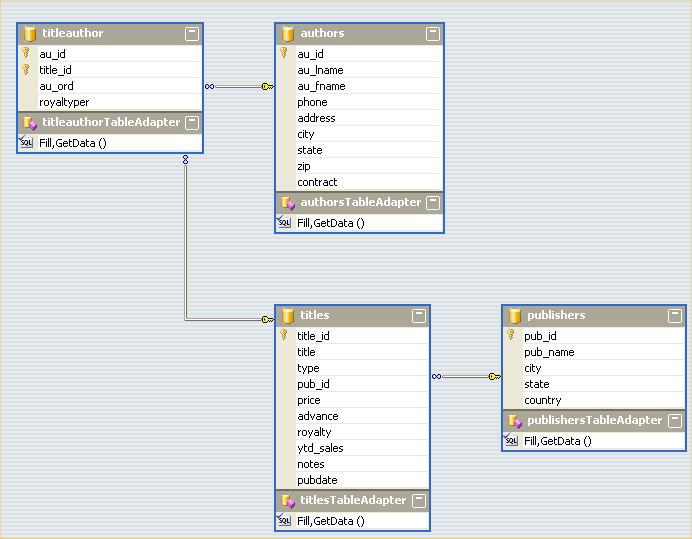
You can see that in addition to defining typed tables for each table in the data set, typed table adapters are also created. You can think of table adapters as typed data adapters that provide strongly typed methods for filling and updating the corresponding typed data table within a data set. The new designer also picks up on foreign key relations in the database when you drag and drop tables from Server Explorer onto the designer surface, and the corresponding data relations are added to the typed data set along with corresponding members in the tables that allow you to navigate to child or parent rows.
The GetPublicationData() method in the data access class simply uses each of the table adapters to fill the corresponding tables to give you some complex related data to work with.
public static void
  GetPublicationData(PubsDataSet data)
{
   authorsTableAdapter authorsAdapter = new
      authorsTableAdapter();
   authorsAdapter.Fill(data.authors);
   titlesTableAdapter titlesAdapter = new
      titlesTableAdapter();
   titlesAdapter.Fill(data.titles);
   titleauthorTableAdapter titleAuthorAdapter
      = new titleauthorTableAdapter();
   titleAuthorAdapter.Fill(data.titleauthor);
   publishersTableAdapter publishersAdapter =
      new publishersTableAdapter();
   publishersAdapter.Fill(data.publishers);
}
If you drag and drop data sources onto a form or onto controls from the Data Sources window, the designer will add controls and components to your form and will add lines of code to the Form.Load event handler to fill the data sets. For real world applications, you will usually want to control this process yourself through a data access layer or methods like that shown above. You can still take advantage of the table adapters to act as your main data access components for each tabular set of data. You can create tables in typed data sets based on the result set returned from stored procedures or views as well, so the data represented by a table in your data set does not have to be tightly coupled to the table schema of your database.
When you talk about data sources in the context of Windows Forms data binding, keep in mind that the data binding mechanisms are designed to be agnostic of the actual type of the collection of data, as well as the type of the individual data items in the collection. Also, in the context of data binding, data sources mean in-memory stores of data, as opposed to the actual data sources where the data came from, like a database or object persistence store. So while you might often deal with data sources that are typed data sets where the collections are strongly typed data tables and the items are strongly typed data rows, you might just as often deal with custom collection classes containing custom business objects. When the collection is a data table, the data items are rows and the data members within a row are fields. For custom objects the items are the object instances and the data members are the public properties on those objects.
The data binding mechanisms of Windows Forms don't really care whether you are binding to data sets or custom collections as long as the collection and object types implement a certain set of interfaces that indicate what their capabilities are with respect to data binding. The minimum requirement for a collection to be used with Windows Forms data binding is to implement the IList interface. Doing so allows items in the collection to be iterated over, displayed, and edited if desired. However, if the collection implements the IBindingList interface, it can support filtering and sorting as well.
Data Binding Components
The two key classes that simplify complex binding scenarios in Windows Forms 2.0 are the BindingSource component and the Binding class. The BindingSource component is used for setting up associations between controls and collections of data, and the Binding class is used to set up a one-to-one correspondence between an individual property on a control, and a data property or field within a data source. These objects basically provide a layer of indirection between the bound controls and their actual data source. Instead of binding the controls directly to the data sources or collections of data objects, you instead bind the controls to either a BindingSource object or a Binding object.
In .NET 2.0, the data binding capabilities of forms and controls has been redesigned in a way that makes it much easier to keep complex data collections synchronized and formatted as desired.
You use a BindingSource if the control displays information from more than one data item in the collection at a time, such as a grid, list, or combo box, and you use a Binding object if the control only displays information from a single property or field on a single data item at a time, such as a label or textbox. Binding objects can use a BindingSource as their data source, and one BindingSource can be used as the data source for another BindingSource, allowing you set up hierarchical bindings.
Figure 2 depicts various combinations of form controls and binding objects. The arrows represent a data source reference from one object to another. You can see the use of a BindingSource as an intermediary between a collection (data source) and a grid or list control. You can also see that I used one BindingSource as the data source for another BindingSource, where the first BindingSource is set as the data source for a listbox in the form. Textbox controls will always use a Binding object to set up the data binding, but that Binding object will often use a BindingSource as its data source, providing a layer of abstraction between the control bindings and the underlying data.
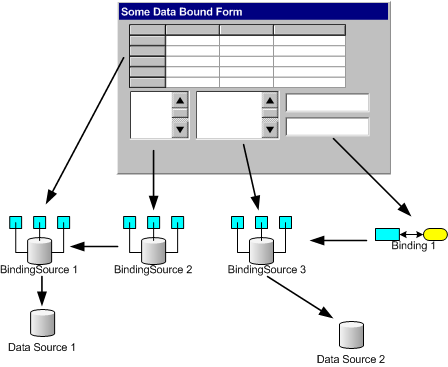
There are several advantages to having this extra layer of abstraction. The first is that if multiple controls are bound to the same data source, they can all be updated to a new or refreshed data source by setting the data source on the BindingSource, rather than updating the data source on every individual control. Additionally, the BindingSource object gives you direct access to the underlying collection of data as a list of objects, allowing you to work with the collection without knowing its type. The BindingSource component also gives you easy access to the current item within the collection, the ability to set which item is current, and it raises a number of events that allow you to monitor changes in the underlying data source in ways that were very challenging to achieve prior to the introduction of the BindingSource component.
To work with a BindingSource component, you set its DataSource property to reference a collection of data items, where the collection implements the IList interface. If the data source is something like a data set, which contains a collection of collections, then you can set the DataMember property of the BindingSource to the name of the property within the data source that represents the list that you want to bind to. To work with a Binding object, you create an instance of the Binding object and add it to the DataBindings collection on the Control base class from which all controls derive. In creating the Binding object, you specify the name of the property on the control that is being bound (such as the Text property on a TextBox control), the data source (which can be a collection or an individual object instance), and the name of the data member within the data source to bind to the control property (such as the au_name field if the data source represents the authors table).
Master-Details Binding
Now that you have some data to work with and you have a sense of what the BindingSource and Binding objects are, let's set up some binding scenarios to make the concepts more concrete and demonstrate how to use them. One of the most common forms of complex data binding is to set up master-details binding. Master-details refers to when you have two collections of data, such as titles and publishers in the pubs database, where there is a parent-child relationship between items in one collection and items in the other. In the case of titles, each title has a publisher, identified by the pub_id column in the table. Using that foreign key value, you can locate the corresponding row in the publishers table for display purposes. This is basically a way of displaying a one-to-many relationship between data items.
If you were dealing with custom objects in a collection instead of using a data set, each parent object in the collection of parent objects would have to expose a public property that refers to a collection of child objects. If that collection implements the IList interface, you can then set up master-details data binding with the custom objects in the same fashion as with two data tables in a dataset related by a data relation.
When you set up master-details binding, you typically show a grid or list control with the parent items in it (publishers), and when a given parent item is selected, you display all of the related child items (titles) in another grid or list control. In the sample application in the download code, there is a form that has two DataGridView controls on it, one for publishers and one for titles. There are two BindingSources contained by the form as well, one for publishers and one for titles, and they are each set as the DataSource for their respective grids. The publishers BindingSource has its DataSource property set to the publishers table of the PubsDataSet typed data set that gets populated by the data access layer class. The titles BindingSource has its DataSource set to the BindingSource for the publishers, with its DataMember property set to the data relation on the table that links the publishers and titles foreign key relation (FK_titles_publishers). Listing 1 shows the code that hooks this all up.
The form load handler for the master-details form first populates the PubsDataSet instance in the form using the data access class method shown earlier. It then sets the data source for each of the grids to their respective BindingSource objects. Then the DataSource and DataMember properties for each of the BindingSource objects is initialized. For the publishers parent data, the BindingSource DataSource is set to the dataset and the DataMember is set to the table name of the publishers table. Note that I chose to use the strongly typed properties of the dataset to specify the table name in a way to avoid hard coding schema object names in my code. This way if the table name changes in the future, the code will fail to compile on the line that sets the data member, making it easier to correct problems caused by schema changes.
For the child table BindingSource, I set the DataSource to the parent BindingSource object (m_PublishersBindingSource), and specify the DataMember as the name of the data relation in that parent dataset that relates the child table to the parent table (FK_titles_publishers). Unfortunately there is no strongly typed way to specify the relation.
By chaining BindingSources with one BindingSource's DataSource property and setting it to reference another BindingSource and setting its DataMember property to the name of a child collection property within the parent BindingSource's data items, you can have arbitrarily deep nesting of hierarchical data sources. The Windows Forms synchronization mechanisms, in conjunction with the BindingSource objects, will take care of keeping them all synchronized based on selections within controls that are bound to them.
Many-to-Many Relations Data Binding
If you look back at Figure 1, you can see that authors and titles are related to one another through a many-to-many relationship. This is evident in a relational schema like a dataset because of the need of a join table (titleauthor) that holds foreign keys into the two related tables.
There is no inherent way to automatically synchronize the contents of the two tables (authors and titles) in this case, because it is up to you to decide which table to treat as a parent and which to treat as a child for display purposes. Also, the presence of the intermediate table poses an additional complication. However, BindingSources make this situation relatively simple to tackle as well.
Suppose that you want to show a table of authors, and when each author is selected in the grid, their published titles show up in a second grid in the form (Figure 3). You could achieve this by re-querying the database on each selection, performing a JOIN on the authors, titles, and titleauthor tables for the appropriate au_id. However, that means extra round trips to the server, which is usually unnecessary.
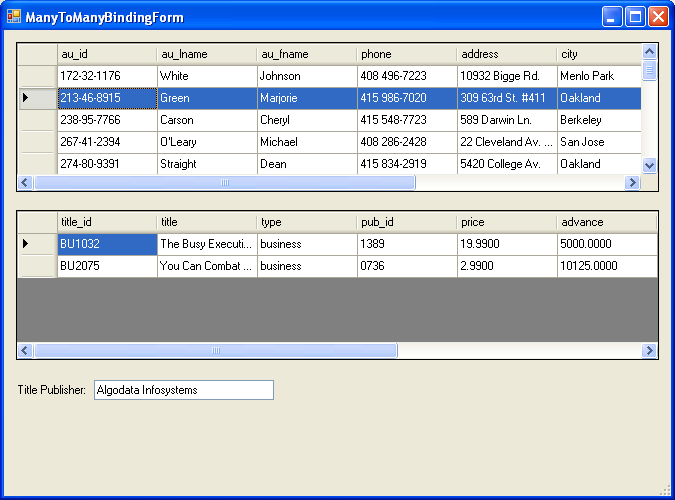
What we can do is set up a BindingSource for each one of the tables involved (authors, titles, and titleauthor), and use a combination of the automatic synchronization for master-details binding, the events raised by a BindingSource, and the filtering capabilities of a BindingSource to get what you want with minimal code. To support this solution, the underlying data source for the BindingSource will have to support filtering through an implementation of the IBindingList interface. Datasets provide this for you out of the box. If you are using custom object collections, you will have to do a fair amount of extra work to achieve that capability.
Here's what you'll do: The authors grid will have a straightforward binding to the authors table through its BindingSource. Likewise, the titles grid will have a similar binding for the titles table. You'll set up an additional BindingSource for the titleauthor table as a child binding on the authors BindingSource. Then, whenever the list changes for the titleauthor BindingSource (which will happen whenever a new author is selected in the author grid through the master-details mechanisms), you'll set up a new filter criteria for the titles BindingSource to only show the related titles. Listing 2 shows the complete form code that sets all this up.
The Form Load event handler in Listing 2 first loads up the PubsDataSet as described earlier. It then binds the authors and titles grids to their respective BindingSource objects. The authors and titles BindingSources are bound to their respective tables in the dataset. The m_TitleAuthorBindingSource is bound using a master-details binding as described in the previous section so that the list exposed by that BindingSource will update whenever the selection in the authors BindingSource changes. You can ignore the publishers binding code for now; that will be discussed in the next section.
Finally, the Load event handler wires up some event handlers for events raised by the BindingSource objects. The BindingComplete and ListChanged events are raised by a BindingSource object when the data binding process is complete against its underlying data source, and when the contents of the list it manages have changed, respectively. By hooking up event handlers for these events against the m_TitleAuthorBindingSource, you will be notified whenever the child list of rows in the join table has been updated due to a selection change in the authors table. You could have also done the same against the authors table, instead monitoring the CurrentChanged event.
The event subscriptions are done in Listing 2 using a new C# language feature called delegate inference. You can simply set the event subscription to the name of the handler method, and the compiler will worry about creating an instance of an appropriate delegate to add to the event's subscriber list.
The event handlers just described call a helper method called BindTitles(). This method loops through the rows in master-details bound m_TitleAuthorBindingSource list, and generates a filter string that is then applied to the m_TitlesBindingSource object to restrict which of the rows in its collection it displays.
Details-Master Data Binding?
You won't hear it called that often, but another common requirement in data binding is to provide a display mechanism for many-to-one relations between collections of data. This is basically synchronizing from a selection in a collection of child items to update another control that will display the corresponding parent item.
The easiest way to do this is to tap into the events raised by a BindingSource again. The code I skipped over in the Load event handler of Listing 2 sets up a data binding between the publishers table and the textbox at the bottom of the form that displays the publisher name for the currently selected title in the titles grid.
m_PublishersBindingSource.DataSource =
         m_PubsDataSet.publishers;

// Set the simple binding on the textbox
m_PublisherTextBox.DataBindings.Add("Text",
   m_PublishersBindingSource, "pub_name");
The Add method on the DataBindings collection of a control creates a new Binding object and adds it to the collection of bindings for that control. In this case, you are tying the pub_name column of the publishers table to the Text property of the TextBox control through the m_PublishersBindingSource as the data source. Whatever item is current in the data source will automatically be displayed in the TextBox, and any edits to the text will be pushed back into the underlying data source when the focus leaves the control.
With just those two lines of code, there is no synchronization set up between selected titles and the publishers. There are a couple of ways to achieve that synchronization. One would be to not even bother with data binding as shown above, but simply set the Text property of the TextBox directly based on row selections in the titles grid. This will trigger the CurrentChanged event on the m_TitlesBindingSource for which you have an event handler. In that event handler, you could just navigate to the parent row using the properties exposed on a typed data set, and use it to set the TextBox value.
private void OnCurrentTitleChanged(object sender,
   EventArgs e)
{
   // Get the current row from the titles source
   DataRowView rowView =
      m_TitlesBindingSource.Current as
      DataRowView;
   // Cast to the strongly typed row type
   PubsDataSet.titlesRow row = rowView.Row as
      PubsDataSet.titlesRow;
   // Set the value ? no data binding
   m_PublisherTextBox.Text =
      row.publishersRow.pub_name;
}
However, if you want to stick with a data bound approach, you can again use the filtering capabilities of BindingSources to filter the publishers list down to only the matching row.
private void OnCurrentTitleChanged(object sender,
   EventArgs e)
{
   // Get the current row from the titles source
   DataRowView rowView =
      m_TitlesBindingSource.Current as
      DataRowView;
   // Cast to the strongly typed row type
   PubsDataSet.titlesRow row = rowView.Row as
      PubsDataSet.titlesRow;
   // Set the filter on the publishers source
   m_PublishersBindingSource.Filter =
      "pub_id = '"
      + row.pub_id + "'";
}
Now the publisher name is constantly kept synchronized through data binding and filtering.
Formatting and Parsing Bound Values
Sometimes the way the data is stored in the data source is not exactly how you want to display it. For example, you may want to format a date-time string, or take a raw image stored in the database and turn it into a Bitmap object for binding against a PictureBox control.
The way you dealt with these kinds of situations in the past was to handle the Format and Parse events on the Binding object for simple bound controls, or to handle control-level events for DataGrid or ComboBox controls to intercept the data as it was being bound. You can still use those events for specialized situations, but in .NET 2.0, things have become a lot easier because there is built-in support in the Binding class for doing automatic formatting and parsing of values based on type converters associated with the data value types being used.
The Binding class now has a number of new overloads and properties that let you influence automatic formatting that is done by the class as it grabs values out of the data source and before it sets the corresponding property on the bound control. You can set format strings or provide your own format provider. You can also influence when the formatting occurs. Parsing follows a reverse process and just works in many common cases.
As a simple example, say you wanted to enhance the master-details form presented before to include a textbox that displays the publication date of whichever row in the titles grid is currently selected, and you want to display the date in a MM/YYYY format. All you need to do to support this is set a few extra pieces of information on the Binding object before you add it to the DataBindings collection of the TextBox:
Binding pubBinding = new Binding("Text",
m_TitlesBindingSource, "pubdate", true);
pubBinding.FormatString = "MM/yyyy";
pubBinding.NullValue = "<null>";
m_PubDate.DataBindings.Add(pubBinding);
The fourth argument to the Binding constructor turns automatic formatting on. You can then provide a format string if the type being formatted (DateTime in this case) has a default formatter that will know what to do with the string you provide. If not, there is a FormatProvider property that you can set to provide a specialized formatter. As you can see, you can also specify what value should be displayed for DBNull values, and if that same value is read back in while parsing, a DBNull will be placed in the underlying data source.
The automatic formatting will try to find a type converter to use if the bound property is not a string. For example, if the bound property type is Image, and the value in the data source is a byte array, there is a default type converter for image that takes the byte array and tries to convert it to an Image instance by serializing the bytes back in.
Wrap Up
You can do a lot more through the synchronization mechanisms of BindingSource and Binding objects, and through the formatting capabilities of Binding objects. In Windows Forms 2.0, you should never need to dive down and directly work with the BindingContext of the form or its CurrencyManager and PropertyManager objects as was necessary in .NET 1.1. These details are all now neatly encapsulated for you in the BindingSource and Binding objects. Most of the time for simple situations you can use the designers to write the code for you through simple drag and drop operations. But when you need to handle more complex situations, you will have to write the code yourself, and hopefully this article has given you a little more insight into how things are working and how to control it yourself.
Listing 1: Master details form load handler
private void OnFormLoad(object sender, EventArgs e)
{
   // Populate the data set
  PubsDataAccess.GetPublicationData(m_PubsDataSet);
   // Set the grids data sources
   m_PublishersGrid.DataSource =
      m_PublishersBindingSource;
   m_TitlesGrid.DataSource =
      m_TitlesBindingSource;
   // Set the binding source data sources
   m_PublishersBindingSource.DataSource =
      m_PubsDataSet;
   m_PublishersBindingSource.DataMember =
      m_PubsDataSet.publishers.TableName;
   m_TitlesBindingSource.DataSource =
      m_PublishersBindingSource;
   m_TitlesBindingSource.DataMember =
      "FK_titles_publishers";
}
Listing 2: Many-to-many binding sample
public partial  class ManyToManyBindingForm : Form
{
   public ManyToManyBindingForm()
   {
      InitializeComponent();
   }
   private void OnFormLoad( object sender, EventArgs e)
   {
      // Get the data
      PubsDataAccess.GetPublicationData(m_PubsDataSet);

      // Set the grid data sources
      m_AuthorsGrid.DataSource = m_AuthorsBindingSource;
      m_TitlesGrid.DataSource = m_TitlesBindingSource;

      // Set the binding source data sources
      m_AuthorsBindingSource.DataSource = m_PubsDataSet;
      m_AuthorsBindingSource.DataMember =
         m_PubsDataSet.authors.TableName;

      m_TitlesBindingSource.DataSource = m_PubsDataSet;
      m_TitlesBindingSource.DataMember =
         m_PubsDataSet.titles.TableName;

      m_TitleAuthorBindingSource.DataSource =
         m_AuthorsBindingSource;
      m_TitleAuthorBindingSource.DataMember =
         "FK_titleauthor_authors";

      m_PublishersBindingSource.DataSource =
         m_PubsDataSet.publishers;

      // Set the simple binding on the publisher textbox
      m_PublisherTextBox.DataBindings.Add("Text",
         m_PublishersBindingSource, "pub_name");

      // Hook up event handlers on the binding sources
      m_TitlesBindingSource.CurrentChanged +=
         OnCurrentTitleChanged;
      m_TitleAuthorBindingSource.BindingComplete +=
         OnTitleAuthorBindingComplete;
      m_TitleAuthorBindingSource.ListChanged +=
         OnTitleAuthorListChanged;

      BindTitles();
   }

   void OnTitleAuthorListChanged(object sender,
      ListChangedEventArgs e)
   {
      BindTitles();
   }

   private void OnTitleAuthorBindingComplete(object sender,
      BindingCompleteEventArgs e)
   {
      BindTitles();
   }

   private void BindTitles()
   {
      string filterString = string.Empty;
      // Loop through the related child rows in the join table
      // and add a filter criteria to the filter string
      foreach (DataRowView row in m_TitleAuthorBindingSource.List)
      {
            if (filterString != string.Empty)
              filterString += " OR ";
           filterString += "title_id = '" + row["title_id"] + "'";
      }
      // Set as the filter string on the titles source
      m_TitlesBindingSource.Filter = filterString;
   }

   private void OnCurrentTitleChanged(object sender, EventArgs e)
   {
      // Get the current row from the titles source
      DataRowView rowView = m_TitlesBindingSource.Current as
         DataRowView;
      // Cast to the strongly typed row type
      PubsDataSet.titlesRow row = rowView.Row as
         PubsDataSet.titlesRow;
      // Set the filter criteria on the publishers source
      m_PublishersBindingSource.Filter = "pub_id = '"
         + row.pub_id + "'";

      // Alternative approach - navigate through the relation
      m_PublisherTextBox.Text = row.publishersRow.pub_name;
   }
}
