


Among the new and improved features in Microsoft Visual FoxPro 9, you'll find the ability to extend the behavior of the reporting system when running reports.
In this article, you'll learn about Visual FoxPro 9's report listener concept, how it receives events as a report runs, and how you can create your own listeners to provide different types of output in addition to print and preview.
There are incredible improvements in the Visual FoxPro 9 reporting system. Of several aspects, I'll discuss just one in this article: the ability to extend the behavior of the runtime reporting engine.
The reporting engine in Visual FoxPro 9 splits responsibility for reporting between the report engine, which now just deals with data handling and object positioning, and a new object known as a report listener, which handles rendering and output.
The Visual FoxPro development team had several goals in mind when they worked on the runtime improvements, including:
- Handling more types of report output than just printing and previewing
- Using GDI+ for report output. This provides many significant improvements, such as more accurate rendering, smooth scaling up and down of images and fonts, and additional capabilities, such as text rotation.
- Providing a more flexible and extendible reporting system
You have access to both the old report engine and the new one, so you can run reports under either engine as you see fit. But once you see the benefits of the new report engine, you won't want to go back to old-style reporting.
Reporting System Architecture
Before Visual FoxPro 9, the report engine was monolithic; it handled everything and with a few exceptions (user-defined function, expressions for OnEntry and OnExit of bands, and so forth), you couldn't interact with it during a report run.
The new reporting engine splits responsibility for reporting between the report engine, which now deals only with data handling and object positioning, and a new object known as a report listener, which handles rendering and output. Because report listeners are classes, we can now interact with the reporting process in ways we could only dream of before.
Report listeners produce output in two ways. Page-at-a-time mode renders a page and outputs it, then renders and outputs the next page, and so on. This mode is used when a report is printed. In all-pages-at-once mode, the report listener renders all the pages and caches them in memory. It then outputs these rendered pages on demand. This mode is used when a report is previewed.
New Reporting Syntax
Visual FoxPro 9 supports running reports using the old report engine; you use the REPORT command just as you did before (although, as you'll see in a moment, you can use a new command to override the behavior of REPORT). To get new-style reporting behavior, use the new OBJECT clause of the REPORT command. The OBJECT clause supports two ways of using it: by specifying a report listener and by specifying a report type. Microsoft refers to this as object-assisted reporting.
A report listener is an object that provides new-style reporting behavior. Report listeners are based on a new base class in Visual FoxPro 9 called ReportListener. To tell Visual FoxPro 9 to use a specific listener for a report, instantiate the listener class and then specify the object's name in the OBJECT clause of the REPORT command. Here's an example:
loListener = createobject('MyReportListener')
report form MyReport object loListener
If you'd rather not instantiate a listener manually, you can have Visual FoxPro do it for you automatically by specifying a report type:
report form MyReport object type 1
The defined types are 0 for outputting to a printer, 1 for previewing, 2 for page-at-a-time mode but not to send the output to a printer, 3 for all-pages-at-once mode but not invoke the preview window, 4 for XML output, and 5 for HTML output. Other, user-defined, types can also be used.
When you run a report this way, the application specified in the new _REPORTOUTPUT system variable (ReportOutput.APP in the Visual FoxPro home directory by default) is called to determine which listener class to instantiate for the specified type. It does this by looking for the listener type in a listener registry table built into the APP (although you can also tell it to use an external table). If it finds the desired class, it instantiates the class and gives a reference to the listener object to the reporting engine. Thus, using OBJECT TYPE SomeType in the REPORT command is essentially the same as:
loListener = .NULL.
do (_ReportOutput) with SomeType, loListener
report form MyReport object loListener
ReportListener
During the run of a report, Visual FoxPro exposes reporting events to objects based on the ReportListener base class as they happen. The Visual FoxPro Help file has complete documentation on the properties, events, and methods (PEMs) of ReportListener, but I'll only discuss the most useful ones in this article.
Table 1 lists the most commonly used properties of ReportListener.
Table 2 lists the most commonly used events and methods of ReportListener.
_ReportListener
The FFC (FoxPro Foundation Classes) subdirectory of the Visual FoxPro home directory includes _ReportListener.VCX, which contains some subclasses of ReportListener that have more functionality than the base class. The most useful of these is _ReportListener.
_ReportListener allows chaining listeners by providing a Successor property that may contain an object reference to another listener.
One of the most important features of _ReportListener is support for successors. It's possible you may want to use more than one report listener when running a report. For example, if you want to both preview a report and output it to HTML at the same time, more than one report listener must be involved. _ReportListener allows chaining of listeners by providing a Successor property that can contain an object reference to another listener.
For example, suppose ListenerA and ListenerB are both subclasses of _ReportListener that each perform some task, and you want to use both listeners for a certain report. Here's how these listeners can be chained together:
loListener = createobject('ListenerA')
loListener.Successor = createobject('ListenerB')
report form MyReport object loListener
The report engine only communicates with the listener specified in the REPORT or LABEL command, called the lead listener. As the report engine raises report events, the lead listener calls the appropriate methods of its successor, the successor calls the appropriate methods of its successor, and so on down the chain. This type of architecture is known as a chain of responsibility, as any listener in the chain can decide to take some action or pass the message on to the next item in the chain.
Another interesting capability of _ReportListener is chaining reports. The AddReport method adds a report to the custom ReportFileNames collection. You pass this method the name of a report and optional report clauses to use (such as the RANGE clause) and a reference to another listener object. The RemoveReports method removes all reports from the collection. RunReports runs the reports; pass it .T. for the first parameter to remove reports from the collection after they're run and .T. for the second parameter to ignore any listeners specified in AddReport. Here's an example that runs two reports as if they were a single one:
loListener = newobject('_ReportListener', ;
  home() + 'ffc\_ReportListener.vcx')
loListener.ListenerType = 1
loListener.AddReport('MyReport1.frx', ;
  'nopageeject')
loListener.AddReport('MyReport2.frx')
loListener.RunReports()
HTML and XML Output
Because one of the design goals of the development team was to provide additional types of report output, Visual FoxPro 9 includes two subclasses of _ReportListener, called the HTMLListener, and the XMLListener, providing HTML and XML output, respectively. These listeners are built into ReportOutput.APP but are also available in _ReportListener.VCX.
Listener type 5 specifies HTML output and type 4 is for XML output, so you could just use the following command to output to HTML:
report form MyReport object type 5
However, this doesn't give you any control over the name of the file to create or other settings. Instead, call ReportOutput.APP to give you a reference to the desired listener, set some properties, and then tell the REPORT command to use that listener.
The following code creates an HTML file called MyReport.HTML from the MyReport report. When you specify type 5, ReportOutput.APP uses its built-in HTMLListener class to provide output.
loListener = .NULL.
do (_reportoutput) with 5, loListener
loListener.TargetFileName = 'MyReport.html'
loListener.QuietMode = .T.
report form MyReport object loListener
The following code creates an XML file, called MyReport.XML from the MyReport report, containing only the data. In this case, the XMLListener class (type 4) is used.
loListener = .NULL.
do (_reportoutput) with 4, loListener
loListener.TargetFileName = 'MyReport.xml'
loListener.QuietMode = .T.
loListener.XMLMode = 0
  && 0 = data only, 1 = layout only, 2 = both
report form MyReport object loListener
HTML output actually uses the XML listener to produce XML and then uses XSLT to produce the HTML end-result.
Both of these listener classes have additional properties you can use to further control the output. I recommend a look at the Visual FoxPro documentation for details. Also, as they are subclasses of _ReportListener, listener classes support the capabilities of the _ReportListener class, including chaining listeners and running multiple reports. Here's an example that outputs to both XML and HTML at the same time:
use _samples + 'Northwind\Orders'
loListener1 = .NULL.
do (_reportoutput) with 4, loListener1
loListener1.TargetFileName = 'MyReport.xml'
loListener1.QuietMode = .T.
loListener1.XMLMode = 0
  && 0 = data only, 1 = layout only, 2 = both
loListener2 = .NULL.
do (_reportoutput) with 5, loListener2
loListener2.TargetFileName = 'MyReport.html'
loListener2.QuietMode = .T.
loListener1.Successor = loListener2
report form MyReport object loListener1
Creating Your Own Listeners
Because report listeners are a class, you can create subclasses that alter the behavior of the reporting system when a report runs.
The key to changing the way a field appears in a report is the EvaluateContents method.
For example, one thing I've always wanted is a way to dynamically format a field at runtime. Under some conditions, I may want a field to print with red text, and under others, I want it in black. Perhaps a field should sometimes be bold and the rest of the time not.
The key to changing the way a field appears in a report is the EvaluateContents method. This method fires for each field object just before it's rendered, and gives the listener the opportunity to change the appearance of the field. The first parameter is the FRX record number for the field object being processed and the second is an object containing properties with information about the field object. (See the Visual FoxPro Help file for a list of the properties this object contains.) You can change any of these properties to change the appearance of the field in the report. If you do so, set the Reload property of the object to .T. to notify the report engine that you've changed one or more of the other properties.
Listing 1 shows some code (TestDynamicFormatting.PRG) defining a subclass of _ReportListener, called EffectsListener, that handles different types of effects that may be applied to fields in a report. These effects are applied by effect handler objects, which are stored in a collection in the oEffectsHandlers property of EffectsListener. Each effect handler object handles a single effect
As the report is processed, the listener needs to determine which fields will have effects applied to them. It does that in the EvaluateContents method by looking at each field as it's about to be rendered. EvaluateContents calls SetupEffectsForObject, which calls the GetEffect method of each effect handler to let it decide whether to apply an effect to the field. GetEffect looks in the USER memo of the field's record in the FRX for a directive indicating what type of effect to apply. If a particular handler is needed for the field, a reference to the handler is added to a collection of handlers that processes the field (as a field may have more than one effect applied to it).
However, EvaluateContents fires for every field in every record, and there really isn't a need to check for the effects more than once for a particular field (doing so would slow down the performance of the report). So, BeforeReport creates an array with as many rows as there are records in the FRX.
If the first column of the array is the default .F**.,** the listener hasn't checked for the effects of the field being rendered yet, so EvaluateContents does that and then sets the first column of the array to .T. so the FRX record isn't examined again.
After determining whether there are any effects to be applied to the field, EvaluateContents then goes through the collection of effect handlers for the field, calling the Execute method of each one to have it do whatever is necessary.
DynamicForeColorEffect is one of the effect handlers. It looks for a directive in the USER memo of a field in the report with the following format:
*:EFFECTS FORECOLOR = expression
(You can access the USER memo of an object in a report from the Other page of the properties dialog box for that object.)
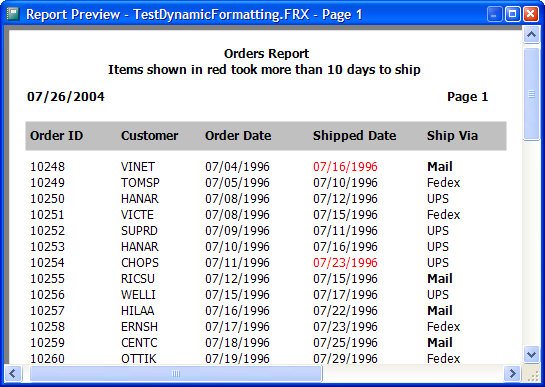
The ORDERDATE field of the TestDynamicFormatting report used in Listing 1 has the directive in the following snippet in its USER memo; it tells EffectsListener that the DynamicForeColorEffect object should adjust the color of the field so it displays in red if the date shipped is more than 10 days after it was ordered or black if not:
*:EFFECTS FORECOLOR = iif(SHIPPEDDATE > ORDERDATE + 10, rgb(255, 0, 0), rgb(0, 0, 0))
The Execute method of DynamicForeColorEffect changes the color of the field by setting the PenRed, PenGreen, and PenBlue properties of the field properties object that was passed to EvaluateContents to the appropriate colors and sets Reload to .T**.,** which tells the report engine that changes were made.
DynamicStyleEffect uses a similar directive to change the font style. The style to use must be a numeric value: 0 is normal, 1 is bold, 2 is italics, and 3 is bold and italics. The SHIPVIA field in the TestDynamicFormatting report has the following directive in USER, which causes the field to display in bold if SHIPVIA is 3 (which, because of the expression for the field, actually displays as Mail) or normal if not:
*:EFFECTS STYLE = iif(SHIPVIA = 3, 1, 0)
DynamicStyleEffect works the same as DynamicForeColorEffect, but changes the Style property of the field properties object.
Running TestDynamicFormatting.PRG results in the output shown in Figure 1.
Custom Rendering
You aren't limited to changing the appearance of a field?you can do just about anything you like in a report listener. The Render method of ReportListener is responsible for drawing each object on the report page. You can override this method to perform various types of output.
A listener that performs custom rendering will almost certainly have to use GDI+ functions to do so.
A listener that performs custom rendering will almost certainly have to use GDI+ functions. GDI+ is a set of hundreds of Windows API functions that perform graphical manipulations and output.
To make it easier to work with GDI+ functions, Visual FoxPro includes _GDIPlus.VCX in the FFC directory. _GDIPlus, which was written by Walter Nicholls of Cornerstone Software in New Zealand, consists of wrapper classes for GDI+ functions, making them both easier to use and object-oriented. The “GDI Plus API Wrapper Foundation Classes” topic in the Visual FoxPro Help file lists these classes and provides a little background about them. This library is a great help in doing GDI+ rendering because you don't have to know much about GDI+ to use them; I certainly don't and yet was able to create the listener class discussed next in just a couple of hours.
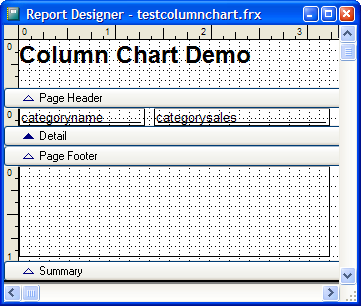
The code shown in Listing 2, taken from TestColumnChart.PRG, runs the TestColumnChart.FRX report, shown in Figure 2, and creates the output shown in Figure 3. Notice how different the output looks than the report layout suggests; the fields and shape don't appear but a column chart graphing the contents of the Category_Sales_For_1997 view in the sample Northwind database does. That's partly due to Print When clauses on the fields that prevent them from printing, but the biggest reason is that the listener class used for this report, ColumnChartListener, replaces the shape object in the Summary band with a column chart. Let's see how this listener does that.
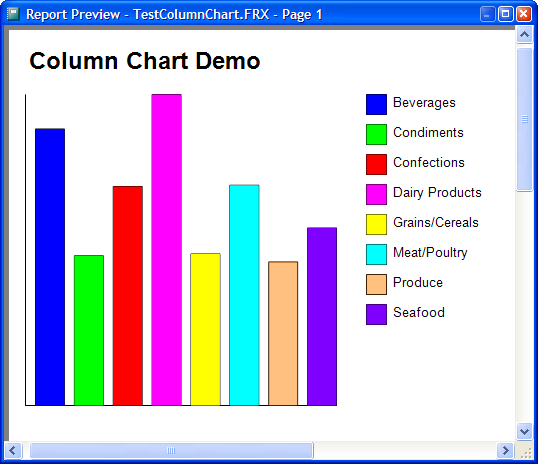
The Init method of ColumnChartListener initializes the aColumnColors array to the color to use for each column in the chart. Note that GDI+ colors are a little different than the values returned by RGB(), so the CreateColor method is used to do the necessary conversion. If you want to use a different set of colors, you can subclass ColumnChartListener or store a different set of colors in the array after you instantiate ColumnChartListener. Note that only eight colors are defined; if there are more than eight columns in the chart, the listener uses the same colors for more than one bar.
The BeforeReport method instantiates a GPGraphics object into the custom oGDIGraphics property. GPGraphics is one of the classes in _GDIPlus.VCX. It and other _GDIPlus classes are used in the DrawColumnChart method to draw the components of the column chart.
GPGraphics needs a handle to the GDI+ surface being rendered to. Fortunately, the listener already has such a handle in its GDIPlusGraphics property. The only complication is that the handle changes on every page, so the BeforeBand method, which fires just before a band is processed, calls the SetHandle method of the GPGraphics object to give it the handle when the title or page header bands are processed.
As the report is processed, the listener needs to determine where the labels and values for the chart come from. It does that in the EvaluateContents method by looking at each field as it's about to be rendered. If the USER memo for the field's record in the FRX contains LABEL (as it does for the CategoryName field), that indicates that this field should be used for the labels for the column chart. DATA in the USER memo (as is the case for the CategorySales field) indicates that the field is used as the values for the chart. As with the EffectListener class I discussed earlier, there isn't a need to check the USER memo more than once, so the same type of mechanism?storing a flag in an array property to indicate whether the field was processed?is used in this class.
If the listener hasn't checked the USER memo for the field being rendered yet, EvaluateContents does that, setting flags in the array indicating whether the field is used for labels or values, and setting the first column of the array to .T. so the FRX record isn't examined again. If the field is used for either labels or fields, EvaluateContents updates the aValues array accordingly.
AdjustObjectSize is similar to EvaluateContents except it fires for shapes rather than fields. AdjustObjectSize checks the USER memo of the FRX record of the current shape for the presence of COLUMNCHART, indicating that this shape is to be replaced by a column chart. As with EvaluateContents, the listener only needs to check once, so it uses similar logic.
The Render method is responsible for drawing an object on the report. If the object about to be drawn is a shape to be replaced with a column chart, it calls the custom DrawColumnChart method followed by NODEFAULT to prevent the shape from being drawn. Otherwise, the object is drawn normally. (Notice there's no DEDEFAULT(); the native behavior is to draw the object, so it isn't required).
DrawColumnChart figures out the maximum of the values being charted so it knows how big to draw the columns, and then it creates some objects from _GDIPlus classes needed to perform the drawing. It calls the DrawLine method to draw the vertical and horizontal borders for the chart, and then goes through the aValues array, drawing a column for each value using DrawRectangle and filling it with the appropriate color via FillRectangle. DrawColumnChart adds a box and label to the legend for the chart using the same DrawRectangle and FillRectangle methods for the box and DrawStringA for the label.
Some drawing attributes come from values in custom properties, making charting more flexible. For example, cLegendFontName and nLegendFontSize specify the font and size to use for the legend label, and nLegendBoxSize specifies the size of box to draw. See the comments for these properties near the start of the Listing 2.
Summary
Microsoft has blown the lid off the Visual FoxPro reporting system! By passing report events to ReportListener objects, they've allowed us to react to these events to do just about anything we wish, from providing different types of output to dynamically changing the way objects are rendered. I can hardly wait to see the type of things the Visual FoxPro community does with these new features.
Listing 1: TestDynamicFormatting.PRG shows that the EvaluateContents method of ReportListener can change the way a field appears in a report.
use _samples + 'Northwind\Orders'
loListener = createobject('EffectsListener')
loListener.OutputType = 1
report form TestDynamicFormatting.FRX preview object loListener

* Define a class that knows how to apply effects to objects in a
* report.

define class EffectsListener as _ReportListener of ;
  home() + 'ffc\_ReportListener.vcx'

  oEffectHandlers = .NULL.
    && a collection of effect handlers
  dimension aRecords[1]
    && an array of information for each record in the FRX

* Create a collection of effect handler objects and fill it with
* the handlers we know about. A subclass or instance could be
* filled with additional ones.

  function Init
    dodefault()
    with This
      .oEffectHandlers = createobject('Collection')
      .oEffectHandlers.Add(createobject('DynamicForeColorEffect'))
      .oEffectHandlers.Add(createobject('DynamicStyleEffect'))
    endwith
  endfunc

* Dimension aRecords to as many records as there are in the FRX so
* we don't have to redimension it as the report runs. The first
* column indicates if we've processed that record in the FRX yet
* and the second column contains a collection of effect handlers
* used to process the record.

  function BeforeReport
    dodefault()
    with This
      .SetFRXDataSession()
      dimension .aRecords[reccount(), 2]
      .ResetDataSession()
    endwith
  endfunc

* Apply any effects that were requested to the field about to be
* rendered.

  function EvaluateContents(tnFRXRecno, toObjProperties)
    local loEffectObject, ;
      loEffectHandler, ;
      lcExpression
    with This

* If we haven't already checked if this field needs any effects, do
* so and flag that we have checked it so we don't do it again.

      if not .aRecords[tnFRXRecno, 1]
        .aRecords[tnFRXRecno, 1] = .T.
        .aRecords[tnFRXRecno, 2] = ;
          .SetupEffectsForObject(tnFRXRecno)
      endif not .aRecords[tnFRXRecno, 1]

* Go through the collection of effect handlers for the field (the
* collection may be empty if the field doesn't need any effects),
* letting each one do its thing.

      for each loEffectObject in .aRecords[tnFRXRecno, 2]
        loEffectHandler = loEffectObject.oEffectHandler
        lcExpression    = loEffectObject.cExpression
        loEffectHandler.Execute(toObjProperties, lcExpression)
      next loEffect
    endwith

* Do the normal behavior.

    dodefault(tnFRXRecno, toObjProperties)
  endfunc

* Go through each effect handler to see if it'll handle the current
* report object. If so, add it to a collection of handlers for the
* object, and return that collection.

  function SetupEffectsForObject(tnFRXRecno)
    local loFRX, ;
      loHandlers, ;
      loObject
    with This
      .SetFRXDataSession()
      go tnFRXRecno
      scatter memo name loFRX
      .ResetDataSession()
      loHandlers = createobject('Collection')
      for each loEffectHandler in .oEffectHandlers
        loObject = loEffectHandler.GetEffect(loFRX)
        if vartype(loObject) = 'O'
          loHandlers.Add(loObject)
        endif vartype(loObject) = 'O'
      next loEffectHandler
    endwith
    return loHandlers
  endfunc
enddefine

* Create a class that holds a reference to an effect handler and
* the expression the effect handler is supposed to act on for a
* particular record in the FRX.

define class EffectObject as Custom
  oEffectHandler = .NULL.
  cExpression    = ''
enddefine

* Define an abstract class for effect handler objects.

define class EffectHandler as Custom

* Execute is called by the EvaluateContents method of
* EffectsListener to perform an effect.

  function Execute(toObjProperties, toFRX)
  endfunc

* GetEffects is called to return an object containing a reference
* to the handler and the expression it's supposed to work on if the
* specified report object needs this effect, or return null if not.

  function GetEffect(toFRX)
    local loObject
    loObject = .NULL.
    return loObject
  endfunc

* EvaluateExprssion may be called by Execute to evaluate the
* specified expression.

  function EvaluateExpression(tcExpression)
    return evaluate(tcExpression)
  endfunc
enddefine

* Define an abstract class for effect handlers that look for
* "*:EFFECTS <effectname> = <effectexpression>" in the USER memo.

define class UserEffectHandler as EffectHandler
  cEffectsDirective = '*:EFFECTS'
    && the directive that indicates an effect is needed
  cEffectName       = ''
    && the effect name to look for (filled in in a subclass)

  function GetEffect(toFRX)
    local lcEffect, ;
      laLines[1], ;
      lnRow, ;
      lcLine, ;
      lnPos, ;
      loObject
    lcEffect = This.cEffectsDirective + ' ' + This.cEffectName
    if atc(lcEffect, toFRX.User) > 0
      alines(laLines, toFRX.User)
      lnRow    = ascan(laLines, lcEffect, -1, -1, 1, 13)
      lcLine   = laLines[lnRow]
      lnPos    = at('=', lcLine)
      loObject = createobject('EffectObject')
      loObject.oEffectHandler = This
      loObject.cExpression    = alltrim(substr(lcLine, lnPos + 1))
    else
      loObject = .NULL.
    endif atc(lcEffect, toFRX.User) > 0
    return loObject
  endfunc
enddefine

* Define a class to provide dynamic forecolor effects.

define class DynamicForeColorEffect as UserEffectHandler
  cEffectName = 'FORECOLOR'

* Evaluate the expression. If the result is a numeric value and
* doesn't match the existing color of the object, change the
* object's color and set the Reload flag to .T.

  function Execute(toObjProperties, tcExpression, toFRX)
    local lnColor, ;
      lnPenRed, ;
      lnPenGreen, ;
      lnPenBlue
    lnColor = This.EvaluateExpression(tcExpression)
    if vartype(lnColor) = 'N'
      lnPenRed   = bitand(lnColor, 0x0000FF)
      lnPenGreen = bitrshift(bitand(lnColor, 0x00FF00),  8)
      lnPenBlue  = bitrshift(bitand(lnColor, 0xFF0000), 16)
      if toObjProperties.PenRed <> lnPenRed or ;
        toObjProperties.PenGreen <> lnPenGreen or ;
        toObjProperties.PenBlue <> lnPenBlue
        with toObjProperties
          .PenRed   = lnPenRed
          .PenGreen = lnPenGreen
          .PenBlue  = lnPenBlue
          .Reload   = .T.
        endwith
      endif toObjProperties.PenRed <> lnPenRed ...
    endif vartype(lnColor) = 'N'
  endfunc
enddefine

* Define a class to provide dynamic style effects.

define class DynamicStyleEffect as UserEffectHandler
  cEffectName = 'STYLE'

* Evaluate the expression. If the result is a numeric value and
* doesn't match the existing style of the object, change the
* object's style and set the Reload flag to .T.

  function Execute(toObjProperties, tcExpression, toFRX)
    local lnStyle
    lnStyle = This.EvaluateExpression(tcExpression)
    if vartype(lnStyle) = 'N' and ;
      toObjProperties.FontStyle <> lnStyle
      toObjProperties.FontStyle = lnStyle
      toObjProperties.Reload    = .T.
    endif vartype(lnStyle) = 'N' ...
  endfunc
enddefine
Listing 2: TestColumnChart.PRG shows how you can do custom rendering in a report to produce a column chart.
* Define some constants we'll use.

#define FRX_OBJCOD_TITLE          0 && OBJCODE for title band
#define FRX_OBJCOD_PAGEHEADER     1 && OBJCODE for page header band
#define GDIPLUS_FontStyle_Regular 0 && GDI+ font style: regular
#define GDIPLUS_Unit_Point        3 && GDI+ units: points

* Open the data for the report.

close databases all
open database _samples + 'Northwind\Northwind'
use Category_Sales_For_1997

* Create the listener and run the report.

loListener = createobject('ColumnChartListener')
loListener.OutputType = 1
report form TestColumnChart object loListener

* The ColumnChartListener class.

define class ColumnChartListener as _ReportListener of ;
  home() + 'ffc\_ReportListener.vcx'

  oGDIGraphics = .NULL.
    && reference to GPGraphics _GDIPlus object
  dimension aRecords[1]
    && array of flags for each FRX record
  dimension aValues[1]
    && array of labels and values to chart
  nCurrentRow = 0
    && current row being processed in aValues
  dimension aColumnColors[1]
    && array of column colors

  nSpacing           = 100
    && space between columns
  nLegendSpacing     = 300
    && spacing between the chart and its legend
  nLegendBoxSize     = 200
    && the size of a legend box
  nLegendBoxSpacing  = 100
    && the spacing between items in the legend
  nLegendTextSpacing = 50
    && the spacing between boxes and text in the legend
  cLegendFontName    = 'Arial'
    && font name for legend text
  nLegendFontSize    = 10
    && font size for legend text

* Set the colors for the various columns.

  function Init
    with This
      dimension .aColumnColors[8]
      .aColumnColors[1] = .CreateColor(rgb(  0,   0, 255))
        && Blue
      .aColumnColors[2] = .CreateColor(rgb(  0, 255,   0))
        && Green
      .aColumnColors[3] = .CreateColor(rgb(255,   0,   0))
        && Red
      .aColumnColors[4] = .CreateColor(rgb(255,   0, 255))
        && Magenta
      .aColumnColors[5] = .CreateColor(rgb(255, 255,   0))
        && Yellow
      .aColumnColors[6] = .CreateColor(rgb(  0, 255, 255))
        && Cyan
      .aColumnColors[7] = .CreateColor(rgb(255, 128,   0))
        && Orange
      .aColumnColors[8] = .CreateColor(rgb(128,   0, 255))
        && Purple
    endwith
    dodefault()
  endfunc

* Do some setup tasks before the report starts.

  function BeforeReport
    dodefault()
    with This

* Create a GPGraphics object so we can do GDI+ drawing.

      .oGDIGraphics = newobject('GPGraphics', ;
        home() + 'ffc\_GDIPlus.vcx')

* Dimension aRecords to as many records as there are in the FRX so
* we don't have to redimension it as the report runs. The first
* column indicates if we've processed that record in the FRX yet,
* the second column is .T. for a Column chart object, the third
* column is .T. for a field containing values for chart labels, and
* the fourth column is .T. for a field containing values for the
* chart data.

      .SetFRXDataSession()
      dimension .aRecords[reccount(), 4]
      .ResetDataSession()
    endwith
  endfunc

* Because the GDI+ plus handle changes on every page, we need to
* set our SharedGDIPlusGraphics property appropriately and set the
* handle for our GPGraphics object.

  function BeforeBand(tnBandObjCode, tnFRXRecNo)
    with This
      if inlist(tnBandObjCode, FRX_OBJCOD_PAGEHEADER, ;
        FRX_OBJCOD_TITLE)
        if not .IsSuccessor
           .SharedGDIPlusGraphics = .GDIPlusGraphics
        endif not .IsSuccessor
        .oGDIGraphics.SetHandle(.SharedGDIPlusGraphics)
      endif inlist(tnBandObjCode ...
      dodefault(tnBandObjCode, tnFRXRecNo)
    endwith
  endfunc

* Return a SCATTER NAME object for the specified record in the FRX.

  procedure GetReportObject(tnFRXRecno)
    local loObject
    This.SetFRXDataSession()
    go tnFRXRecno
    scatter memo name loObject
    This.ResetDataSession()
    return loObject
  endproc

* Handle a shape to see if it's a column chart.

  procedure AdjustObjectSize(tnFRXRecno, toObjProperties)
    local loObject
    with This

* If we haven't already checked if this object is a column chart,
* find its record in the FRX and see if its USER memo contains
* "COLUMNCHART". Then flag that we have checked it so we don't do
* it again.

      if not .aRecords[tnFRXRecno, 1]
        loObject = .GetReportObject(tnFRXRecno)
        .aRecords[tnFRXRecno, 1] = .T.
        .aRecords[tnFRXRecno, 2] = atc('COLUMNCHART', ;
          loObject.User) > 0
      endif not .aRecords[tnFRXRecno, 1]

* If this is supposed to be a column chart, make its width the same
* as its height.

      if .aRecords[tnFRXRecno, 2]
        toObjProperties.Height = toObjProperties.Width
        toObjProperties.Reload = .T.
      endif .aRecords[tnFRXRecno, 2]
    endwith
  endproc

* Handle a field to see if it's involved in the column chart.

  procedure EvaluateContents(tnFRXRecno, toObjProperties)
    local loObject, lcText, lnRow
    with This

* If we haven't already checked if this object is involved in the
* column chart, find its record in the FRX and see if its USER memo
* contains "LABEL" or "VALUE". Then flag that we have checked it so
* we don't do it again.

      if not .aRecords[tnFRXRecno, 1]
        loObject = .GetReportObject(tnFRXRecno)
        .aRecords[tnFRXRecno, 1] = .T.
        .aRecords[tnFRXRecno, 3] = atc('LABEL', loObject.User) > 0
        .aRecords[tnFRXRecno, 4] = atc('DATA',  loObject.User) > 0
      endif not .aRecords[tnFRXRecno, 1]

* Get the value for the field, then decide what to do with it.

      lcText = toObjProperties.Text
      do case

* If this is a label, ensure it's in our array.

        case .aRecords[tnFRXRecno, 3]
          lnRow = ascan(.aValues, lcText, -1, -1, 1)
          if lnRow = 0
            lnRow = iif(empty(.aValues[1]), 1, ;
              alen(.aValues, 1) + 1)
            dimension .aValues[lnRow, 2]
            .aValues[lnRow, 1] = lcText
            .aValues[lnRow, 2] = 0
          endif lnRow = 0
          .nCurrentRow = lnRow

* If this is a data value, add it to the current total.

        case .aRecords[tnFRXRecno, 4]
          .aValues[.nCurrentRow, 2] = .aValues[.nCurrentRow, 2] + ;
            val(lcText)
      endcase
    endwith
  endproc

* If we're supposed to draw a column chart, do so. Otherwise do the
* normal rendering.

  procedure Render(tnFRXRecno, tnLeft, tnTop, tnWidth, tnHeight, ;
    tnObjectContinuationType, tcContentsToBeRendered, ;
    tiGDIPlusImage)
    with This
      if .aRecords[tnFRXRecno, 2]
        .DrawColumnChart(tnLeft, tnTop, tnWidth, tnHeight)
        nodefault
      endif .aRecords[tnFRXRecno, 2]
    endwith
  endproc

  procedure DrawColumnChart(tnLeft, tnTop, tnWidth, tnHeight)
    local lnMax, lnColumns, lnI, lnColumnWidth, loColumnBrush, ;
      loPen, loFont, loStringFormat, loPoint, loTextBrush, ;
      lnColors, lnColor, lnLeft, lnHeight, lnTop
    with This

* Figure out the highest value and the width of each column.

      lnMax     = 0
      lnColumns = alen(.aValues, 1)
      for lnI = 1 to lnColumns
        lnMax = max(lnMax, .aValues[lnI, 2])
      next lnI
      lnColumnWidth = (tnWidth - (lnColumns * .nSpacing))/lnColumns

* Create _GDIPlus objects we'll need for drawing.

      loColumnBrush  = newobject('GPSolidBrush', ;
        home() + 'ffc\_GDIPlus.vcx')
      loPen          = newobject('GPPen', ;
        home() + 'ffc\_GDIPlus.vcx')
      loFont         = newobject('GPFont', ;
        home() + 'ffc\_GDIPlus.vcx')
      loStringFormat = newobject('GPStringFormat', ;
        home() + 'ffc\_GDIPlus.vcx')
      loPoint        = newobject('GPPoint', ;
        home() + 'ffc\_GDIPlus.vcx')
      loTextBrush    = newobject('GPSolidBrush', ;
        home() + 'ffc\_GDIPlus.vcx')
      loPen.Create(.CreateColor(0))  && Black
      loFont.Create(.cLegendFontName, .nLegendFontSize, ;
        GDIPLUS_FontStyle_Regular, GDIPLUS_Unit_Point)

* Draw the border for the column chart.

      .oGDIGraphics.DrawLine(loPen, tnLeft, tnTop, tnLeft, ;
        tnTop + tnHeight)
      .oGDIGraphics.DrawLine(loPen, tnLeft, tnTop + tnHeight, ;
        tnLeft + tnWidth, tnTop + tnHeight)

* Draw the column.

      lnColors = alen(.aColumnColors)
      for lnI = 1 to lnColumns
        lnColor = (lnI - 1) % lnColors + 1
        loColumnBrush.Create(.aColumnColors[lnColor])
        lnLeft   = tnLeft + lnI * .nSpacing + ;
          (lnI - 1) * lnColumnWidth
        lnHeight = tnHeight/lnMax * .aValues[lnI, 2]
        lnTop    = tnTop + tnHeight - lnHeight
        .oGDIGraphics.DrawRectangle(loPen, lnLeft, lnTop, ;
          lnColumnWidth, lnHeight)
        .oGDIGraphics.FillRectangle(loColumnBrush, lnLeft, lnTop, ;
          lnColumnWidth, lnHeight)

* Draw the legend for the column.

        lnLeft = tnLeft + tnWidth + .nLegendSpacing
        lnTop  = tnTop + (lnI - 1) * (.nLegendBoxSize + ;
          .nLegendBoxSpacing)
        .oGDIGraphics.DrawRectangle(loPen, lnLeft, lnTop, ;
          .nLegendBoxSize, .nLegendBoxSize)
        .oGDIGraphics.FillRectangle(loColumnBrush, lnLeft, lnTop, ;
          .nLegendBoxSize, .nLegendBoxSize)
        lnLeft = lnLeft + .nLegendBoxSize + .nLegendTextSpacing
        loPoint.Create(lnLeft, lnTop)
        loTextBrush.Create(.CreateColor(0)) && Black
        .oGDIGraphics.DrawStringA(.aValues[lnI, 1], loFont, ;
          loPoint, loStringFormat, loTextBrush)
      next lnI
    endwith
  endproc

* GDI+ colors are represented by a number as 0xAARRGGBB, where AA
* is the alpha, RR is the red, GG is the green, and BB is the blue.
* Unfortunately, the VFP RGB() function gives us 0xBBGGRR, so we
* need to add the alpha component and reverse the red and blue
* component positions.

  procedure CreateColor(tnRGB, tnAlpha)
    local lnAlpha
    lnAlpha = iif(pcount() = 1, 255, tnAlpha)
    return bitlshift(lnAlpha, 24) + bitand(tnRGB, 0x00FF00) + ;
      bitlshift(tnRGB, 16) + bitrshift(tnRGB, 16)
  endproc
enddefine
Table 1: Some useful properties of the ReportListener class.
| Property | Description |
|---|---|
| CurrentDataSession | The data session ID for the report's data |
| FRXDataSession | The data session ID for the FRX cursor |
| GDIPlusGraphics | The handle for the GDI+ graphics object used for rendering |
| ListenerType | The type of report output the listener produces. The default is -1, which specifies no output, so you'll need to change this to a more reasonable value. The values are the same as those specified in the OBJECT TYPE clause of the REPORT command. |
| OutputPageCount | The number of pages rendered |
| QuietMode | .T. (the default is .F.) to suppress progress information |
Table 2: Some useful events and methods of the ReportListener class.
| Event/Method | Description |
|---|---|
| LoadReport | Fires before the FRX is loaded and the printer spool is opened |
| UnloadReport | Fires after the report has been run |
| BeforeReport | Fires after the FRX has been loaded but before the report has been run |
| AfterReport | Fires after the report has been run |
| BeforeBand | Fires before a band is processed |
| AfterBand | Fires after a band is processed |
| EvaluateContents | Fires before a field is rendered |
| Render | Fires as an object is being rendered |
| OutputPage | Outputs the specified rendered page to the specified device |
