


The Process class allows you to gain full control over system processes.
You can start and stop processes and retrieve information about running processes such as the list of loaded modules and the characteristics of the memory occupied. The class also features handy methods to know whether a process is responding or has just exited and with which return code. Programmers also have full control over the style of the window the process runs in. After an overview of the capabilities of the Process class, this article demonstrates how to hide running console processes, monitor their execution, and capture any output. I'll use this strategy to create a sample Compression class to use with WinZip and gzip (popular tools for compressing data).
Have you ever wanted to manage processes in Win32 code? When it comes to this, there's good and bad news. On the good news side, you can do virtually everything you desire, including block your current process waiting for another process to terminate. On the bad news side, you must work with an API that is not one for the faint-hearted. CreateProcess is the one-size-fits-all function that creates a new Win32 process and manages impersonation and security settings. This function has quite a quirky syntax. The Win32 SDK supplies several functions including CreateProcess and OpenProcess that provide the core functionalities. The Win32 SDK provides ToolHelp API, a secondary SDK, but it is not available on all possible combinations of Win32 operating systems. ToolHelp API offers more advanced functions including the capability to list modules and dependencies, capture the memory footprint, and ping process.
The Process class provides access to local and remote processes and enables you to start and stop processes on the local machine. The class represents a superset of the capabilities of the CreateProcess Win32 API.
Nicely enough, .NET groups all these platform services under a single class?the Process class. Whatever you need to do that involves spawning a new process or controlling a running one, you can do from this unique (and rather powerful) entry point.
The Process Class
The Process class provides access to local and remote processes and enables you to start and stop processes on the local machine. The class represents a superset of the capabilities of the CreateProcess Win32 API. In addition, the Process class makes working with running instances of applications particularly easy. For example, you only need a single line of code to start a new process from within a .NET application:
Process.Start("Notepad.exe")
If you need to open a particular document, say, a Word document, it's even easier.
Process.Start("invoice.doc")
In this case, the Process class is smart enough to figure out that the argument is not an executable. It looks up the system registry for a match on the extension (.doc in this case), gets the executable associated with that type of file, and starts it up. This behavior reveals another powerful Win32 API function working under the hood?ShellExecuteEx, which is designed to open a document?be it an executable (that is, an .exe or .bat file), or a document file associated with a program (such as a .txt or a .doc file).
The Process class has both instance and shared (static, if you speak C#) methods. Table 1 lists all the methods exposed by the class. Looking at the table will give you a clear idea of the class' capabilities.
You have two ways to terminate a process?Kill and CloseMainWindow. The former stops execution immediately, whereas the latter simply posts a termination message to the message queue. The Kill method can cause loss of data if it reaches the process at a critical stage. You must use the Kill method if you have to programmatically terminate a program that doesn't have a graphical user interface (such as a console program or a system service). You should always use CloseMainWindow to stop GUI programs.
You may have a programming situation in which you need to spawn an external program and wait for it to terminate. By default, a spawned process runs independently from the parent. To synchronize the two so that the parent resumes when the child has completed, you use the WaitForExit method. WaitForExit is an instance-based method that requires a fresh instance of the Process class to work.
Dim p As New Process
p = Process.Start("notepad.exe")
p.WaitForExit()
The Start method has several overloads; some shared and one instance-based. The instance-based overload doesn't accept parameters. To specify the name of the executable to run, you need to instantiate and fill a class named ProcessStartInfo. Let's discover more about this class and process information in general.
Discover Process Information
A running process has a lot of information to show. In first place, a running process has a unique ID that identifies it throughout its whole lifetime. If the process is a GUI program, it also has a window handle and a title string. On a more technical side, the Process class maintains information about the threads managed by the process and the modules (that is, assemblies and DLLs) loaded. Process class tracks the memory footprint and returns detailed information through a variety of properties. Table 2 lists all the properties available on the Process class.
Since Windows Forms applications support only the single-thread apartment (STA) model, you must ensure that the thread handling the Exited event, and the thread that created the Windows Forms control you want to update, coincide.
The Responding property returns a Boolean value that indicates whether the process is active and working. The value results from a ping operated on the process' main window. Basically, when you attempt to read the value of the property, the property's get accessor sends a Windows message to the window with a timeout of five seconds. It utilizes the SendMessageTimeout Win32 API. If the function times out then the process is considered not responding.
The Process class also fires one event, Exited, when the associated process ends. This event does not automatically fire each and every time a process terminates. If you want to fire this event, turn on the EnableRaisingEvents Boolean property. This property is set to False by default.
If you decide to handle the Exited event, then you probably need to access a Windows Forms control from within the event handler to refresh the user interface. Since Windows Forms applications support only the single-thread apartment (STA) model, you must ensure that the thread handling the Exited event, and the thread that created the Windows Forms control you want to update, coincide. This is not necessarily true by default and can lead to anomalies or even exceptions. To work around this issue, you can set the SynchronizingObject property of the Process class to the Windows Forms control you're mainly interested in (or any control on the same UI form). This guarantees that the application executes the Exited event handler on the same thread managing the form.
To make sense of the methods and properties in Table 1 and Table 2, let's build a sample applet that displays some of the information you normally get through the Windows Task Manager. Listing 1 shows the code that grabs some information about all the currently active processes and populates a ListView control with names, working set, and start time.
The GetProcesses shared method returns an array of Process objects, one per each active process. The code in Listing 1 walks its way through the array and adds an item to a ListView control with the values of the ProcessName, WorkingSet, and StartTime properties. This information, and in particular the working set, corresponds to that displayed by the Windows Task Manager (Figure 1).
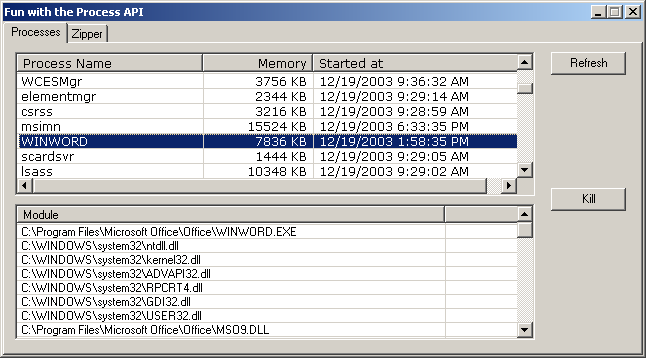
In Figure 1 you also see a second ListView control filled with modules information. An active process consists of various modules?that is, dynamic load libraries that it depends on for some functionality. The Modules property returns a collection of ProcessModule objects, each pointing to a different library or assembly. Listing 2 shows the source code that populates the second ListView control when a process is selected.
Specify Startup Information
When you start a new process, especially if the program is a console program, you need to pass some command line arguments. How do you do that? The Start shared method has an overload that allows you to pass a command line as a string.
Process.Start("notepad.exe", "myfile.txt")
When your application uses a shared overload of the Start method, it always creates a new Process object. If you want to start a new process based on an existing instance of the Process class, you use the instance-based version of the Start method. In this case, though, you can't specify any parameter because the signature of the method doesn't allow it. Any startup information should be specified through the ProcessStartInfo class.
Dim info As New ProcessStartInfo
info.Arguments = args
info.FileName = exe
Dim p As New Process
p.StartInfo = info
p.Start()
The FileName property lets you indicate the name of the executable to spawn. The Arguments property allows you to set the command line string. However, using the ProcessStartInfo class is a bit overkill if you only need to specify the executable and a command line. There are other reasons to use startup information. Table 3 lists the properties of the ProcessStartInfo class.
In the case of redirected output, the Process class accumulates the output into a memory stream instead of just sending it out to the console output. You can then access any byte output through the Process class' StandardOutput property.
The ProcessStartInfo class has a lot of interesting properties. I'll focus on a few of them: CreateNoWindow, Verb, and the three redirecting properties (RedirectStandardError, RedirectStandardInput, and RedirectStandardOutput). The CreateNoWindow Boolean property instructs the Process class not to display a window when executing the program. This is good when you need to run a console process in the background and you don't want that ugly black screen of the MS-DOS console to pop up. To make sure that the console window doesn't show up, you should have the CreateProcess API start the process by setting the UseShellExecute property to false.
Dim info As New ProcessStartInfo
info.Arguments = args
info.FileName = exe
info.CreateNoWindow = True
info.UseShellExecute = False
Dim p As New Process
p.StartInfo = info
p.Start()
Each file in Windows has a context menu, and each context menu has a set of predefined verbs like Open and Print. Windows defines the verbs based on the type of the file (that is, the extension) in the system registry. In the end, a verb is a string; the Verbs property returns an array of strings filled with the verbs found for the type of the file set to the FileName property. Each file type has a default verb?normally Open. When you start a process through the shell (see UseShellExecute), Windows executes its default verb. As I mentioned, in most cases this verb is Open and either the program runs or the document opens. However, be aware that this is a configurable parameter.
Printing from the Shell
You can exploit the built-in support for shell verbs to enrich your applications with functions exposed by other programs. For example, suppose you need to print a text file. .NET has simplified nearly all operations compared to the Win32 platform. Printing is, perhaps, one of the very few exceptions. Even in .NET, writing the code that prints a document is a boring task. If you aren't too pretentious, you can content yourself with the printing engine in Notepad. The Notepad executable accepts the /p switch on command line and prints the specified document.
The shell API provides an interesting shortcut for printing text documents. The .NET Process API fully supports this shortcut through the Verb property. The code snippet below demonstrates how to print a text file using the print verb of the program registered to handle .txt files. By default, this program is notepad.exe.
Dim p As New Process
Dim info As New ProcessStartInfo
info.FileName = "test.txt"
info.Verb = "print"
p.StartInfo = info
p.Start()
This snippet works regardless of which program you have registered on your computer to handle text files. In no way is it dependent on notepad.exe. It fails only if, for some reason, you don't have a program associated with text files. The Verbs collection returns the list of all custom verbs defined on the specified file. A feasible value for the Verb property is any string contained in the Verbs collection.
Note that when you invoke a verb, Windows launches the associated program and has it do some work on the specified file. This means that the text file will first be opened in notepad.exe (or whatever program is associated with .txt files) and then automatically printed using the user interface of the program. If you use verbs, you must ensure that you set UseShellExecute to True.
Capturing Process Output
A console program gets its input from the command line or the standard console input, and sends its output to the standard console output. In addition, it automatically sends error messages to a separate output stream.
Based on the Win32 API capabilities, you can replace the input, output, and error streams with custom streams. For example, suppose you use the following syntax from the console prompt:
program ?h >dump.txt
Any output the executable will generate is automatically redirected to the specified text file. The .NET process API supplies the same functionality through an object-oriented and easy-to-use set of properties. Let's see how to capture the output of a process to a string.
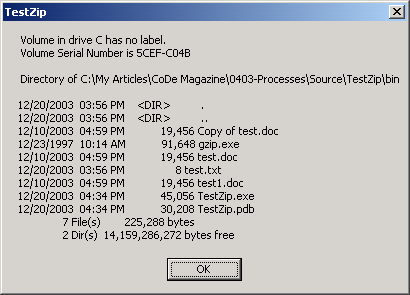
To begin, you must ensure that you've set the RedirectStandardOutput property to True. The default value is false. In the case of redirected output, the Process class accumulates the output into a memory stream instead of just sending it out to the console output. You can then access any byte output through the Process class' StandardOutput property. The following code snippet opens the console box, executes a dir statement, and captures the output. Figure 2 shows the result.
Dim p As New Process
Dim info As New ProcessStartInfo
info.UseShellExecute = False
info.CreateNoWindow = True
info.FileName = "cmd.exe"
info.Arguments = "/c dir *.*"
info.RedirectStandardOutput = True
p.StartInfo = info
p.Start()
p.WaitForExit()
MsgBox (p.StandardOutput.ReadToEnd())
The file name is cmd.exe, which is the system executable for the console box. Notice that the file name and the arguments are separate entities to the Process class. Anything assigned to the FileName property is considered as the file name, including switches and parameters. The /c switch in the argument above indicates that the Command window must be closed immediately after the command terminates. Using the settings for UseShellExecute and CreateNoWindow guarantees that no black window will display, not even for a moment.
When the command has completed, the output stream, a memory stream object, contains all the bytes output by the program. You can read this stream using the classic API of a Stream object. For example, the ReadToEnd method reads all the contents of the stream to a string.
Is there any concrete advantage in running console applications in a hidden window? Well, that depends on what your console program does. If your console program provides an essential feature not otherwise exploitable then this trick sets an important milestone on the way to embedding that functionality into your applications. You know how to execute that program in an invisible window; you know how to configure it through its command line; you know how to capture its output. By adding a bit of parsing on the generated output you can easily figure out what the program did, its results, and return code. To demonstrate this possibility, I'll build a small class for zipping files.
Wrapping Zip Functionalities
The .NET Framework doesn't include any class to compress files. A lot of third-party vendors sell well-designed classes that plug into the .NET Framework and extend it with various flavors of file compression functionality. A few programs are available under various license agreements to zip and unzip files and folders. One of these is gzip (see http://www.gzip.org), a command line tool. Another one is WinZip (see http://www.winzip.com). Unlike gzip, WinZip is a GUI program and doesn't lend itself very well to be used as a background tool. From the WinZip Web site, though, you can download a couple of command line utilities?wzzip and wzunzip. The code snippet below briefly illustrates how to use these tools. (For more information, please refer to each tool's respective documentation.)
gzip source
wzzip source target
wzunzip ?vb source
The gzip utility creates a file with the same name as the source file plus a .gz extension. For example, if you try to zip sample.doc, the tool creates a file called sample.doc.gz. The wzzip utility compresses the source file and creates a new file with the specified name. Finally, the third command line lists the files contained in the specified ZIP file. Let's combine these command lines with the .NET process API to build a new class for zipping files.
Listing 3 shows the source code of the Gzip method on the Compressor class. It takes two strings?source and target?and creates a new file by zipping the source using the gzip utility. For the code to work, the gzip utility must be available in a publicly accessible directory. (For example, you can place gzip in the same directory as the sample program or the Windows directory.)
All instances of the Compressor class share the Gzip method. Calling the Compressor class to zip a file is easy:
Compressor.Gzip(source, target)
The gzip utility doesn't produce any significant output to capture. Because the utility always adds a .gz extension to the source file, I added some extra code to rename the compressed file to the specified name. The Run method encapsulates the logic needed to configure and invoke the Process class.
Listing 4 shows the source code of the Zip method. It uses the wzzip utility to create a familiar .zip file. Note that a .gz file is recognized and successfully handled by WinZip, but not by the default Windows XP extension for ZIP files. The Zip method is simply a wrapper around the Run method (Listing 3).
Compressor.Zip(source, target)
The Zip method compresses the source file using the ZIP algorithm and creates a new file (the target). If the source parameter references a folder, Compressor will zip all the contents (files and subfolders).
The ReadZip method demonstrates how useful capturing output can be. The ReadZip method invokes the wzunzip utility with the ?vb switch and lists all the files contained in the specified ZIP file. The method first captures the output (Figure 3) and then parses it to build a DataTable object. Figure 3 shows the original output of the wzunzip utility.
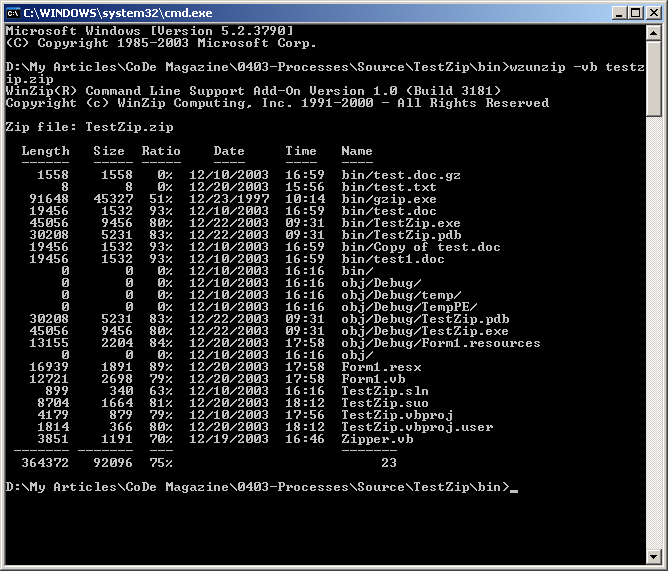
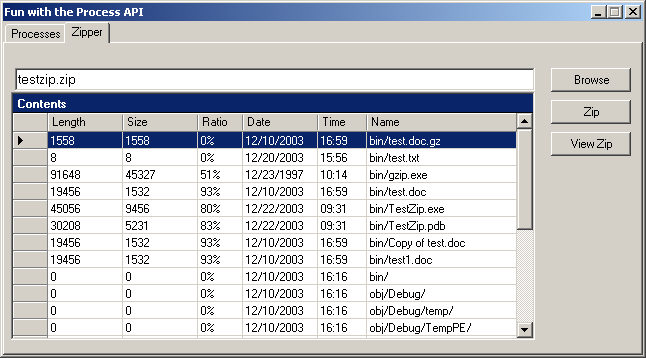
The parsing code depends on the version of the utility you use and it could break if you use a new version of WinZip with a different output schema. This example diagram skips heading and trailing lines and it breaks each line in the listing into pieces using a regular expression to detect blank strings. Note that extracting the file name is a little tricky because a file name can contain blanks. For this reason, my utility retrieves the file name by position. Figure 4 shows the same output post-processed to a DataTable and bound to a DataGrid.
Conclusion
Microsoft designed the process API in the .NET Framework to make programming easier. For many system level tasks, the .NET Framework still heavily relies on the capabilities and the functions of the operating system and the Win32 API. The process API is no exception. However, the abstraction layer that the .NET Framework builds unifies all the various Win32 API functions (CreateProcess, ToolHelp, shell) into a single object-oriented API. I think that programming objects with the Process class is far easier than programming quirky functions with lots of pointers and parameters. Don't you agree?
